Table of Contents >> Show >> Hide
- Before You Start: What “Registering” Really Means (and What You’ll Need)
- Method 1: Register Right on the Device During Setup
- Method 2: Register by Signing In to an Amazon App (or Using a TV Code)
- Method 3: Register (and Manage) Devices from Amazon’s Website
- Troubleshooting: When Registration Won’t Behave
- 1) Check internet first (the boring hero)
- 2) Verify your Amazon sign-in (and watch for two-step verification)
- 3) Update the device software (especially on older Kindles)
- 4) Time and date issues (surprisingly real)
- 5) Account mix-ups: the “who owns this TV?” mystery
- 6) Content limits and device limits (rare, but possible)
- Security and “Future You” Tips (Small Effort, Big Relief)
- Wrap-Up: Pick the Method That Matches Your Device
- Real-World Experiences: What Registration Looks Like Outside a Perfect World (Extra Section)
- Conclusion
New gadget day is supposed to feel like a tiny holiday. You unbox the device, peel the satisfying plastic film,
and imagine all the things you’ll do with itread, stream, listen, shop, pretend you’re “just checking tracking.”
Then Amazon asks you to register the device, and suddenly you’re doing admin work on your own birthday.
Here’s the good news: registering an Amazon device is usually quick, and you’ve got options. Whether you’re
setting up a Kindle, a Fire TV, a Fire tablet, the Prime Video app on a smart TV, or an Amazon app on your phone,
the goal is the same: connect that device or app to your Amazon account so it can access your purchases and services.
Below are three simple ways to register a device on Amazonplus practical troubleshooting tips
(because the Wi-Fi gremlins always show up when you’re hungry), and a longer “real-life” section at the end with
experiences and scenarios people actually run into.
Before You Start: What “Registering” Really Means (and What You’ll Need)
When Amazon says “register,” it usually means linking a device or an app to your Amazon account.
Once registered, the device can sync your digital content (like Kindle books), connect to Amazon services (like Prime Video),
and appear in your account’s device list so you can manage it later.
Quick checklist (60 seconds now saves 60 minutes later)
- Your Amazon login (email/phone + password, or passkey if you use one).
- A stable internet connection (Wi-Fi is the usual suspect).
- Access to the account owner’s phone (helpful for codes, approvals, or two-step verification).
- Device charged enough to finish setup (devices love to “update” at 2% battery).
One more thing: if you bought the device directly through Amazon, it may arrive already tied to the purchasing account.
That’s convenientunless it was a gift, or you bought it secondhand, or you’re switching accounts. In those cases,
you’ll want to confirm what account it’s registered to (Method #3 makes that easy).
Method 1: Register Right on the Device During Setup
This is the classic approach: the device itself walks you through setup, asks you to connect to Wi-Fi, then prompts
you to sign in to Amazon. If everything goes smoothly, you’ll be registered before you’ve even found the remote.
1) Kindle e-readers and Fire tablets
- Turn on the device and choose your language/region (if prompted).
- Connect to Wi-Fi (use a network you trust, and double-check the password).
- When you see Register or Sign In, enter your Amazon account email/phone and password.
Some devices may offer an easier sign-in flow depending on your setup. - Wait for confirmationyou’ll typically land on the home screen once registration completes.
Pro tip for Kindle registration issues: if registration fails, one surprisingly common cause is the device’s time/date
being off or the software needing an update. If your Kindle is acting like it forgot what year it is, fix that first,
then try again.
2) Fire TV devices and Fire TV smart TVs
Fire TV setup usually includes the same essentials: connect the device to your TV, connect to Wi-Fi, then sign in to your Amazon account.
Some Fire TV smart TVs can also use an on-screen code flow during setup (more on that in Method #2).
- Power on and follow on-screen setup prompts.
- Connect to Wi-Fi.
- Sign in with your Amazon account (direct entry or a guided sign-in option).
- Confirm you’re on the correct Amazon accountespecially if multiple people share the TV.
3) Echo / Alexa devices (quick note)
Echo devices are typically registered through the Alexa app during setup. You’ll sign in to the Alexa app with your Amazon account,
then add the device. That registration links the Echo to your Amazon account so it can use Alexa and other services.
When Method #1 is best: brand-new devices, factory-reset devices, or anyone who wants the simplest “follow the prompts” path.
If you can set up a microwave clock, you can do this. (And if you can’t set up a microwave clock… you’re still welcome here.)
Method 2: Register by Signing In to an Amazon App (or Using a TV Code)
This method covers two super common situations:
(1) you’re using an Amazon app (Kindle, Prime Video, Alexa, etc.) on a phone/tablet/TV,
or (2) your TV or streaming device gives you a code (or QR code) to complete sign-in from another device.
Option A: Sign into an Amazon app on the device
For many devices, “registration” is as simple as signing in. If you log into the Prime Video app, Kindle app,
or Alexa app using your Amazon account, that device/app becomes registered to your account in Amazon’s system.
- Install/open the Amazon app you want (Prime Video, Kindle, Alexa, etc.).
- Sign in with your Amazon account.
- Confirm access (your library appears, Prime Video loads, Alexa connects, etc.).
This is especially handy if you’re registering a phone, tablet, or computer app. It’s also a good fallback if your device setup
was interrupted and you just need to re-authenticate.
Option B: Use the “register on the website” code (perfect for smart TVs)
Many smart TVs and streaming devices don’t want you typing your email and password with a remote. (Honestly, same.)
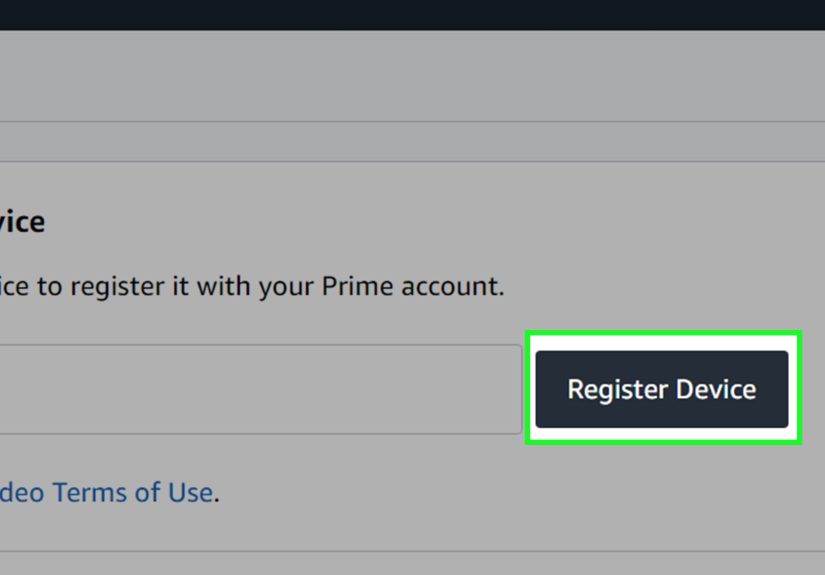
Instead, Prime Video and some Amazon device setups let you pick Register on the Amazon website,
which generates a short code on the TV. You then enter that code on a web page while signed into your Amazon account.
- Open the Prime Video app (or the Amazon sign-in/registration screen on your device).
- Select Register on the Amazon website (wording may vary slightly).
- Your TV/device shows a short 5–6 character code (or sometimes a QR code).
- On your phone/computer, go to the Amazon registration page shown on-screen and enter the code.
(Common official flows include Amazon’s code entry pages or Prime Video’s device linking flow.) - Once accepted, your TV/device should refresh automatically and you’re in.
Some devices also show a QR code or send a mobile prompt to the Prime Video app to simplify sign-in.
If you see that option, take ityour thumbs will thank you.
When Method #2 is best: smart TVs, streaming boxes, game consoles, or any scenario where typing passwords with a remote feels like punishment.
Method 3: Register (and Manage) Devices from Amazon’s Website
Let’s be clear: you generally can’t “magically register” a device from the website if the device hasn’t signed in yet.
But the website is still the best control panel for confirming what’s registered, cleaning up old devices,
troubleshooting, and fixing account mix-ups.
Step 1: Open your device list
On Amazon’s website, go to Manage Your Content and Devices. This is where Amazon lists devices registered
to your account and lets you manage them (rename, deregister, view certain settings, and more).
Step 2: Confirm the device is registered to the correct account
Look for your device name (Kindle, Fire TV, Fire tablet, “Prime Video app on Living Room TV,” etc.). If you see it,
congratsregistration happened. If you don’t, it likely means the device hasn’t signed in with your account yet,
or it’s registered under a different Amazon account.
Step 3: Fix common “wrong account” problems by deregistering
If a device is tied to the wrong account (common with gifts, shared TVs, roommates, or a device you bought used),
the cleanest move is:
- Deregister the device from the wrong account (on the website or in the device/app settings).
- Restart the device/app.
- Register again using Method #1 or #2 with the correct Amazon account.
Deregistering matters because it disconnects the device from your account and stops access to your digital content and services.
It’s also a smart step when you sell, give away, or lose a device.
When Method #3 is best: auditing your account, removing old devices, fixing “why is my mom’s Prime Video showing up on my TV?” situations,
and troubleshooting stubborn registrations.
Troubleshooting: When Registration Won’t Behave
If registration fails, don’t panic. Most issues fall into a handful of predictable bucketslike Wi-Fi problems, account verification,
outdated software, or a device still tied to an old account.
1) Check internet first (the boring hero)
- Restart the device.
- Restart the router if multiple devices are struggling.
- Try a different Wi-Fi band (2.4 GHz vs 5 GHz) if your device supports it.
- Avoid public Wi-Fi that requires a browser “accept” pagesome devices can’t complete that step easily.
2) Verify your Amazon sign-in (and watch for two-step verification)
If you use two-step verification, you may need to approve the sign-in or enter a one-time code. If your device/app offers
a code-based registration screen (Method #2), it can be easier than typing credentials repeatedly.
3) Update the device software (especially on older Kindles)
Older devices can fail registration if the software is outdated. If you see prompts about updates, take them seriously.
It’s not the device being needyit’s the device trying to speak modern internet.
4) Time and date issues (surprisingly real)
Some Kindle registration troubleshooting guidance specifically points out checking that the device shows the correct time
and has current software. If registration keeps failing and everything else looks right, this is worth checking.
5) Account mix-ups: the “who owns this TV?” mystery
If you’re on a shared household TV, it’s easy to end up registered under the wrong Amazon account. The fix is almost always:
deregister (website or device/app settings), then register again with the right account.
6) Content limits and device limits (rare, but possible)
Some Amazon digital content has limits on how many devices can access it at once. If a specific book or video isn’t showing up on a newly registered device,
it may not be a registration problem at allit may be a content licensing/device limit issue. In those cases, removing an older unused device from your account
and trying again can help.
Security and “Future You” Tips (Small Effort, Big Relief)
Rename devices so you can recognize them later
“John’s 3rd Fire TV Stick” is not helpful in an emergency. Rename devices to something human like “Living Room TV” or “Kindle Paperwhite (Blue Case).”
When you’re cleaning up devices later, this saves time and prevents accidental deregistration of the wrong device.
Deregister devices you no longer use
Sold a tablet? Gave a Fire TV Stick to a cousin? Traded in your Kindle? Deregister it. It reduces the chance someone else can access your content,
and it keeps your account tidy.
Turn on stronger sign-in protections
If your Amazon account is tied to lots of devices, it’s worth using stronger login security (like two-step verification, or passkeys where supported)
so a leaked password doesn’t become a whole situation.
Wrap-Up: Pick the Method That Matches Your Device
If you want the simplest approach, start with Method #1 (register during device setup).
If you’re on a smart TV or a streaming device, Method #2 (code/QR registration) is usually the fastest.
And if you need to confirm what’s connectedor clean up old devicesMethod #3 is your command center.
Now, as promised, here’s an extra-long section of real-world experiences related to registering devices on Amazonbecause the internet is full of
perfect instructions, but real life is full of pets stepping on remotes and roommates “just trying to help.”
Real-World Experiences: What Registration Looks Like Outside a Perfect World (Extra Section)
Experience #1: The “gift Kindle” plot twist. Someone gives you a Kindle as a giftnice!but it was purchased on their account, so the device
boots up already feeling oddly familiar with their library. You open the Kindle store and it’s recommending books you definitely didn’t read (or, okay, you did,
but you don’t want to talk about it). In this situation, the fix is typically to deregister the Kindle from the original account and then register it
to yours. Once it’s registered correctly, your own Kindle books sync down, and recommendations return to your personal brand of chaos.
Experience #2: The smart TV password wrestling match. You try to sign into Prime Video on a smart TV using the remote.
Ten minutes later, you’ve typed your email address, your password, and at least one unintended haiku. This is exactly why the code method exists:
choose “Register on the website,” get the short code on-screen, then enter it on your phone. It feels like cheatingbut it’s the intended shortcut,
and it saves your thumbs from a bleak future.
Experience #3: The “wrong account on the living room TV” mystery. Everything works… except the profile shows someone else’s watchlist.
That’s when you realize the TV is registered to a different Amazon accountmaybe a partner, a roommate, or the person who lived in your place before you.
The practical solution is to deregister the Prime Video app (or the device) from that account and register again with the correct one. Bonus tip:
once you’re done, rename the device in your Amazon device list so it’s obvious which TV is which next time you check.
Experience #4: The hotel Fire TV Stick adventure. You bring a Fire TV Stick while traveling because you enjoy comfort and also because
hotel TV menus were designed by someone who dislikes joy. Setup starts fine, but hotel Wi-Fi often requires a browser sign-in page. Sometimes you’ll need to
connect in a way that triggers the sign-in portal, or use a workaround like a travel router. The takeaway: registration isn’t always the problemsometimes the
network setup is the real villain wearing a “Welcome!” badge.
Experience #5: The old device that needs a little TLC. You dust off an older Kindle or Fire tablet and try to register it, but it refuses.
You double-check your password. You restart. You glare at it. Still no. In many cases, older devices need software updates before they can register reliably,
and sometimes even the device time/date being off can contribute to sign-in trouble. Once updated and connected properly, the same account credentials work
and the device goes from “paperweight” back to “book portal.”
Experience #6: The “I have Primewhy isn’t Prime Video working here?” confusion. Registration links a device to your Amazon account,
but content availability can vary based on location, app version, or which profile is active. People often assume registration failed when the real issue
is that they’re in the wrong profile, using a different Amazon account than the one with the subscription, or the app needs updating.
A quick check of the account used to register the device can save a lot of “But I pay for this!” frustration.
Experience #7: The post-cleanup relief. After you register a few devices over timephone, tablet, TV, maybe a second TVyou eventually
visit your Amazon device list and realize it looks like a gadget museum. That’s when Method #3 shines: rename the devices you actually use, deregister
the ones you don’t recognize, and remove anything you sold or gave away. It’s the digital equivalent of cleaning out the junk drawerdeeply satisfying,
slightly alarming, and absolutely worth doing.
Conclusion
Registering a device on Amazon doesn’t have to be a puzzle. Pick the method that matches your situation:
register on the device during setup, sign in through an app or code when typing is painful, and
use Amazon’s website to confirm, organize, and clean up your device list. With those three options in your toolbox,
you’ll spend less time troubleshooting and more time actually using the devicelike streaming, reading, or shopping for “just one thing” that somehow arrives in five boxes.