Table of Contents >> Show >> Hide
- Before You Start: What You’ll Need
- The 10 Steps to Connect Your PS4 to the Internet
- Step 1: Decide Your Connection Type (Wi-Fi or LAN)
- Step 2: Open the Settings Menu on Your PS4
- Step 3: Go to Network Settings
- Step 4: Make Sure “Connect to the Internet” Is Enabled
- Step 5: Select “Set Up Internet Connection”
- Step 6: Choose “Use Wi-Fi” or “Use a LAN Cable”
- Step 7: Pick “Easy” Setup (Most People Should)
- Step 8: Connect (Wi-Fi Password Time) or Confirm LAN
- Step 9: Test the Connection (and Read the Results Like a Pro)
- Step 10: Fix NAT Type and Party Chat Problems (Without Summoning Network Demons)
- Troubleshooting: When Your PS4 Still Won’t Connect
- Conclusion: You’re OnlineNow Go Be Legendary
- Real-World Connection Experiences (and What They Teach You)
Whether you’re trying to download a massive game update, hop into online multiplayer, or just prove to your friends that your console does, in fact, leave the house sometimesgetting your PS4 online is step one. The good news: Sony made it pretty painless. The slightly-less-good news: Wi-Fi passwords have a mysterious talent for becoming “incorrect” the moment you type them on a console.
In this guide, you’ll learn how to connect a PlayStation 4 to the internet using Wi-Fi or Ethernet, how to test your connection, and what to do when your PS4 says “Nope” and gives you a NAT type that feels like a personal insult.
Before You Start: What You’ll Need
- Your Wi-Fi network name (SSID) and password (a.k.a. the “please don’t make me call my roommate” info)
- A router/modem with internet access (sounds obvious, but… we’ve all been there)
- An Ethernet cable (optional, but highly recommended for stability and faster downloads)
- 5 minutes (or 20 minutes if your password contains ancient runes)
Wi-Fi vs. Ethernet: Which Should You Choose?
If your PS4 sits close to your router, Ethernet (LAN) is usually the best option: it’s stable, consistent, and tends to reduce lag spikes. If a cable run would require drilling through a wall or negotiating with a pet that hates cords, Wi-Fi is perfectly fineespecially on a strong 5 GHz network.
The 10 Steps to Connect Your PS4 to the Internet
Step 1: Decide Your Connection Type (Wi-Fi or LAN)
First, choose your adventure: Use Wi-Fi if you want wireless convenience, or Use a LAN Cable if you want performance and fewer “Why is my ping doing parkour?” moments.
Pro tip: If you’re troubleshooting connection issues, switching to Ethernet even temporarily can help you tell whether the problem is your Wi-Fi signal or something else.
Step 2: Open the Settings Menu on Your PS4
From the PS4 home screen, scroll up to the top row, then move to Settings (the toolbox icon). Press X.
Step 3: Go to Network Settings
In Settings, scroll down and select Network. This is PS4’s internet command center.
Step 4: Make Sure “Connect to the Internet” Is Enabled
Inside Network, check the box for Connect to the Internet. If it’s unchecked, your PS4 is basically in airplane mode (without the fun snacks).
Step 5: Select “Set Up Internet Connection”
Choose Set Up Internet Connection. You’ll now pick between Wi-Fi and a LAN cable.
Step 6: Choose “Use Wi-Fi” or “Use a LAN Cable”
- Use Wi-Fi for wireless setup
- Use a LAN Cable if your Ethernet cable is plugged from your router/modem to the PS4
If you chose LAN but forgot to plug in the cable, your PS4 will politely (and correctly) refuse to proceed.
Step 7: Pick “Easy” Setup (Most People Should)
For the fastest setup, choose Easy. This lets the PS4 automatically configure IP address settings, DNS, MTU, and proxy options in the backgroundlike a helpful robot but without the ominous sci-fi soundtrack.
When would you NOT choose Easy? If you need a static IP, custom DNS, a specific MTU, or you’re setting up something like a proxy or special network requirements. (We’ll cover those in Step 9.)
Step 8: Connect (Wi-Fi Password Time) or Confirm LAN
If You’re Using Wi-Fi
- Select your network name (SSID) from the list.
- Enter the Wi-Fi password carefully.
- Confirm and continue.
If your router supports it, you may also see a WPS option. It can be convenient, but for security and reliability, most people stick with the password method.
If You’re Using a LAN Cable
After selecting Use a LAN Cable and Easy, your PS4 typically configures itself automatically. If you have a niche internet setup that requires PPPoE, you’ll see an option for thatotherwise, Automatic is the move.
Step 9: Test the Connection (and Read the Results Like a Pro)
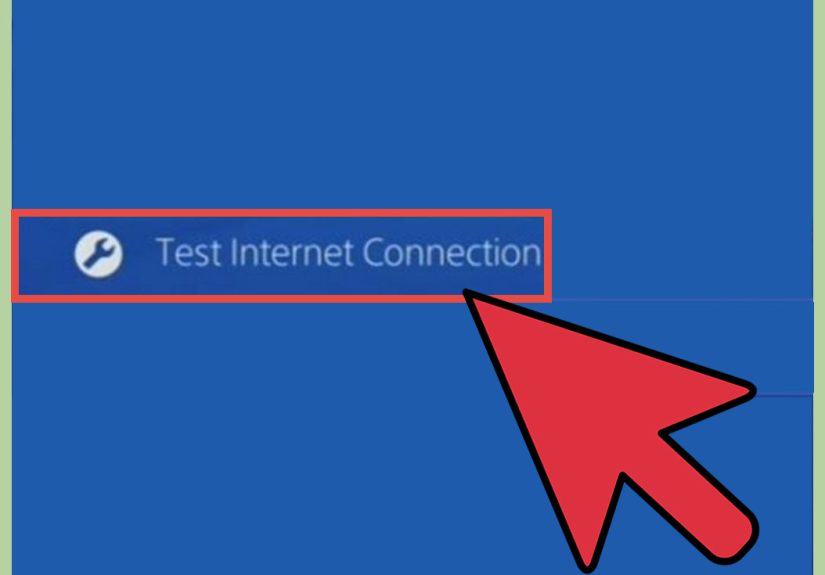
Once setup finishes, go back to Network and choose Test Internet Connection. You’ll usually see results like:
- Obtain IP Address (your PS4 is talking to your router)
- Internet Connection (your router is talking to the outside world)
- PlayStation Network Sign-In (PSN is reachable)
- NAT Type (how strict your connection is for online play/party chat)
- Download Speed / Upload Speed (use as a rough estimate, not a sacred prophecy)
Common “Uh-Oh” Outcomes
- PSN Sign-In fails: PSN may be down or having issuescheck PSN status before you blame your router.
- NAT Type 3: Online games and party chat may struggle. You’ll likely want Step 10.
- Slow speeds: Try Ethernet, reduce Wi-Fi interference, or tweak settings in Step 9B below.
Step 9B: Optional “Custom” Tweaks (DNS, MTU, Proxy) for Stubborn Networks
If your PS4 connects but performs like it’s sending data by carrier pigeon, try Set Up Internet Connection again, but choose Custom instead of Easy. Here are the settings people most often adjust:
- DNS Settings: If your ISP DNS is flaky, switching to a public DNS can improve reliability. Popular choices include Google DNS (8.8.8.8 / 8.8.4.4), Cloudflare (1.1.1.1 / 1.0.0.1), or OpenDNS (208.67.222.222 / 208.67.220.220).
- MTU Settings: Leave it on Automatic unless you have a specific reason. MTU tweaks can help in edge cases but can also create new problems if guessed randomly.
- Proxy Server: Most home users should select Do Not Use. Proxies are typically only useful in special network environments (schools, hotels, certain download setups).
After changing anything, run Test Internet Connection again. Think of it as “Measure twice, rage-quit never.”
Step 10: Fix NAT Type and Party Chat Problems (Without Summoning Network Demons)
If your connection test shows NAT Type 3 or you can’t join parties, connect to certain lobbies, or host games reliably, your router may be blocking inbound traffic.
Start Simple
- Restart your modem/router and PS4 (yes, it works more than it should).
- Use Ethernet if possible.
- Avoid double NAT: If you have a modem/router combo plus a second router, you may be “NAT-ing twice.” Consider using bridge mode or one router only.
Then Try Router Features (in this order)
- Enable UPnP on your router (often the easiest fix for consoles).
- Port forwarding (more manual, but effective): Common PlayStation Network-related ports often include TCP 80, 443, 3478–3480 and UDP 3478–3479. Some games and services may require additional ports.
- DMZ (last resort): Placing the PS4 in a DMZ can reduce restrictions, but it’s less ideal from a security standpoint. If you go this route, consider using it temporarily while you fine-tune proper forwarding/UPnP.
Once you make router changes, rerun Test Internet Connection and check whether NAT improves (many players aim for NAT Type 2 for smooth online play).
Troubleshooting: When Your PS4 Still Won’t Connect
1) Confirm the Internet Works on Other Devices
If your phone can’t load a webpage either, your PS4 isn’t the villainyour internet connection is. Restart your modem/router, check for outages, and confirm you’re actually online.
2) Re-enter the Wi-Fi Password (Yes, Again)
Wi-Fi passwords are case-sensitive. If your router uses a label sticker password, make sure you’re not confusing “O” with “0” or “I” with “l.” Those characters are basically identical in the wild.
3) Reduce Wi-Fi Interference
Move your PS4 closer to the router, or move the router to a more open area. Thick walls, metal shelves, and that aquarium you love can all weaken signal. If your router offers both 2.4 GHz and 5 GHz bands, try 5 GHz for speed (shorter range) or 2.4 GHz for range (more congestion).
4) Try Ethernet to Isolate the Problem
If Ethernet works but Wi-Fi doesn’t, the issue is likely wireless signal, interference, or router settingsnot PSN and not your PS4 hardware.
5) Check PSN Status
If everything else looks fine but PSN sign-in fails, PSN may be experiencing issues. When PSN is down, your PS4 can feel like it’s grounded.
Conclusion: You’re OnlineNow Go Be Legendary
Connecting your PS4 to the internet is usually a quick run through Settings > Network > Set Up Internet Connection, followed by a connection test to confirm you’re good to go. If things get weird, switching to Ethernet, adjusting DNS, and addressing NAT issues (UPnP/port forwarding) solves the majority of real-world problems.
Bottom line: your console wants to be online. Sometimes your router just needs a gentle pep talk (or a reboot).
Real-World Connection Experiences (and What They Teach You)
Let’s talk about the part nobody puts on the box: connecting a PS4 to the internet is easy… until it isn’t. Not because the PS4 is complicated, but because home networks are like familieseveryone has their own setup, their own rules, and at least one member who refuses to cooperate. Here are some very common, very relatable scenarios and what you can learn from them.
The “I Swear This Password Works” Moment
A classic: you type the Wi-Fi password and the PS4 rejects it like you tried to pay for pizza with Monopoly money. In real life, this is usually one of three things: (1) the password has changed, (2) the router label password isn’t the current password, or (3) you accidentally entered a character wrong. Consoles are unforgiving. They don’t care that “it worked on my phone.” The practical lesson: when in doubt, pull up your router’s admin page (or app), confirm the exact password, and type it slowly. If your network name and password are long, consider setting up a guest Wi-Fi network just for consoles easier to type, easier to manage, and it keeps your smart fridge from judging your gaming schedule.
The Dorm/Apartment “Wi-Fi Traffic Jam”
If you live in an apartment building, you’ve probably seen 35 networks with names like “FBI_Surveillance_Van_2.4GHz.” That congestion can cause slow speeds, random drops, and lag that appears precisely when the match is on the line. People often fix this by switching to 5 GHz (if the router supports it) or moving the PS4 closer to the router. The bigger lesson: internet speed isn’t just “how many Mbps you pay for,” it’s also about signal quality and interference. If you can’t move things, Ethernet becomes the herobecause it doesn’t care how many neighbor routers are screaming.
The Hotel Wi-Fi “Captive Portal” Trap
Hotels love a login page: “Agree to Terms,” “Enter Room Number,” “Sell Your Soul,” etc. The PS4 isn’t great at handling captive portals because it’s not a laptop with a full browser experience. The workaround that people use in real life is to travel with a small travel router or connect through a device that can authenticate on the captive portal, then share the connection. The lesson: public Wi-Fi isn’t designed with consoles in mind. If you travel a lot and want a reliable setup, a travel router can save you from shouting at a hotel TV at midnight like it personally invented captive portals.
The “My Downloads Are Slow but My Internet Is Fast” Mystery
Someone runs a speed test on their phone and gets a huge number. Then the PS4 download crawls. A few real-world reasons: your PS4 might be on Wi-Fi with interference, PSN/CDN traffic may be busy, or your home network is being used by other devices (streaming, backups, video calls). People often get big improvements by switching to Ethernet, pausing/restarting downloads, downloading in Rest Mode, or ensuring the router isn’t ancient. Lesson: a single speed test doesn’t guarantee real-world download performance. Optimize the path (Ethernet), reduce competition (limit other heavy usage), and let the console download when you’re not actively using bandwidth.
The NAT Type Drama (Party Chat’s Favorite Plot Twist)
The most frustrating “everything looks fine” problem is NAT. The PS4 connects, the store loads, but party chat fails or certain games refuse to matchmake. In real households, this happens when routers block inbound connections or when there’s double NAT (two routers doing NAT at the same time). The fix path is usually simple: enable UPnP first, then port forward if needed, then consider reworking the network so only one router is doing the routing. Lesson: NAT issues aren’t “a PS4 problem.” They’re a home network configuration problemand once you fix it, everything online becomes smoother, not just gaming.
If you take one thing from all these experiences, let it be this: most PS4 internet issues are solvable with methodical steps. Switch to Ethernet to isolate Wi-Fi problems, test the connection to read what’s failing, and only then start tweaking DNS, router settings, and NAT features. Your future selfcalm, connected, and not retyping passwordswill thank you.