Table of Contents >> Show >> Hide
- Why Duplicate Text Happens in Word
- Step 1: Save a Backup and Turn On Formatting Marks
- Step 2: Identify the Exact Kind of Duplicate
- Step 3: Use Find and Replace for Exact Duplicate Text
- Step 4: Remove Duplicate Blank Lines and Repeated Paragraph Marks
- Step 5: Sort One-Item-Per-Line Lists So Duplicates Appear Together
- Step 6: Use Wildcards for Repeated Patterns, Not Just Exact Text
- Step 7: Compare Documents or Use a Macro for Large-Scale Cleanup
- Common Mistakes to Avoid When Deleting Duplicates in Word
- A Practical Example: Cleaning a Messy Pasted List
- Real-World Experiences With Duplicate Text in Word
- Conclusion
If you have ever opened a Microsoft Word document and thought, “Why is this sentence here twice, and why is this paragraph apparently cloning itself like a low-budget sci-fi movie?” you are not alone. Duplicate text in Word is one of those small problems that can become a giant headache fast. It often shows up after copy-and-paste marathons, messy collaboration, version merging, OCR cleanup, or importing content from email, PDFs, websites, and spreadsheets.
The tricky part is this: Word is a word processor, not a spreadsheet. So while Excel gives you a shiny Remove Duplicates button, Word makes you work a little smarter. The good news is that you can delete duplicates in Word without losing your mind, your formatting, or your lunch break. You just need the right method for the type of duplicate you are dealing with.
In this guide, you will learn seven practical steps to remove duplicate words, lines, paragraphs, and repeated formatting clutter in Microsoft Word. Some fixes take seconds. Others need a bit of strategy. Either way, by the end, your document should look cleaner, sharper, and far less haunted.
Why Duplicate Text Happens in Word
Before jumping into the cleanup, it helps to know what kind of mess you are staring at. Duplicate content in Word usually falls into one of these categories:
- Repeated words or phrases created by typing errors, dictation mistakes, or sloppy editing.
- Duplicate lines in a list after pasting names, keywords, product titles, or notes.
- Repeated paragraphs caused by copy-paste accidents or merging multiple versions.
- Extra paragraph marks and blank lines that make content look duplicated even when it is really a formatting problem.
- Content repeated across versions after collaboration, tracked changes, or combining documents.
Once you know which type you have, deleting duplicates in Word becomes much easier. Think of it less like “clean everything” and more like “pick the right tool for the right mess.”
Step 1: Save a Backup and Turn On Formatting Marks
Yes, this is the boring step. It is also the step that saves you from saying words your keyboard should not hear.
Before you delete duplicates in Word, save a copy of the document. Use Save As and give it a name like report-cleanup-v2 or draft-before-dedup. That way, if a Replace All operation goes rogue, you have a safety net.
Next, turn on formatting marks. In Word, hidden characters such as paragraph marks, tabs, and line breaks can make duplicate problems look worse than they are. Once you reveal them, the document suddenly stops being mysterious and starts being fixable.
This is especially helpful when your “duplicate text” is actually:
- two paragraph marks in a row
- manual line breaks where paragraphs should be
- tabs and spaces creating messy alignment
If your page looks like it was sneezed on by symbols, that is normal. In Word cleanup land, ugly means informative.
Step 2: Identify the Exact Kind of Duplicate
Now slow down and look at the pattern. Are you dealing with duplicate text that is:
- exactly the same every time
- stacked in a list, one item per line
- separated by blank lines
- repeated only in some sections
- spread across two versions of a document
This matters because Word does not have one magic “delete all duplicates” switch. If you try to use a single method for every situation, you can easily remove the wrong text or wreck the document structure.
Here is a quick rule of thumb:
- Use Find and Replace for exact repeated text.
- Use special characters for blank lines and repeated paragraph marks.
- Use Sort for one-item-per-line lists.
- Use Compare or macros for large documents and repeated cleanup jobs.
Five seconds of diagnosis can save you thirty minutes of cleanup. That is a return on investment even a spreadsheet would respect.
Step 3: Use Find and Replace for Exact Duplicate Text
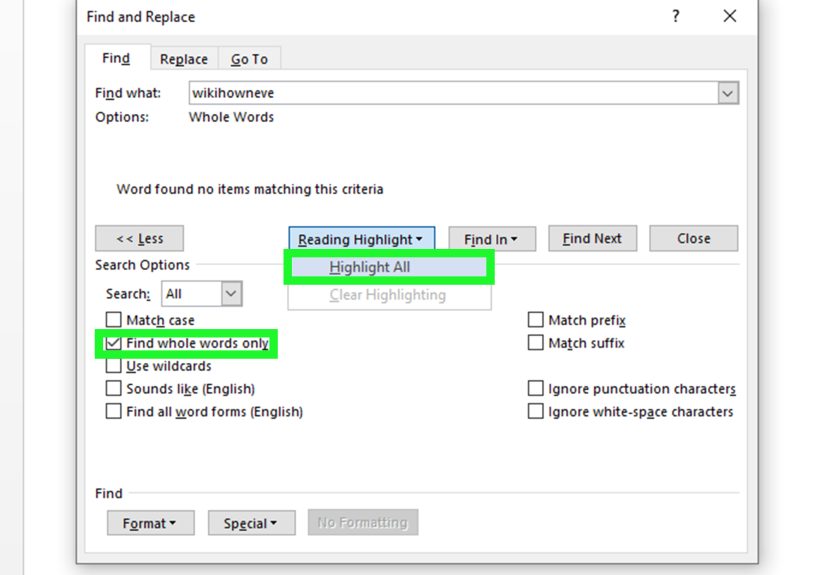
If the duplicate is a repeated word, phrase, or sentence that appears exactly the same way every time, start with Word’s Find and Replace tool. On Windows, Ctrl + H opens the Replace dialog quickly.
Here is the simple workflow:
- Open Find and Replace.
- Type the duplicate word or phrase into Find what.
- Leave Replace with blank if you want to delete it completely.
- Use Find Next or Replace first before smashing Replace All.
That last point matters. If the word appears in places where it should stay, Replace All can turn a normal document into a crime scene. Review a few matches first so you know exactly what Word is targeting.
For example, imagine you pasted this sentence twice in a row:
The final proposal is due on Friday. The final proposal is due on Friday.
You can search for the duplicated second instance and remove it. This is ideal for repeated titles, repeated labels, duplicate disclaimers, or accidental paste errors that appear in identical wording.
If the duplicate is only one extra occurrence, this step may solve the whole problem in less time than it takes to complain about it.
Step 4: Remove Duplicate Blank Lines and Repeated Paragraph Marks
Sometimes the document only looks duplicated because spacing is out of control. This happens a lot after pasting content from websites, PDFs, and email threads. You may see huge gaps between paragraphs, broken lists, or text blocks that look duplicated when they are really separated by extra paragraph marks.
This is where Word’s special characters save the day.
In many cases, you can search for:
^p^pto find double paragraph marks- replace with
^pto reduce them to one
If your document has even more spacing chaos, you may need to run that replacement more than once until the extra blank lines disappear. Glamorous? No. Effective? Absolutely.
Also watch for manual line breaks. They can create formatting that behaves differently from normal paragraphs. If a section still looks weird after removing extra paragraph marks, it may be using line breaks instead of true paragraphs.
This step is especially helpful for:
- copied meeting notes
- pasted email threads
- articles imported from the web
- documents converted from PDFs
When in doubt, clean the spacing before you assume the text itself is duplicated. Word loves to disguise formatting problems as content problems.
Step 5: Sort One-Item-Per-Line Lists So Duplicates Appear Together
If your document contains a plain list with one item per line, such as names, keywords, cities, product codes, or topics, sorting is one of the fastest ways to spot duplicates in Word.
Here is how it works:
- Select the list.
- Go to Home > Sort.
- Sort by Paragraphs and Text.
- Choose ascending order.
Once the list is alphabetized, duplicate entries sit next to each other, which makes them far easier to delete. Instead of hunting a repeated item on page 2 and another on page 17 like some kind of textual treasure hunt, the duplicates line up politely in one place.
Example:
Apple
Banana
Apple
Cherry
Banana
After sorting, it becomes:
Apple
Apple
Banana
Banana
Cherry
Now you can remove the extra lines quickly.
One important warning: sorting changes the original order of the list. If sequence matters, such as ranked items, procedural steps, or timeline notes, duplicate cleanup by sorting may not be the right choice. In that case, work on a copy or move to the compare or macro approach instead.
Step 6: Use Wildcards for Repeated Patterns, Not Just Exact Text
Some duplicates are sneaky. They are not exact copies of a long paragraph, but they follow a repeat pattern. Think of doubled words like the the, repeated labels, or recurring fragments with punctuation in between.
That is where Word’s wildcard option becomes useful. In the Find and Replace window, click More and explore the advanced search options. Wildcards let you search by pattern rather than only by exact text.
This is helpful when you are cleaning:
- doubled words after voice typing
- repeated phrases created during revisions
- inconsistent fragments that follow the same structure
Be careful, though. Word wildcards are powerful, but they are not the friendliest feature in the building. Test them on a backup copy first. Use Find Next to preview results before you replace anything in bulk.
If you are not comfortable with wildcard syntax, do not force it. A slower manual review is still better than accidentally deleting half your document because Word got a little too enthusiastic.
Step 7: Compare Documents or Use a Macro for Large-Scale Cleanup
If your duplicate problem comes from merging versions, collaboration, or repeated editing over time, basic search and replace may not be enough. In that case, Word’s Compare feature is worth using.
Compare lets you review differences between two versions of a document, which is useful when duplicate paragraphs were introduced during version merging. Instead of scanning every page manually, you can see what changed and decide what should stay.
For recurring cleanup tasks, macros can also help. A macro is useful when:
- you run the same cleanup routine often
- you regularly receive documents with the same formatting mess
- you need to strip repeated returns or standard duplicate patterns
If that sounds advanced, it is. But it is also a major time saver once the pattern is predictable. You do not need to start with coding wizardry. Even recorded macros can help automate repetitive cleanup steps.
For one-off documents, Compare is often enough. For repeated workflows, macros are where Word stops being annoying and starts being useful.
Common Mistakes to Avoid When Deleting Duplicates in Word
- Using Replace All too early: review matches first, especially in long documents.
- Cleaning the original file first: always work from a copy.
- Ignoring formatting marks: many “duplicates” are really spacing issues.
- Sorting content that must stay in order: great for lists, bad for timelines and procedures.
- Assuming Word works like Excel: Word can help, but it does not have the same one-click duplicate-removal tools.
A Practical Example: Cleaning a Messy Pasted List
Let’s say you pasted 300 keywords into Word for a content planning project. Some are repeated, some have blank lines between them, and the whole list looks like it lost a fight with a formatting toolbar.
Here is the smart cleanup order:
- Save a copy of the document.
- Show formatting marks.
- Replace double paragraph marks until blank lines are gone.
- Select the list and sort alphabetically.
- Scan down the list and delete adjacent duplicates.
- Run Find and Replace for any repeated phrase patterns you notice.
That sequence is fast, logical, and much less painful than manually checking every line in random order. It is the digital equivalent of cleaning your kitchen counter before you start cooking instead of trying to chop onions on top of a cereal box and a toaster manual.
Real-World Experiences With Duplicate Text in Word
In real life, duplicate text in Word almost never arrives with a polite note saying, “Hello, I am duplicated content, please remove me.” It shows up disguised as normal work. You notice it after the fifth scroll, when the same subheading appears twice, or when a client email says, “Why is this paragraph repeated on pages 3 and 8?” That is usually the moment your coffee becomes a support system.
One of the most common experiences is the copy-and-paste cascade. You grab content from a website, then from a PDF, then from an old draft, and suddenly your document contains duplicate paragraphs, random blank lines, and formatting choices that can only be described as emotionally unstable. In those moments, formatting marks and Find and Replace are not just helpful; they are your emergency exit.
Another classic situation happens during collaboration. One person edits version A. Another edits version B. Someone combines both, and Word ends up with repeated headings, repeated bullet points, and two slightly different versions of the same paragraph sitting a few lines apart like awkward cousins at Thanksgiving. This is where Compare becomes incredibly useful, because manual scanning gets harder as the document grows.
Long lists are another duplicate magnet. Content writers, researchers, marketers, and admins often paste names, tags, products, keywords, or locations into Word because it is quick and familiar. Then the list grows. Then the duplicates multiply. Then someone asks for a “clean final version” as if that task requires only positive thinking. Sorting the list is usually the turning point. The second you line everything up alphabetically, the duplicate entries stop hiding and start confessing.
There is also the sneaky issue of fake duplicates. These are the moments when the content is technically fine, but repeated paragraph marks make the page look bloated and broken. You think the document has duplicate sections, but it really has a spacing problem. This is surprisingly common with pasted email threads, copied web content, and text pulled from old internal documents. The fix is simple once you spot it, but spotting it is half the battle.
And then there is the power-user experience: once you clean enough messy Word files, you stop reacting emotionally and start building a system. Backup first. Reveal formatting. Remove spacing clutter. Sort lists. Review exact repeats. Compare versions. Use macros when the same mess keeps coming back. That rhythm turns duplicate cleanup from a frustrating chore into a manageable editing process.
The big lesson is that deleting duplicates in Word is rarely about one magic click. It is about recognizing patterns. When you know whether you are dealing with repeated text, repeated spacing, repeated list items, or repeated revisions, the solution becomes faster and far less stressful. Word may not hand you a giant “Fix My Mess” button, but with the right steps, you can get surprisingly close.
Conclusion
If you are wondering how to delete duplicates in Word, the answer depends on what kind of duplicate you have. Exact repeated text responds well to Find and Replace. Blank-line chaos usually disappears with paragraph-mark cleanup. Lists become manageable after sorting. Bigger revision problems call for Compare or a macro. In other words, Word is not helpless; it just wants you to be strategic.
The smartest approach is to work in layers. Save a backup, reveal the hidden formatting, clean spacing, sort when appropriate, and only then move into advanced tools. That way, you avoid accidental deletions and make the document easier to review. Once you get used to this workflow, duplicate cleanup becomes less of a disaster and more of a quick maintenance task.
And that is the best possible outcome: a Word document that says what it should say, once, clearly, and without dramatic repeats trying to steal the spotlight.