Table of Contents >> Show >> Hide
- The Short Answer
- How to Check if Someone Was Last Online on Facebook on Android
- What Facebook’s Online Indicators Mean
- Why You Cannot See Someone’s Last Online Time
- How to Turn On Your Own Active Status on Android
- What Does Not Prove Someone Is Online?
- Common Myths About Facebook Last Online Status
- Troubleshooting on Android
- Best Practices for Reading Facebook Status Without Losing Your Mind
- Conclusion
- Real-World Experiences Related to Facebook Last Online on Android
- SEO Tags
Trying to figure out when someone was last online on Facebook on Android sounds simple, right up until Facebook and Messenger start behaving like two cousins who share a closet but not a personality. One app shows a green dot, another shows “Active 12m ago,” and sometimes both apps act like they have never met the person you are searching for. Welcome to modern social media.
The good news is that there is a legitimate way to check whether someone is active or recently active on Facebook on Android. The less-fun news is that Facebook does not offer a secret detective dashboard where you can pull up a perfect minute-by-minute timeline of another person’s activity. What you get instead is Active Status, which is helpful, a little imperfect, and absolutely not a courtroom exhibit.
In this guide, you will learn how Facebook’s last online indicators work on Android, where to look in the Facebook and Messenger apps, why a status may disappear, and what common myths deserve to be tossed directly into the digital recycling bin. If you want the quick answer: on Android, the clearest way to know when someone was last online is usually through Messenger, as long as both of you have Active Status visibility enabled.
The Short Answer
On Android, Facebook usually shows a person’s online presence through Active Status. If the feature is visible to you, you may see:
- A green dot, which usually means the person is active now.
- A timestamp, such as “Active 10m ago” or “Active 2h ago,” which means they were recently active.
- No status at all, which can happen for several reasons and does not automatically mean you were blocked, ignored, or cast out into the emotional wilderness.
The most reliable place to check this on Android is the Messenger app. The Facebook app may also show activity information in chat-related areas, but Messenger is usually the cleaner, more direct option.
How to Check if Someone Was Last Online on Facebook on Android
Method 1: Check in the Messenger App
If you want the easiest route, open Messenger on your Android phone. This is where Facebook’s activity indicators are usually easiest to read.
- Open the Messenger app.
- Go to the Chats tab.
- Look through your conversation list.
- Check beside or below the person’s name for a green dot or a recent activity label such as Active now or Active 35m ago.
If the person is currently online, you may see the green dot right next to their profile picture. If they were online recently, Messenger may show a time-based label instead. That label is what most people mean when they ask how to see “last online” on Facebook Android.
Method 2: Open the Conversation
Sometimes the chat list gives you only a tiny clue. Tap the conversation itself for more context.
- Open the conversation with that person.
- Look near the top of the chat under their name.
- If their status is visible to you, you may see something like Active now or Active 1h ago.
This can be useful when the list view is crowded, the font is tiny, or your Android screen is doing that charming thing where everything suddenly looks one size smaller than your patience.
Method 3: Check from the Facebook App
You can sometimes spot a person’s status from the Facebook app itself, especially around chat or messaging areas. That said, Facebook’s interface changes often, and Android versions do not always look identical. In some cases, tapping the message icon simply hands the job over to Messenger.
For that reason, if your goal is specifically to see when someone was last online, Messenger is usually the better tool. Think of Facebook as the front desk and Messenger as the office where the actual paperwork lives.
What Facebook’s Online Indicators Mean
Understanding the symbols matters, because many people read way too much into them. A green dot is not a complete biography.
Green Dot
A green dot usually means the person is currently active on Facebook or Messenger. That does not always mean they are staring straight at your message like it is the season finale of a drama series. They may simply have the app open, be chatting with someone else, or be using Facebook in another part of the app.
“Active Now”
This usually means the same basic thing: the person is currently active. If you see it, the account appears to be online at that moment.
“Active X Minutes Ago”
This is the closest thing to a last seen or last online label on Facebook Android. It shows that the person was recently active. It is helpful, but not perfect down to the exact second. In other words, it is a clue, not a stopwatch.
No Visible Status
If you do not see a green dot or a timestamp, several things may be happening. The person may have turned off Active Status. You may have turned off your own Active Status. The app may be lagging. The person may not have been active recently enough for Facebook to show anything. Or yes, there may be a privacy or account-related reason. The point is: no status does not equal one definite explanation.
Why You Cannot See Someone’s Last Online Time
This is where most confusion lives. People see no status and immediately build a full conspiracy board with string, thumbtacks, and heartbreak. Usually, the explanation is much simpler.
1. They Turned Off Active Status
If someone disables Active Status, you generally will not see when they are active or recently active. Facebook gives users that privacy control for a reason.
2. You Turned Off Your Own Active Status
Facebook and Messenger are big fans of reciprocity here. If you turn off your visibility, you may also lose the ability to see other people’s activity. So if everyone suddenly looks mysteriously offline, check your own settings before assuming the internet has staged an intervention.
3. They Are Not Recently Active
Facebook does not keep an endless public archive of someone’s activity for casual viewing. If enough time passes, the “last active” style label may disappear.
4. App or Sync Issues
Sometimes Messenger on Android gets a little moody. A stale app version, weak connection, cache issue, or temporary glitch can delay status updates.
5. Privacy or Account Changes
If someone has restricted contact, changed settings, deactivated an account, or blocked you, you may see less activity information. Still, do not jump to that conclusion first. Technical and privacy settings are more common explanations than personal drama.
How to Turn On Your Own Active Status on Android
If you want to see other people’s last active status, make sure your own Active Status is enabled.
In Messenger
- Open Messenger.
- Tap your profile picture.
- Select Active Status.
- Turn on Show when you’re active.
In Facebook
- Open the Facebook app.
- Go to Menu.
- Open Settings or Settings & Privacy.
- Find Active Status.
- Turn it on.
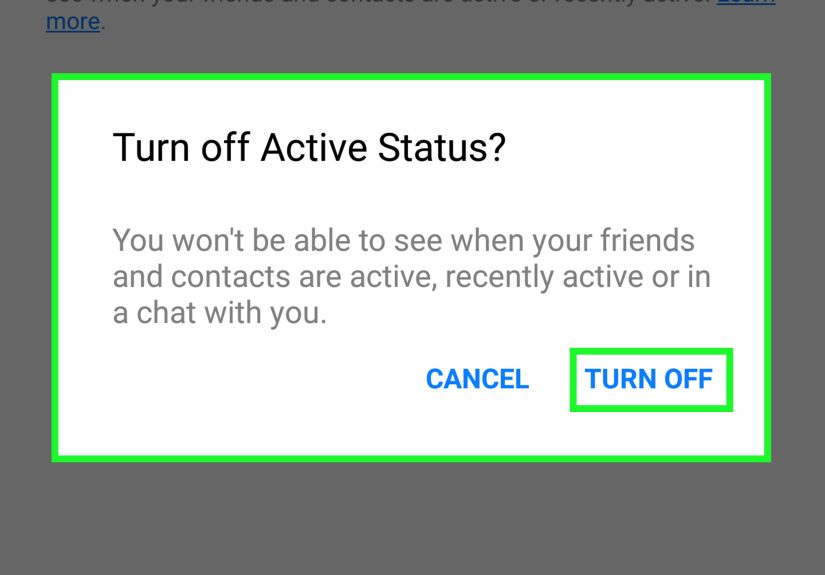
The exact path can vary slightly depending on the Android version and Facebook’s latest interface update, but the Active Status toggle is the setting you are looking for. If you want your visibility hidden, you can turn it off, but remember the trade-off: your view of others’ status may become limited too.
What Does Not Prove Someone Is Online?
This section deserves a drumroll because it saves people a lot of unnecessary overthinking.
Read Receipts
Just because a message was read does not mean the person is online right now. They may have opened it earlier, read it from a notification, or checked it briefly and left.
Delivered Messages
A delivered message means it reached the account or device, not that the person is actively chatting at that moment.
Recent Story or Post Activity
Someone liking a post, reacting to a reel, or updating a story does not always line up perfectly with visible chat status. Facebook’s ecosystem has many moving parts, and they do not always report in the same rhythm.
Third-Party “Tracker” Apps
If an app promises to secretly reveal hidden Facebook last seen data, treat that promise like a neon sign that says “bad idea.” Facebook does not provide a reliable, official back door for that kind of tracking. At best, these apps are misleading. At worst, they are a privacy and security risk.
Common Myths About Facebook Last Online Status
Myth: No Green Dot Means They Ignored You
Not true. It can simply mean Active Status is off, the status is not updating, or they have not used the app recently enough.
Myth: Active Now Means They Saw Your Message
Also not true. Someone can be online and still not open your conversation.
Myth: Facebook Shows an Exact Last Login History for Other People
Nope. You get visible activity indicators, not a private logbook of another user’s digital footsteps.
Myth: There Is a Hidden Android Trick to Reveal Offline People
There really is not. If someone hides their Active Status, you should assume Facebook intends that preference to be respected.
Troubleshooting on Android
If activity status should be visible but is not showing correctly, try these fixes:
- Update Messenger and Facebook from the Play Store.
- Restart the apps and reopen the conversation.
- Check your internet connection.
- Confirm your Active Status is on in both Facebook and Messenger if needed.
- Clear app cache on Android if the display seems stuck.
- Log out and back in if the issue persists.
These steps will not magically reveal a hidden status, but they can fix display issues when the feature is supposed to be working.
Best Practices for Reading Facebook Status Without Losing Your Mind
Let us be honest: the technical part is easy. The emotional interpretation is where people usually turn one green dot into a 12-episode mini-series.
A healthier approach is to treat Active Status as a rough convenience, not a relationship measuring device. If someone is active now, great. If they were active two hours ago, okay. If there is no status, that only tells you that there is no visible status. It does not automatically reveal intent, feelings, schedule, or whether they are dodging you while eating cereal and watching cat videos.
Use the feature for practical reasons: checking whether it is a good time to message, knowing whether a reply may come quickly, or seeing if Messenger is active before starting a call. That is the smart use case. Everything beyond that starts wandering into guesswork.
Conclusion
If you want to know when someone was last online on Facebook on Android, the clearest method is usually to check Messenger. Look for a green dot for current activity or a label such as Active 20m ago for recent activity. Just remember that this visibility depends on Facebook’s Active Status system, which means it is limited by privacy settings, app behavior, and whether both sides have visibility enabled.
The biggest takeaway is simple: Facebook can show you signs of recent activity, but it does not give you a perfect, all-seeing timeline. If the status is visible, use it as a helpful clue. If it is missing, do not assume the worst. Sometimes the app is private, sometimes the app is glitchy, and sometimes the person is simply offline like a normal human being.
In short, the green dot can be useful. It just should not be promoted to detective chief.
Real-World Experiences Related to Facebook Last Online on Android
A common experience for Android users is opening Messenger, seeing someone listed as Active now, sending a message, and then hearing absolutely nothing back. This usually surprises people the first time it happens. They assume that if a person is active, that person must also be available, attentive, and somehow contractually obligated to answer. Real life is much messier. Someone may have the app open in the background, may be replying to a work chat, may be scrolling Marketplace, or may have glanced at Messenger and immediately gone back to living an actual life. One of the most useful lessons people learn is that online status and reply speed are not the same thing.
Another very typical experience is the disappearing timestamp. One day you can see “Active 1h ago,” and the next day there is nothing at all. Many users instantly think they were blocked or restricted. Sometimes that is possible, but in everyday cases the explanation is less dramatic. The other person may have turned off Active Status, or Facebook may simply no longer be showing older activity. Android users who switch between the Facebook app and Messenger also notice that one app can feel more informative than the other. That mismatch creates confusion, especially because the Facebook interface changes often. Over time, most people figure out that Messenger is the better place to check, while the Facebook app is more like the cousin who says, “I might know something, but I am not promising consistency.”
There is also the experience of thinking the feature is broken when it is actually your own settings causing the problem. Plenty of users turn off their own Active Status to enjoy some peace and quiet, then later wonder why no one else’s status is visible either. It feels like the app is being stubborn, but it is really just enforcing a privacy trade-off. Once users turn their own visibility back on, some of those missing activity labels return. That moment tends to be both useful and mildly annoying, mostly because it proves the app was not broken at all. It was just quietly saying, “If you want invisibility, you do not also get binoculars.”
Android users also run into technical quirks that make status indicators feel less reliable than they expect. Weak mobile data, battery optimization, outdated app versions, and cached data can all make Messenger act a little behind the times. Someone may appear offline for a while and then suddenly show a recent timestamp after the app refreshes. That delay is why experienced users stop treating the feature like an exact science. They learn to view it as helpful but approximate. If the indicator helps, great. If it looks odd, a quick update, restart, or app refresh often solves the mystery better than inventing a dramatic backstory.
Finally, many people discover that the healthiest experience with Facebook’s last online feature is using it lightly. At first, it is tempting to check it constantly, especially in new friendships, busy family chats, or complicated conversations. But after enough false alarms, delayed replies, and misunderstood green dots, most users settle into a more practical rhythm. They use it to decide whether now is a decent time to send a message or start a call, not to decode another person’s every move. That is probably the best long-term experience to aim for on Android: understand what Facebook can show, understand what it cannot, and keep one tiny status indicator from becoming the narrator of your day.