Table of Contents >> Show >> Hide
- What “formatted text” actually means in a terminal
- Start with the workhorse: printf
- ANSI escape codes: the magic behind color and style
- Cross-platform reality: terminals are similar, not identical
- Language-specific ways to print formatted text
- Best practices for terminal text formatting
- Common mistakes to avoid
- Copy-ready examples for real command-line tools
- Experience from the real world: what happens when terminal formatting leaves the tutorial and enters your life
- Final thoughts
Note: Publish-ready HTML body only. No source links included inside the article.
Terminal output has a funny reputation. To some people, it looks like a time machine from 1987. To everyone who writes scripts, tools, and command-line apps, it is prime real estate. A terminal is not just a place to dump text like a careless raccoon emptying a snack drawer. It is a user interface. And once you treat it like one, your output gets better fast.
Printing formatted text to a terminal means more than making words appear on a black screen and hoping for the best. It includes alignment, spacing, colors, emphasis, progress updates, warnings, success messages, and readable data layouts. It also includes knowing when not to decorate output, because nobody enjoys opening a log file and finding a parade of raw escape characters doing cartwheels.
In this guide, you will learn how terminal text formatting works, why printf is usually your best friend, how ANSI escape codes add color and control, and how to handle real-world issues such as Windows compatibility, redirected output, and library support in languages like Python, Node.js, Go, and PowerShell. The goal is simple: make your terminal output look intentional instead of accidental.
What “formatted text” actually means in a terminal
Before jumping into code, it helps to define the target. Formatted terminal text usually falls into a few categories:
- Structure: line breaks, tabs, padding, alignment, and columns.
- Style: bold, underline, foreground colors, background colors, dim text, and inverse text.
- Control: moving the cursor, clearing a line, overwriting a line, or updating a progress indicator in place.
- Readability: highlighting errors, separating sections, and making output easier to scan.
The best formatted terminal output does one thing really well: it helps the reader understand what matters. If every line is bright red, bold, and underlined, congratulations, you have reinvented panic.
Start with the workhorse: printf
If you only remember one practical rule from this article, make it this one: when you need reliable formatted text in a shell, use printf. It is designed for formatting. It understands format strings. It gives you control over spacing, numeric formatting, and line breaks. It behaves more predictably than echo, which has a long history of acting slightly different across shells and platforms.
Why printf wins
With printf, you can set field width, pad values, print literal percent signs, and format text in a way that is consistent and readable. Instead of hoping a command interprets backslashes the way you want, you tell it exactly what to do. That is the difference between using a recipe and throwing spaghetti at the ceiling to see whether dinner is ready.
In those examples, %-12s left-aligns a string inside a 12-character field, %03d prints an integer padded to three digits, and %% prints a literal percent sign. That tiny set of tricks already makes output look cleaner than most “quick scripts” ever manage.
When to use escapes
Terminal formatting often depends on escape sequences such as n for newline, t for tab, and the escape character used by ANSI control sequences. In Bash, ANSI-C quoting with $'...' is handy when you want backslash escapes interpreted clearly.
That is already enough to create clean lists, section separators, or command summaries without turning your output into a mystery novel written entirely in whitespace.
ANSI escape codes: the magic behind color and style
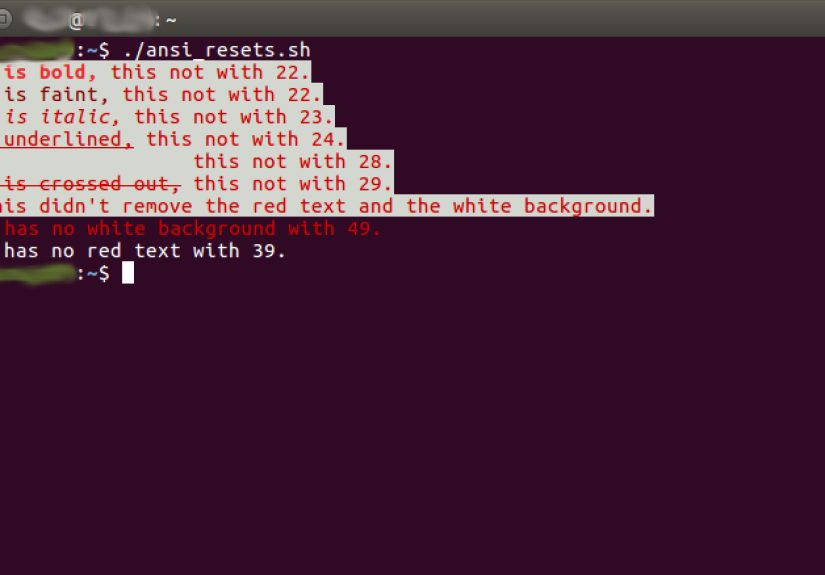
Once you move beyond spacing and alignment, ANSI escape codes are the usual tool for styling terminal text. They are control sequences embedded in the output stream. A terminal that supports them interprets those sequences as instructions: change the text color, make the text bold, clear the line, move the cursor, and so on.
The pattern usually starts with the escape character and then a control sequence. One of the most common families is Select Graphic Rendition, often used for color and text attributes. In practical shell examples, you often see that escape character written as 33 or e.
The 33[0m reset sequence matters. Forget to reset styles, and the rest of the session may inherit your formatting. That can make your tool look broken, or at the very least, extremely dramatic.
Common style codes worth knowing
0= reset all styles1= bold4= underline30–37= standard foreground colors40–47= standard background colors90–97= bright foreground colors100–107= bright background colors
Keep in mind that terminal support varies. Bold may look bold in one terminal and merely brighter in another. Some terminals support 16 colors, some 256, and some truecolor. The terminal world is friendly, useful, and just chaotic enough to build character.
Cursor movement and in-place updates
Formatted text is not only about color. ANSI sequences also let you clear a line, return the cursor to the beginning, or update output in place. That is how progress indicators and spinners work without printing fifty thousand lines of “still working, please remain calm.”
The r carriage return brings the cursor back to the beginning of the line so the next print overwrites the old one. Add a line-clearing sequence when needed, especially if later text may be shorter than earlier text.
Cross-platform reality: terminals are similar, not identical
This is the part where optimism meets production. Modern terminal formatting is fairly portable, but not perfectly identical everywhere. Unix-like systems have long treated ANSI-style output as normal. Windows has improved a lot, and modern Windows terminal environments support virtual terminal sequences, but older tooling and older assumptions can still cause surprises.
In plain English: most of the time, ANSI works beautifully; some of the time, Windows needs extra care; and nearly all of the time, somebody will redirect your output to a file and ask why it contains decoration code soup.
Detect whether you are talking to a terminal
A smart CLI distinguishes between writing to a real terminal and writing to a pipe or file. If the output is redirected, human-friendly decorations may become machine-hostile noise.
That simple check prevents a lot of grief. A terminal loves styling. A log parser, CSV consumer, or text-processing pipeline usually does not.
Respect color settings
Many modern tools respect environment conventions such as NO_COLOR and FORCE_COLOR. That is not just a nice touch. It is a courtesy to users, CI systems, accessibility needs, and terminal setups that do not support full styling. Respecting those signals makes your tool feel professional instead of overly attached to neon.
Language-specific ways to print formatted text
Bash and POSIX shell
In shell scripting, printf is the star of the show. It handles text, numbers, spacing, and escape sequences cleanly. For many scripts, that is enough.
Bash adds useful extras such as ANSI-C quoting with $'...', which makes embedded escape sequences more readable.
Python
Python gives you a few different levels of control. At the basic level, the built-in print() function is perfect for ordinary output, and flush=True helps when you are updating the screen interactively. If you need tighter control, sys.stdout.write() is available. If you want prettier terminal output without hand-writing ANSI sequences, libraries such as Rich and Colorama are strong options.
Rich is excellent when you want styled output, tables, panels, syntax highlighting, or formatted logs. Colorama is especially useful when you want ANSI-style terminal coloring to behave nicely on Windows.
Node.js
In Node.js, you can use console.log() for regular output and process.stdout.write() when you need fine-grained control over line endings or in-place updates. If you want color and style without manually writing escape codes, Chalk is a popular approach.
Node also gives you terminal capability checks like process.stdout.isTTY and color support helpers such as hasColors() on TTY write streams. That makes it easier to avoid printing styling codes into places where they do not belong.
Go
Go keeps formatting straightforward with the fmt package. The Printf family uses verbs such as %v, %s, %d, and %%. That makes it excellent for aligned terminal text and structured output.
PowerShell
PowerShell supports ANSI-style terminal output in modern environments, and it also has tools that make formatting less awkward than assembling raw escape codes by hand. Still, the classic sequence pattern works when the host supports virtual terminal output.
That backtick-e escape is PowerShell’s way of introducing an ANSI-style virtual terminal sequence. It is useful, readable, and only slightly less theatrical than summoning formatting with a magic wand.
Best practices for terminal text formatting
1. Use formatting to clarify, not decorate everything
Good CLI styling draws attention to what matters: errors, warnings, success messages, prompts, headings, and changing values. Reserve bold colors for meaning. If every line is styled, nothing is emphasized.
2. Always reset styles
Reset after styled segments. A missing reset can leak styles into later output and make the whole terminal session look like it joined a cult.
3. Separate human-friendly output from machine-friendly output
If your output might be piped, redirected, parsed, or stored, provide a plain-text or machine-readable mode. Fancy color in a human terminal is helpful. Fancy color in JSON logs is a prank.
4. Check terminal support before assuming advanced color
Some terminals support standard colors only. Others support 256 colors or truecolor. Some environments disable color entirely. Capability checks and fallback behavior matter.
5. Keep alignment predictable
Use fixed widths where practical. Align labels, numbers, and headings. Neat output feels easier to trust, which is a surprisingly big deal when your tool is telling someone whether the backup worked.
6. Use carriage returns for live updates, not endless lines
Progress messages should update in place when possible. Nobody wants a terminal history full of “1%, 2%, 3%, 4%…” stretching into the horizon like a road trip with no snacks.
Common mistakes to avoid
- Using
echo -eeverywhere: it is tempting, but it is less predictable thanprintf. - Forgetting
%%in format strings: a percent sign has special meaning in format strings, so print it deliberately. - Skipping resets: style leakage makes everything messy.
- Coloring piped output: it can pollute files and break downstream tools.
- Assuming Windows behaves exactly like Linux: modern support is good, but detection and compatibility still matter.
- Over-formatting: terminal output is not a nightclub flyer.
Copy-ready examples for real command-line tools
Readable status messages in shell
In-place progress in Python
Nicely aligned Go output
Experience from the real world: what happens when terminal formatting leaves the tutorial and enters your life
In real projects, printing formatted text to a terminal starts as a tiny quality-of-life improvement and quickly turns into one of those details people secretly judge your tool by. A plain wall of output technically works, but good formatting makes a script feel trustworthy. The moment a command-line tool uses clear headings, aligned values, restrained color, and useful progress updates, people assume the rest of the engineering probably has its act together too.
One of the most common experiences is the “works on my terminal” moment. A developer adds color locally, feels proud for twelve minutes, then someone runs the script in CI, redirects output to a file, or opens it in a terminal with limited color support. Suddenly the result looks less like polished CLI styling and more like a keyboard had an emotional event. That is usually the moment people learn to check whether output is attached to a TTY and to respect settings like NO_COLOR.
Another real-world lesson is that progress indicators are wonderful right up until they are not. On a fast local terminal, rewriting the same line with r feels smooth and modern. In logs, however, those updates may appear as repeated lines or mangled text. The practical answer is not to give up on live formatting. It is to separate interactive terminal behavior from non-interactive logging behavior. In other words, let the terminal be fancy and let the logs be boring. Boring logs are underrated heroes.
Teams also discover that color has to carry meaning, not just decoration. Green for success, yellow for warning, red for failure, and maybe cyan or bold for headings is usually enough. Once every message gets its own personality, readers stop noticing the signals. The same goes for bold text, underlines, and bright backgrounds. Just because the terminal supports a visual circus does not mean the output should audition for one.
Windows compatibility is another classic lesson. Many developers grew up hearing that ANSI color on Windows was a headache, and historically that reputation was earned. Modern support is much better, but the habit of testing still matters. That is why libraries such as Colorama and Rich gained such loyal followings. They save time, reduce platform surprises, and let people focus on what the output should communicate instead of wrestling with every edge case by hand.
Then there is the human side of the experience. Formatted terminal text is not just about beauty. It reduces mistakes. When an error stands out, people react faster. When tables line up, people compare values faster. When warnings are separated from normal chatter, people miss fewer important messages. Good CLI output lowers friction, especially in long-running scripts, deployment tools, backup jobs, and debugging utilities where readers may be tired, rushed, or already regretting several life choices.
The best terminal formatting usually ends up feeling invisible. It does not scream for attention. It quietly helps the reader scan, understand, and act. That is the sweet spot. If your command-line tool feels clearer, calmer, and easier to trust because of the way it prints text, then the formatting is doing its job beautifully.
Final thoughts
Printing formatted text to a terminal is part technical skill, part design judgment. The technical side includes printf, format specifiers, ANSI escape codes, cursor control, TTY detection, and cross-platform handling. The design side is knowing when to use those tools lightly and purposefully.
Start simple. Use printf for predictable structure. Add ANSI styles where they improve clarity. Detect terminal support before going wild. Reach for libraries like Rich, Colorama, or Chalk when you want cleaner abstractions. And always remember the golden rule of CLI output: make it easier for humans to read, not harder for humans to explain later.