Table of Contents >> Show >> Hide
- Why Your PS5 Won’t Connect to WiFi
- 10 Easy Fixes to Get Your PS5 Back Online
- 1. Check Whether PSN Is Actually Down
- 2. Run the PS5 Internet Connection Test
- 3. Restart the PS5 Properly
- 4. Power Cycle Your Router and Modem
- 5. Forget the Network and Reconnect from Scratch
- 6. Move the PS5 Closer to the Router or Reduce Interference
- 7. Switch Between 2.4GHz and 5GHz WiFi
- 8. Update Your Router Firmware and PS5 System Software
- 9. Try Manual DNS Settings
- 10. Restore Default Network-Related Settings or Use a Wired Test
- Bonus Tips if Your PS5 Keeps Disconnecting from WiFi
- When the Problem Is Your ISP, Not Your PS5
- Should You Just Use Ethernet Instead?
- Final Thoughts
- Extra Experiences: What This Problem Feels Like in Real Life
If your PS5 suddenly refuses to connect to WiFi, welcome to one of gaming’s least glamorous boss fights. One minute you’re ready to download a massive update, squad up with friends, or finally prove you’re not the weak link in the party. The next minute, your console acts like the internet is a myth invented by routers to sell blinking lights.
The good news: a PlayStation 5 WiFi problem usually has a fix, and it often doesn’t require a degree in network engineering, a sacrificial Ethernet cable, or shouting “why now?” at your entertainment center. In many cases, the issue comes down to a bad signal, a buggy router, outdated network settings, a PlayStation Network outage, or a simple setup mismatch.
This guide walks through 10 easy fixes for a PS5 that won’t connect to WiFi, from the quick wins to the slightly more advanced tweaks. You’ll also learn when the problem is likely your router, your internet provider, Sony’s servers, or the console itself. So before you assume your PS5 has entered its dramatic era, try these steps and get back online.
Why Your PS5 Won’t Connect to WiFi
Before jumping into the fixes, it helps to know what might be happening behind the scenes. A PS5 WiFi connection problem can show up in a few different ways:
- The console sees your network but won’t connect
- The PS5 connects, then drops the signal randomly
- You get internet on other devices, but not on the console
- The PS5 connects to WiFi but not to PSN
- Downloads crawl along like they’re being delivered by carrier pigeon
Common causes include a weak wireless signal, the wrong password or security settings, router firmware issues, network congestion, band-related problems between 2.4GHz and 5GHz, temporary PSN outages, or corrupted network settings on the console. In rare cases, hardware trouble on the PS5 or router can also be the culprit.
10 Easy Fixes to Get Your PS5 Back Online
1. Check Whether PSN Is Actually Down
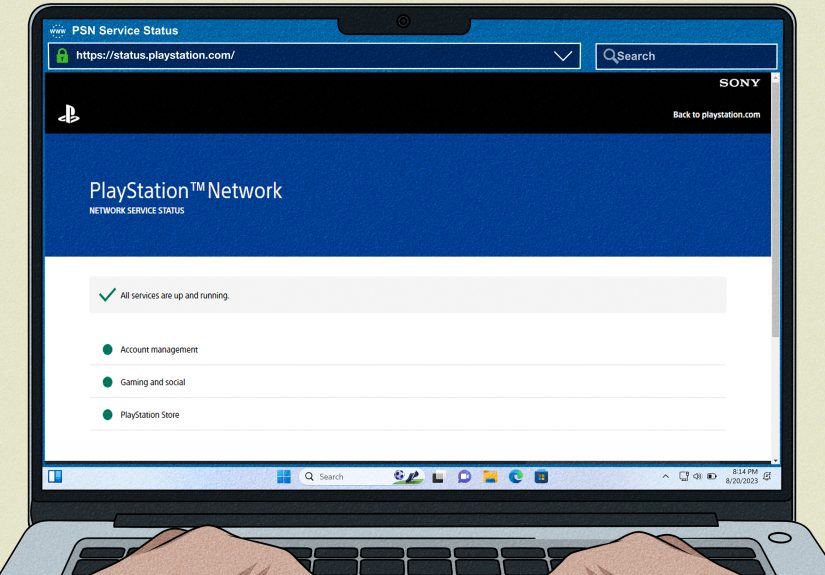
Let’s start with the most painless fix of all: make sure the problem isn’t Sony’s. Sometimes your PS5 is fine, your router is fine, and PlayStation Network is the one having a rough day. If PSN services are down or under maintenance, your console may appear to have connection issues even though your home WiFi is working normally.
Use another device to check the official PlayStation Network status page. If there’s a service disruption, your best move is patience. Annoying? Yes. Fixable from your couch? Not really.
2. Run the PS5 Internet Connection Test
Your PS5 has a built-in tool that can save you from blind guessing. Go to Settings > Network > Connection Status > Test Internet Connection. This test can tell you whether your console is connecting to the local network, reaching the internet, and signing into PSN.
This matters because “won’t connect” is a broad complaint. If the PS5 can see the router but not the internet, the problem is probably on the home network side. If it reaches the internet but not PSN, the issue may be service-related. If it fails from the first step, you’re probably dealing with WiFi setup, signal strength, or saved network settings gone weird.
3. Restart the PS5 Properly
Yes, this is the old “turn it off and on again” move. Yes, it still works. And yes, it remains the most insultingly effective tech advice on Earth.
Make sure you fully restart the PS5 rather than leaving it in Rest Mode. A clean reboot can clear temporary glitches that affect the console’s network stack, background services, or cached settings. If your PS5 has been in Rest Mode for days and suddenly won’t reconnect, a full restart is often the digital equivalent of a cold shower.
4. Power Cycle Your Router and Modem
If the PS5 still refuses to cooperate, restart your networking equipment next. Unplug the router and modem, wait about 30 seconds to 5 minutes depending on your provider’s guidance, then plug them back in and let the connection fully return.
This can resolve temporary ISP hiccups, overheating issues, memory bugs, IP lease problems, and random signal instability. If other devices in your home have also been acting flaky, this step jumps even higher on the suspect list.
Pro tip: wait until the modem and router are fully back online before reconnecting the PS5. If you rush the process, the console may just reconnect to the same broken state and continue its little rebellion.
5. Forget the Network and Reconnect from Scratch
Sometimes the saved WiFi profile on your PS5 becomes outdated or corrupted, especially after router changes, password updates, or security setting changes. Delete the saved network and set it up again manually.
Go to Settings > Network > Settings > Set Up Internet Connection, select your network, and re-enter the password carefully. Double-check uppercase letters, special characters, and whether your router is using the same network name for multiple bands.
This sounds basic, but it solves a surprising number of PS5 WiFi issues. Sometimes the console and router just need a fresh introduction, like two coworkers who somehow forgot they’ve been in the same meetings for months.
6. Move the PS5 Closer to the Router or Reduce Interference
WiFi is convenient, but it is also dramatic. Walls, floors, cabinets, soundbars, microwaves, and the general chaos of modern electronics can weaken or disrupt a wireless signal.
If your PS5 is far from the router, especially in another room, the signal may be too weak or unstable for gaming and downloads. Try moving the console closer, repositioning the router in a more open location, or removing nearby sources of interference.
This is especially important if you’re using the 5GHz band. It’s usually faster, but it doesn’t travel as well through walls and solid objects. The 2.4GHz band tends to offer better range, even though it’s often slower and more crowded. If your PS5 is struggling on 5GHz, switching to 2.4GHz can be a smart compromise for stability.
7. Switch Between 2.4GHz and 5GHz WiFi
If your router broadcasts both 2.4GHz and 5GHz, test both bands. This is one of the most effective fixes for a PS5 that either won’t connect or keeps disconnecting.
Use 5GHz if your console is close to the router and you want faster speeds with less interference from household devices. Use 2.4GHz if your PS5 is farther away or separated by thick walls.
Many households run into problems because the “faster” band isn’t always the better one in real life. A slightly slower but stable connection will beat a blazing-fast signal that disappears every time someone shuts a door or heats leftovers.
8. Update Your Router Firmware and PS5 System Software
Outdated firmware is the quiet troublemaker of home networking. Router manufacturers release updates to fix bugs, improve compatibility, and patch security flaws. Sony does the same for the PS5 system software.
If your PS5 started having WiFi trouble after things had been working fine, a software mismatch may be part of the issue. Check your router’s admin panel or app for firmware updates. Then check your PS5 for the latest system software.
If your console can’t get online long enough to update normally, you may need to use Safe Mode and update via USB. It’s a little more involved, but it can help if buggy system software is blocking normal network behavior.
9. Try Manual DNS Settings
If your PS5 sees the network but struggles to reach online services consistently, changing the DNS settings can help. DNS is what translates web-style addresses and service lookups into actual network destinations. If your provider’s DNS is slow or flaky, online gaming services can feel broken even when your WiFi is technically connected.
On the PS5, go to the network’s Advanced Settings and switch DNS Settings from Automatic to Manual. Many users test public DNS options such as:
- Primary DNS: 8.8.8.8
- Secondary DNS: 8.8.4.4
This won’t fix every PS5 network problem, but it can help if pages, downloads, sign-ins, or store connections feel unreliable. Think of it as giving your console better directions instead of letting it wander around the internet asking for help.
10. Restore Default Network-Related Settings or Use a Wired Test
If nothing else works, it’s time to narrow down whether the problem is really WiFi or the console itself. First, test the PS5 with a wired Ethernet connection if you can. If Ethernet works immediately, your issue is almost certainly with wireless signal quality, router settings, or band selection rather than the console’s general internet capability.
If the problem still appears broader, consider restoring default settings on the PS5. This can reset network-related behavior without necessarily wiping all your content. In more stubborn cases, Safe Mode options such as Restore Default Settings or Clear Cache and Rebuild Database may help if the issue is linked to software corruption.
A full factory reset should be a last resort, not your opening move. Nobody wants to spend their evening re-downloading games the size of small planets unless absolutely necessary.
Bonus Tips if Your PS5 Keeps Disconnecting from WiFi
If your PS5 connects but drops out repeatedly, these extra checks are worth trying:
- Avoid crowded channels: Some routers let you change WiFi channels manually to reduce interference.
- Reduce network congestion: Large downloads, streaming on multiple devices, and smart home traffic can all compete for bandwidth.
- Disable problem features temporarily: Band steering, mesh handoff, or advanced router features can occasionally confuse certain devices.
- Set a static IP address: In some setups, a manual IP can stabilize connections.
- Open required ports: Advanced users may benefit from reviewing router NAT and port settings for gaming services.
When the Problem Is Your ISP, Not Your PS5
If your console is only one of several devices having trouble, don’t keep blaming the PS5 like it personally unplugged the internet. The problem may be with your service provider, modem, or router hardware.
Call your ISP if you notice:
- Frequent internet drops across multiple devices
- Strong WiFi signal but no internet access
- A modem or gateway that needs constant restarting
- Outages or unstable service at certain times of day
At that point, the console is just the messenger. And as history has taught us, people are often unfairly mean to the messenger.
Should You Just Use Ethernet Instead?
Honestly? If you can, yes.
A wired Ethernet connection is usually faster, more stable, and better for low-latency gaming than WiFi. If your PS5 is close enough to your router, or if you can use a long cable neatly along the baseboard, Ethernet is the simplest way to avoid the whole “why does the signal disappear every Tuesday?” storyline.
WiFi is great for convenience. Ethernet is great for peace of mind. Choose your fighter.
Final Thoughts
If your PS5 won’t connect to WiFi, don’t panic and definitely don’t start negotiating with the console like it’s a moody roommate. Most connection issues come down to a handful of familiar causes: PSN outages, router hiccups, weak signal strength, bad saved settings, outdated firmware, or a mismatch between the band your router prefers and the one your console actually handles best.
Start with the fastest fixes first: check PSN status, run the internet test, restart the PS5, and power cycle the router. Then move on to reconnecting the network, changing WiFi bands, updating firmware, and testing DNS or Safe Mode options. In many homes, one of those steps is enough to get the console back online without major drama.
And if all else fails, remember: Ethernet is the quiet hero of online gaming. Not flashy, not trendy, but always there when WiFi decides to get theatrical.
Extra Experiences: What This Problem Feels Like in Real Life
Anyone who has dealt with a PS5 WiFi issue knows the frustration rarely shows up at a convenient time. It almost never happens when you’re casually browsing the store with nothing to do. No, it appears right when a huge game update drops, your friends are already online, or you’ve finally carved out one peaceful hour to play after a long day. Suddenly the PS5 can see your network, then can’t. Or it connects long enough to give you hope before dropping out like it forgot you existed. That emotional roller coaster is part of what makes this issue feel bigger than it is.
One common experience is the “everything else works except the PS5” scenario. Your phone streams fine. Your laptop is happy. The smart TV is busy recommending shows you never asked for. Meanwhile, the console sits there acting like your WiFi password is an unsolved riddle from an ancient civilization. In many of those cases, the fix turns out to be something deceptively simple, like re-entering the network credentials, restarting the router, or switching from 5GHz to 2.4GHz. It feels ridiculous, but it works often enough to earn respect.
Another very real experience is discovering that signal strength in your gaming setup is worse than you thought. A PS5 tucked inside a media cabinet may look neat, but enclosed spaces, thick walls, and nearby electronics can turn a decent wireless setup into a flaky one. Some players move the console or router by just a few feet and suddenly downloads stabilize, party chat stops cutting out, and multiplayer becomes usable again. It’s not exactly the cinematic tech fix people imagine, but it is satisfying in a low-budget, “I defeated the final boss with furniture placement” kind of way.
There’s also the classic moment when you blame the PS5 for everything and later discover the real issue was your internet provider. Plenty of users go through multiple console restarts, network resets, and muttered speeches before realizing the modem has been dropping out for every device in the house. That’s why testing another device, checking for outages, and using the PS5’s built-in connection test matter so much. Troubleshooting gets easier the moment you stop treating every symptom like a console defect.
Then there’s the advanced-fix phase, where people start testing DNS changes, firmware updates, Safe Mode tools, or manual settings. This stage can sound intimidating, but it’s often just a matter of trying one controlled change at a time. The smartest approach is not to change ten settings in a panic. It’s to test methodically, note what improves, and keep the fixes that actually help. When users do that, the problem usually becomes much less mysterious.
In the end, the most reassuring experience is realizing that a PS5 WiFi issue is usually solvable. It may be annoying, repetitive, and timed with the precision of a prank, but it is rarely the end of the road for the console. With a few practical adjustments, most players get back online, download the update, join the party, and forget the whole ordeal until the next time the router decides it wants attention.