Table of Contents >> Show >> Hide
- What “Sensitivity” Means in Minecraft (And Why It Can Feel Different Everywhere)
- Fast Answer: Where to Change Sensitivity in Minecraft
- Step-by-Step: Change Mouse Sensitivity on Minecraft (Java Edition)
- Step-by-Step: Change Mouse or Controller Sensitivity on Minecraft (Bedrock Edition)
- The Two-Knob Rule: Set Hardware/OS First, Then Tune Minecraft
- Controller Sensitivity: Look Speed, Curves, and Deadzones (Without the Headache)
- How to Find Your Perfect Minecraft Sensitivity (With Real Tests, Not Vibes)
- Troubleshooting: When Sensitivity Still Feels Wrong
- Practical Sensitivity Setups (Examples You Can Copy, Then Customize)
- Conclusion: Your Crosshair Deserves Peace
- Player Experiences: What It’s Like to Actually Dial In Minecraft Sensitivity (500+ Words)
If Minecraft camera movement feels like it’s either stuck in molasses or powered by an espresso machine, you don’t need a new mouse, a new controller, or a new personality.
You need the right Minecraft sensitivity settingsplus a quick check of the settings that live outside the game.
This guide walks you through how to change mouse sensitivity on Minecraft (Java and Bedrock), how to change controller sensitivity on Minecraft (console, PC, mobile),
and how to stop “mystery” sensitivity problems like inconsistent turning, drift, and sluggish camera movement.
What “Sensitivity” Means in Minecraft (And Why It Can Feel Different Everywhere)
In Minecraft, sensitivity controls how quickly your camera turns when you move your mouse or push a controller stick. It sounds simpleuntil you realize there are often
two or three sensitivity layers working together:
- In-game sensitivity: the slider in Minecraft settings (your main “turn speed” control).
- Device/OS sensitivity: Windows pointer speed, Mac tracking speed, console controller profiles, and sometimes Steam Input.
- Hardware sensitivity (mouse DPI): how far the cursor/camera moves per inch of mouse movement.
That’s why copying a “perfect sensitivity” from a friend can feel awful on your setup. Same number, different layers.
The good news: once you understand the layers, dialing in your perfect settings is fast.
Fast Answer: Where to Change Sensitivity in Minecraft
Minecraft: Java Edition (PC/Mac/Linux)
- Open Options.
- Go to Controls.
- Open Mouse Settings.
- Adjust Sensitivity (and optionally Raw Input, if available in your version).
- Click Done, then test in a world.
Minecraft: Bedrock Edition (Windows/Console/Mobile)
- Open Settings.
- Go to Controller (for gamepad) or Mouse & Keyboard (for mouse).
- Adjust Sensitivity (and related camera/aim sliders if your platform shows them).
- Test, then fine-tune.
If that’s all you needed, congratsyou’re done. If not (or if your camera still feels weird), keep going.
The rest of this article is where the “my sensitivity changes randomly” problems get fixed.
Step-by-Step: Change Mouse Sensitivity on Minecraft (Java Edition)
1) Find the Mouse Settings Menu
In Java Edition, sensitivity controls camera turn speed for mouse look.
From the main menu or while in a world:
- Press Esc → click Options.
- Click Controls.
- Click Mouse Settings.
- Move the Sensitivity slider up or down.
2) Decide if You Want “Raw Input” (If Your Version Has It)
Some Java versions include a Raw Input toggle in Mouse Settings. Raw input generally means Minecraft reads your mouse input more directly,
rather than letting the operating system “massage” it first.
Why you might enable it:
- You want consistent aiming and turning (especially for PvP or fast camera flicks).
- Your mouse feels different between Minecraft and other games.
- You suspect OS pointer acceleration is interfering.
Why you might disable it:
- You’re used to your OS pointer behavior and prefer it (some players do).
- You’re troubleshooting and want to compare “raw” vs “OS-shaped” input.
3) Test With a Simple “Two-Second Drill”
Don’t guess your sensitivity in the settings menu for ten minutes while your character stands there judging you.
Do this instead:
- Stand in a flat area.
- Put your crosshair on a block edge (like the corner of a crafting table).
- Try a slow, tiny movement: can you track the edge without skipping past it?
- Try a fast movement: can you do a clean 180° turn without overshooting into a 270° panic spin?
If slow control is hard, lower sensitivity. If fast turns feel impossible, raise it.
You’re aiming for a setting where both feel usable without changing how you hold the mouse.
Step-by-Step: Change Mouse or Controller Sensitivity on Minecraft (Bedrock Edition)
Bedrock runs on many devices, so the menu layout can vary slightly. The idea stays the same:
go to Settings, then choose the input type you’re using.
Mouse & Keyboard Sensitivity (Bedrock on Windows)
- From the main menu, click Settings (or pause in-game and open settings).
- Select Mouse & Keyboard.
- Adjust Sensitivity (sometimes labeled as camera or mouse sensitivity).
- Test in-game, then refine in small steps.
Controller Sensitivity (Bedrock on Console/PC/Mobile with a Gamepad)
- Open Settings.
- Select Controller.
- Adjust Sensitivity (your main “look speed” slider).
- If you see it, adjust Controller Cursor Sensitivity (how fast the menu/inventory cursor moves with a stick).
That last slider matters more than people expect. A controller can feel “fine” in gameplay but unbearable in the inventory if cursor sensitivity is too high (or too low).
Fixing menu cursor speed often makes the whole setup feel more “finished.”
Touch Sensitivity (Bedrock on Mobile/Tablet)
On mobile, sensitivity controls how quickly the camera moves when you drag on the screen.
If your view swings too hard when you aim a bow or place blocks, lower it. If you keep running out of thumb room, raise it.
The Two-Knob Rule: Set Hardware/OS First, Then Tune Minecraft
Sensitivity problems usually happen because you’re trying to fix everything with one slider.
Instead, use the two-knob rule:
- Knob #1 (hardware/OS): “How fast does my pointer input move in general?” (DPI, pointer speed, tracking speed)
- Knob #2 (Minecraft): “How fast should Minecraft rotate the camera for that input?”
Windows: Pointer Speed and “Enhance Pointer Precision”
On Windows, mouse pointer speed is adjustable in Settings. There’s also an option called Enhance pointer precision (mouse acceleration).
If your aim feels inconsistentslow movements feel one way, fast flicks feel anotherthis setting is a common suspect.
A practical approach:
- Pick a pointer speed that feels normal for everyday desktop use.
- Then decide whether you want Enhance pointer precision on or off for gaming consistency.
- Finally, do the fine-tuning with Minecraft’s sensitivity slider.
Mac: Tracking Speed
On macOS, the key setting is Tracking speed for mouse or trackpad. If Minecraft feels “too twitchy” or “too slow,”
check your Mac tracking speed first, then adjust Minecraft sensitivity second.
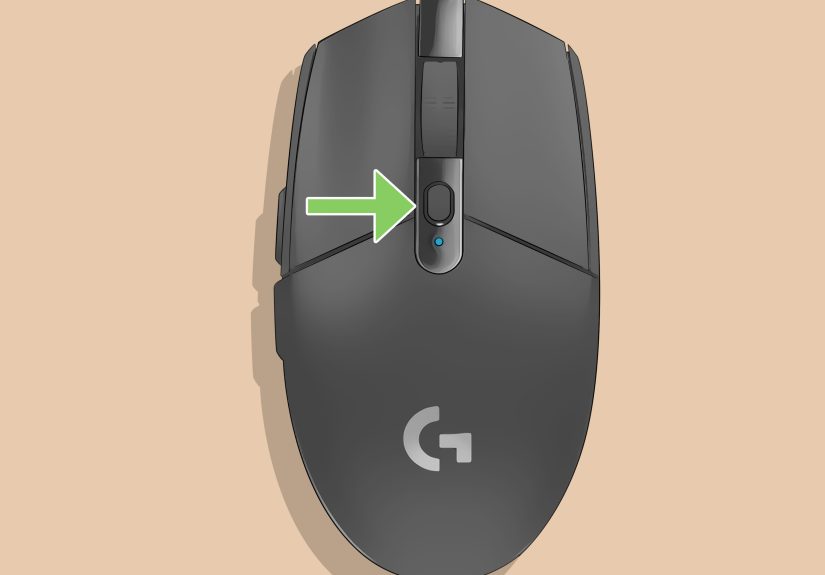
Mouse DPI: The “Secret Slider” on Your Mouse
DPI is how sensitive the mouse sensor is. Higher DPI means the cursor/camera moves farther for the same physical movement.
Many gaming mice let you set DPI in software (or even with a button on the mouse).
A simple, reliable setup pattern:
- Choose a DPI that feels controllable (many players start in the mid range their mouse supports).
- Keep it consistent across games so your muscle memory doesn’t get pranked.
- Use Minecraft sensitivity to finish the job.
If you’re constantly bouncing between “too slow” and “too fast” inside Minecraft, your DPI may be too extreme.
Move DPI one step toward the middle, then re-tune Minecraft sensitivity.
Controller Sensitivity: Look Speed, Curves, and Deadzones (Without the Headache)
Controller sensitivity in Minecraft is only half the story, because controllers can also be customized at the system level.
This is especially helpful if your sticks feel:
- Drifty: the camera moves even when you’re not touching the stick.
- Sluggish: you push the stick and the camera “wakes up” late.
- Overreactive: tiny stick movements swing the camera too much.
Xbox (and Windows with Xbox Controllers): Xbox Accessories App
Xbox supports controller stick customization through the Xbox Accessories app, including sensitivity behavior for sticks on compatible controllers.
If Minecraft feels “fine” on other games but not here, it’s worth checking whether your controller profile is too aggressive (or too gentle).
PlayStation (DualSense Edge): Stick Sensitivity and Deadzone Profiles
If you’re using a DualSense Edge, you can create controller profiles that adjust stick sensitivity and deadzones.
This can help you keep Minecraft’s in-game sensitivity in a comfortable range while making the stick feel more precise.
Nintendo Switch: Calibrate Control Sticks
If your camera drifts on Switch, calibration is often the first fix. After calibration, retest Minecraft sensitivity.
A calibrated stick plus a slightly lower in-game sensitivity often feels better than cranking sensitivity and fighting drift.
Steam Input: When Your PC Controller Feels “Different”
If you play Minecraft through a launcher or setup that routes input through Steam (or Steam Input), your controller behavior can change.
Steam can apply its own curves and sensitivity scaling. If your camera feels strange only in certain launch setups,
check whether Steam Input is doing extra processing.
How to Find Your Perfect Minecraft Sensitivity (With Real Tests, Not Vibes)
“Perfect sensitivity” is personal, but the process to find it can be objective.
Use these quick tests in a safe area (Creative mode is perfect).
Test 1: The Clean 180
- Look at a landmark (tree, torch, block pillar).
- Try a quick turn to face directly behind you.
- If you overshoot a lot, lower sensitivity slightly.
- If you can’t turn fast enough without lifting the mouse repeatedly or slamming the stick, raise it slightly.
Test 2: The Micro-Adjust (Block Edge Tracking)
- Place a single block on the ground.
- Try to keep your crosshair right on the edge while moving slowly.
- If your crosshair “jumps” past the edge in tiny movements, sensitivity is too high (or DPI is too high).
Test 3: The Builder’s Reality Check
Build a small staircase or a 3×3 platform quickly. If you keep placing blocks on the wrong face, you may need a slightly lower sensitivity
(or you may be fighting inconsistent input from acceleration).
Test 4: Elytra / Fast Movement Test
If you use Elytra or move fast (ice paths, tridents, sprint-jumps), your sensitivity needs to handle both quick turns and fine control.
If you feel like you’re either “oversteering” or “understeering,” adjust in small increments and retest.
Troubleshooting: When Sensitivity Still Feels Wrong
Problem: “My sensitivity changes randomly”
- Check OS acceleration: mouse acceleration can make fast movements behave differently than slow movements.
- Check FPS: low or unstable frame rate can make input feel inconsistent.
- Check DPI switching: some mice have a DPI button that gets bumped accidentally (suddenly everything feels wild).
- Check launchers/overlays: controller mapping layers (like Steam Input) can change feel between sessions.
Problem: “Bedrock feels floaty compared to Java”
This often comes down to differences in how input is handled between editions and platformsespecially on Windows, where pointer settings can influence camera feel.
If Bedrock feels like it’s sliding on ice, test with pointer acceleration off and a stable pointer speed, then retune in-game sensitivity.
Problem: “Controller drift makes aiming impossible”
- Calibrate the stick (Switch and some Xbox setups support calibration tools).
- Lower Minecraft sensitivity slightly so small drift is less dramatic.
- If your controller supports deadzone adjustments (like certain premium controllers), increase deadzone a bit.
Problem: “Inventory cursor speed is awful on controller”
Look for Controller Cursor Sensitivity (or a similar menu/inventory cursor slider) in Bedrock settings.
Gameplay sensitivity and menu cursor sensitivity don’t always scale the same way, so treat them as separate tuning problems.
Practical Sensitivity Setups (Examples You Can Copy, Then Customize)
Example A: Comfortable All-Rounder (Building + Exploring)
- Mouse: moderate DPI, moderate Minecraft sensitivity; prioritize precision for block placement.
- Controller: mid sensitivity; cursor sensitivity slightly lower than gameplay sensitivity for inventory control.
Example B: PvP-Friendly (Faster Turns, Still Controlled)
- Mouse: consistent input (raw input if you like), sensitivity high enough for fast turns but not so high that micro-aim is shaky.
- Controller: slightly higher look sensitivity; calibrated sticks; consider a controller profile if supported.
Example C: Mobile / Touch Comfort
- Lower sensitivity if you keep overshooting targets.
- Raise sensitivity if you “run out of screen” when turning or fighting.
- Prioritize consistency over speedtouch muscle memory builds fast when the camera behaves predictably.
Conclusion: Your Crosshair Deserves Peace
Changing mouse or controller sensitivity on Minecraft is easy. Getting it to feel right is about using the correct layer:
tune Minecraft first, then fix the OS/hardware layer if Minecraft can’t solve it alone.
Once your settings match your hands, Minecraft stops feeling like you’re wrestling your camera and starts feeling like you’re driving it.
Player Experiences: What It’s Like to Actually Dial In Minecraft Sensitivity (500+ Words)
Most players don’t realize how much sensitivity affects their mood until they fix it. You’ll hear people describe it dramatically
“I finally stopped missing blocks,” “PvP feels smoother,” “I can actually loot my inventory without throwing my sword on the ground.”
And while those reactions sound exaggerated, they’re usually describing something very real: predictability.
A common experience goes like this: a player starts with the default settings, and it feels “fine” while casually exploring.
Then they enter a situation that demands precisionplacing blocks quickly over a gap, tracking a moving target, or turning fast in a cramped cave.
Suddenly the camera feels either too loose (overshooting every turn) or too stiff (forcing huge mouse swipes or full-stick pushes).
That’s often the moment people crank sensitivity up and down like a volume knobonly to end up more frustrated.
The turning point is usually when they realize sensitivity isn’t just one number. For mouse players, the “aha” moment is DPI.
Many gaming mice ship with multiple DPI stages, and it’s surprisingly easy to bump a button and jump from “normal” to “teleporting crosshair.”
Players describe it like their character drank three potions of speed and decided to become a helicopter.
Once they set a stable DPI and leave it there, Minecraft sensitivity adjustments suddenly make sense: small slider moves create small, predictable changes.
Controller players often have a different breakthrough: separating gameplay look sensitivity from menu cursor sensitivity.
It’s incredibly common to find a look sensitivity that feels great for exploring, then open the inventory and watch the cursor zip past every slot like it’s late for a meeting.
When they lower only the cursor sensitivity (and keep look sensitivity where it was), the game stops feeling “off.”
That’s why a lot of controller players say “Minecraft finally feels like other games” after a few minutes in the Controller settings tab.
Another shared experience is dealing with “floaty” aim on certain setupsespecially when switching between Java and Bedrock on Windows.
Players who are used to crisp, direct mouse feel often describe Bedrock as if the camera has momentum, like it’s sliding on ice.
Whether that comes from pointer settings, acceleration, or just different input handling, the fix process feels the same:
stabilize the OS pointer behavior first, then retune Minecraft.
When the input stops changing based on how fast you move, muscle memory comes back almost immediately.
Finally, there’s the “I didn’t know this mattered” category: frame rate and consistency.
Players often assume sensitivity is purely a settings problem, but if the game stutters, your brain reads it as inconsistent input.
The experience is subtle: you make the same movement twice and get slightly different results, so you start correcting harder,
which makes your aim feel worse, which makes you crank sensitivity again… and the spiral continues.
When performance is stable (even if it’s not ultra-high), sensitivity tuning becomes easier because your tests become trustworthy.
The best part is how quickly the payoff arrives. Unlike building a megabase (weeks) or finding netherite (an adventure),
a good sensitivity setup can change your gameplay in minutes.
Players usually describe the end result the same way: “I stopped thinking about the camera.”
That’s the real goal. Your sensitivity is correct when it disappears from your brainbecause you’re focused on Minecraft, not fighting your controls.