Table of Contents >> Show >> Hide
- Can You Change Snooze Time on iPhone?
- How to Change Snooze Time on iPhone in iOS 26 or Later
- Why You May Not See the Snooze Duration Option
- Workaround 1: Set Multiple Alarms Instead of Using Snooze
- Workaround 2: Use Alarm Labels to Create a Wake-Up Sequence
- Workaround 3: Use Different Alarm Sounds
- Workaround 4: Use the Shortcuts App
- Workaround 5: Use the Sleep Schedule Feature
- Workaround 6: Try a Third-Party Alarm App
- Why Was the iPhone Snooze 9 Minutes?
- What Is the Best Snooze Time?
- How to Make Your iPhone Alarm More Reliable
- Should You Stop Using Snooze Altogether?
- Best iPhone Snooze Setups for Different People
- Common Mistakes When Changing iPhone Snooze Habits
- Personal Experience: What Actually Works When Changing iPhone Snooze Time
- Conclusion
- SEO Tags
For years, changing the snooze time on an iPhone felt like asking your toaster to file taxes: technically imaginable, but not something Apple allowed. The iPhone’s built-in Clock app famously stuck to a 9-minute snooze, which left many users wondering why their very expensive pocket computer could edit cinematic video, scan documents, translate conversations, and still insist, “Nine minutes is all you get.”
The good news is that newer iPhone software finally gives users more control. If your iPhone is running iOS 26 or later, you can set a custom snooze duration directly inside the Clock app. If you are using an older iOS version, you still have several practical workarounds, including setting multiple alarms, turning off snooze, using Shortcuts, creating wake-up routines, or trying a reputable third-party alarm app.
This guide explains how to change snooze time on iPhone, what to do if the option does not appear, and how to build a better morning alarm system that does not turn your bedroom into a tiny emergency broadcast station.
Can You Change Snooze Time on iPhone?
Yes, but it depends on your iOS version.
On iOS 26 and later, Apple allows you to choose a snooze duration between 1 and 15 minutes for alarms in the Clock app. The setting is available per alarm, which means your weekday alarm can have a 5-minute snooze while your Saturday alarm can have a more luxurious 15-minute cushion.
On older iOS versions, the built-in Clock app does not let you customize the snooze interval. The default snooze time is 9 minutes. You can turn snooze on or off, but you cannot change it to 5, 10, 15, or any other custom length directly inside the default alarm settings.
How to Change Snooze Time on iPhone in iOS 26 or Later
If your iPhone supports iOS 26 and you have updated your device, changing the snooze time is simple. Apple built the option directly into the alarm editor, so you no longer need to stack alarms like a person preparing for a rocket launch.
Step-by-Step Instructions
- Open the Clock app on your iPhone.
- Tap the Alarms tab.
- Tap an existing alarm, or tap the + button to create a new one.
- Make sure Snooze is turned on.
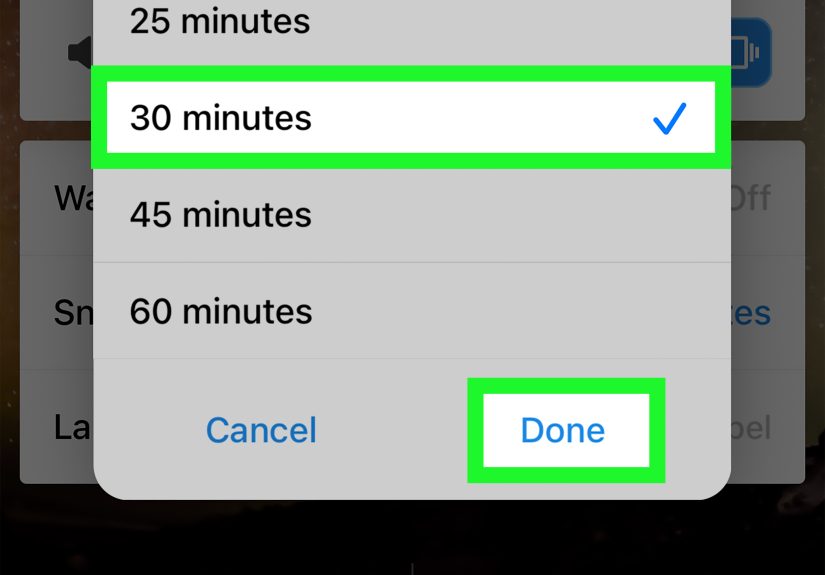
- Tap Snooze Duration.
- Choose a snooze time between 1 and 15 minutes.
- Save the alarm.
That is it. Your iPhone will now use that custom snooze duration for that specific alarm. If you have several alarms, repeat the process for each one you want to customize.
Example: A Better Weekday Alarm Setup
Let’s say you need to be out of bed by 6:30 a.m., but you know your brain needs one polite warning before it accepts reality. You could set your main alarm for 6:20 a.m. with a 5-minute snooze duration. If you tap snooze once, the alarm returns at 6:25 a.m. If you tap it twice, it comes back at 6:30 a.m., which is your final “feet on floor” moment.
This is much cleaner than relying on the old 9-minute snooze, which could land at awkward times like 6:29, 6:38, and “why am I still in bed?”
Why You May Not See the Snooze Duration Option
If you follow the steps above and do not see Snooze Duration, the most likely reason is that your iPhone is running an older version of iOS. Older versions of the Clock app usually offer only a basic Snooze toggle.
Check Your iOS Version
- Open Settings.
- Tap General.
- Tap About.
- Look next to iOS Version.
If your device can update to iOS 26 or later, go to Settings > General > Software Update and check whether an update is available. Before updating, back up your iPhone and make sure your battery is charged or connected to power.
Workaround 1: Set Multiple Alarms Instead of Using Snooze
If your iPhone does not support custom snooze duration, the easiest workaround is to turn off snooze and create several alarms at your preferred intervals. This gives you total control over the timing.
How to Do It
- Open the Clock app.
- Tap Alarms.
- Create your first alarm.
- Turn Snooze off for that alarm.
- Create additional alarms at the exact times you want.
For example, if you want a 5-minute snooze pattern, you can set alarms for 6:30, 6:35, 6:40, and 6:45. If you want a 15-minute pattern, set alarms for 6:30, 6:45, and 7:00.
Best For
This method is best for people who want a very specific wake-up routine without installing another app. It is also useful for heavy sleepers who tend to press snooze without fully waking up. Multiple alarms can provide stronger structure, especially when each alarm has a different label or sound.
Small Warning
Do not create 14 alarms unless you want your morning to feel like a fire drill hosted by a very disappointed robot. Too many alarms can make waking up more stressful and may train you to ignore them.
Workaround 2: Use Alarm Labels to Create a Wake-Up Sequence
Alarm labels are underrated. They are not just decorative text; they can give your sleepy brain instructions when it is least interested in making good decisions.
Instead of naming every alarm “Alarm,” try labels like:
- “Wake up slowly”
- “Sit up now”
- “Drink water”
- “Feet on the floor”
- “Last alarm seriously”
This works especially well when paired with multiple alarms. Your first alarm can be gentle, your second can be firmer, and your final alarm can be the one that means business.
Workaround 3: Use Different Alarm Sounds
If you cannot change the snooze time directly, changing the sound can still improve your wake-up routine. A soft tone might be useful for the first alarm, while a louder or more energetic sound can help with the final alarm.
How to Change an Alarm Sound
- Open the Clock app.
- Tap Alarms.
- Select an alarm.
- Tap Sound.
- Choose a ringtone, vibration, or song.
- Save the alarm.
A practical setup might look like this: a calm chime at 6:30, a brighter sound at 6:40, and a highly motivating “you have responsibilities” sound at 6:50. The goal is not to terrify yourself awake. The goal is to make each alarm meaningful.
Workaround 4: Use the Shortcuts App
The Shortcuts app can help you build a more customized morning routine. While it is not always a perfect replacement for a true snooze-duration setting, it can automate helpful actions around your alarm.
For example, you can create automations that run when an alarm is stopped. Your iPhone can open a morning playlist, turn on a smart light, show your calendar, start a focus mode, or trigger another routine that makes it harder to fall back asleep.
Ideas for Morning Shortcuts
- Start a playlist after you stop your alarm.
- Open the Weather app so you know what to wear.
- Turn on smart lights in your bedroom.
- Open a habit-tracking app.
- Show your first calendar event of the day.
This is a strong option for people who do not simply need another alarm. They need a wake-up system. Sometimes the problem is not the snooze interval; it is that nothing interesting happens after the alarm rings except the ancient human tradition of bargaining with the blanket.
Workaround 5: Use the Sleep Schedule Feature
The iPhone also includes sleep features through the Health app and the Clock app. If you use a Sleep Schedule, you can set a wake-up alarm connected to your bedtime and sleep goals. On newer iOS versions, wake-up alarms can also include snooze controls and snooze duration options.
Why Sleep Schedule Can Help
A regular sleep schedule can make mornings easier because your body starts to expect the same wake-up time. If you wake at 6:30 a.m. every weekday, your alarm becomes a reminder rather than a daily betrayal.
To explore this feature, open the Health app, go to Sleep, and review your schedule options. You can set bedtime goals, wind-down routines, and wake-up alarms designed around your sleep habits.
Workaround 6: Try a Third-Party Alarm App
If your iPhone does not offer custom snooze duration and you want more advanced alarm controls, a third-party alarm app may be worth considering. Many alarm apps include custom snooze intervals, gradual wake-up sounds, math challenges, barcode scanning, sleep tracking, or missions that force you to leave the bed.
Popular categories include:
- Custom snooze alarm apps: Good for choosing exact snooze lengths.
- Mission-based alarm apps: Useful if you dismiss alarms while half-asleep.
- Sleep cycle alarm apps: Designed to wake you during lighter sleep windows.
- Reminder-based apps: Helpful for tasks, medication prompts, or recurring alerts.
Before installing any app, check recent reviews, privacy details, notification permissions, and whether the app requires a subscription. Also test it on a low-risk morning before relying on it for an important meeting, flight, exam, or wedding. Your alarm app should prove itself before it becomes the guardian of your entire schedule.
Why Was the iPhone Snooze 9 Minutes?
The 9-minute snooze has a long history. Traditional mechanical alarm clocks often used snooze intervals close to 9 minutes because of how their gears were designed. Over time, the 9-minute snooze became a familiar convention. Apple kept that familiar timing for many years in the iPhone Clock app.
From a modern user’s perspective, though, 9 minutes can feel strangely specific. It is not quite 5 minutes, not quite 10, and somehow always enough time to fall back into a fog but not enough time to feel rested. That is why custom snooze duration became such a requested feature.
What Is the Best Snooze Time?
The best snooze time depends on your sleep habits, schedule, and personality. Some people do well with a short 3- to 5-minute snooze because it gives them a brief transition period. Others prefer 10 to 15 minutes because they wake more gradually.
Try These Snooze Strategies
- 1 to 3 minutes: Best for people who need a tiny buffer but do not want to drift off again.
- 5 minutes: A practical choice for weekday mornings.
- 9 minutes: The classic iPhone-style snooze, familiar but not always ideal.
- 10 minutes: Easy to calculate and good for structured routines.
- 15 minutes: Better for relaxed mornings, but risky if you oversleep easily.
If you often feel groggy after snoozing, use a shorter snooze or skip snooze entirely. Morning grogginess, often called sleep inertia, can feel worse when you repeatedly wake up and fall back asleep. For some people, one snooze is harmless. For others, repeated snoozing turns the first hour of the day into a low-budget zombie movie.
How to Make Your iPhone Alarm More Reliable
A custom snooze time is helpful, but alarm reliability matters even more. Before blaming the snooze button, make sure your alarm setup is solid.
Check Alarm Volume
Go to Settings > Sounds & Haptics and adjust the Ringtone and Alerts slider. This controls alarm volume. If your alarm is too quiet, it may not wake you even if it technically rings.
Choose a Real Sound
Make sure your alarm sound is not set to None. Open the alarm, tap Sound, and choose a tone you can actually hear.
Know How Focus and Silent Mode Work
Standard iPhone alarms usually still sound even when Silent Mode or Do Not Disturb is enabled. However, your volume, sound choice, connected devices, and sleep settings can affect your experience. Test your alarm after changing settings.
Place Your iPhone Across the Room
This old trick still works. If your phone is beside your pillow, snoozing requires one thumb and zero personal growth. If your phone is across the room, you have to stand up, which is half the battle.
Should You Stop Using Snooze Altogether?
Not necessarily. Snoozing is not automatically evil. Some people use one short snooze and wake up feeling fine. Others hit snooze five times and begin the day confused, late, and emotionally attached to the duvet.
The better question is: does snoozing help you or hurt you?
If snoozing helps you wake gently and you still start the day on time, it may be fine. If snoozing makes you late, groggy, rushed, or dependent on multiple alarms, it is probably time to change your routine.
Signs Your Snooze Habit Needs Work
- You regularly sleep through important alarms.
- You hit snooze without remembering it.
- You need five or more alarms to wake up.
- You feel worse after snoozing.
- You get less than seven hours of sleep most nights.
- You wake up tired even after a full night in bed.
If you are consistently exhausted, the issue may not be your iPhone. It may be your bedtime, sleep quality, stress level, caffeine timing, or an underlying sleep problem. Technology can help, but it cannot fully repair a sleep schedule that is running on wishful thinking and late-night scrolling.
Best iPhone Snooze Setups for Different People
For Heavy Sleepers
Use multiple alarms, different sounds, and place your iPhone away from the bed. If you have iOS 26 or later, set a short snooze duration, such as 3 to 5 minutes. Long snoozes may give you too much time to fall deeply asleep again.
For Light Sleepers
Use one gentle alarm with a 10- to 15-minute snooze option if you prefer a slower wake-up. A harsh alarm may wake you quickly, but it can also start the day with unnecessary stress.
For Shift Workers
Use clear alarm labels and avoid relying on muscle memory. If your schedule changes often, label alarms by purpose, such as “Night shift wake-up” or “Nap before work.” Consider using Sleep Focus to reduce interruptions before your alarm.
For Students
Create separate alarms for class days, exam days, and weekends. A 5-minute snooze can work well when you need structure. Avoid setting alarms so early that you simply train yourself to ignore them.
For Parents
Use realistic alarms. If your night was interrupted, a strict no-snooze system may not be practical. Try one gentle alarm, one backup alarm, and a clear label that tells you what must happen first.
Common Mistakes When Changing iPhone Snooze Habits
Mistake 1: Setting Too Many Alarms
More alarms do not always mean better waking. Too many alerts can make you numb to the sound. Use enough alarms to support your routine, but not so many that you start ignoring all of them.
Mistake 2: Choosing a Sound You Hate
An alarm should wake you, not make you resent music, birds, bells, or your entire phone. Pick a sound that is noticeable but not emotionally destructive.
Mistake 3: Using Weekend Snooze Rules on Weekdays
A 15-minute snooze might be fine on Sunday. On Monday, it can be the difference between coffee and chaos. Set different alarms for different days.
Mistake 4: Ignoring Bedtime
If you go to bed at 1:30 a.m. and set an alarm for 6:00 a.m., the snooze button is not the villain. It is just the messenger wearing a tiny digital hat.
Personal Experience: What Actually Works When Changing iPhone Snooze Time
After testing different alarm setups, the biggest lesson is that changing the snooze time is only part of the solution. The real win comes from designing a wake-up routine that matches how you actually behave in the morning, not how your most optimistic evening self thinks you will behave.
For example, a 5-minute snooze sounds disciplined. It looks great on paper. It says, “I am a responsible adult who drinks water and owns matching socks.” But if you are someone who falls back asleep instantly, 5 minutes may only create repeated interruptions. You wake, tap, vanish, repeat. By the third alarm, your brain has turned the sound into background music.
A better setup is to connect each alarm to a specific action. The first alarm is not “wake up.” It is “open your eyes.” The second alarm is “sit up.” The third alarm is “stand up and turn off the phone across the room.” That sounds almost silly, but it works because sleepy people need simple instructions. Morning-you does not want a productivity lecture. Morning-you wants one clear task.
Another useful discovery is that alarm labels matter more than most people think. A label like “Gym” is okay, but “Shoes on by 6:35” is better. A label like “Work” is vague, but “Leave in 30 minutes” creates urgency. When you are half-awake, your lock screen can become a tiny coach. Not a loud coach with a whistle, thankfully. More like a helpful coach holding coffee.
Sound choice also changes everything. A gentle tone may help light sleepers wake peacefully, but it may do absolutely nothing for someone buried under three blankets and a dream about missing a flight. On the other hand, choosing the most aggressive alarm possible can make you wake up angry before your feet touch the floor. The sweet spot is a sound you notice quickly but do not hate by Thursday.
For people with iOS 26 or later, the best practical setup is usually one main alarm with a short snooze duration and one backup alarm with snooze turned off. For instance, set a 6:30 alarm with a 5-minute snooze and a 6:45 backup alarm labeled “No more snooze.” That gives you flexibility without letting the morning become a negotiation.
For older iPhones, multiple alarms still work well, but only if they are intentional. Instead of creating a messy list of random times, build a ladder: 6:30, 6:40, 6:50. Give each alarm a different label and sound. Turn off snooze for those alarms so you know exactly what will happen next.
The most underrated trick is putting the iPhone across the room. It is annoying, which is precisely why it works. Once you are vertical, the chance of staying awake rises dramatically. Pair that with opening curtains, drinking water, or turning on a light, and the alarm becomes the start of a routine rather than a battle.
In the end, the best iPhone snooze workaround is the one that removes decision-making from the morning. Whether you use iOS 26’s custom snooze duration, multiple alarms, Shortcuts, Sleep Schedule, or a third-party app, the goal is the same: wake up with less chaos and fewer mysterious taps on the snooze button. Your future self will thank you. Maybe not immediately, because it is morning, but eventually.
Conclusion
Changing snooze time on iPhone is finally straightforward if your device runs iOS 26 or later. Open the Clock app, edit an alarm, turn on Snooze, and choose a Snooze Duration between 1 and 15 minutes. For older iPhones, the built-in Clock app is still limited to the classic 9-minute snooze, but you can work around it by setting multiple alarms, using clear labels, changing alarm sounds, building Shortcuts automations, using Sleep Schedule, or trying a third-party alarm app.
The best setup is not always the most complicated one. A short snooze, one backup alarm, a clear label, and a phone placed across the room can do more than a dozen chaotic alarms. The goal is not just to wake up. The goal is to wake up on time, with fewer panic moments and fewer conversations that begin with, “I swear my alarm didn’t go off.”
SEO Tags
Note: This article is based on current iPhone Clock behavior, iOS alarm features, Apple alarm settings, and reputable sleep-health guidance. It is written for web publishing in clean HTML body format without embedded source-reference markup.