Table of Contents >> Show >> Hide
- Why Change the Google Chrome Icon?
- Before You Start
- How to Change the Google Chrome Icon on Windows
- How to Change the Google Chrome Icon on Mac
- Windows vs. Mac: The Biggest Difference
- What About Chrome Profiles and Website Shortcuts?
- Troubleshooting Common Problems
- Smart Ways to Use Custom Chrome Icons
- Real-World Experiences with Changing the Google Chrome Icon
- Final Thoughts
Let’s be honest: the default Google Chrome icon is perfectly fine, but “perfectly fine” is not always the vibe. Maybe you want a sleek monochrome look. Maybe you want separate icons for work Chrome and personal Chrome. Maybe you just want your desktop to stop looking like every other desktop on Earth. Whatever your reason, changing the Chrome icon is one of those tiny computer tweaks that feels oddly satisfying.
The good news is that you do not need to hack Chrome, summon a suspicious third-party utility, or perform any digital acrobatics. On Windows, you usually change the Chrome shortcut icon. On Mac, you can change the app icon shown in Finder and the Dock using a built-in method. That difference matters, because Windows and macOS treat app icons very differently behind the scenes.
In this guide, you’ll learn exactly how to change the icon of Google Chrome on both platforms, what file types work best, how to undo the change if your custom icon ends up looking like a tiny potato, and a few smart ways to use custom Chrome icons for better organization. If your desktop has been begging for a glow-up, this is the easiest makeover you’ll do all week.
Why Change the Google Chrome Icon?
Changing the Chrome icon is not just cosmetic. Sure, it is mostly cosmetic. But it can also be genuinely practical. If you use Chrome for multiple roles, custom icons make it easier to tell things apart at a glance. A blue icon for work, a green icon for school, a dark one for gaming, a gold one for “I definitely opened 37 tabs for research.” Suddenly your desktop looks less chaotic and more intentional.
It also helps if you pin Chrome to your taskbar or Dock and want it to match a theme. Minimalist desktop? Use a flat black-and-white icon. Color-coded workflow? Use a distinct color for each shortcut. Want your Mac or Windows setup to feel more personalized? This is one of the easiest visual changes you can make without touching system settings that might come back to haunt you later.
Before You Start
Before you change anything, grab the icon you want to use. On Windows, the safest choice is an .ico file. Windows is happiest when shortcut icons use the ICO format, because it is built for icons and supports multiple sizes. On Mac, you can usually copy an image and paste it onto the app icon through Finder’s Get Info window. A square image with a transparent background usually looks best, especially if you want the result to look clean instead of like a sticker someone slapped on your Dock in a hurry.
You should also decide what you actually want to change. This is where many tutorials get fuzzy. If you are on Windows, you are generally changing the icon of a shortcut that launches Chrome, not the Chrome program file itself. If you are on Mac, you can change the visible icon for the Chrome app in Finder by using the built-in copy-and-paste method. Same goal, different path.
How to Change the Google Chrome Icon on Windows
On Windows, the cleanest method is to change the icon of a Chrome shortcut. That means your custom icon appears on the desktop shortcut and can also be useful when organizing how you launch Chrome. It is quick, safe, and easy to reverse.
Step 1: Create a Desktop Shortcut for Chrome
If Chrome is already on your desktop, congratulations, you can skip ahead. If it is not, create a shortcut first. In Windows, you can find Chrome from the Start menu and drag it to the desktop to create a shortcut. If that feels a little too magical for your taste, you can also create a new shortcut from the desktop and point it to Chrome’s executable file. Either way, what you want is the familiar little arrow badge that says, “Hi, I’m a shortcut, not the actual app.”
This distinction matters. If you right-click the real application file in a protected folder, Windows may not offer the same simple icon-changing experience. But right-click a shortcut, and you usually get the exact option you need.
Step 2: Open the Shortcut Properties
Right-click the Chrome shortcut and select Properties. A window will open with several tabs. Click the Shortcut tab if it is not already selected. That is where the magic lives. Or at least the very practical button labeled Change Icon, which is close enough.
Step 3: Click “Change Icon”
Now click Change Icon. Windows may show you a few built-in icons from Chrome or from the current shortcut target. If you already have a custom icon file ready, click Browse and select your ICO file. Once you pick the new icon, click OK, then Apply, then OK again.
That is it. Your Chrome shortcut should now display the new icon. If you do not see the change immediately, click away from the desktop and back again, or reopen the shortcut. Sometimes Windows needs a tiny moment to stop acting dramatic.
Best File Types and Design Tips for Windows
If your icon looks blurry, stretched, or generally cursed, the file format is usually the problem. Use an .ico file whenever possible. If your design starts as a PNG, convert it to ICO before applying it. Choose a clean, high-contrast design that still looks recognizable at small sizes. Desktop icons shrink fast, and the super-detailed masterpiece you lovingly downloaded may turn into an abstract blob the second Windows reduces it.
A simple rule: if the icon still looks good at thumbnail size, it is probably a keeper.
Can You Change the Real Chrome App Icon on Windows?
Technically, advanced users can modify program resources, but that is not the safe or recommended route for everyday use. For most people, the right move is to customize the shortcut instead. It is faster, easier, and far less likely to break after an update. Chrome gets updated often, and the last thing you need is a browser icon battle every few weeks.
How to Change the Google Chrome Icon on Mac
Mac users get a different experience, and in some ways it is nicer. Instead of changing only a shortcut, you can use Finder’s built-in Get Info method to replace the app’s visible icon. No terminal commands. No extension packs. No digital wizard robe required.
Step 1: Find Google Chrome in Finder
Open Finder and go to your Applications folder. Locate Google Chrome. You can also select Chrome from another Finder location if that is where you keep it, but Applications is the usual spot.
Step 2: Open “Get Info”
Right-click Google Chrome and choose Get Info. A details window will appear. At the top of that window, you will see a small icon next to the app name. This detail is important: the small icon at the top is the one you want to replace, not the larger preview area farther down. Many people click the wrong thing and then wonder why paste is unavailable. The Mac is not broken. It is just being specific.
Step 3: Copy the New Image
Open the image you want to use in Preview. Then choose Edit > Copy, or use Command + C. If you are using a clean square image with transparency, the result usually looks much better in the Dock and Finder.
Step 4: Paste the New Icon onto Chrome
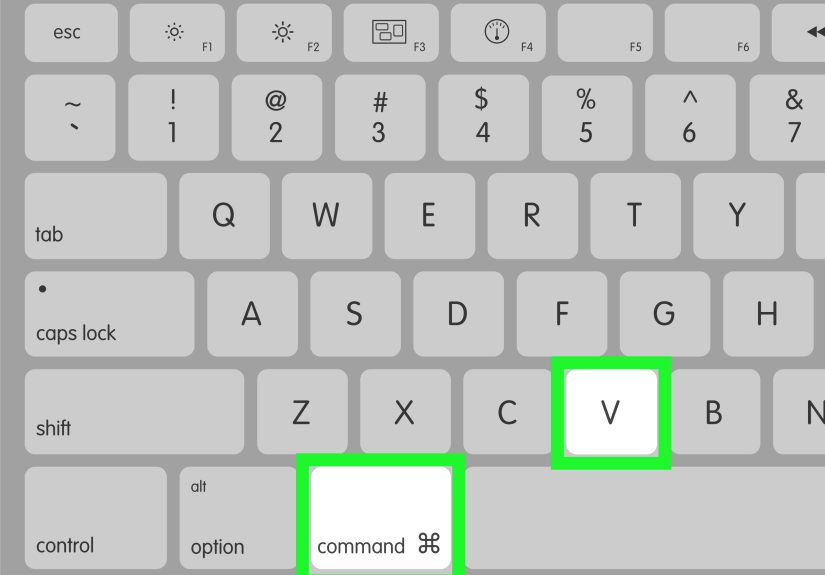
Go back to the Get Info window for Google Chrome. Click the small icon at the top so it is highlighted, then choose Edit > Paste or press Command + V. Your new Chrome icon should appear almost instantly.
That is the whole process. Seriously. For once, the Mac method is refreshingly low-drama.
How to Revert to the Original Chrome Icon on Mac
If your custom icon starts feeling less “stylish” and more “what was I thinking at 1:12 a.m.,” it is easy to go back. Open Get Info again, click the small icon at the top, and remove it to restore the default. This makes testing different Chrome looks much less risky, which is great news for people who change their mind every 14 minutes.
Windows vs. Mac: The Biggest Difference
The biggest thing to remember is this: Windows usually changes Chrome through a shortcut, while Mac changes the visible app icon through Finder. That means a Windows user might have several Chrome shortcuts with different icons, while a Mac user is more likely changing the icon for the app itself.
This difference can actually work in your favor. On Windows, you can make multiple Chrome shortcuts for different uses and assign each one a different icon. On Mac, changing the app icon is a great option if you want Chrome’s appearance to feel consistent across Finder and the Dock.
What About Chrome Profiles and Website Shortcuts?
If you are trying to organize Chrome visually, changing the icon is only one option. Chrome also supports multiple profiles, and those can help separate work, school, and personal browsing. If you live in multiple accounts all day, profiles can be a cleaner long-term solution than relying on one giant browser window stuffed with tabs and wishful thinking.
Chrome can also create website shortcuts from the browser itself. That is useful if what you really want is a desktop icon for Gmail, Google Calendar, YouTube, or another frequently used site. In that case, you are not changing the Chrome icon so much as creating a shortcut that opens a specific site. It is a different feature, but it often solves the same “I want faster access and less visual confusion” problem.
Troubleshooting Common Problems
The New Icon Looks Fuzzy
Use a higher-quality source image and, on Windows, convert it to ICO before applying it. Small icons need simple shapes, clean edges, and strong contrast. If the design is too busy, it will look muddy.
The Change Does Not Appear Right Away
Close and reopen Chrome, refresh the desktop, or reopen Finder if you are on a Mac. Minor display lag can happen, especially after changing icons quickly.
Paste Is Unavailable on Mac
You probably selected the large preview area instead of the small icon at the top of the Get Info window. Click the small icon first, then paste again.
The Windows “Change Icon” Button Is Missing
You are likely looking at the wrong file. Make sure you are editing a shortcut, not a folder or the app’s actual installation file. Shortcuts are where Windows gives you the clean icon-change option.
Smart Ways to Use Custom Chrome Icons
Custom icons are more useful when they follow a system. For example, you might use:
- A dark Chrome icon for work
- A bright Chrome icon for personal browsing
- A blue Chrome icon for school or research
- A red Chrome icon for social media management
- A minimalist white icon to match a clean desktop theme
This works especially well for people who launch Chrome differently depending on the task. Even if you are only changing one icon, a small visual cue can make your desktop feel more organized and easier to scan.
Real-World Experiences with Changing the Google Chrome Icon
One of the funniest things about changing the Google Chrome icon is how small the task sounds compared to how satisfying the result can be. You spend five minutes replacing a circle on your desktop, and suddenly you feel like the CEO of Personal Organization. That might sound dramatic, but it is also kind of true.
For a lot of people, the first reason to change Chrome’s icon is simple confusion. They use Chrome for everything: work meetings, personal email, streaming, online shopping, research, reading, and the occasional deep dive into a hobby they will absolutely master one day. When all of that starts from the same icon, the workflow gets messy. A custom icon acts like a visual shortcut for your brain. You are not just clicking “Chrome.” You are clicking work Chrome, or school Chrome, or the version of me that pays bills on time.
On Windows, this becomes especially useful when someone keeps multiple desktop shortcuts. A freelancer might use one shortcut for a client-focused Chrome launch and another for personal browsing. A student might keep one icon for class resources and another for everyday use. Even if the shortcuts point to the same browser, the different icons create a sense of separation. It feels cleaner. It feels more deliberate. And when your desktop is crowded, that quick visual distinction matters more than most people expect.
Mac users often describe the experience a little differently. On a Mac, changing the icon through Get Info feels almost like customizing the personality of the app itself. It is less about creating lots of separate shortcuts and more about making Chrome fit the overall look of the system. People with carefully themed desktops, matching folder colors, and minimalist Dock layouts often love this method because it keeps everything visually consistent.
There is also a very real emotional side to this. A custom icon can make a device feel more personal. Computers are tools, yes, but they are also spaces we spend hours in every day. Tiny changes like a custom Chrome icon, a themed wallpaper, or a better folder layout can make that space feel less generic and more like yours. And sometimes that little sense of ownership makes work feel a bit less like work.
Of course, not every custom icon is a winner. Some look incredible in a preview window and terrible once shrunk down. Others seem brilliant late at night and deeply questionable the next morning. That is part of the fun. The good news is that both Windows shortcuts and Mac icons are easy enough to change back. So the experience tends to be low-risk, mildly creative, and weirdly enjoyable. In the world of computer tweaks, that is a pretty great deal.
Final Thoughts
If you want a quick way to personalize your computer, changing the Google Chrome icon is an easy win. On Windows, the best method is to change the icon of a Chrome shortcut. On Mac, the built-in Get Info method lets you replace Chrome’s visible app icon with just a copy and paste. Neither approach requires advanced skills, and both can make your setup look cleaner, smarter, and more tailored to how you actually use Chrome.
In other words, this is one of those tiny upgrades that punches above its weight. It takes only a few minutes, costs nothing, and can make your desktop feel a lot more intentional. Not bad for a little circle with red, green, yellow, and blue in it.