Table of Contents >> Show >> Hide
- 1) What “Chatting on TikTok” Actually Means
- 2) Before You Start: The Big Rules That Block TikTok Chat
- 3) How to Send a Direct Message on TikTok (Android)
- 4) How to Share a TikTok Video in a DM (The “This Is You 😂” Move)
- 5) Message Requests: Where “New People” Land
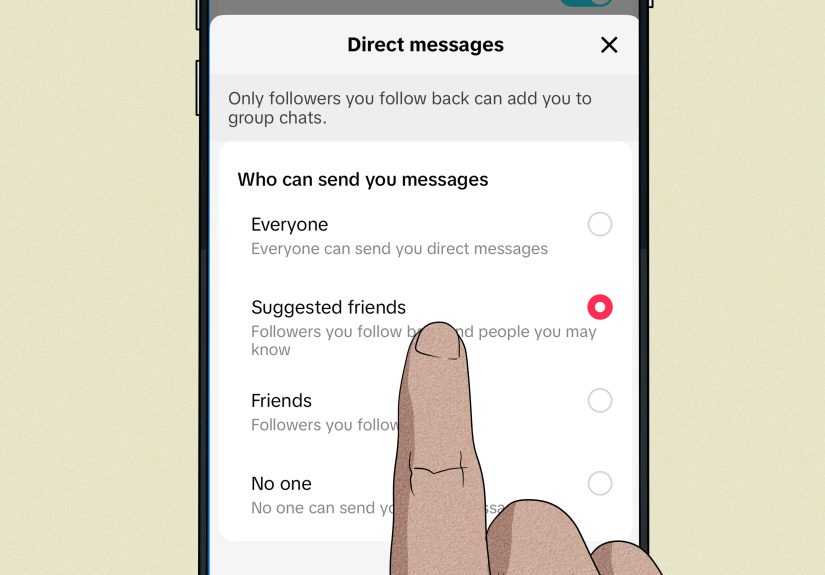
- 6) How to Change Who Can Message You (DM Privacy Settings)
- 7) Group Chats on TikTok: How They Work (and Why You Might Not See Them)
- 8) Fun Stuff You Can Send: Voice, Images, Stickers, and More
- 9) Troubleshooting: “Why Can’t I Chat on TikTok?” (Android Fixes That Actually Work)
- 10) Safety & Etiquette: How to DM Without Regretting It
- 11) Quick Examples: Copy-Paste Messages That Don’t Feel Awkward
- 12) Wrap-Up: Your Beginner Checklist for TikTok Chat on Android
- Real-World Experiences: What It’s Like Learning TikTok Chat as a Total Beginner (500+ Words)
You downloaded TikTok, you survived your first accidental “like” (we’ve all been there), and now you want to chat.
Not comment. Not duet. Not yell into the void with caps lock. You want real, private messageson Androidwithout
tapping random icons like you’re defusing a bomb.
This guide walks you through every beginner step: how TikTok messaging works, how to send your first DM, how message requests
behave, how group chats work, and what to do when TikTok refuses to let you message anyone (spoiler: it’s often a privacy or age
settingnot your phone “being weird”).
1) What “Chatting on TikTok” Actually Means
TikTok has more than one way to “talk” to people, and beginners often mix them up. Here are the main chat-like options:
- Direct Messages (DMs): private 1:1 conversations (text, emojis, stickers, and more).
- Message Requests: a “waiting room” for people who aren’t fully approved to land in your inbox.
- Group Chats: multi-person DMs (when available) for sharing videos and reacting together.
- Comments & Replies: public conversation under videos (not private, but still “chatty”).
- Live Chat: real-time comments while someone is live (again: public).
In this beginner guide, we’ll focus on DMs, message requests, and group chatsthe stuff that feels like actual messaging.
2) Before You Start: The Big Rules That Block TikTok Chat
You must meet TikTok’s messaging eligibility
TikTok direct messaging isn’t available to everyone. The most common “Why can’t I message?” reasons are:
- Age restrictions: TikTok limits who can use DMs (and message requests) based on age.
- Privacy settings: either you or the other person has DMs turned off or restricted.
- Friend status: many accounts only allow messages from “friends” (people who follow each other).
- Account safety limitations: if TikTok suspects spam behavior, messaging can be limited temporarily.
Your “Inbox” is the command center
On Android, your messaging hub is the Inbox tab (bottom navigation). If you only remember one thing from this guide,
make it this: when in doubt, go to Inbox.
3) How to Send a Direct Message on TikTok (Android)
There are two beginner-friendly ways to start a DM: from your Inbox or from someone’s profile. I recommend the Inbox route first
because it’s consistent (and doesn’t depend on a profile button showing up).
Method A: Start a new chat from Inbox
- Open TikTok and tap Inbox at the bottom.
- Tap the new message icon near the top (often a pencil/speech bubble style icon).
- Select a person from the list or search for their username.
- Type your message, then tap Send.
Beginner tip: If you’ve messaged them before, you don’t need a “new message.” Just tap the existing conversation in your message list and keep going.
Method B: Message someone from their profile
- Find the person (Search, comments, or tapping their username on a video).
- On their profile page, look for a Message button.
- Tap it, type your message, and hit Send.
If you don’t see a Message button, don’t panic. It usually means one of these:
their DMs are restricted, you’re not eligible to message them, or TikTok is routing you to message requests instead.
4) How to Share a TikTok Video in a DM (The “This Is You 😂” Move)
The fastest way to start conversations on TikTok is sharing videos. It’s like sending memesexcept the meme sometimes includes a dancing raccoon explaining taxes.
Share a video to one person
- Open the TikTok video you want to share.
- Tap the Share arrow on the right side.
- Tap the person you want to send it to (or search for them).
- Optionally type a message like: “This is literally us at 2 a.m.”
- Tap Send.
Share to multiple people without creating chaos
When you select multiple recipients from the share panel, TikTok typically sends the video to each person (or chat) separately.
If you want everyone talking together, that’s what group chat is for (we’ll cover it soon).
5) Message Requests: Where “New People” Land
Message requests are TikTok’s way of preventing your inbox from turning into a digital flea market.
If someone isn’t fully allowed to DM you directly, their message can arrive as a request that you can accept or ignore.
How to check message requests on Android
- Tap Inbox.
- Tap Message requests.
- Open a request to preview the conversation.
- Choose Accept (to move it into normal DMs) or Delete (to remove it).
Safety note: Don’t accept requests just because the profile has a cute dog. Cute dogs can be used as a marketing strategy.
(I’m not saying dogs are scammers. I’m saying scammers understand dogs.)
6) How to Change Who Can Message You (DM Privacy Settings)
If you want more messages, fewer messages, or exactly zero messages while you recover from social interaction, TikTok lets you control who can DM you.
Step-by-step: DM privacy controls
- Go to Profile.
- Tap the Menu button (three lines) in the top-right.
- Tap Settings and privacy.
- Tap Privacy.
- Tap Direct messages (or a similarly named option).
From there, you can usually pick something like:
Everyone, Suggested friends, Friends, or No one.
The exact options you see can vary based on age and account type, but the idea is always the same:
you decide whether strangers can DM you, whether requests are allowed, or whether messages are locked down entirely.
Beginner-friendly recommendation
- Personal account: Start with Friends to keep things calm.
- Creator/brand vibe: Consider Suggested friends or Everyone, but watch message requests closely.
- Peace and quiet: Choose No one and enjoy your temporary digital silence.
7) Group Chats on TikTok: How They Work (and Why You Might Not See Them)
TikTok group chats let you share videos and react together inside the applike a group text, but with more chaos and better soundtracks.
How to start a group chat on Android
- Tap Inbox.
- Tap the new message icon.
- Select multiple friends.
- Tap something like Start group chat (wording may vary).
Key group chat rules beginners should know
- Group size: TikTok has supported group chats with a set participant limit (commonly up to 32).
- Mutual connections matter: Many group chat invites require “friends” (mutual follows) to reduce stranger contact.
- Age limitations: Group chat may not be available to younger teens, and older teens can have extra protections.
If you can’t create or join a group chat, it’s usually not your Android device. It’s one of these:
you’re not eligible based on age, your DM settings don’t allow it, or the people you’re trying to add aren’t mutual connections.
8) Fun Stuff You Can Send: Voice, Images, Stickers, and More
TikTok DMs are not just “text and regret.” Depending on your account eligibility and feature rollout, you may be able to send:
- Voice messages: hold the mic button, record, and send.
- Photos/images: share images in chat (where available).
- Stickers and emojis: because sometimes words are too formal.
- Videos: share TikToks directly, and in some cases send short video clips within DMs.
Beginner warning: Some voice message interfaces send instantly when you release your finger.
So if your message is “Uhh… hi… sorry… wrong person,” you may want to practice first.
9) Troubleshooting: “Why Can’t I Chat on TikTok?” (Android Fixes That Actually Work)
Problem: The Message button is missing
- Check whether you and the other person follow each other (many accounts require mutual follows).
- Ask them to check their DM settings (they may be set to Friends or No one).
- Make sure you’re using an updated TikTok app from Google Play.
Problem: You can’t see “Message requests”
- Your account may be set to not receive requests (especially common for teens by default).
- Go to Settings and privacy → Privacy → Direct messages and confirm requests are allowed.
Problem: Messages fail to send
- Toggle Wi-Fi/mobile data or restart the app (classic, but effective).
- Update TikTok (feature changes often live behind updates).
- Clear TikTok cache (Settings and privacy → Free up space / Cache, if available).
- If TikTok is having an outage, waiting (annoyingly) can be the right move.
Problem: You’re under the DM age limit
If your account is under TikTok’s DM eligibility, messaging won’t workeven if your friend swears “it worked last year.”
Platforms change rules, and TikTok has tightened teen protections over time. In that case, your best options are:
commenting, using other approved communication methods, or waiting until your account is eligible.
10) Safety & Etiquette: How to DM Without Regretting It
Quick safety checklist
- Don’t click random links from message requests (yes, even if they say “YOU WON A FREE iPHONE”).
- Use Block/Report if someone gets creepy or spammy.
- Keep personal info private (address, school, phone number, financial details).
- Trust your instincts: if it feels off, it’s probably off.
Beginner DM etiquette that makes you look like a pro
- Start with context: “Hey, I saw your video about…” beats “Hi.” (Hi is fine, but it’s also what robots say before the takeover.)
- If you’re pitching a collab, be specific: what you want, what you offer, and what the next step is.
- Don’t spam. One good message is charming. Five in a row is a horror movie.
11) Quick Examples: Copy-Paste Messages That Don’t Feel Awkward
Here are a few beginner-safe scripts you can adapt:
- To a friend: “This video is 100% you. I will not be taking questions.”
- To a creator you admire: “Hey! Loved your post about meal prep. Quick question: what pan are you using in the second clip?”
- To start a collab: “Hi! I’m [Name], I make [topic] videos. I’d love to collaborate on a short clip about [idea]. If you’re interested, I can send a quick outline.”
- To decline politely: “Thanks for reaching out! I’m going to pass for now, but I appreciate the message.”
12) Wrap-Up: Your Beginner Checklist for TikTok Chat on Android
- Use Inbox to find messages, requests, and group chats.
- Start DMs from Inbox or from a person’s Profile.
- Share videos using the Share arrowthis is the fastest “conversation starter.”
- Control who can message you in Settings and privacy → Privacy → Direct messages.
- Check Message requests before assuming “nobody ever messages me.”
- Use Block/Report freely. Your peace is more important than being polite to spam.
Real-World Experiences: What It’s Like Learning TikTok Chat as a Total Beginner (500+ Words)
The first time most beginners try to chat on TikTok, it’s not elegant. It’s more like: tap a video, accidentally follow a stranger,
panic, unfollow, then forget what you were doing in the first place. Messaging usually happens after that small emotional journey.
One common beginner experience is discovering that TikTok chat is “permission-based.” On apps like SMS, you can text almost anyone
(assuming you have their number). On TikTok, messaging often depends on whether you’re mutuals, whether DMs are open, and whether
TikTok wants to route you through message requests. The first time you message someone and it doesn’t go through, you might assume
your Android phone is broken. In reality, TikTok is basically saying, “Cool, but do you two actually know each other… or are you a
suspicious raccoon in a trench coat?”
Beginners also learn quickly that the Inbox is not just “messages.” It’s a whole ecosystem: activity notifications,
comment replies, and message requests hiding like they’re playing hide-and-seek. A very real scenario: you think nobody has ever
DM’d you, then you tap Message requests and discover three people from last month saying “Loved your video!” That’s when you realize
TikTok wasn’t ignoring youyou were ignoring TikTok. (It’s okay. Your brain was busy memorizing where the share button lives.)
Another classic experience is using DMs for video sharing more than actual typing. TikTok conversations often look like:
video → video → video → “LOL” → video → “THIS IS SO YOU” → video. And honestly? That’s valid communication in 2026.
If you’re a beginner, don’t pressure yourself to write essay-length messages. Start by sharing a clip that matches the vibe, then
add one sentence. That’s enough to spark a real chat without feeling awkward.
If you’re trying to connect with creators or brands, the experience is a little different. Beginners often send a message like,
“Hey, can we collab?” and then wonder why they don’t get a reply. What you learn over time is that good TikTok DMs feel more like
mini-emails: short, specific, and easy to answer. Something like, “I loved your skincare routine videowould you be open to a
15-second duet where we compare budget vs. premium moisturizers? I can draft the outline.” That gives the other person a clear next step.
And finally, every beginner has the “safety awakening.” You get a message request that says, “Hello dear, I have amazing opportunity,”
and suddenly you understand why message requests exist. The best beginner move is learning to block and report without guilt.
You are not required to be polite to spam, scams, or anyone trying to sell you “exclusive influencer crypto socks.” TikTok chat can be
fun, useful, and surprisingly wholesomebut only if you treat your privacy settings like the front door lock they are.
Bottom line: chatting on TikTok is easy once you understand the rules. Your first few tries might feel clunky, but after a week,
you’ll be DM’ing friends, sharing videos, and managing requests like it’s second nature. And yes, you’ll still occasionally send a video
to the wrong person. Consider it a rite of passage.