Table of Contents >> Show >> Hide
- Battery Life vs. Battery Health: Know the Difference
- Method 1: Check Battery Usage in Settings
- Method 2: Use Samsung Members to Check Battery Status
- Method 3: Check Which Apps Are Draining Battery
- Method 4: Use Battery Protection Features to Preserve Long-Term Health
- Method 5: Use a Third-Party App for Extra Detail
- Should You Use Hidden Codes?
- Signs Your Samsung Galaxy Battery May Be Worn Out
- When to Get Professional Help
- Simple Tips to Improve Samsung Galaxy Battery Life
- Real-World Experiences With Checking Samsung Galaxy Battery Life
- Conclusion
- SEO Tags
If your Samsung Galaxy seems to lose power faster than your patience during a group chat, you are not imagining things. Battery life changes over time, and the tricky part is figuring out whether your phone is behaving normally, dealing with a rogue app, or quietly asking for a battery replacement. The good news is that Samsung gives you several ways to check what is going on. The even better news is that you do not need a lab coat, a secret code tattooed on your arm, or a dramatic monologue about technology to do it.
In this guide, you will learn how to check your Samsung Galaxy’s battery life, how to view battery health clues, how to spot apps that are draining power, and what to do if your phone is aging like milk instead of fine wine. Whether you use a Galaxy S series flagship, a Galaxy A phone, or a foldable that feels like a gadget from the future, these steps will help you understand what your battery is trying to tell you.
Battery Life vs. Battery Health: Know the Difference
Before diving into menus, let’s clear up one common confusion. Battery life is how long your phone lasts on a charge. Battery health is the condition of the battery itself after months or years of use.
Think of it this way: battery life is today’s performance, while battery health is the long-term story. A healthy battery can still drain quickly if your screen brightness is blasting like a mini sun or if one hungry app is running wild in the background. On the flip side, a worn battery may struggle even when you are barely using the phone.
That is why checking your Samsung Galaxy’s battery life is really a two-part mission:
- See how your battery is being used right now
- Check whether the battery itself appears to be in good condition
Method 1: Check Battery Usage in Settings
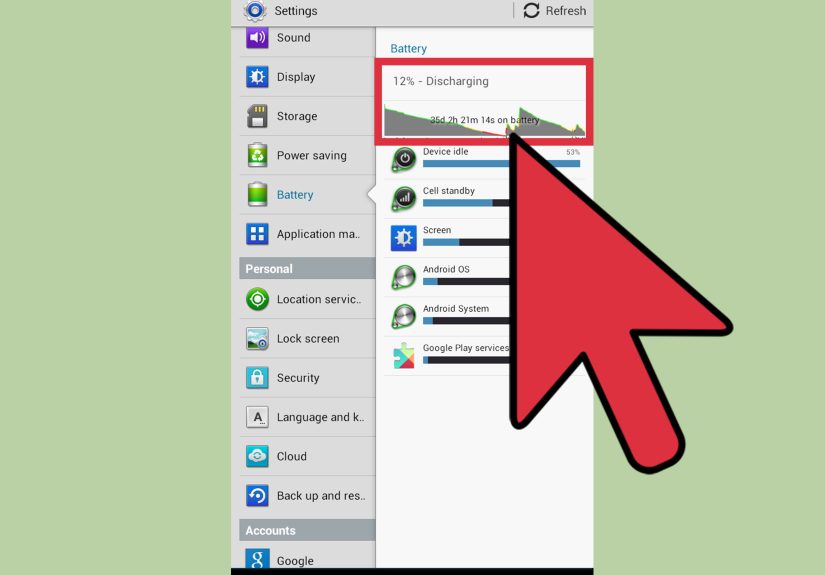
The fastest way to see what is draining your Samsung Galaxy battery is through Settings. This will not always give you a neat “your battery health is 87%” style number, but it is the best place to understand daily battery life.
How to open battery usage details
- Open Settings
- Tap Battery and device care or Device care
- Tap Battery
- Review your battery percentage, recent usage, and app activity
On many Galaxy phones, you will see a graph showing battery drain over time. Below that, you can usually view which apps used the most power. This is where the mystery starts to solve itself. If your camera, gaming app, maps app, or social media app is chewing through power, it will usually show up here with the digital equivalent of a guilty expression.
What to look for
- Fast drops during idle time: Your phone should not lose a huge chunk of battery while sitting untouched
- One app dominating the list: A misbehaving app can wreck battery life faster than you can say “why is my phone hot?”
- Screen usage: The display is often the biggest battery drain, especially with high brightness, 120Hz refresh rate, and long screen-on time
- Background activity: Apps that constantly sync, track location, or refresh content can quietly drain the battery all day
If your battery chart looks dramatic but your top app list makes perfect sense, your phone may be fine. If the chart looks like a cliff dive and the culprit is an app you barely use, then you have found your suspect.
Method 2: Use Samsung Members to Check Battery Status
If you want the closest thing to an official battery health check on a Samsung Galaxy phone, the Samsung Members app is your best friend. It includes built-in diagnostics that can test battery status along with other phone functions.
How to check battery status in Samsung Members
- Open the Samsung Members app
- Tap Support, Discover, or Diagnostics depending on your version
- Choose Phone diagnostics
- Tap Battery status or run the battery test
Samsung may label the result with a status such as Good, Normal, or something that suggests attention is needed. This is useful because it gives you an official reading from Samsung’s own diagnostic tools instead of a random estimate from an app that may or may not be guessing with confidence.
Here is the catch: Samsung often does not present battery health as a simple maximum-capacity percentage the way some other ecosystems do. So if you were hoping for a neat “your battery is at 82%,” Samsung may make you work a little harder. Classic Samsung move.
Method 3: Check Which Apps Are Draining Battery
Sometimes the battery is fine. The app choices are the problem. Your Galaxy phone can tell you which apps are draining power, and this is one of the most practical ways to improve battery life without spending money or performing tech wizardry.
Common battery-draining culprits
- Navigation apps using location constantly
- Video apps streaming in high resolution
- Social media apps refreshing in the background
- Games with high graphics settings
- Widgets and live wallpapers
- Apps with broken updates or sync loops
Open your battery usage page and compare what you see with how you actually use your phone. If a music app used 2% battery during a long workout, that is normal. If a shopping app used 18% while you were asleep, that is not normal. That app needs a stern talking-to, or at least restricted background access.
How to reduce app-related battery drain
- Update the app from the Play Store or Galaxy Store
- Force close it if it is acting strange
- Restrict background activity
- Put rarely used apps to sleep
- Uninstall apps you do not need
Samsung’s Battery and device care section also includes optimization tools that can flag heavy battery use. This is especially handy if you want a quick tune-up without manually hunting through every setting.
Method 4: Use Battery Protection Features to Preserve Long-Term Health
Checking battery life is only half the job. The other half is not accidentally aging your battery like a banana left in the sun. Samsung includes battery protection features on newer Galaxy phones to reduce wear over time.
Where to find Battery Protection
- Open Settings
- Tap Battery
- Tap Battery protection or More battery settings
Depending on your One UI version, you may see options that limit charging behavior. Some modes cap charging around 80%, while others adapt overnight charging to reduce the time your phone sits at 100% for hours. This matters because lithium-ion batteries generally age faster when they spend long periods fully charged and warm.
If you plan to keep your Galaxy phone for several years, turning on battery protection is one of the smartest low-effort moves you can make. It is the smartphone equivalent of eating vegetables: not flashy, very helpful, and mildly annoying because deep down you know it is good advice.
Method 5: Use a Third-Party App for Extra Detail
If Samsung’s built-in tools feel too vague, you can use a third-party battery-monitoring app to estimate capacity, charging speed, and wear patterns. These apps can be helpful, especially if you want trends over time.
Important warning before you trust every number
Third-party apps can provide estimates, not official Samsung-certified battery health verdicts. They usually need time to gather charging and discharging data, so the first reading may be rough. In other words, do not install an app, glance at one scary number, and immediately start planning a funeral for your battery.
Use these apps for patterns, not panic. If the app consistently shows poor estimated health and your real-world battery life is clearly bad, then the reading is worth taking seriously.
Should You Use Hidden Codes?
You may run across online tips about secret dialer codes and hidden menus. Some Android phones can open testing screens this way, but on Samsung devices the results are inconsistent. Certain codes are blocked on some models, some carriers disable them, and some menus are more confusing than useful unless you already know exactly what you are doing.
For most people, Samsung Members and Battery settings are the smarter route. Hidden menus are interesting if you love nerdy phone tricks, but they are not the best everyday solution for checking Samsung Galaxy battery life.
Signs Your Samsung Galaxy Battery May Be Worn Out
Even without a perfect health percentage, your phone gives clues when the battery is nearing retirement.
- The phone dies much faster than it used to
- The battery drops suddenly from one percentage to another
- The phone shuts down unexpectedly at 15% or 20%
- The device gets unusually hot during light use
- Charging feels inconsistent or slower than normal
- The battery test in Samsung Members suggests action is needed
If several of these symptoms show up at the same time, the issue may be the battery itself rather than a setting or app. At that point, it is reasonable to consider professional diagnostics or replacement.
When to Get Professional Help
If your Galaxy phone still performs poorly after checking usage, updating apps, optimizing settings, and running Samsung Members diagnostics, it may be time for professional service. Samsung support and authorized repair options can run more detailed checks than the average user can access from the settings menu.
This is especially worth considering if:
- Your phone is more than two years old
- You notice swelling, overheating, or sudden shutdowns
- The battery drains abnormally even after a factory reset
- The device fails battery diagnostics
Do not ignore physical warning signs. If the battery looks swollen or the phone is becoming dangerously hot, stop using it and get it checked. That is not a “maybe I will deal with it this weekend” problem. That is a “put the phone down and act like a responsible human” problem.
Simple Tips to Improve Samsung Galaxy Battery Life
Once you have checked your battery status, use these habits to get better day-to-day battery life and help preserve long-term battery health.
Smart habits that actually help
- Lower screen brightness or use adaptive brightness
- Reduce screen timeout
- Use dark mode on AMOLED screens
- Turn on Power saving mode when needed
- Limit background activity for apps you rarely use
- Keep software and apps updated
- Avoid extreme heat
- Use battery protection features if available
- Store unused phones at a partial charge, not empty or full
None of these tips are magical on their own, but together they make a noticeable difference. Battery life is usually won by a bunch of small good choices, not one heroic setting buried seven menus deep.
Real-World Experiences With Checking Samsung Galaxy Battery Life
In real life, checking a Samsung Galaxy’s battery life is less about one perfect number and more about learning your phone’s behavior. A lot of people expect a dramatic battery health screen that says, “Congratulations, your battery is excellent,” or “Bad news, champ.” Samsung tends to be more subtle than that. At first, this can feel annoying. But once you spend a few days watching the battery graph, app usage, and diagnostics results together, the picture becomes much clearer.
For example, one common experience is buying a new Galaxy phone, using it heavily for the first week, and then panicking because the battery seems to drop fast. In many cases, nothing is wrong. The phone is still learning usage patterns, downloading updates, syncing cloud accounts, indexing photos, and doing all the behind-the-scenes chores that new phones love to do when you are trying to admire them. After a few days, battery life often settles down.
Another common situation happens after a major software update. Users sometimes notice worse battery life for a day or two and immediately assume the update ruined everything. Sometimes an app needs updating. Sometimes background tasks spike temporarily. Sometimes the phone just needs a restart and a little time. Checking battery usage during that period is much more useful than guessing. You can usually spot whether the drain comes from the system, the screen, or a particular app that went a little off the rails after the update.
There is also the classic “my battery is terrible” moment that turns out to be a brightness problem. A Samsung Galaxy with a bright display, high refresh rate, always-on display, GPS, Bluetooth earbuds, and five chat apps buzzing all day is doing a lot of work. In that case, weak battery life is not always a bad battery. It may simply be an enthusiastic lifestyle.
People who keep their Galaxy phones for three years or longer often notice a different pattern. The phone may still work fine overall, but the battery percentage becomes less trustworthy. It can hang at 30% for a while, then tumble to 12% like it missed a step. That kind of behavior is one of the strongest real-world clues that the battery is wearing out. When Samsung Members starts hinting that action is needed and the phone no longer makes it through a normal day, a replacement becomes easier to justify.
Many users also discover that battery protection features are genuinely useful once they stop thinking only about today’s battery percentage. Limiting overnight charging or avoiding long hours at 100% can feel inconvenient at first, but it often makes more sense for people who want their phone to age well. It is a trade-off: a little less charge now for better battery health later. For students, professionals, travelers, and basically anyone who hates surprise low-battery drama, that trade can be worth it.
The big lesson from real-world use is simple: checking your Samsung Galaxy’s battery life works best when you combine diagnostics, app usage data, and common sense. Do not obsess over one reading. Watch the pattern. If your phone lasts all day and behaves normally, you are probably fine. If it drains fast, overheats, shuts down unexpectedly, or fails diagnostics, your phone is telling you something. At that point, listening is smarter than arguing with the battery.
Conclusion
If you want to check your Samsung Galaxy’s battery life, start with Settings > Battery and device care > Battery to review real usage and app drain. Then use Samsung Members for the closest thing to an official battery status test. Together, these tools help you understand whether the problem is a worn battery, a power-hungry app, or simply a few settings working overtime.
The main thing to remember is that good battery management is not about chasing perfection. It is about using the right tools, spotting obvious problems, and making a few smart adjustments before battery issues become everyday headaches. Your Galaxy does not need constant babysitting, but it does appreciate a little attention now and then. Like a houseplant. Or a laptop. Or that one friend who is always “at 1%.”