Table of Contents >> Show >> Hide
- Before You Start: Know What the HP Deskjet 3050 Needs
- Method 1: Connect the HP Deskjet 3050 Using WPS
- Method 2: Connect with HP Software and a Temporary USB Cable
- How to Change the HP Deskjet 3050 from USB to Wireless
- Add the HP Deskjet 3050 to a Windows Computer
- Add the HP Deskjet 3050 to a Mac
- Print a Wireless Network Test Report
- Common Reasons the HP Deskjet 3050 Will Not Connect
- Best Router Settings for the HP Deskjet 3050
- Troubleshooting Checklist
- Real-World Experience: What Usually Works Best
- Conclusion
Connecting the HP Deskjet 3050 to a wireless router sounds like it should be as simple as pressing one cheerful little button and watching technology behave itself. Sometimes, it is. Other times, your printer stares back with a blinking blue wireless light like it is guarding an ancient secret. The good news is that the HP Deskjet 3050 was designed for home Wi-Fi printing, and once it joins your wireless network correctly, you can print from a computer without dragging a USB cable across the room like a digital clothesline.
This guide explains how to connect the HP Deskjet 3050 to a wireless router using the most reliable methods: Wi-Fi Protected Setup, HP printer software, temporary USB setup, and manual troubleshooting. It also covers common router problems, driver issues, wireless light behavior, and what to do when your printer refuses to appear on Windows or Mac. By the end, your printer should be less mysterious and more usefulwhich is really all we ask from a plastic box that occasionally eats paper.
Before You Start: Know What the HP Deskjet 3050 Needs
The HP Deskjet 3050 All-in-One series is an older but still serviceable print, copy, and scan device with built-in wireless networking. It supports Wi-Fi connectivity, but it is not built like newer app-first printers. That means your setup will usually work best through either WPS on your router or the HP driver/software package on your computer.
Before beginning, gather a few basics:
- Your wireless network name, also called the SSID
- Your Wi-Fi password or security key
- A working wireless router
- A Windows or Mac computer connected to the same network
- A USB cable, just in case the software asks for a temporary connection
- Paper loaded in the printer for test pages and network reports
Also, make sure the printer is turned on, the ink cartridges are installed, the paper tray is open, and there are no error lights. If the printer is already annoyed about paper, ink, or a cartridge door, it will not suddenly become charming during wireless setup.
Method 1: Connect the HP Deskjet 3050 Using WPS
The easiest way to connect the HP Deskjet 3050 to a wireless router is through WPS, short for Wi-Fi Protected Setup. WPS lets compatible devices join a Wi-Fi network without typing the network password. In normal human terms, it is the “please just connect” button.
Step 1: Check Your Router for a WPS Button
Look at your wireless router for a button labeled WPS. It may also show an icon with two curved arrows. On some routers, the WPS button is physical. On others, WPS must be enabled through the router’s admin page. If your router is newer, WPS may be turned off by default for security reasons.
If your router does not support WPS, skip to the software setup method below. Do not spend twenty minutes pushing every button on the router. That is how people accidentally restart the internet and become unpopular at home.
Step 2: Put the Printer Near the Router
For setup, place the HP Deskjet 3050 close to the router. You can move it later, but the first connection is easier when the printer receives a strong signal. Keep it away from thick walls, metal shelves, microwave ovens, and other Wi-Fi bullies.
Step 3: Start WPS on the Router
Press and hold the WPS button on your router for a few seconds. Many routers give you about two minutes to connect a device after WPS starts. If your router has a blinking WPS light, that usually means it is ready to accept a connection.
Step 4: Use the Printer’s Wireless Setup
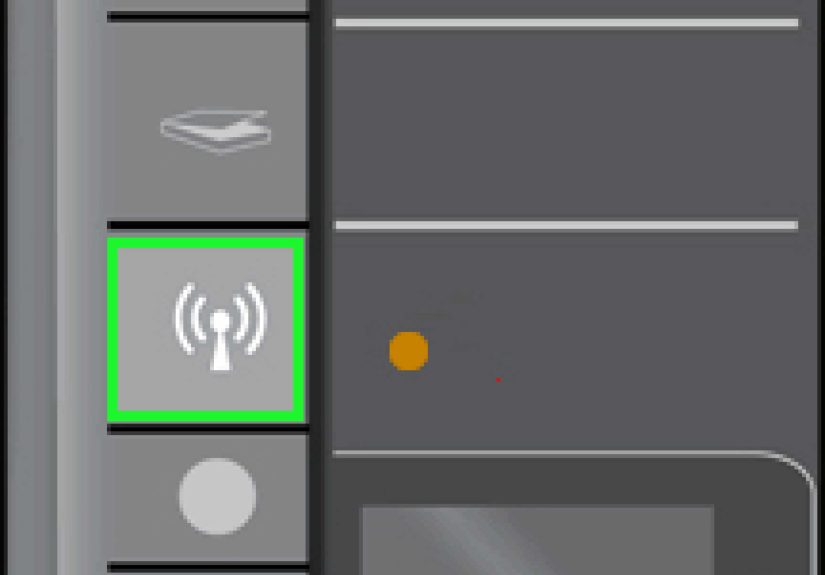
On the HP Deskjet 3050, press the Wireless button to open the wireless menu on the printer display. Depending on your exact Deskjet 3050 model and firmware, the printer may guide you through WPS setup or the HP software may prompt you to press the router’s WPS button during installation. When the connection succeeds, the blue wireless light on the printer should turn on and remain steady.
A steady blue wireless light is your little victory parade. It means the printer has connected to the wireless router. A blinking blue light usually means the printer is searching, trying, or quietly questioning your router’s life choices.
Method 2: Connect with HP Software and a Temporary USB Cable
If WPS does not work, the most dependable method is to install the HP Deskjet 3050 software on your computer and let it configure the printer for your wireless network. This is especially useful if your router does not support WPS, WPS is disabled, or the printer was previously connected to a different Wi-Fi network.
Step 1: Download or Open the HP Deskjet 3050 Software
If you still have the original HP installation CD, you can use it on an older computer with a disc drive. Most people today should download the HP Deskjet 3050 driver and software from HP’s official support site. Choose the software package that matches your printer series and operating system.
For older printers, the full feature software is often more helpful than a basic driver because it can include scanning tools, wireless setup options, and printer management utilities. If a full package is available for your operating system, use it.
Step 2: Start Installation and Choose Network Connection
Run the HP installer. When the setup screen asks for the connection type, choose the network or wireless option. Do not choose USB as the final connection type unless you want the printer permanently connected by cable.
During installation, the software may ask you to connect the printer to the computer with a USB cable. This is temporary. The USB cable allows the software to send your Wi-Fi network name and password to the printer. Once wireless setup finishes, you can disconnect the cable.
Step 3: Enter Your Wi-Fi Network Information
Select your router’s wireless network name from the list and type the Wi-Fi password carefully. Password mistakes are one of the most common reasons the HP Deskjet 3050 fails to connect. Watch for uppercase letters, lowercase letters, numbers, symbols, and sneaky spaces at the beginning or end.
If your router broadcasts separate 2.4 GHz and 5 GHz networks, connect the Deskjet 3050 to the 2.4 GHz network. Many older wireless printers cannot connect properly to a 5 GHz-only network. If your router uses one combined network name for both bands, and the printer keeps failing, try creating a separate 2.4 GHz SSID in the router settings.
Step 4: Finish Setup and Print a Test Page
After the software sends the network settings to the printer, wait for the blue wireless light to become steady. Then print a test page from the HP software or from your computer’s printer settings. If the test page prints, congratulations: your Deskjet 3050 has joined the Wi-Fi party.
How to Change the HP Deskjet 3050 from USB to Wireless
If you originally installed the HP Deskjet 3050 with a USB cable, you can usually switch it to a wireless network connection later. Open the HP printer software on your computer and look for an option such as “Convert a USB connected printer to wireless” or “Printer Setup & Software.” The wording may vary depending on your operating system and driver version.
The process usually works like this:
- Make sure the printer is turned on.
- Connect the printer to the computer with a USB cable if prompted.
- Open the HP printer setup software.
- Select the option to change from USB to wireless.
- Choose your Wi-Fi network and enter the password.
- Wait for the printer to connect and the wireless light to stay solid blue.
- Disconnect the USB cable after setup is complete.
This method is very useful when the printer works perfectly by USB but disappears the moment you ask it to behave wirelessly. The USB cable acts like a translator between your computer, your printer, and your router.
Add the HP Deskjet 3050 to a Windows Computer
After the printer is connected to the router, Windows still needs to know the printer exists. On Windows 11, open Settings, select Bluetooth & devices, then choose Printers & scanners. Click Add device and wait while Windows searches the network. On Windows 10, go to Settings, Devices, and Printers & scanners, then choose Add a printer or scanner.
If the Deskjet 3050 appears, select it and follow the prompts. If it does not appear, restart the printer, restart the computer, and make sure both are connected to the same Wi-Fi network. If Windows still cannot find it, reinstall the HP software or add the printer manually using its IP address from a wireless network test report.
Add the HP Deskjet 3050 to a Mac
On a Mac, open System Settings, then Printers & Scanners. Click Add Printer, Scanner, or Fax. If the HP Deskjet 3050 is connected to the same network, it may appear in the list. Select it and click Add.
If the printer does not appear automatically, you may need HP printer software or a manual IP setup. Some older printers do not behave like newer AirPrint-ready models, so using the manufacturer’s driver may give better results. If you know the printer’s IP address, you can add it as an IP printer and choose the appropriate HP driver if available.
Print a Wireless Network Test Report
When wireless setup fails, print a Wireless Network Test Report from the printer. This report can show whether the printer is connected, whether the wireless radio is on, what IP address it has, and whether there are network or signal problems. It is like asking the printer, “Please explain yourself,” and getting an actual answer instead of a blinking light.
Use the printer’s Wireless menu to locate the report option. The exact menu path can vary, but it is usually under wireless settings or network settings. Once printed, look for these items:
- Wireless status: Should show connected or pass.
- Network name: Should match your router’s Wi-Fi name.
- IP address: Should look something like 192.168.1.25.
- Signal strength: Should be strong enough for reliable printing.
- Security: Should match your router’s Wi-Fi security mode.
If the report shows no IP address, the printer is not properly connected to the router. If it shows the wrong network name, reset the wireless settings and reconnect to the correct SSID.
Common Reasons the HP Deskjet 3050 Will Not Connect
The Printer Is Trying to Join a 5 GHz Network
The HP Deskjet 3050 is from an era when 2.4 GHz Wi-Fi was the dependable family sedan of home networking. If your router uses separate bands, choose the 2.4 GHz network. If your router combines bands under one name, consider separating them temporarily during setup.
The Router Has WPS Disabled
Many routers allow WPS to be disabled. If WPS does nothing, log in to your router settings and check whether WPS is available and enabled. If you are not comfortable changing router settings, use the HP software method instead.
The Wi-Fi Password Is Wrong
Wi-Fi passwords are unforgiving. “CoffeeMug17!” and “coffeemug17!” are not the same password. Re-enter the password carefully, and make sure you are not using the router admin password by mistake. The printer needs the Wi-Fi password, not the password used to manage the router.
The Printer Still Remembers an Old Network
If you changed internet providers, replaced your router, or renamed your Wi-Fi network, the Deskjet 3050 may still be holding on to old wireless settings. Restore the printer’s network defaults through the wireless menu, then run setup again. This clears the old network information and gives the printer a fresh start.
The Computer and Printer Are on Different Networks
Your computer and printer must be on the same local network. If your laptop is connected to a guest Wi-Fi network while the printer is on the main network, they may not see each other. Guest networks often block device-to-device communication, which is wonderful for security and terrible for printing your grocery list.
The Printer Is Too Far from the Router
Weak Wi-Fi can make the printer appear offline, disappear during setup, or print only when it feels emotionally supported. Move the printer closer to the router or place the router in a more central location. Avoid hiding the router behind metal objects, inside cabinets, or next to thick walls.
Best Router Settings for the HP Deskjet 3050
For the smoothest connection, use a standard 2.4 GHz Wi-Fi network with WPA or WPA2 security. Avoid special characters in the network name if setup repeatedly fails. A simple SSID such as “HomeOffice24” is easier for older devices than a name full of emojis, punctuation, and dramatic flair.
Make sure DHCP is enabled on the router so the printer can receive an IP address automatically. Most home routers use DHCP by default. If your network uses static IP addresses, assign the printer an address that does not conflict with other devices.
If the printer connects but later goes offline, reserve its IP address in the router settings. This keeps the printer from receiving a new address after router restarts. For older wireless printers, an IP reservation can prevent a surprising number of “printer offline” headaches.
Troubleshooting Checklist
If the HP Deskjet 3050 still will not connect to your wireless router, work through this checklist in order:
- Restart the printer, router, and computer.
- Move the printer closer to the router.
- Confirm that the router’s 2.4 GHz network is enabled.
- Check that WPS is enabled if you are using WPS setup.
- Restore the printer’s network defaults.
- Run the HP software wireless setup again.
- Use a temporary USB cable if the software requests it.
- Print a Wireless Network Test Report.
- Reinstall the HP Deskjet 3050 driver package.
- Remove the old printer from Windows or Mac and add it again.
Do not skip the restart step. It sounds boring because it is boring, but routers and printers both have tiny networking brains, and sometimes those brains need a nap.
Real-World Experience: What Usually Works Best
In real home setups, the fastest solution is not always the fanciest one. The HP Deskjet 3050 often connects most smoothly when you treat it like the older printer it is. That means avoiding complicated mesh-network assumptions, choosing a plain 2.4 GHz network, and using HP’s full setup software instead of expecting the printer to behave like a brand-new cloud-connected model.
One common experience is the “new router, old printer” problem. Everything in the house connects beautifully: phones, laptops, tablets, smart TVs, even the suspiciously talkative refrigerator. Then the Deskjet 3050 refuses to connect. In many cases, the new router is using a combined 2.4 GHz and 5 GHz SSID, modern security defaults, or a guest network. The printer is not broken; it is simply picky. Separating the 2.4 GHz band and reconnecting the printer usually solves the issue.
Another common scenario happens after moving the printer to a different room. It worked next to the router, but once it lands in the home office, it goes offline. This usually points to signal strength. Printers do not roam between Wi-Fi access points as gracefully as phones do. A phone can recover from weak signal while you walk around the house. A printer tends to sit in one spot and sulk. If the Wireless Network Test Report shows weak signal, moving the router, moving the printer, or adding a better access point can help.
Temporary USB setup also saves many people from frustration. It may feel strange to use a cable while setting up a wireless printer, but it is normal for older HP models. The USB cable is not the final connection. It simply helps the computer pass the Wi-Fi details to the printer. Once setup is complete and the blue wireless light stays solid, the cable can go back into the drawer where all mysterious cables live.
Windows users often run into duplicate printer entries. One entry may be the old USB installation, while another is the wireless version. If print jobs keep going nowhere, remove the old copy from Printers & scanners, add the network printer again, and set the correct one as default. This small cleanup can make the difference between “printer offline” and “printer finally doing its job.”
Mac users may see the printer appear, disappear, and reappear during setup. Patience helps, but so does using the correct driver. If macOS offers a generic driver and the printer works poorly, install the available HP software for the Deskjet 3050 series if your operating system supports it. Older printers sometimes need the right driver to unlock reliable printing and scanning.
The best practical advice is simple: keep the network boring. Use a clear 2.4 GHz SSID, a standard WPA/WPA2 password, strong signal, and one printer entry on each computer. The Deskjet 3050 does not need a futuristic smart-home environment. It needs a stable router, the correct password, and a little patience. Give it those things, and it can keep printing school forms, shipping labels, recipes, coupons, and the occasional document you absolutely needed five minutes ago.
Conclusion
Connecting the HP Deskjet 3050 to a wireless router is usually straightforward once you choose the right method. Start with WPS if your router supports it. If WPS fails, use the HP software setup with a temporary USB cable. Make sure the printer connects to a 2.4 GHz Wi-Fi network, confirm that the blue wireless light is steady, and add the printer to Windows or Mac after the network connection is complete.
If setup fails, do not assume the printer is finished. Most problems come from old network settings, weak Wi-Fi signal, incorrect passwords, disabled WPS, driver confusion, or a computer connected to a different network. A Wireless Network Test Report can quickly show what is wrong. With the right router settings and a clean installation, the HP Deskjet 3050 can still be a useful wireless printereven if it occasionally behaves like it was trained by a cat.