Table of Contents >> Show >> Hide
- What Is the Difference Between PSD and JPG?
- When Should You Convert a PSD to a JPG?
- How to Convert a PSD to a JPG in Photoshop in 5 Steps
- Save a Copy vs. Export As: Which One Should You Use?
- Why JPG May Not Appear in Photoshop Save As
- How to Keep the Best Quality When Converting PSD to JPG
- Common Mistakes to Avoid
- PSD to JPG Example: A Simple Web Banner Workflow
- Can You Batch Convert PSD Files to JPG?
- Should You Use JPG, PNG, or WebP Instead?
- of Practical Experience: What Actually Matters When Converting PSD to JPG
- Conclusion
- SEO Tags
Converting a PSD to a JPG in Photoshop sounds like one of those tiny tasks that should take three secondsuntil Photoshop politely hands you seven save options, a quality slider, a mysterious “Save a Copy” button, and the sudden feeling that you accidentally enrolled in a file-format philosophy class.
The good news: turning a Photoshop document into a JPG is simple once you know which menu to use and why. A PSD file is your working file. It keeps layers, masks, text, adjustment layers, smart objects, and all the behind-the-scenes magic that lets you keep editing. A JPG, on the other hand, is the shareable, uploadable, email-friendly version. It is flattened, compressed, and ready for websites, clients, social media, thumbnails, online portfolios, and anywhere else a PSD file would arrive like a moving truck in a bicycle lane.
In this guide, you will learn how to convert a PSD to a JPG in Photoshop in five clear steps, how to choose the best export settings, what to do if JPG does not appear in the Save As menu, and how to avoid common quality problems. Let’s get your file out of Photoshop and into the real worldwithout turning your crisp design into digital soup.
What Is the Difference Between PSD and JPG?
Before jumping into the steps, it helps to understand what is actually happening when you convert PSD to JPG. You are not simply “renaming” a file. You are changing its purpose.
PSD: The Editable Photoshop File
A PSD, short for Photoshop Document, is Photoshop’s native file format. It is designed for editing. A PSD can preserve layers, masks, effects, transparency, text, guides, smart objects, and other Photoshop features. This makes it ideal when you are still designing, retouching, compositing, or making client revisions that begin with the cheerful sentence, “Just one tiny change.”
The downside is that PSD files are usually large and not ideal for everyday sharing. Many websites, apps, and social platforms do not accept PSD uploads. Even when someone can open a PSD, they may not have Photoshop, and sending a layered design file when someone only asked for a preview is a bit like delivering a whole bakery when they wanted one cookie.
JPG: The Shareable Image File
A JPG, also written as JPEG, is a compressed image format commonly used for photos, web graphics, previews, email attachments, and online publishing. JPG files are smaller than PSD files and widely supported by browsers, phones, computers, and content management systems.
However, JPG does not preserve Photoshop layers or transparency. When you export or save a PSD as a JPG, Photoshop creates a flattened version of the visible image. That means your layers are combined into one final image. The original PSD can remain editable, but the JPG itself is not meant for layer-by-layer editing.
When Should You Convert a PSD to a JPG?
You should convert a PSD to a JPG when you need a final image that is easy to view, upload, or send. Common situations include:
- Uploading a blog image, product photo, banner, or featured image to a website
- Sending a design preview to a client or teammate
- Creating a smaller file for email or messaging apps
- Posting an image on social media
- Exporting a flattened version of a photo edit
- Preparing a portfolio image or mockup preview
Keep your PSD as the master file and export a JPG as the final delivery file. That way, you can always go back to the layered PSD if you need to fix a typo, move a logo, adjust the color, or undo a design decision made during a questionable late-night coffee session.
How to Convert a PSD to a JPG in Photoshop in 5 Steps
The easiest way to convert a PSD to a JPG in Photoshop is to open the PSD, check the visible layers, use Save a Copy or Export As, choose JPG, adjust quality settings, and save the final file. Here is the full process.
Step 1: Open Your PSD File in Photoshop
Start by launching Adobe Photoshop. Then go to File > Open and select the PSD file you want to convert. You can also drag the PSD directly into Photoshop if you prefer the “drop it and hope” method, which, to be fair, often works beautifully.
Once the file opens, take a moment to inspect the document. Look at your Layers panel and make sure the final design looks exactly the way you want it to appear in the JPG. JPG export uses the visible version of your document, so hidden layers will not appear in the final image.
For example, if you have multiple background options in your PSD, only the visible background will show in the JPG. If you have a draft watermark layer turned on, congratulations, you are about to export a draft watermark unless you hide it first. Photoshop does what you tell itnot necessarily what you meant.
Step 2: Check the Image Size, Color, and Background
Before converting your PSD to JPG, check the basics: size, crop, color mode, and background. These small details can make a big difference in the final result.
To check dimensions, go to Image > Image Size. For web images, you usually want pixel dimensions that match the final use. A 4000-pixel-wide image might be great for a high-resolution photo archive, but it can be overkill for a blog thumbnail. Large images slow down pages and make your website feel like it is walking through peanut butter.
Next, check the crop. Use the Crop Tool if needed to remove extra canvas space. This is especially important for product images, social graphics, and website banners where dimensions matter.
Then look at the background. JPG files do not support transparency. If your PSD has a transparent background, Photoshop will need to fill that transparency with a color, often white by default. If you want a specific background color, add a solid color layer at the bottom of your Layers panel before exporting.
For most online use, RGB color mode is the safest choice. You can check this under Image > Mode. If your file is intended for web, social media, or digital preview, RGB is usually appropriate. If you are working with a print file in CMYK, you can still save a JPG, but colors may look different depending on where the image is viewed.
Step 3: Choose Save a Copy or Export As
Now it is time to choose the right Photoshop command. Depending on your Photoshop version and your file’s features, JPG may not always appear under the regular Save As menu. This is normal. Photoshop is not broken; it is just being very Photoshop about things.
For many modern Photoshop workflows, the recommended route is:
File > Save a Copy
Then choose JPEG or JPG from the format list.
You can also use:
File > Export > Export As
Then select JPG as the format.
Both methods can convert a PSD to JPG, but they are slightly different. Save a Copy is often useful when you want a full-size JPG version of your Photoshop document. Export As is convenient when you want to resize the image, control web-friendly settings, or quickly create a lighter file for digital use.
There is also File > Export > Save for Web (Legacy), which many designers still use for web graphics because it offers preview-based compression controls. Despite the “Legacy” label, it remains familiar to many Photoshop users. Think of it as the old kitchen knife your grandma refuses to replace because it still slices tomatoes better than anything else.
Step 4: Select JPG and Adjust Quality Settings
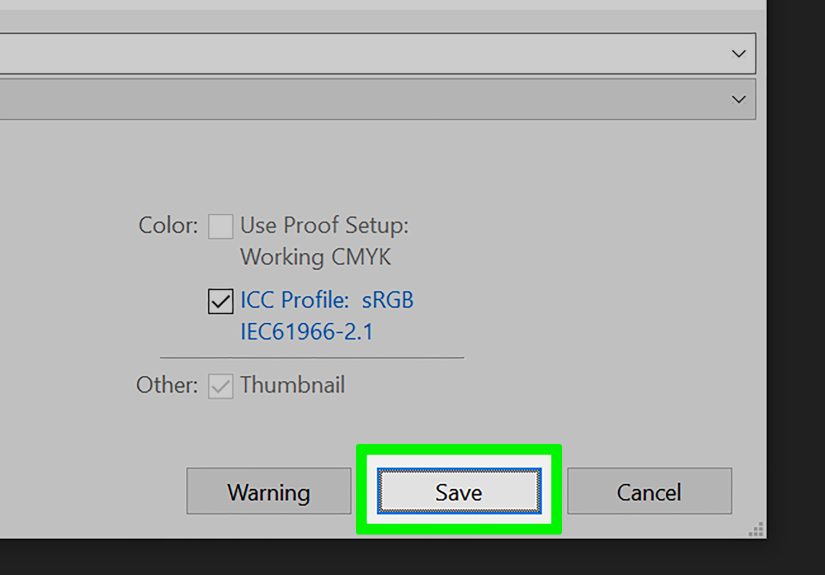
After choosing Save a Copy, Export As, or Save for Web, select JPG or JPEG as the output format. Photoshop will then let you adjust quality and compression settings.
JPG uses lossy compression. That means the file becomes smaller by discarding some image data. At high quality settings, the difference may be hard to notice. At very low quality settings, the image can show blocky artifacts, fuzzy edges, muddy gradients, and text that looks like it had a rough morning.
For most uses, these settings are a good starting point:
- High-quality web images: 75% to 90% quality in Export As
- Client previews: 85% to 100% quality
- Email attachments: 60% to 80% quality, depending on file size limits
- Portfolio or product images: 85% to 95% quality
- Images with text or sharp graphics: Use higher quality to avoid rough edges
If you are using the JPG Options dialog from Save a Copy, Photoshop may show a quality scale from low to maximum. Higher quality creates a larger file, while lower quality creates a smaller file. The best setting depends on your goal. For a website, you want the smallest file that still looks clean. For a client proof, you may choose a larger file to preserve detail.
Always preview the image when possible. The “best” JPG setting is not a magic number. A soft landscape photo may compress beautifully at a lower setting, while a design with thin text, gradients, and sharp icons may need a higher setting to stay crisp.
Step 5: Save the JPG and Keep the Original PSD
Choose your destination folder, rename the file if needed, and click Save or Export. A smart file name can save future-you from rummaging through a folder full of “final-final-v3-real-final.jpg” chaos.
Use a clear naming style such as:
- homepage-banner-spring-sale.jpg
- product-photo-blue-backpack.jpg
- client-logo-preview.jpg
- blog-featured-image-psd-to-jpg.jpg
After saving, open the JPG outside Photoshop to check it. View it in your browser, image viewer, or website editor. Make sure the image is not blurry, cropped incorrectly, too large, too dark, or missing a layer. This quick check can prevent awkward moments, especially when the missing layer happens to be the product, the logo, or the person’s face.
Most importantly, do not delete the original PSD. The JPG is your exported copy. The PSD is your editable master file. Keep both. Your future revisions will thank you.
Save a Copy vs. Export As: Which One Should You Use?
If your goal is simple conversion, Save a Copy is often the easiest option. It creates a JPG version while leaving your original PSD intact. This is especially helpful for photographers, designers, and editors who want a high-quality flattened copy.
If your goal is web optimization, Export As may be better. It gives you convenient controls for format, quality, file size, and dimensions. You can reduce the image width, adjust compression, and create a web-ready JPG without changing your PSD.
Use Save for Web (Legacy) when you want a detailed preview of how compression affects the final image. It can be helpful for banners, blog graphics, and website assets where every kilobyte matters.
Why JPG May Not Appear in Photoshop Save As
One common Photoshop surprise is opening the Save As menu and not seeing JPG as an option. This usually happens because the document contains features that JPG cannot support, such as layers, transparency, certain bit depths, or other Photoshop-specific elements.
The fix is simple: use File > Save a Copy instead. This tells Photoshop you want to create a separate flattened copy in another format, such as JPG, while preserving the original PSD.
You may also need to check the image mode. JPG supports common image modes such as RGB, CMYK, and grayscale, but it does not preserve everything a PSD can contain. If you are working in 16-bit or 32-bit mode, Photoshop may reduce the bit depth when saving as JPG because standard JPG is an 8-bit format.
How to Keep the Best Quality When Converting PSD to JPG
To get the best JPG output, start with a clean PSD. Make sure images are not already low resolution, text is sharp, and the canvas size matches your final use. Exporting cannot magically restore quality that was not there in the first place. Photoshop is powerful, but it is not a wizard with a tiny image-enhancing wand.
Use these tips for cleaner results:
- Export from the original PSD: Avoid exporting from a JPG that has already been compressed several times.
- Use higher quality for text-heavy designs: Compression artifacts are easier to see around letters and sharp edges.
- Resize carefully: Resize to the final display dimensions instead of uploading giant images and relying on a website to shrink them.
- Use sRGB for web images: This helps colors display more consistently across browsers and devices.
- Keep a layered PSD: Never flatten your only editable copy unless you enjoy creative regret.
Common Mistakes to Avoid
Mistake 1: Deleting the PSD After Export
A JPG is not a replacement for your PSD. Once exported, the JPG is flattened and compressed. If you later need to edit text, move layers, adjust masks, or change effects, you will need the PSD.
Mistake 2: Using Very Low Quality Settings
Low-quality JPG settings can make an image smaller, but they can also make it look rough. This is especially obvious in gradients, shadows, faces, product edges, and typography. Save file size where you can, but do not sacrifice the entire image just to win a tiny kilobyte trophy.
Mistake 3: Forgetting About Transparency
JPG does not support transparent backgrounds. If transparency matters, use PNG or WebP instead. If you must use JPG, add a background layer in the color you want before exporting.
Mistake 4: Exporting the Wrong Layer Visibility
Photoshop exports what is visible. If a layer is hidden, it will not appear. If a draft layer is visible, it will appear. Always review the Layers panel before converting your PSD to JPG.
Mistake 5: Uploading Oversized JPGs to a Website
A high-quality JPG is great, but a massive JPG can slow down your website. Resize the image for its actual use. A blog image rarely needs to be the size of a movie poster unless your readers are viewing it from orbit.
PSD to JPG Example: A Simple Web Banner Workflow
Imagine you created a homepage banner in Photoshop. The PSD includes a background photo, a gradient overlay, headline text, a button shape, and a logo. Your website needs a JPG that is 1600 pixels wide.
Here is a clean workflow:
- Open the PSD in Photoshop.
- Make sure the correct background, headline, logo, and button are visible.
- Go to Image > Image Size and resize the width to 1600 pixels if needed.
- Choose File > Export > Export As.
- Select JPG, set quality around 80% to 90%, preview the result, and export.
This gives you a web-ready JPG while your original layered PSD remains untouched. If the marketing team later changes “Spring Sale” to “Summer Sale,” you can reopen the PSD, edit the text, and export a new JPG. No panic. No rebuilding. No yelling at the Layers panel.
Can You Batch Convert PSD Files to JPG?
Yes, Photoshop can batch convert PSD files to JPG, which is useful when you have multiple designs, product images, or edited photos. One common approach is to create an Action that saves or exports a JPG, then run it through File > Automate > Batch.
Batch processing is powerful, but test it on a few files first. Make sure every PSD has the correct layer visibility, dimensions, naming structure, and export destination. Automation is wonderful when set up correctly, but if you automate the wrong settings, you can produce 200 incorrect files at the speed of regret.
Should You Use JPG, PNG, or WebP Instead?
JPG is a strong choice for photographs, previews, and web images where small file size matters. But it is not always the best format.
Use PNG if you need transparency or extra-sharp graphics with fewer compression artifacts. PNG is often better for logos, icons, screenshots, and interface graphics.
Use WebP when your website supports it and you want modern compression with good visual quality. WebP can be useful for web performance, although JPG remains widely accepted and easy to use across platforms.
Use PSD when you need to keep editing. Use JPG when you need to share, upload, or publish the final flattened image.
of Practical Experience: What Actually Matters When Converting PSD to JPG
After working with PSD-to-JPG exports for web design, blog graphics, social posts, product images, and client previews, one lesson becomes obvious: the conversion itself is easy, but the preparation determines whether the final JPG looks professional. Photoshop can export a file in seconds, but it cannot know whether you forgot to hide a guide layer, left a placeholder image visible, or exported a 6000-pixel monster for a tiny sidebar thumbnail.
The first habit worth building is to duplicate or preserve your PSD before making destructive changes. Many beginners flatten the PSD manually, save it, close Photoshop, and only later realize they destroyed the editable version. That is the digital design equivalent of gluing your notebook shut after writing one draft. Instead, keep the layered PSD intact and create a separate JPG copy. If you need to flatten for a special reason, use Save As or Save a Copy under a new name first.
The second practical tip is to zoom in before exporting. At 33% zoom, almost everything looks fine. At 100%, you can spot jagged text, low-resolution images, messy edges, awkward masks, and compression-sensitive areas. If your design includes small text, thin lines, or subtle shadows, inspect those areas carefully. JPG compression tends to show problems around hard edges and fine details. A slightly higher quality setting can make a noticeable difference.
Third, pay attention to background color. Transparent PSDs are common, especially for logos, cutouts, and product images. But JPG cannot keep transparency. If you export without thinking, transparent areas may become white or another default color depending on the workflow. For ecommerce images, that may be perfect. For a dark website banner, it may look completely wrong. Add a background layer that matches the final placement.
Fourth, do not assume bigger is better. A huge JPG may look beautiful on your computer, but it can slow down a website, frustrate mobile visitors, and hurt user experience. Export at the size you actually need. For example, if a blog content area displays images at 1200 pixels wide, exporting a 5000-pixel-wide JPG is usually unnecessary. You are not giving readers “extra quality”; you are giving their browser a workout.
Fifth, create a naming system. This sounds boring until you have twenty files named “banner-new.jpg,” “banner-new2.jpg,” and “banner-USE-THIS-ONE-maybe.jpg.” Use descriptive names with lowercase words and hyphens, especially for web publishing. A file name like convert-psd-to-jpg-photoshop-guide.jpg is clearer than IMG_9482_finalfinal.jpg. Search engines, editors, developers, and your future self all benefit from clean naming.
Finally, always open the exported JPG before sending or uploading it. This final check takes ten seconds and catches many problems. Look for missing layers, strange colors, visible crop mistakes, blurry text, and file size issues. A JPG export should be treated like printing a document: preview before you hand it over. Your PSD is the workshop; your JPG is the finished product in the display window. Make sure it is polished before the world sees it.
Conclusion
Converting a PSD to a JPG in Photoshop is a simple five-step process: open the PSD, check the image setup, choose Save a Copy or Export As, select JPG and adjust quality, then save the final image while keeping the original PSD. The key is understanding that PSD and JPG serve different purposes. PSD is for editing; JPG is for sharing and publishing.
For the best results, export from your original layered file, choose a quality setting that balances clarity and file size, use the right dimensions for your final destination, and always review the exported image. Once you build this workflow into your routine, converting PSD files to JPG becomes quick, reliable, and pleasantly drama-freewhich is about as much peace as anyone can ask from a design file.
Note: Always keep your original PSD file as the editable master. A JPG is best used as a final, flattened copy for sharing, uploading, or publishing.