Table of Contents >> Show >> Hide
- Before You Start: What Makes a Logo “Work” in the Real World?
- Part 1: Define the Logo’s Job (So Illustrator Isn’t Doing Therapy)
- Part 2: Set Up Illustrator Like a Pro (Files, Artboards, Guides)
- Part 3: Build the Core Shape (Shapes First, Pen Tool Second)
- Part 4: Refine Curves and Typography (Clean Paths, Clean Type)
- Part 5: Add Color (and Prove It Works in Black & White)
- Part 6: Export Like You Know What You’re Doing (Files Clients Actually Need)
- Common Illustrator Logo Mistakes (and How to Fix Them)
- Quick FAQ: Creating a Logo in Illustrator
- Conclusion: Your 6-Part Illustrator Logo Workflow
- Bonus: of Real-World Experience (So You Don’t Learn the Hard Way)
Designing a logo in Adobe Illustrator feels intimidating for exactly five minutesright up until you remember that logos are basically
shapes with confidence. Illustrator is the go-to tool because it’s vector-based, which means your logo can scale from a tiny app icon
to a billboard without turning into pixel soup.
In this guide, you’ll build a professional logo workflow in six easy partsno “mysterious designer magic,” just a clean process you can repeat
every time. We’ll keep it practical, a little funny, and very focused on real-world results (the kind clients actually pay for).
Before You Start: What Makes a Logo “Work” in the Real World?
A logo isn’t just “a cool mark.” It’s a tiny piece of brand communication that has to survive a brutal obstacle course: dark mode, embroidery,
low-resolution previews, tiny favicons, black-and-white printing, and that one coworker who insists on putting it into a PowerPoint with
37 animations.
Keep these principles in your head while designing:
- Simple: recognizable fast, even when small.
- Scalable: works at 16px and 16 feet.
- Versatile: looks good in one color and on different backgrounds.
- Balanced: clean geometry and visually stable proportions.
- Distinct: doesn’t look like a distant cousin of another brand’s logo.
Now let’s build yoursstep by step.
Part 1: Define the Logo’s Job (So Illustrator Isn’t Doing Therapy)
The fastest way to make a messy logo is to open Illustrator with zero decisions. So, before you draw anything, answer three questions:
1) What type of logo are you making?
- Wordmark: typographic logo (think “Google” style).
- Lettermark/Monogram: initials (great for long brand names).
- Icon/Mark: symbol that can stand alone.
- Combination mark: icon + text (most versatile for new brands).
2) Where will it be used?
Make a quick list: website header, Instagram profile, app icon, packaging, signage, uniforms, embroidery, print ads. Each use case affects
details like line thickness, spacing, and whether tiny elements should be banned from the logo forever.
3) What’s the brand vibe in plain English?
Choose 3–5 adjectives: friendly, premium, playful, rugged, minimalist, futuristic. This becomes your design filter.
If a logo concept doesn’t fit the adjectives, it’s not “bad”it’s just auditioning for the wrong movie.
Quick example: A neighborhood coffee shop might want “warm, handcrafted, local,” which suggests organic shapes and softer typography.
A cybersecurity startup might want “precise, secure, modern,” which usually leans toward geometry, clean lines, and high contrast.
Part 2: Set Up Illustrator Like a Pro (Files, Artboards, Guides)
Good setup saves hours later. Bad setup creates the design equivalent of cooking pasta in a coffee mug: technically possible, emotionally confusing.
Create a new document with a sane workspace
- Artboards: Start with at least 3 (Primary logo, Icon-only, Black/White test).
- Units: Pixels are fine for screen-first; points/inches if you’re print-heavy. You can change later, but decide early.
- Layers: Make a layer for “Sketch/Reference,” one for “Logo Build,” and one for “Type.” Future-you will say thank you.
Turn on alignment helpers (so things stop “almost lining up”)
Illustrator has multiple ways to keep your shapes crisp and aligned:
- Smart Guides: temporary snap-to guides that appear while you move objects.
- Align panel: for centering, distributing spacing, and snapping objects into order.
- Grids/Guides: optional, but helpful for geometric logos and consistent spacing.
Pro tip: Use consistent spacing as a design feature. The right padding and alignment can make a simple logo look
expensiveeven if it started as a circle and a rectangle having a productive meeting.
Part 3: Build the Core Shape (Shapes First, Pen Tool Second)
When beginners build logos, they often reach for the Pen Tool immediately, like it’s the only tool in Illustrator.
It’s not. For many logos, you can build cleaner results faster using basic shapes and combining them.
Start with simple geometry
Use rectangles, circles, polygons, and rounded corners to sketch the basic form. Keep it rough but deliberate:
- Create a circle base for badges and icons.
- Use rectangles to establish proportions and alignment.
- Duplicate shapes for symmetry instead of trying to “eyeball” it.
Combine shapes using Shape Builder or Pathfinder
Two common ways to merge or subtract shapes:
- Shape Builder Tool: visually merge areas by dragging across selected shapes.
- Pathfinder panel: Unite, Minus Front, Intersect, Excludegreat for precise boolean operations.
Workflow example: Want a simple “leaf” icon? Start with two overlapping circles. Then subtract part of one circle to create the
leaf edge. Add a thin vein using a line with rounded capsor subtract a narrow shape for a cutout effect.
Design rule of thumb: If the logo needs a shape, try building it from shapes first. Use the Pen Tool when you truly need custom
curves, not as an opening move.
Part 4: Refine Curves and Typography (Clean Paths, Clean Type)
This is where your logo goes from “pretty good” to “why does this look so professional?”
The difference is usually path quality and typography choices.
Polish curves without over-editing
When you use the Pen Tool (or edit anchor points), aim for:
- Fewer anchor points: smoother curves, easier edits.
- Consistent handles: avoid lumpy curves that look “handy.”
- Symmetry: mirror shapes when appropriate, then expand/merge for a single clean mark.
Micro-check: Zoom in and look for tiny bumps or unintended corners. Then zoom out.
If it looks perfect at 3200% but weird at normal size, congratulationsyou’ve discovered the “overworked” logo.
Typography: choose, tweak, and commit
If your logo includes text, typography can do 70% of the brand’s personality work. Pick a typeface that matches the brand adjectives
from Part 1. Then adjust:
- Kerning: fix awkward gaps between letters.
- Tracking: subtle spacing changes can make a wordmark feel modern or classic.
- Weight balance: match the stroke “heaviness” between the icon and the text.
Pro tip: When exporting final files for delivery, outline the type (or embed fonts if needed) so there’s no “mystery font”
disaster on someone else’s computer.
Part 5: Add Color (and Prove It Works in Black & White)
Color is powerfulbut it’s also the easiest way to hide design problems. So do this in the right order:
make it work in one color first, then add color strategically.
Start with a one-color version
Create a solid black version of the logo. Then test it on:
- White background
- Black background (reverse/white version)
- Mid-tone background (gray or brand color)
If the mark loses clarity, simplify details and adjust spacing. This is the logo equivalent of checking your haircut from the side.
Necessary. Occasionally surprising.
Build a simple color system
Limit yourself to 1–3 main colors for the logo (you can expand the broader brand palette later). Use swatches so your colors stay consistent.
For print-heavy brands, consider whether you need spot colors (like Pantone) or standard CMYK process colors.
Create “responsive” variations
Real brands use multiple logo versions:
- Primary: icon + wordmark
- Secondary: stacked or horizontal alternate
- Icon-only: simplified mark for small spaces
- One-color: black/white for utility use
This isn’t extra workit’s how you prevent your logo from being stretched into a pancake on social media.
Part 6: Export Like You Know What You’re Doing (Files Clients Actually Need)
A logo is only as good as the files you deliver. Exporting correctly is what separates “nice design” from “usable brand asset.”
Use the right formats for the right jobs
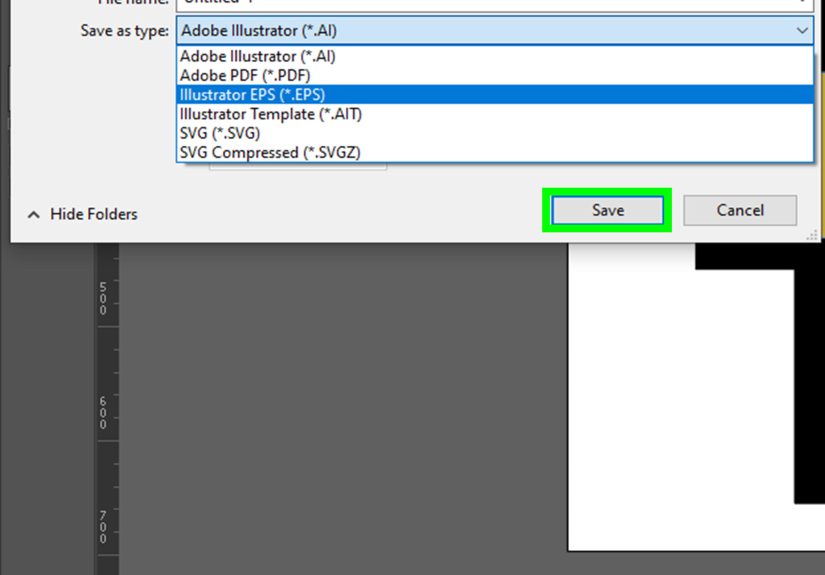
- SVG: best for digital (web, apps). Scales perfectly and stays crisp.
- EPS/PDF: best for print vendors and professional workflows.
- PNG: best when you need transparency (social media overlays, presentations).
- JPG: fine for quick previews, but avoid it for serious logo use (no transparency, compression artifacts).
Mind your color mode
Screen workflows are typically RGB; print workflows are typically CMYK. If you’re preparing print-ready output,
convert or export appropriately and always check how colors shift between modes.
Package the logo files like a decent human
A clean delivery package reduces back-and-forth and makes you look professional. Include:
- AI (editable source) file
- SVG (primary and icon-only)
- PDF/EPS (print-ready)
- PNG (transparent background, multiple sizes)
- Black and white versions
- A tiny “read me” with usage notes (clear space, minimum size, color values)
Bonus: If the logo might become a trademark, it’s smart to encourage a basic trademark screening process
(including searching logo “design codes”) before finalizing and rolling it out everywhere.
Common Illustrator Logo Mistakes (and How to Fix Them)
Mistake 1: Too many tiny details
Fix: simplify. If it doesn’t read at small size, it doesn’t belong in the logo.
Mistake 2: Inconsistent spacing
Fix: use Align tools, guides, and consistent padding. Measure with intentiondon’t “vibe-check” spacing.
Mistake 3: Curves that look wobbly
Fix: reduce anchor points and smooth handles. Fewer points usually equals cleaner curves.
Mistake 4: Exporting only a PNG
Fix: deliver vector formats (SVG, PDF, EPS). Your future self (and your printer) will appreciate it.
Quick FAQ: Creating a Logo in Illustrator
Is Illustrator the best tool to create a logo?
For professional logo design, Illustrator is one of the best because it creates vector artwork that stays crisp at any size and exports cleanly
into industry-standard formats.
Should I use the Pen Tool for everything?
Not unless you enjoy unnecessary suffering. Start with shapes and combine them; use the Pen Tool when you need custom curves.
What’s the most important test for a logo?
The “tiny test” and the “one-color test.” If it works small and in black-and-white, you’re in great shape.
Conclusion: Your 6-Part Illustrator Logo Workflow
If you remember nothing else, remember this: a great Illustrator logo isn’t about fancy effectsit’s about strong shapes, clean typography,
and exports that work everywhere. Use the six parts as your repeatable system:
- Define the logo’s job (type, usage, brand vibe).
- Set up Illustrator (artboards, guides, alignment).
- Build the mark with shapes (Shape Builder/Pathfinder).
- Refine paths and typography (clean curves, confident type).
- Add color and variations (one-color first, then palette).
- Export a complete package (SVG/EPS/PDF/PNG + guidelines).
Do this a few times and you’ll stop “making a logo” and start running a logo processwhich is exactly how pros stay fast, consistent, and
mysteriously calm when someone says, “Can we see it in neon green?”
Bonus: of Real-World Experience (So You Don’t Learn the Hard Way)
The first logo I ever made in Illustrator looked incredible… until I tried to use it anywhere. On my artboard it was a masterpiece. On a website
header it became a tiny, unreadable scribble. On a T-shirt mockup it turned into a sad little smudge. That’s when I learned the biggest secret
of logo design: logos don’t live in Illustratorthey live in the world.
One of the most useful habits I picked up is building a “test wall” inside the same Illustrator file. I’ll create multiple artboards for
real scenarios: a website header, a mobile app icon, a social profile circle crop, a business card corner, and a black-and-white print version.
Every time I change the logo, I glance across the wall. If the icon breaks at small size, I simplify. If the wordmark feels cramped in the
header, I adjust tracking or create a horizontal variant. It’s a quick reality check that saves hours of revisions later.
Another experience-based lesson: you can’t “decorate” your way into a strong logo. Early on, I tried to rescue weak concepts with gradients,
shadows, outlines, and little flourishes. It felt like progress because the logo looked more complex. But complexity rarely equals clarity.
The turning point was learning to build with clean shapes first, then using Shape Builder or Pathfinder to get crisp geometry. Once the form
was solid, color became a choicenot a crutch.
Typography taught me humility, too. Kerning is the kind of detail you don’t notice until it’s wrongand then you can’t unsee it.
I started printing wordmarks on paper and looking at them from a few feet away. If a letter pair looked like it was socially distancing,
I tightened it. If two letters looked like they were trying to merge into one, I opened it up. Small changes can make a wordmark feel
“premium” without anyone being able to explain why.
Finally: exporting is a professional skill. I’ve seen great logos ruined because someone only delivered a PNG, or exported a “final_final2”
JPEG with a white background, or forgot to outline fonts and the client’s computer swapped in a different typeface. Now I always deliver a
simple package: vector files (AI, SVG, PDF/EPS), transparent PNGs in common sizes, and one-color versions. That package isn’t just filesit’s
trust. It tells the client, “This logo will work anywhere you need it,” which is the whole point of designing it in Illustrator in the first
place.