Table of Contents >> Show >> Hide
- First: Where are your saved passwords on iPhone & iPad?
- A 90-second safety check (do this before deleting)
- Method 1: Delete a single saved password (iOS 18 / iPadOS 18 and later)
- Method 2: Delete multiple saved passwords at once (spring-cleaning mode)
- Method 3: Delete saved passwords on iOS 17 / iPadOS 17 and earlier
- Method 4: Stop AutoFill (without deleting your passwords)
- Method 5: Manage iCloud Keychain sync (so you don’t delete passwords everywhere by surprise)
- Common situations (and what to do)
- Mini-FAQ
- Real-world experiences: the messy, human side of deleting Keychain passwords (about )
- Conclusion
- SEO tags
Apple Keychain (now wearing a fresher outfit called the Passwords app in newer software) is basically your iPhone’s
“I’ll remember that for you” brain. It’s greatuntil it’s not. Maybe you’ve got an old work login haunting your AutoFill,
a breakup-era streaming password you never want to see again, or a long list of “test123” accounts from the year you tried to learn coding.
Whatever your reason, deleting saved passwords from Keychain is one of the simplest security cleanups you can doas long as you do it on purpose.
This guide walks you through deleting one password, deleting a bunch at once, turning off AutoFill so your device stops offering to “help,”
and handling iCloud Keychain sync so you don’t accidentally wipe credentials across every Apple device you own. We’ll keep it practical, clear,
and just humorous enough to make password management feel slightly less like doing taxes.
First: Where are your saved passwords on iPhone & iPad?
Apple moved things around depending on your software version:
- iOS 18 / iPadOS 18 and later: You typically manage saved logins in the Passwords app (with Face ID/Touch ID/passcode protection).
- iOS 17 / iPadOS 17 and earlier: Saved passwords live in Settings > Passwords.
Not sure what you’re on? Go to Settings > General > About and look for iOS Version or iPadOS Version.
A 90-second safety check (do this before deleting)
Deleting saved passwords is easy. Regretting it is also easy. Before you start:
-
Confirm you can still log in. If your iPhone is the only place that password exists, pause and reset the password on the website/app first.
(Yes, “I’ll remember it this time” is a lie we tell ourselves.) - Decide if you want the deletion to sync everywhere. If iCloud Keychain is on, deleting on your iPhone can remove that password from your iPad and Mac too.
-
Know what deletion does (and doesn’t) do. Removing a password from Keychain/Passwords does not delete your account on the website or app.
It only removes the saved credential from your Apple device(s).
Method 1: Delete a single saved password (iOS 18 / iPadOS 18 and later)
If you’re on newer software, the Passwords app is your control center.
- Open the Passwords app.
- Unlock with Face ID, Touch ID, or your passcode.
- Tap All (or pick a category like Passkeys, Wi-Fi, Security, etc.).
- Tap the website/app entry you want to remove.
- Tap Edit, then tap Delete Password, and confirm.
What happens after you delete it?
- Your iPhone/iPad stops AutoFilling that login.
- The website/app account still existsthis is not account deletion.
- If iCloud Keychain sync is enabled, the deletion may propagate to your other Apple devices.
Panic button: Recover a deleted password (often within 30 days)
If you deleted the wrong entry (we’ve all fat-fingered something important), check the Deleted or Recently Deleted area:
- Open Passwords.
- Tap Deleted.
- Select the entry, then tap Recover (if available).
If that option isn’t there, your safest next move is usually the website/app’s password reset flow.
Method 2: Delete multiple saved passwords at once (spring-cleaning mode)
If your saved passwords list looks like a digital junk drawer, you don’t have to delete them one by one like it’s 2009.
In the Passwords app, you can typically select multiple items and delete them together.
- Open Passwords and unlock.
- Go to All.
- Tap Select (or a selection icon, depending on your version).
- Tap each login you want to remove (look for checkmarks).
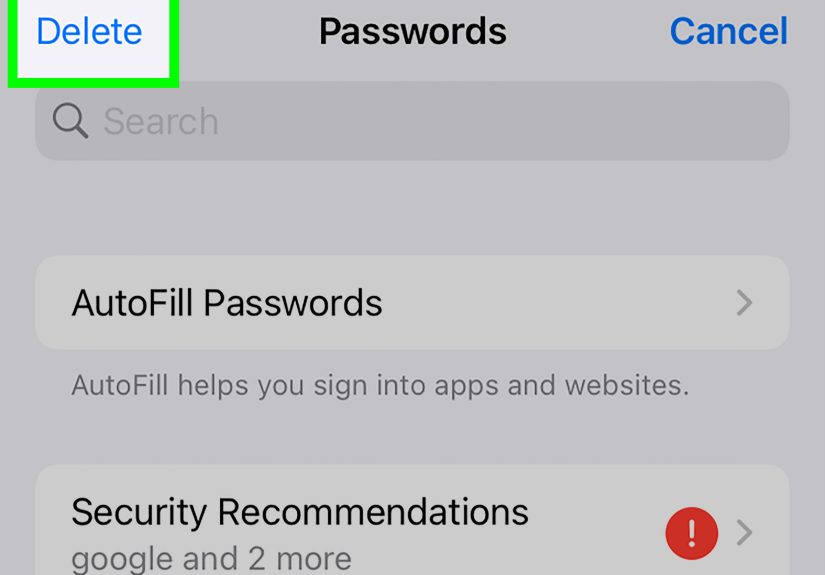
- Tap Delete and confirm.
Pro cleanup tips:
- Search first. If you’re removing an old employer’s domain or a specific app, use the search bar.
- Start with obvious clutter: expired trial accounts, old school logins, duplicate entries, or anything labeled “temporary.”
- Use security hints: if your device flags weak or reused passwords, those are great candidates for updatingor deleting if you no longer use the account.
Method 3: Delete saved passwords on iOS 17 / iPadOS 17 and earlier
If you don’t have the Passwords app, you’ll do this through Settings:
- Open Settings.
- Scroll and tap Passwords.
- Authenticate with Face ID, Touch ID, or passcode.
- Tap the website/app entry you want to remove.
- Tap Delete Password (and confirm if prompted).
Some versions also allow bulk selection by tapping Edit on the passwords list screen, then selecting multiple entries.
Method 4: Stop AutoFill (without deleting your passwords)
Sometimes you don’t want to delete anythingyou just want your iPhone/iPad to stop helpfully offering the wrong login at the worst possible moment
(like when you’re trying to sign into a bank in front of a line of people).
Turn Password AutoFill on/off (iPhone)
- Go to Settings > General.
- Tap AutoFill & Passwords.
- Toggle AutoFill Passwords and Passkeys off (or on).
Turn Password AutoFill on/off (iPad)
- Go to Settings > General.
- Tap AutoFill & Passwords.
- Toggle AutoFill Passwords and Passkeys off (or on).
This is especially useful on a shared iPad (family tablet vibes) where you want fewer accidental logins happening.
Method 5: Manage iCloud Keychain sync (so you don’t delete passwords everywhere by surprise)
iCloud Keychain (also labeled Passwords & Keychain or iCloud Passwords & Keychain depending on version)
syncs your saved passwords across devices signed into the same Apple account. That’s convenientuntil you delete something on your phone and
your iPad quietly goes, “Oh! We’re doing that now.”
Turn sync on/off
- Go to Settings and tap your name (Apple account).
- Tap iCloud.
- Find Passwords (or Passwords and Keychain on older versions).
- Toggle Sync this iPhone or Sync this iPad on/off.
Important: “Keep on my device” vs “Delete from my device”
When you disable Keychain syncing or sign out, you may be asked whether to keep Keychain data locally on the device or delete it from the device.
Choose carefully:
- Keep: passwords remain on that device, but won’t update across devices.
- Delete: removes local access; your encrypted Keychain data can still exist in iCloud and re-sync later if you turn it back on.
Common situations (and what to do)
You updated a password online, but your iPhone keeps autofilling the old one
This is usually one of three things:
- The saved entry is outdated. Delete the saved login and re-save the new one the next time you sign in.
- You have multiple entries for the same site. Search the domain and remove duplicates, keeping only the correct one.
- AutoFill is pulling from another password manager. If you use a third-party password manager, check AutoFill settings and disable extra sources you don’t want.
You’re selling, trading in, or giving away your iPhone/iPad
Deleting a few saved passwords is good, but it’s not the full “moving out and returning the keys” plan. For a device handoff:
- Make sure your Apple account is signed out where appropriate.
- Use Apple’s erase/reset options to remove personal data.
- Double-check that iCloud Keychain is synced correctly on your new device before wiping the old one.
You share passwords with family (Shared Groups) and want to delete safely
Shared Groups are greatuntil you delete something and your partner discovers the streaming service logged out mid-episode.
If an entry is shared, confirm whether you want to remove it from the shared group or just stop sharing it. If you’re recovering a deleted entry,
you may even see options related to resuming or ending sharing.
You’re cleaning up after a data breach or security scare
If a site you used was breached, deletion alone isn’t enough if the account is still active. A smarter sequence:
- Change the password on the website/app (make it unique).
- Enable two-factor authentication if available.
- Update the saved entry in Passwords (or delete the old one and re-save).
- Remove accounts you no longer use (closing the account on the site, then deleting the saved login).
And yeskeep your device updated. Security fixes sometimes arrive in routine updates, and staying current reduces your exposure to known issues.
Mini-FAQ
-
Does deleting a saved password delete my account?
No. It only removes the stored credential from your device(s). You must close the account within the service itself if that’s your goal. -
If I delete a password on my iPhone, will it disappear on my iPad too?
If iCloud Keychain sync is enabled for both devices, it can. If sync is off on one device, behavior may differ. -
Can I recover a password after I delete it?
Sometimes. Check Deleted/Recently Deleted. If it’s gone, use the site/app’s password reset or account recovery options. -
What about passkeys?
Passkeys are managed alongside passwords in Apple’s password manager screens. Deleting a passkey can affect passwordless sign-in for that account,
so only remove it if you’re sure you have another sign-in method configured.
Real-world experiences: the messy, human side of deleting Keychain passwords (about )
The first time most people “clean up Keychain,” it’s not because they woke up inspired by cybersecurity. It’s because AutoFill betrayed them.
You’re trying to log into your email, your phone suggests an ancient password from your sophomore year, and suddenly you’re locked out for
“too many attempts.” That’s usually the moment you realize saved passwords aren’t just conveniencethey’re a living archive of who you used to be online.
One common experience: people delete the wrong entry because they’re moving fast. Lots of websites have similar names (“bank.com,” “secure.bank.com,”
“bank-login.com”), and the saved entry you need might not be the first one that looks right. The fix is simple: slow down, tap the entry,
and confirm the exact domain and username before deleting. If you do mess up, checking Deleted/Recently Deleted quickly can save you from an
unnecessary password reset spiral.
Another pattern: couples or families with a shared iPad. The tablet becomes the “kitchen computer” of 2026recipes, YouTube, school portals,
shopping. AutoFill on a shared device is convenient right up until someone accidentally signs into the wrong account (or, worse, purchases something
from the wrong account). In those situations, people often don’t need to delete every password; they simply turn off AutoFill for a calmer household.
That way, saved credentials can remain protected behind Face ID/Touch ID, while the casual “tap to sign in” behavior stops.
Then there’s the post-breach cleanup. Many users discover the uncomfortable truth that they’ve been reusing the same password across multiple sites.
After a breach notification, they’ll change the password on the important sitebut forget the saved entry still sitting in Keychain, waiting to
reappear at the next login attempt. A practical habit is to treat Passwords like a checklist: if you changed the password online, immediately
update (or delete and re-save) the saved entry so AutoFill doesn’t fight you later.
Finally, the “new phone, old life” problem: people upgrade devices and carry years of saved logins forwardaccounts they don’t recognize, websites
they don’t use, usernames that aren’t theirs (hello, work devices that became personal devices). The best experience I’ve seen users describe is a
two-pass approach. Pass one: delete obvious dead weight (old jobs, old schools, trials). Pass two: search for high-risk categoriesbanks, email,
anything tied to money or identityand make sure those entries are correct, unique, and protected with two-factor authentication. It’s not dramatic.
It’s just steady digital hygiene. And once you do it, your AutoFill suggestions get betterlike your phone finally learned to stop recommending
the same terrible choice.
Conclusion
Deleting saved passwords from Keychain (aka Apple’s Passwords manager) is one of those small tasks that pays off immediately: fewer wrong AutoFill
suggestions, less clutter, and fewer forgotten accounts floating around your devices. Start by deleting the entries you no longer use, recover
anything you removed by mistake (if available), and manage iCloud Keychain sync so the changes happen exactly where you intend. Your future self
the one trying to log in while rushing out the doorwill thank you.