Table of Contents >> Show >> Hide
- What MMS Messaging Actually Does on an iPhone
- Why Someone Might Want to Disable MMS Messaging
- How to Disable MMS Messaging on an iPhone: 3 Steps
- What Happens After You Turn MMS Off
- What If You Do Not See the MMS Messaging Toggle?
- Will Turning Off MMS Also Turn Off Group Texts?
- Disable MMS vs. Disable iMessage: Know the Difference
- Common Problems After Disabling MMS and How to Handle Them
- Best Situations for Keeping MMS On
- Real-World Experiences With Disabling MMS on iPhone
- Conclusion
- SEO Tags
If your iPhone keeps turning simple chats into photo-heavy, group-thread chaos, or you just want tighter control over how your phone sends media to non-Apple devices, disabling MMS messaging can be a smart little cleanup move. It is not the flashiest iPhone setting in the world. It is not even in the same league as camera controls or battery widgets. But it matters more than most people realize.
MMS, or Multimedia Messaging Service, is what allows your iPhone to send photos, videos, links, and certain group messages through your cellular carrier when iMessage or, in some cases, RCS is not being used. In plain English, it is the reason a green-bubble conversation can still carry a photo of your dog looking suspiciously guilty near the shredded couch pillow.
There are a few good reasons to turn MMS off. Maybe you want to avoid carrier-based multimedia messaging. Maybe you do not want mixed-device group chats quietly falling back to MMS. Maybe you are troubleshooting weird texting behavior. Or maybe you simply like knowing exactly what your phone is doing instead of letting it improvise like a jazz musician at midnight.
What MMS Messaging Actually Does on an iPhone
Before you switch anything off, it helps to know what you are disabling. MMS is not the same thing as iMessage. It is also not exactly the same as SMS.
- iMessage works between Apple devices and uses Apple’s messaging system.
- SMS handles plain text messages through your carrier.
- MMS handles multimedia content such as photos, videos, audio clips, and some group messages through your carrier.
- RCS is the newer cross-platform option that can support richer messaging features when both carrier and device support it.
That distinction matters because turning off MMS does not mean your iPhone stops texting altogether. Your iPhone can still use iMessage with Apple users, and depending on your setup, it may still use SMS for basic text-only messages. If RCS is enabled and available, some conversations with non-Apple devices may continue working with richer features too.
So no, disabling MMS does not throw your Messages app into the sea. It just removes one lane of traffic.
Why Someone Might Want to Disable MMS Messaging
This setting is not just for people who enjoy poking around in iPhone menus for fun. There are practical reasons to turn it off.
1. You want fewer fallback message types
Some users prefer to keep their messaging cleaner and more predictable. If a chat cannot go through iMessage or RCS, they would rather it fail than quietly switch to MMS.
2. You are troubleshooting green-bubble weirdness
If picture messages fail, arrive late, or behave strangely in mixed-device conversations, toggling MMS off and then reevaluating your setup can help you isolate the issue.
3. You do not want media sent through carrier messaging
MMS is a carrier-based service. Some people would rather send photos and videos only through iMessage, email, cloud links, or third-party apps.
4. You want to limit certain group message behavior
Many cross-platform group texts have historically relied on MMS when Apple’s service is not being used. If you disable MMS, those threads may stop functioning the way they did before, which for some people is not a bug. It is a feature.
How to Disable MMS Messaging on an iPhone: 3 Steps
Here is the quick version for current iPhones.
Step 1: Open the Settings app
Unlock your iPhone and tap Settings. This is the gray gear icon that has watched all of us make questionable notification choices for years.
Step 2: Tap Apps, then Messages
On newer iPhone software, Apple groups app settings under Apps. Open that section, then scroll until you find Messages and tap it.
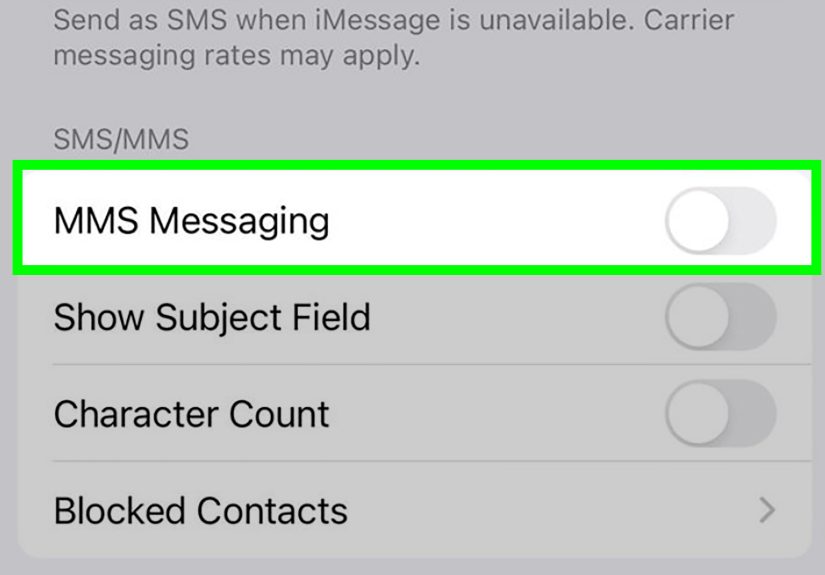
Step 3: Turn off MMS Messaging
Scroll to the messaging options and find MMS Messaging. Toggle it off. When the switch is off, your iPhone will no longer use MMS for multimedia messaging.
That is it. Three steps. No hidden boss fight. No secret passcode. No need to whisper to Siri under a full moon.
What Happens After You Turn MMS Off
This is the part people care about most, because the setting is easy. The consequences are where things get interesting.
Once MMS is disabled, your iPhone may no longer send or receive certain types of messages through your carrier in conversations that are not using iMessage or RCS. That can affect:
- Photo messages in non-iMessage conversations
- Video messages sent through carrier messaging
- Some mixed-device group texts
- Certain media attachments and links sent through older carrier-based messaging paths
What still works depends on who you are messaging and which messaging service the conversation uses. A blue-bubble chat with another Apple user through iMessage is usually unaffected. A text-only carrier message may still go through as SMS. An RCS conversation may also keep working if both devices and carriers support it.
In other words, disabling MMS does not equal “disable messages.” It means “disable one specific method of sending richer carrier-based messages.”
What If You Do Not See the MMS Messaging Toggle?
This is one of the most common points of confusion, and frankly, it is where many articles turn into vague hand-waving. If the MMS Messaging switch is missing, there are usually a few likely explanations.
Your carrier or plan may not support MMS on that line
The setting is tied to carrier support. If your plan does not include MMS or your line has not been provisioned properly, the toggle may not appear at all.
Your iPhone settings layout may look different on older iOS versions
Many older guides say Settings > Messages. On newer iPhones, Apple has moved app-specific settings under Settings > Apps > Messages. So if you are following an old screenshot and wondering whether your phone has entered a parallel universe, it probably has not. The menu simply moved.
Carrier setup or account issues may be involved
If you recently changed carriers, swapped a SIM, activated eSIM service, or moved to a new plan, the messaging options may not be fully set up yet. In those cases, your carrier may need to refresh or provision your messaging features.
Will Turning Off MMS Also Turn Off Group Texts?
Sometimes yes, sometimes only partially, and sometimes the answer depends on whether the group is using iMessage, MMS, or RCS.
If everyone in the group uses Apple devices with iMessage enabled, the chat can continue as a normal iMessage group. No problem there.
If the group includes non-Apple devices and the thread depends on MMS, turning off MMS may stop the group from working correctly. You may lose the ability to send photos, receive everyone’s replies in a single thread, or participate in that group normally.
If the group uses RCS and your iPhone and carrier support it, the experience may be better than old-school MMS. But the key point is this: disabling MMS can affect mixed-device group chats, especially older ones or those that are not using RCS.
Disable MMS vs. Disable iMessage: Know the Difference
These two settings are easy to confuse, but they solve different problems.
Turn off MMS if:
- You want to stop carrier-based multimedia messages
- You want to reduce MMS fallback behavior
- You want to affect how mixed-device media and some group texts work
Turn off iMessage if:
- You want Apple-device chats to stop using iMessage
- You are moving away from iPhone
- You want everything to route through carrier texting instead of Apple’s service
For many users, the goal is not to disable both. It is simply to understand which switch controls which behavior. That alone saves a lot of frustration.
Common Problems After Disabling MMS and How to Handle Them
You cannot send pictures to Android users
That is expected if the conversation relies on MMS and not RCS. In that case, you may need to turn MMS back on, use RCS if available, or send media another way.
A mixed-device group chat stops working properly
Also expected in some cases. If the thread was using MMS, disabling MMS can break the flow of replies or attachments.
You still see green bubbles
Green bubbles do not automatically mean MMS. They can also indicate SMS or RCS. Green is basically your iPhone’s way of saying, “We are not in iMessage territory anymore.”
You want to stop multimedia but keep regular texting
Turning off MMS can help, but remember that regular SMS can still remain active. If your goal is broader messaging control, you may need to review other settings, carrier options, or contact restrictions too.
Best Situations for Keeping MMS On
Despite all this disabling talk, MMS is not the villain in every story. In fact, leaving it on makes sense for a lot of people.
- You frequently text Android users and send pictures or videos
- You are in family or work group chats with mixed devices
- You do not have RCS available on your line
- You prefer maximum compatibility over maximum control
If that sounds like your daily life, keep MMS on and move forward proudly. Not every setting needs to be turned off in the name of minimalist digital enlightenment.
Real-World Experiences With Disabling MMS on iPhone
In real life, disabling MMS tends to feel less dramatic than people expect, but more noticeable than they hope. The first thing many users discover is that nothing seems different for a while. Blue-bubble chats still work. Apple-device conversations keep humming along. Stickers fly. Photos send. Reactions happen. It can look like you changed absolutely nothing.
Then the first cross-platform moment arrives.
Maybe a friend with an Android phone sends a group photo from brunch. Maybe a coworker drops a screenshot into a mixed-device group thread. Maybe your cousin with the unstoppable stream of blurry concert videos decides tonight is the night to share twelve clips in a row. Suddenly, the missing MMS lane becomes obvious. Media does not arrive the same way. Some threads stop behaving normally. A message that would have quietly gone through before now does not.
For some people, that is exactly the point. They disable MMS because they want stricter boundaries. They do not want their phone choosing old carrier-based multimedia routes behind the scenes. They would rather use iMessage, RCS, email, AirDrop, cloud links, or another app for sharing media. In that case, turning MMS off feels like cleaning out a junk drawer. The drawer still exists, but at least it is not full of mystery cables and expired coupons.
Other users disable MMS as a troubleshooting step. They are dealing with failed picture messages, broken group chats, or green-bubble confusion, and they want to isolate the problem. In those cases, the experience is more diagnostic than permanent. They turn MMS off, test what changes, then decide whether to leave it off or switch it back on. It is a bit like unplugging the router when the internet acts weird. You are not trying to live without it forever. You are trying to figure out what is causing the chaos.
There is also the surprise factor. Some users assume disabling MMS will stop every non-iPhone text from working. It usually does not. Text-only SMS may still work. RCS may still work if supported. Apple chats definitely keep working through iMessage. So the experience is often less “my phone is broken” and more “oh, this specific type of message is what changed.” That realization helps people understand how layered iPhone messaging really is.
Perhaps the most common emotional response is mild annoyance followed by clarity. Mild annoyance because one random group chat suddenly becomes weird. Clarity because the user finally understands why some messages are blue, some are green, some carry full-quality media, and some behave like they were transmitted by an elderly fax machine in a thunderstorm.
That clarity is valuable. Once you understand what MMS does, you can decide whether it belongs in your messaging setup or not. And that is really the whole game: not blindly toggling switches, but knowing which switch controls which behavior and choosing what works best for your phone, your contacts, and your sanity.
Conclusion
If you want the simplest possible answer, here it is: open Settings, go to Apps > Messages, and turn off MMS Messaging. That is the entire process on current iPhones.
The smarter answer is that disabling MMS changes how your iPhone handles media and some group messages when iMessage or RCS is not in play. For some users, that is a helpful way to reduce fallback messaging and keep communication more intentional. For others, it is an unnecessary limitation that makes cross-platform texting harder.
There is no universal right answer. There is only the right answer for how you use your iPhone. If you mostly live in Apple-to-Apple conversations, you may never miss MMS. If your daily life includes lots of Android contacts, work threads, and shared media, turning it off may feel like locking the snack cabinet and then hiding the key from yourself.
Still, it is a useful setting to know. And now that you know where it lives, what it does, and what changes after you disable it, you can make the choice with confidence instead of guesswork.