Table of Contents >> Show >> Hide
- What Does It Mean to Disconnect Instagram from Facebook?
- Before You Unlink: Decide What You Actually Want
- How to Disconnect Instagram from Facebook on Mobile
- How to Disconnect Instagram from Facebook on Desktop
- How to Stop Instagram from Sharing to Facebook Without Disconnecting
- How to Disconnect Instagram from a Facebook Page
- What Happens After You Disconnect Instagram from Facebook?
- Will Disconnecting Instagram from Facebook Improve Privacy?
- Common Problems and How to Fix Them
- Security Checklist After Disconnecting
- Should You Disconnect Instagram from Facebook?
- Experience-Based Tips: What It Feels Like to Disconnect Instagram from Facebook
- Conclusion
Sometimes Instagram and Facebook feel like two roommates who borrowed each other’s hoodies and never gave them back. Your Instagram Reels show up on Facebook, your Facebook profile tries to help you log into Instagram, and suddenly one casual brunch photo is living a double life across Meta’s universe. The good news: you can disconnect Instagram from Facebook on both mobile and desktop, and you do not need to be a tech wizard with three monitors and a suspiciously loud keyboard.
This guide explains how to unlink Instagram from Facebook using Meta’s Accounts Center, how to stop automatic sharing without fully disconnecting, what happens after you remove the connection, and how to troubleshoot common problems. Whether you are cleaning up your privacy settings, separating personal and professional accounts, or simply tired of Facebook announcing your Instagram era, here is the calm, practical walkthrough.
What Does It Mean to Disconnect Instagram from Facebook?
To disconnect Instagram from Facebook means removing one account from the same Meta Accounts Center or turning off connected experiences between the two platforms. Accounts Center is Meta’s shared control hub for Facebook, Instagram, Messenger, Meta accounts, and some cross-app features. When your Facebook and Instagram profiles are connected there, you may be able to use features such as cross-posting, shared login, synced profile information, ad tools, and shared payment or personalization settings.
Unlinking the accounts does not delete either account. Your Instagram account will not vanish into the digital fog, and your Facebook profile will not send a breakup text. Instead, the accounts simply stop working together in specific ways. You may lose the ability to automatically share Instagram posts, Stories, or Reels to Facebook. You may also need to log into each platform separately if you previously used one account to access the other.
Before You Unlink: Decide What You Actually Want
Before pressing the big “remove” button, ask one quick question: do you want to fully disconnect Instagram from Facebook, or do you only want to stop Instagram from posting to Facebook automatically?
Choose full disconnection if:
- You want Instagram and Facebook managed separately.
- You no longer want shared login or account recovery between them.
- You connected the wrong Facebook profile or Page.
- You are separating personal and business accounts.
- You want fewer connected experiences across Meta apps.
Only turn off sharing if:
- You still want both accounts connected for login or management.
- You only want to stop Instagram posts, Stories, or Reels from appearing on Facebook.
- You use a Facebook Page with a professional Instagram account.
- You run ads or manage messages through Meta Business Suite.
Think of it like unplugging a coffee machine versus just turning off the auto-brew setting. Both solve a problem, but one is much more final.
How to Disconnect Instagram from Facebook on Mobile
The easiest way to unlink Instagram from Facebook is through the Instagram mobile app. These steps work similarly on iPhone and Android, although menu names may shift slightly as Meta updates the app. If your screen looks a little different, do not panic. Meta enjoys rearranging menus the way some people rearrange living room furniture.
Method 1: Disconnect from the Instagram App
- Open the Instagram app.
- Tap your profile picture in the bottom-right corner.
- Tap the three-line menu in the top-right corner.
- Select Settings and privacy.
- Scroll to the Meta section and tap Accounts Center.
- Tap Accounts or Profiles, depending on your app version.
- Choose the Facebook account you want to remove.
- Tap Remove from Accounts Center.
- Review the warning screen and tap Continue.
- Confirm by tapping Remove.
Once confirmed, your Instagram and Facebook accounts should no longer be linked through that Accounts Center. If you had several Instagram or Facebook profiles connected, repeat the process for any additional accounts you want to separate.
Method 2: Disconnect from the Facebook App
You can also remove the connection from Facebook. This is helpful if you are already logged into Facebook or if Instagram is not showing the account you want to remove.
- Open the Facebook app.
- Tap your profile picture or Menu.
- Go to Settings & privacy, then tap Settings.
- Tap Accounts Center.
- Select Accounts or Profiles.
- Choose the Instagram account you want to disconnect.
- Tap Remove from Accounts Center.
- Follow the prompts and confirm removal.
The result is the same whether you start from Instagram or Facebook. You are simply entering the same Meta control room through a different door.
How to Disconnect Instagram from Facebook on Desktop
If you prefer a larger screen, desktop is often the cleanest route. It is especially useful if you manage multiple accounts, business Pages, or professional profiles. A desktop browser can make it easier to see exactly which profile you are removing.
Disconnect Through Instagram.com
- Go to Instagram.com and log in.
- Click More or your profile menu, depending on the layout.
- Open Settings.
- Find and click Accounts Center.
- Select Accounts.
- Choose the Facebook profile or account you want to remove.
- Click Remove or Remove from Accounts Center.
- Confirm the removal.
Disconnect Through Facebook.com
- Go to Facebook.com and log in.
- Click your profile picture in the top-right corner.
- Select Settings & privacy, then Settings.
- Open Accounts Center.
- Click Accounts.
- Select the Instagram account you want to unlink.
- Click Remove.
- Read the confirmation message and finish the process.
After this, refresh both sites and check again. If the account still appears connected, sign out and sign back in. Sometimes the interface needs a tiny digital nap before it shows the change.
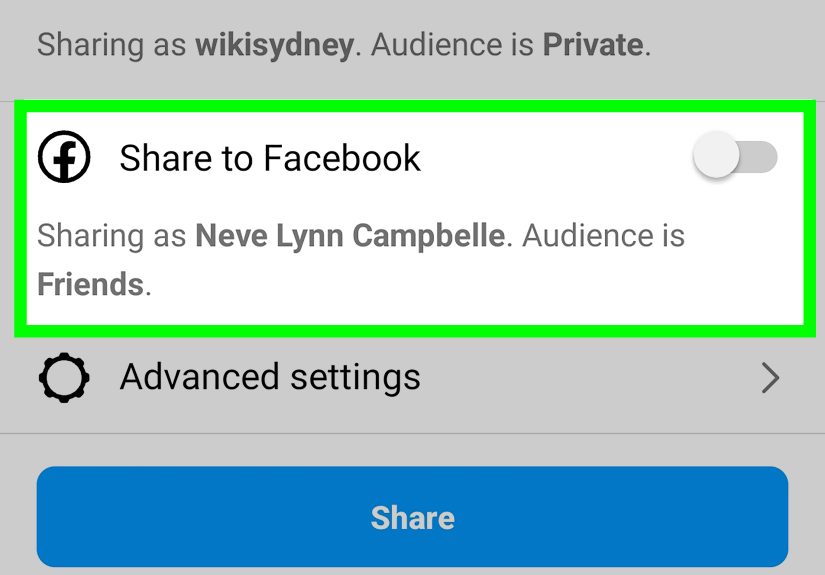
How to Stop Instagram from Sharing to Facebook Without Disconnecting
Maybe you do not want a full separation. Maybe you simply want your Instagram Story about iced coffee to stop appearing on Facebook where your aunt, former teacher, and dentist can all see it. In that case, turn off automatic sharing instead of removing the account connection.
Turn Off Cross-Posting on Instagram
- Open Instagram.
- Go to your profile.
- Tap the three-line menu.
- Open Settings and privacy.
- Tap Accounts Center.
- Choose Connected experiences.
- Tap Sharing across profiles.
- Select your Instagram profile under “Share from.”
- Choose the Facebook profile or Page under “Share to.”
- Turn off automatic sharing for posts, Stories, and Reels.
This keeps your accounts connected but stops Instagram content from automatically showing up on Facebook. It is a great option for users who still want shared login or business tools but prefer tighter control over what gets posted where.
How to Disconnect Instagram from a Facebook Page
Personal Facebook profiles and Facebook Pages are not always handled the same way. If you have a professional Instagram account, such as a business or creator account, it may be connected to a Facebook Page for ads, insights, shopping, inbox management, or scheduling.
Disconnect a Professional Instagram Account from a Facebook Page
- Open the Facebook app or Facebook on desktop.
- Switch into the Page connected to your Instagram account.
- Go to Settings.
- Look for Linked accounts, Instagram, or Page access, depending on your layout.
- Select the connected Instagram account.
- Choose Disconnect or Remove.
- Confirm the change.
If your Instagram account is part of Meta Business Suite, you may need admin-level permissions to remove it. If the remove button is missing, grayed out, or hiding like a cat during bath time, check whether you have full control of the Page or business portfolio.
What Happens After You Disconnect Instagram from Facebook?
After unlinking Instagram from Facebook, several connected features may stop working. That is not a bug; that is the point. Here is what you can expect:
- No more automatic cross-posting: Instagram posts, Stories, and Reels will no longer auto-share to Facebook unless you reconnect or manually share them.
- Separate logins: You may need to log into Instagram and Facebook separately.
- No shared profile syncing: Changes to your name or profile photo may no longer sync across both platforms.
- Business tools may change: If you use Meta Business Suite, ads, Page tools, inbox features, or scheduling options may be affected.
- Past posts stay where they are: Previously shared Facebook posts usually remain on Facebook unless you manually delete them.
- Account recovery may be less connected: If you used Facebook to help recover Instagram access, you may need another recovery method.
In plain English: unlinking prevents future connected behavior, but it does not automatically clean up everything that happened in the past. If old Instagram posts are already on Facebook, you will need to delete those from Facebook manually.
Will Disconnecting Instagram from Facebook Improve Privacy?
Disconnecting the accounts can reduce cross-posting, shared login, profile syncing, and visible account connections. It gives you more control over how your content moves between platforms. However, it does not make Instagram and Facebook completely unrelated companies. Both platforms are owned by Meta, and Meta may still use information across its products according to its policies and your privacy settings.
For better privacy control, do more than unlink the accounts. Review your ad preferences, activity settings, login security, connected apps, and public profile visibility. Unlinking is a strong first step, but it is not a magic invisibility cloak. Sadly, technology has not yet delivered the Harry Potter privacy setting we all deserve.
Common Problems and How to Fix Them
The Facebook Account Still Appears in Instagram
Refresh the app, close and reopen Instagram, then check Accounts Center again. If the profile still appears, log out of both Instagram and Facebook, restart the app, and log back in. On desktop, clear your browser cache or try another browser.
You Do Not See Accounts Center
Update the Instagram or Facebook app. Older app versions may show slightly different menu names, such as “Linked accounts,” “Account,” or “Sharing to other apps.” If you still cannot find it, search inside settings for “Accounts Center.”
The Remove Button Is Missing
This usually means you do not have the right permissions, especially for Facebook Pages, business accounts, or assets managed through Meta Business Suite. Ask a Page admin or business portfolio admin to grant full access or remove the Instagram account for you.
Instagram Still Shares to Facebook
You may have turned off one sharing option but left another enabled. Go to Accounts Center, open Connected experiences, then Sharing across profiles. Check posts, Stories, and Reels separately. Also check whether you are sharing to a Facebook Page instead of a personal profile.
You Disconnected the Wrong Account
Reconnect the correct account through Accounts Center. Go to Instagram or Facebook settings, open Accounts Center, choose Accounts, and add the account again. Then remove the account you actually meant to disconnect. It happens. Account menus can feel like a family reunion where everyone has the same last name.
Security Checklist After Disconnecting
After you unlink Facebook and Instagram, spend five extra minutes securing both accounts. It is not glamorous, but neither is explaining to your friends why your hacked profile is suddenly selling sunglasses.
- Change your Instagram password if you used Facebook login often.
- Make sure your email address and phone number are current.
- Turn on two-factor authentication for both Instagram and Facebook.
- Review devices currently logged into each account.
- Remove suspicious third-party apps or integrations.
- Check whether old Instagram posts still appear on Facebook.
- Confirm that automatic sharing is turned off for posts, Stories, and Reels.
Should You Disconnect Instagram from Facebook?
You should disconnect Instagram from Facebook if you want cleaner boundaries between platforms. This is especially useful for people who use Instagram for personal content and Facebook for family, groups, Marketplace, or professional networking. It is also helpful if you accidentally linked the wrong accounts or no longer want Meta to sync profile information between them.
However, keeping them connected can be convenient. If you manage a brand, creator profile, or small business, the connection can simplify scheduling, advertising, analytics, and message management. In that case, you may be better off turning off automatic sharing rather than fully removing the accounts from Accounts Center.
The best choice depends on your goal. For privacy and separation, disconnect. For convenience and business tools, keep the connection but customize sharing settings. For maximum chaos, leave everything connected and let your Instagram Reel about lunch become a Facebook post for your entire hometown. Not recommended, but technically an option.
Experience-Based Tips: What It Feels Like to Disconnect Instagram from Facebook
From a real-world user perspective, disconnecting Instagram from Facebook is less dramatic than people expect. The apps do not explode, your followers do not disappear, and Facebook does not send you a handwritten apology. The biggest change is psychological: you suddenly feel like your accounts are no longer whispering to each other behind your back.
One common experience is relief from accidental cross-posting. Many users connect Instagram and Facebook years ago, forget about it, and then wonder why a casual Instagram Story keeps appearing on Facebook. This can feel awkward when the audiences are different. Instagram might be where you post travel photos, memes, Reels, or creator content. Facebook might be where relatives, old classmates, coworkers, and neighborhood groups live. The overlap can be useful, but it can also feel like bringing your entire extended family to a group chat they were never invited to join.
Another practical experience involves business accounts. Small business owners often connect Instagram to a Facebook Page because it helps with ads, product catalogs, scheduling, and messages. Later, they may hire a new manager, rebrand, sell the business, or separate personal and business activity. In that situation, disconnecting is not just a privacy move; it is account housekeeping. The most important lesson is to check permissions before making changes. If your Instagram account is tied to a business portfolio, Page, ad account, or catalog, remove it carefully so you do not accidentally interrupt campaigns or scheduled posts.
For personal users, the best experience usually comes from checking settings in this order: first, turn off automatic sharing; second, remove the account from Accounts Center; third, review security settings. Many people only need step one. They do not hate the connection; they hate surprise posting. Turning off sharing across profiles gives you control without losing convenient login options.
There is also a small learning curve after unlinking. If you previously logged into Instagram using Facebook, you may need to remember your Instagram password again. This is the moment when many people discover their password strategy has been “hope.” Update your recovery email, add two-factor authentication, and save your login information securely. Future-you will be grateful, and future-you is already dealing with enough.
The final experience worth mentioning is that unlinking is reversible. If you disconnect Instagram from Facebook and later miss cross-posting, you can reconnect them through Accounts Center. This makes the decision less scary. Try disconnecting if your current setup feels messy. Watch how your posting workflow feels for a week. If your content strategy improves, keep them separate. If you miss the convenience, reconnect and fine-tune sharing options. The goal is not to follow a universal rule; the goal is to make your accounts behave the way you actually want.
Conclusion
Disconnecting Instagram from Facebook is a simple but useful way to regain control over your social media setup. On mobile, the process runs through Instagram or Facebook settings and Meta Accounts Center. On desktop, you can do the same through Instagram.com or Facebook.com. If you only want to stop posts, Stories, or Reels from automatically appearing on Facebook, use Sharing across profiles instead of removing the account completely.
The smartest approach is to match the fix to the problem. Want full separation? Remove the account from Accounts Center. Want fewer embarrassing cross-posts? Turn off automatic sharing. Managing a business account? Check Page and Meta Business Suite permissions before disconnecting. Once everything is cleaned up, review your login and security settings so your accounts stay safe, separate, and much less clingy.
Note: This article is based on current Meta Accounts Center, Instagram, Facebook, and professional account management workflows. Menu names may vary slightly by app version, device, region, and account type.