Table of Contents >> Show >> Hide
- First, Know What You’re Fixing: Internal Storage vs. “Memory”
- 12 Proven Ways to Increase Internal Storage on Android
- 1) Use Android’s Built-In “Free Up Space” Tools
- 2) Use Files by Google for Junk, Duplicates, and Large Files
- 3) Clear App Cache (Safe) Before Clearing App Data (Nuclear Option)
- 4) Uninstall or Archive Apps You Barely Use
- 5) Delete Offline Downloads from Streaming Apps
- 6) Back Up Photos/Videos, Then Use “Free Up Space”
- 7) Clean Messaging Media (Especially WhatsApp and Similar Apps)
- 8) Delete Downloads and “Misc” Files You Forgot
- 9) Move Big Files to Computer, External Drive, or USB OTG
- 10) Use SD Card the Right Way (If Your Phone Supports It)
- 11) Replace Heavy Apps with Lighter Alternatives
- 12) Factory Reset (Last Resort, Not First Reflex)
- 15-Minute Emergency Storage Rescue (When You Need Space Right Now)
- Common Mistakes That Keep Storage Full Forever
- Brand-Specific Navigation Shortcuts
- How to Keep Storage Healthy Long-Term
- Real-World Experiences: What Actually Worked (500+ Words)
- Final Thoughts
You know the moment: you’re about to capture the perfect photo, install a game update, or download a boarding pass,
and your phone hits you with the digital equivalent of “Nope.” Storage full.
Classic. It always happens at the worst possible timeright when life gets interesting.
The good news? You usually don’t need a new phone to fix it. In most cases, Android storage issues come from a handful
of predictable culprits: bloated apps, forgotten downloads, duplicate media, offline streaming files, and old cache data.
The even better news: with the right strategy, you can recover serious space, keep performance smooth, and avoid
repeating the cleanup panic every two weeks.
In this guide, you’ll learn practical, real-world ways to increase usable internal storage on almost any Android phone
Pixel, Samsung, Motorola, OnePlus, Xiaomi, and beyond. We’ll cover quick wins, deeper optimization, SD card options,
cloud tricks, and long-term habits that stop storage drama before it starts.
First, Know What You’re Fixing: Internal Storage vs. “Memory”
Android uses “storage” for saved files (apps, photos, videos, downloads) and “memory” (RAM) for running apps.
If your issue is “Can’t install app” or “Not enough storage,” you’re dealing with internal storage, not RAM.
Think of storage as your closet, and RAM as your desk: closet is for stuff you keep; desk is for what you’re using now.
Open Storage Breakdown Before Deleting Anything
Go to Settings > Storage (or on Samsung: Battery and Device Care > Storage).
You’ll typically see categories like Apps, Images, Videos, Audio, Documents, and System.
This is where smart cleanup starts. Don’t delete randomly. If “Videos” is huge, attack videos first.
If “Apps” is giant, app audit comes before photo purge.
12 Proven Ways to Increase Internal Storage on Android
1) Use Android’s Built-In “Free Up Space” Tools
Many Android phones include built-in cleanup suggestions: delete duplicate files, remove old downloads, and identify
rarely used apps. Start there. Built-in tools are safer than random “booster” apps and usually target low-risk clutter.
It’s the highest return for the least effort.
2) Use Files by Google for Junk, Duplicates, and Large Files
Files by Google is excellent for finding space you forgot existed. It can surface junk files, duplicates, oversized media,
and stale app leftovers in one dashboard. If your storage is chaotic, this app gives you an actual map instead of sending
you into folder archaeology.
Pro tip: Start with “largest files first.” Deleting ten 1 GB videos beats deleting 2,000 memes one by one.
Yes, your 47 versions of “final_final_realfinal.mp4” can go.
3) Clear App Cache (Safe) Before Clearing App Data (Nuclear Option)
Cache stores temporary data for faster loading. Clearing cache can free space and fix minor glitches without deleting
your account settings or personal content inside the app.
- Clear cache: Safe first step. App might load slower once, then normalize.
- Clear data/storage: Resets app like new install. You may lose offline files, logins, and settings.
If one app is huge (social, browser, shopping, maps), clear cache there first. Repeat on the biggest offenders.
This one move alone often gives back hundreds of MBor more.
4) Uninstall or Archive Apps You Barely Use
Be honest: if you haven’t opened an app in months, it’s renting space without paying utilities.
Uninstalling is effective, but Android now supports app archiving on compatible setups:
the app itself is removed while your personal data is preserved for quick re-download later.
This is ideal for “I might need it someday” appstravel, event, seasonal shopping, old editing tools, etc.
You keep convenience without hoarding full app packages year-round.
5) Delete Offline Downloads from Streaming Apps
Offline media is a stealthy storage thief. A few HD episodes can eat gigabytes fast.
Check apps like Netflix, Spotify, YouTube, podcasts, and maps.
- Delete completed or old downloads regularly.
- Lower offline quality if you rarely notice the difference.
- Set download location to SD card when available.
If you commute a lot, this can reclaim massive space without touching your photos or core apps.
6) Back Up Photos/Videos, Then Use “Free Up Space”
Photos and videos are usually the biggest category on modern phones.
After confirming cloud backup is complete, use the “Free up space” option in your photo app to remove local copies
already stored in the cloud.
This gives you the best of both worlds: your memories are still accessible, but your internal storage stops suffocating.
Do this monthly and your phone will age much more gracefully.
7) Clean Messaging Media (Especially WhatsApp and Similar Apps)
Messaging apps quietly accumulate voice notes, forwarded videos, duplicate memes, and media from every group chat ever.
In WhatsApp, use Manage storage to find large chats and big files fast.
Also disable automatic media saving in noisy groups if needed.
Otherwise, your phone becomes a museum for screenshots from 2019.
8) Delete Downloads and “Misc” Files You Forgot
The Downloads folder is where files go to retire. PDFs, APKs, ZIPs, one-time documents, random images
all still sitting there, quietly consuming space.
Sort by file size or date. If you downloaded it to use once, archive it to cloud or computer, then delete local copy.
Fast cleanup, low risk.
9) Move Big Files to Computer, External Drive, or USB OTG
If cloud is slow or limited, old-school transfer still works beautifully.
Connect phone to a computer (USB), move large media archives, and free internal space immediately.
This is great for creators with huge video libraries.
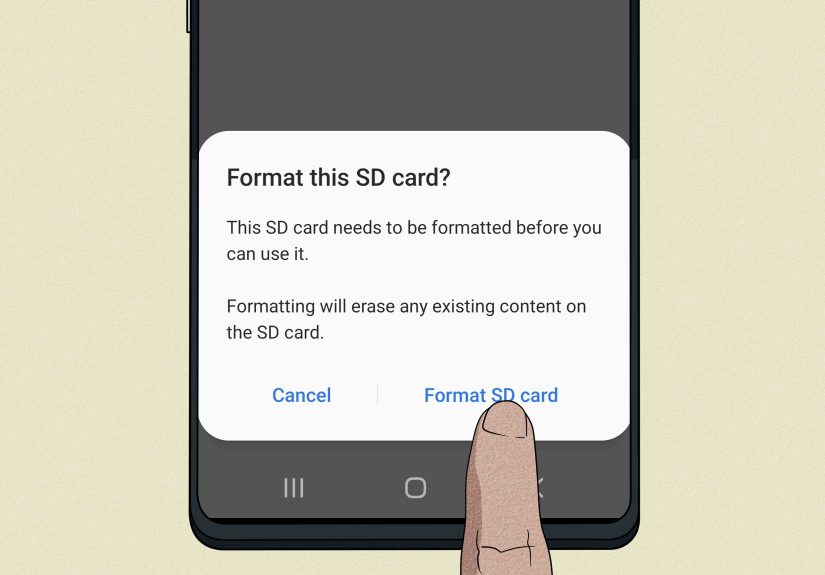
10) Use SD Card the Right Way (If Your Phone Supports It)
Many Android devices support microSD for expansion. You generally get two modes:
- Portable storage: Best for photos/videos/files, easy to move between devices.
- Internal (adopted) storage: Card is formatted/encrypted for that phone, can store apps, not easily transferable.
Not all phones enable adoptable storage, and cheap cards can be slow. For smoother performance, use a reliable, fast card.
SD is great for expansionbut quality matters.
11) Replace Heavy Apps with Lighter Alternatives
Some apps are feature-rich but storage-heavy. Consider:
- Using browser versions (PWA/web app) for rarely used services.
- Switching to lite versions when available.
- Keeping only one major app per category (one photo editor, one notes app, one file manager).
Your phone doesn’t need five weather apps to tell you it’s hot.
12) Factory Reset (Last Resort, Not First Reflex)
If storage behavior is broken, clutter is unmanageable, or performance remains poor after cleanup,
a factory reset can restore sanity. Back up everything first.
Resetting wipes local data and gives you a clean baseline.
Use this only after trying targeted cleanup. Think “major renovation,” not “quick tidying.”
15-Minute Emergency Storage Rescue (When You Need Space Right Now)
- Open Settings > Storage and identify top categories.
- Delete largest videos/screens recordings first.
- Clear cache on top 5 largest apps.
- Delete old downloads and duplicate files.
- Remove offline content from streaming apps.
- Archive or uninstall 3–5 unused apps.
- Run photo app “Free up space” after backup check.
In real use, this workflow can recover anywhere from 2 GB to 20+ GB depending on habits.
Common Mistakes That Keep Storage Full Forever
Mistake 1: Deleting Random System Folders
If a folder name looks weird, don’t assume it’s junk. Deleting random Android directories can break apps.
Use storage tools and category views instead of manual folder roulette.
Mistake 2: Clearing App Data Without Backup
Clearing app data can erase logins, drafts, downloaded media, and settings. Cache first, data later.
Mistake 3: Keeping Everything “Just in Case”
Most storage pain is habit-based, not hardware-based. Keep what you truly use. Archive the rest.
Mistake 4: Buying a Super-Slow SD Card
A low-quality card may expand capacity but hurt app performance, loading, and transfers.
Capacity helps, speed helps more than people expect.
Brand-Specific Navigation Shortcuts
Google Pixel
Settings > Storage gives category breakdown. Use built-in recommendations and photo cleanup.
Pixel also clearly distinguishes storage vs memory behavior.
Samsung Galaxy
Settings > Battery and Device Care > Storage. Per-app cache/data controls are straightforward.
Device Care can help centralize cleanup and app checks.
Most Other Android Phones
Look for Settings > Storage, then app-level controls in Settings > Apps > [App] > Storage.
Menu names vary, but the logic is the same across manufacturers.
How to Keep Storage Healthy Long-Term
- Do a 10-minute cleanup every Sunday.
- Auto-back up photos/videos weekly.
- Purge Downloads monthly.
- Archive unused apps every 30–60 days.
- Keep at least 10–15% free internal storage for smoother updates and app behavior.
Storage hygiene is like doing dishes. Small daily effort beats crisis-level deep cleaning.
Real-World Experiences: What Actually Worked (500+ Words)
Experience #1: The Student Gamer with a 64 GB Phone
A college student I advised was stuck in a frustrating loop: she’d delete one app to install another,
only to hit “insufficient storage” again a day later. Her biggest issue wasn’t the gamesit was hidden clutter.
We opened storage breakdown and found almost 18 GB in videos, mostly screen recordings and class clips.
Another surprise was messaging media and duplicated files in multiple folders.
We used Files by Google to remove duplicates and old junk, then moved lecture videos to a laptop and cloud archive.
We also archived seasonal apps she used only during campus events.
Final result: she recovered nearly 24 GB, kept every app she cared about, and stopped uninstalling/reinstalling games weekly.
Her exact words were, “I thought I needed a new phone. I needed a new routine.”
Experience #2: The Commuter Who Loved Offline Content
One frequent train commuter had great intentionsdownload shows for travel, save playlists, cache maps
but never cleaned old downloads. Netflix alone had multiple seasons still stored, and Spotify cache had grown quietly.
We built a simple travel profile: keep only current week’s episodes, switch some media to lower download quality,
and delete watched content every Friday night.
We also moved eligible downloads to SD card.
The result wasn’t flashy, but it was sustainable: about 8–12 GB freed every month without touching photos or apps.
The biggest win was psychological: she no longer felt trapped by storage warnings right before a trip.
Her phone became predictable again, and that reduced daily stress more than she expected.
Experience #3: The Parent with 90,000 Photos and Zero Time
A parent with a photo-heavy workflow assumed apps were the problem, but storage charts showed media dominance.
We enabled verified backup and used the photo app’s “Free up space” option for local copies already synced.
That single step made the largest difference.
Then we tackled WhatsApp groups (family, school, neighborhood). Large videos and forwarded media were eating space faster
than photos. By setting smarter media controls and reviewing large-chat files monthly, she prevented rapid re-clogging.
She recovered enough storage to update the OS and install her child’s school apps without juggling deletions.
The best part? She kept memories intact. Nothing important disappeared; it simply moved from crowded local storage
to organized cloud backup.
Experience #4: Small Business Owner Managing Work + Personal on One Device
This user had receipts, invoices, PDFs, product photos, social clips, and messaging attachments all mixed together.
He also had five productivity apps with overlapping functions.
We created a lightweight “phone as command center” setup:
one primary note app, one scanner app, one file app, and clear folder naming for work docs.
Weekly exports moved completed projects to a computer backup, while active files stayed local.
We cleared cache from browser and social apps monthly and archived niche apps between campaigns.
Storage stabilized, but something else improved: speed.
Once internal storage had breathing room, app launches felt snappier and camera save times improved.
He described it as “my phone stopped fighting me.”
Big Takeaway from All Four Cases: Storage problems usually look like hardware limits, but they’re often workflow limits.
You don’t need perfect habits. You need a repeatable system:
identify biggest categories, remove low-value local files, keep backups trustworthy, and prevent clutter rebound.
Do that, and even a modest Android device can feel new again.
Final Thoughts
If your Android phone keeps running out of internal storage, don’t panic and don’t start random deleting.
Follow a structured cleanup sequence: analyze categories, remove oversized clutter, clear cache safely,
manage downloads, back up media, and archive unused apps.
Add an SD card or cloud strategy where it makes sense, and create a small weekly routine.
The goal isn’t to obsess over every megabyte. The goal is simple:
make space for the apps, photos, and moments that matterwithout constant storage warnings.