Table of Contents >> Show >> Hide
- The Quick Answer
- What You Need Before You Start
- Step-by-Step: How to Open Kindle Paperwhite Folders on Windows
- Which Kindle Folder Actually Matters?
- What Files Can You Open or Move?
- How to Move Files Into the Kindle Folder
- How to Safely Eject the Kindle
- Why Your Kindle Paperwhite Folder Won’t Open on Windows
- Fixes to Try If Kindle Doesn’t Show Up in File Explorer
- Should You Use USB or Send to Kindle?
- Common Mistakes People Make
- Real-World Example
- Experience Section: What It’s Really Like Using a Kindle Paperwhite with a Windows PC
- Conclusion
If your Kindle Paperwhite is plugged into your Windows PC and you’re staring at the screen like it just betrayed you, welcome to the club. A lot of people expect the Kindle to pop open like a regular flash drive, wave hello, and neatly reveal every file in a tidy little folder structure. Sometimes it does. Sometimes it acts like a tiny, book-loving diva that only wants to charge and not cooperate.
The good news is that opening Kindle Paperwhite folders on a Windows PC is usually simple once you know what to look for. The trick is understanding how Windows sees the device, which folder actually matters, what files belong there, and what to do when the Kindle refuses to show up at all. Add in Amazon’s newer cloud-based workflow and the fact that some older Kindle advice on the internet is now outdated, and it’s no wonder people get confused.
This guide walks you through the exact process, explains the folder structure in plain English, and helps you troubleshoot the most common connection problems without turning your desk into a crime scene made of cables.
The Quick Answer
To open Kindle Paperwhite folders on a Windows PC, connect the Kindle with a data-capable USB cable, unlock the device if needed, then open File Explorer and look for your Kindle under This PC, Devices and drives, or sometimes Portable Devices. Double-click the Kindle to open its storage, then open the documents folder to view or add compatible files.
If the Kindle only charges and no device appears in File Explorer, the problem is usually the cable, the USB port, or Windows not loading the correct MTP/WPD connection properly. In other words, yes, sometimes the cable is the villain.
What You Need Before You Start
1. The right USB cable
This is the biggest gotcha. A surprising number of USB cables can charge a device but cannot transfer data. If your Kindle charges but never appears in Windows, try another cable first. Depending on your Paperwhite generation, that cable may be micro-USB or USB-C.
2. A Windows PC with File Explorer
Windows 10 and Windows 11 both work fine for this. You do not need fancy software just to open Kindle folders. In many cases, File Explorer is all you need.
3. A little patience
Sometimes Windows recognizes the Kindle immediately. Sometimes it takes a few seconds. Sometimes it behaves like it needs a motivational speech. Give it a moment before assuming disaster.
Step-by-Step: How to Open Kindle Paperwhite Folders on Windows
Step 1: Connect your Kindle Paperwhite to the PC
Plug the small end of the USB cable into the Kindle Paperwhite and the other end into your Windows computer. Use a direct USB port on the PC if possible rather than a flaky adapter or a questionable hub from the land of mystery electronics.
Step 2: Wait for Windows to recognize the device
If all goes well, Windows will detect the Kindle and mount it as a device you can browse. You may hear the familiar connection sound. On some computers, an AutoPlay window appears. On others, nothing dramatic happens, which is normal.
Step 3: Open File Explorer
Press Windows + E or click the File Explorer icon on your taskbar. Then look in the left sidebar or under This PC.
Step 4: Find your Kindle
Your Paperwhite may appear as:
- Kindle
- Kindle Paperwhite
- Portable Device
- A removable-style device under Devices and drives
Double-click it. That opens the Kindle’s storage area.
Step 5: Open the folder you need
Inside the Kindle, the most important folder is usually documents. This is where personal documents, PDFs, and many sideloaded compatible files belong. If your goal is to move reading files onto the device, this folder is the star of the show.
Some users expect to see a huge set of folders like on a phone or external SSD. Kindle storage is usually much simpler. That’s normal. It is an e-reader, not a portable filing cabinet with emotional baggage.
Which Kindle Folder Actually Matters?
The documents folder
If you only remember one thing from this article, make it this: the documents folder is usually where you want to go. When people talk about opening Kindle Paperwhite folders on a PC, they are almost always trying to reach this folder.
Use it for:
- PDF files
- Personal documents
- Compatible ebook files you are manually transferring
- Some notes or reading-related exports depending on your setup
Other files you may see
Depending on model and firmware, you may also notice a few support files or folders. One file longtime Kindle users often recognize is My Clippings.txt, which can contain exported highlights and notes. You may also see system-related items that are better left alone unless you specifically know what they do.
Rule of thumb: if you are not sure what a file is, don’t delete it just because it looks mysterious. Mysterious files are like mysterious sauces: curiosity is fine, but random experiments can end badly.
What Files Can You Open or Move?
The answer depends on the file type and how you plan to use it.
Files that usually work well
- PDF documents
- TXT files
- Some Kindle-compatible book files
- Personal documents sent or converted through Amazon workflows
EPUB deserves a special mention
A lot of people now work with EPUB, but on Kindle, the smoothest path is often Send to Kindle rather than dragging an EPUB file directly into the device and hoping for magic. Amazon’s Send to Kindle service supports EPUB and other common personal document formats, which makes it a cleaner option for many readers who want fewer formatting headaches.
What about purchased Kindle books?
Here is where old advice on the web can mislead you. You can still open your Kindle Paperwhite folders on Windows and transfer personal files by USB, but Amazon removed the separate Download & Transfer via USB option for purchased Kindle books in February 2025. So if you are expecting to download a newly purchased Kindle book to your PC and manually copy it over the old way, that specific method is no longer the standard path.
In plain English: opening folders on your Paperwhite still works, but Amazon’s book-delivery system has shifted more toward Wi-Fi delivery and Send to Kindle workflows.
How to Move Files Into the Kindle Folder
- Open File Explorer and navigate to the file on your PC.
- Open the Kindle window in a second File Explorer window.
- Double-click the documents folder.
- Drag and drop the file into that folder, or use copy and paste.
- Wait for the transfer to finish completely.
- Eject the Kindle safely before unplugging it.
Once disconnected, the file should appear on the Kindle after a short refresh. If it does not, check whether the file format is actually supported and whether it was placed in the right folder.
How to Safely Eject the Kindle
Do not skip this part unless you enjoy corrupted transfers and mild regret.
On Windows, right-click the Kindle in File Explorer and choose Eject, or use the safely remove option if it appears in the system tray. After Windows confirms it is safe, unplug the cable. Your Paperwhite should then return to normal reading mode.
Why Your Kindle Paperwhite Folder Won’t Open on Windows
If your Kindle is connected but you still cannot open its folders, here are the most common causes.
Bad or charge-only cable
This is the number-one issue. The Kindle charges, so you assume the connection is fine. Windows disagrees. Swap in a cable known to support data transfer.
USB port trouble
Try another port on the PC. Front-panel ports, loose ports, or low-power hubs can cause odd connection behavior.
Windows MTP/WPD issue
Some Windows systems fail to load the proper portable device connection. If the Kindle does not appear in File Explorer, check Device Manager. Look under Portable Devices, Disk drives, or Other devices. If you see an MTP-related warning or a Kindle device with an error, updating or reinstalling that driver can help.
Kindle needs a restart
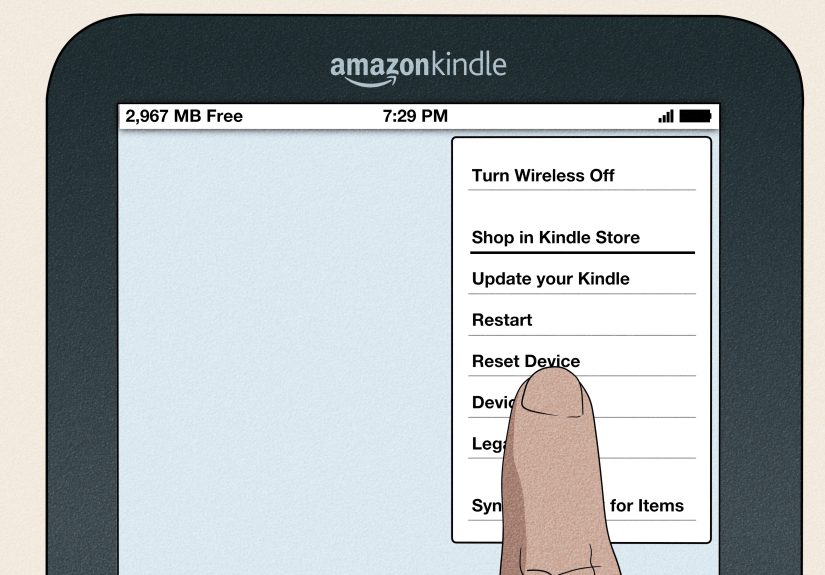
Restart the Paperwhite and try again. Sometimes the USB handshake simply fails and a restart clears it up.
Windows edition limitation
On some Windows N editions, missing media-related components can affect the Windows Portable Devices infrastructure used by MTP devices. It is not the most common problem, but it is real enough to keep in your troubleshooting toolbox.
Fixes to Try If Kindle Doesn’t Show Up in File Explorer
- Use a different data cable.
- Switch to another USB port.
- Restart the Kindle.
- Restart the PC.
- Open Device Manager and check for driver issues.
- Reconnect the device after removing the old Kindle entry, if Windows listed one incorrectly.
- Try the Kindle on another PC to figure out whether the problem is the computer or the Kindle.
If it works on another computer, your Windows setup is the likely culprit. If it fails everywhere, the cable or Kindle hardware is the more suspicious character.
Should You Use USB or Send to Kindle?
Honestly, both have their place.
USB is best when you want:
- Direct access to the Kindle folder structure
- Fast drag-and-drop transfers
- A wired method that does not depend on cloud sync
- Manual control over files on the device
Send to Kindle is best when you want:
- Easy delivery from your PC without hunting through folders
- Better support for EPUB workflows
- Library sync across Kindle devices and apps
- Less messing around with cables
For many users, the smartest setup is not choosing one method forever. It is using USB when you want direct file access and using Send to Kindle when you want convenience.
Common Mistakes People Make
- Putting files in the wrong folder instead of documents
- Using a charging cable that cannot transfer data
- Unplugging the Kindle without ejecting it first
- Assuming a purchased Kindle book can still be downloaded to the PC the old USB way
- Dropping unsupported files onto the device and expecting instant success
Real-World Example
Say you have a PDF called Travel-Itinerary.pdf on your Windows desktop. You connect the Kindle Paperwhite, open File Explorer, double-click Kindle, open documents, and drag the PDF into that folder. Then you eject the Kindle and unplug it. A moment later, the document shows up in your library. That is the clean, classic USB workflow most people are actually looking for when they ask how to open Kindle Paperwhite folders on a Windows PC.
Now imagine you try the same thing with an EPUB and it behaves oddly. That is your clue to use Send to Kindle instead, so Amazon can process the file for the Kindle ecosystem more gracefully.
Experience Section: What It’s Really Like Using a Kindle Paperwhite with a Windows PC
In real everyday use, opening Kindle Paperwhite folders on a Windows PC is one of those tasks that feels harder than it should only because the experience is inconsistent from one setup to another. On a good day, you plug in the Kindle, hear the Windows connection sound, open File Explorer, click the Kindle icon, and there it is: the documents folder waiting politely like it was trained for this moment. You move a few PDFs, eject the device, and feel like a productivity wizard.
On a bad day, the Kindle charges but never appears in File Explorer. That is the moment when people start questioning modern technology, cable standards, and perhaps the entire concept of civilization. Most of the time, though, the cause turns out to be something surprisingly ordinary. Maybe the cable came from a random drawer and only supports charging. Maybe the USB port on the front of the desktop is moody. Maybe Windows decided the device was a portable media object one minute and a mysterious unknown object the next. None of that is glamorous, but it is very common.
One of the most useful lessons from real-world Kindle use is that simple habits save a lot of frustration. Keeping one known-good data cable specifically for the Paperwhite helps. Using the same port on the PC also helps because Windows tends to behave better when it is not constantly reinventing the wheel. It is also smart to treat the documents folder like home base. If a file belongs on the Kindle for reading, that is usually the first place to check. People waste plenty of time searching for hidden folders when the answer was sitting in plain sight all along.
There is also a practical difference between what users want the Kindle to be and what Amazon has designed it to be. Many readers want the Paperwhite to behave like an open file storage device where every book, cover, folder, and metadata file can be explored easily on a PC. In reality, Amazon has nudged the experience toward managed delivery, syncing, and cloud-based convenience. That means the USB folder method still matters, especially for personal documents, but it is no longer the entire story. Once you understand that, the device makes more sense and becomes less annoying.
Another common experience is discovering that the fastest method is not always the best method. USB transfer feels satisfyingly direct, but for some formats, especially EPUB, Send to Kindle can be smoother and less messy. That is not because users are doing something wrong. It is just the way the Kindle ecosystem now handles different document types. The experienced user usually ends up with a hybrid routine: USB for quick folder access and local document transfers, Send to Kindle for files that benefit from Amazon’s processing and syncing.
Perhaps the most reassuring takeaway is this: if your Kindle Paperwhite folders do not open on the first try, that does not usually mean the Kindle is broken. It usually means one small part of the connection chain is off. Once you fix the cable, port, or Windows device recognition issue, the process becomes boring in the best possible way. And with tech, boring is often another word for “finally working.”
Conclusion
If you want to open Kindle Paperwhite folders on a Windows PC, the core process is simple: connect the device with a real data cable, open File Explorer, find the Kindle, and use the documents folder for compatible files. When that basic workflow fails, the fix is usually not dramatic. It is almost always a cable issue, a USB port issue, or a Windows device-recognition issue.
The biggest modern twist is that while folder access on the Kindle still works, Amazon’s old separate method for downloading purchased Kindle books to your PC for manual USB transfer is no longer the go-to option it once was. So the smart approach today is knowing when to use direct USB access and when to let Send to Kindle do the heavy lifting.
Once you know that, opening Kindle Paperwhite folders on Windows stops feeling like a puzzle and starts feeling like a two-minute task. Which is exactly how it should be.