Table of Contents >> Show >> Hide
- Why people end up in Tablet Mode (and why it’s not the end of the world)
- Fastest way: use the Action Center (one two-second toggle)
- Control it for good: Settings → System → Tablet
- If Tablet Mode won’t turn off: troubleshooting checklist
- Advanced options: block Tablet Mode via Registry or Group Policy (IT/admins)
- Examples: real scenarios and what to do
- Troubleshooting commands and safety nets
- Best practices keep Tablet Mode helpful, not annoying
- Conclusion the short version
- Personal experiences & extra tips ()
Quick summary: If your Windows 10 device suddenly looks like a giant tablet huge tiles, full-screen apps, and a mysteriously missing taskbar you’re probably in Tablet Mode. This guide walks you through simple, safe ways to exit Tablet Mode (Action Center, Settings, keyboard shortcuts), how to stop Windows from switching automatically, and what to try if Tablet Mode refuses to go away. Practical, friendly, and slightly opinionated yes, you can blame the author if the device behaves better afterwards.
Why people end up in Tablet Mode (and why it’s not the end of the world)
Tablet Mode is a Windows 10 feature designed for touch-first devices and 2-in-1 laptops: it streamlines the interface for fingers (larger icons, full-screen apps, and a different Start experience). It’s convenient on a Surface when you detach the keyboard not so convenient when your clumsy elbow hits a quick-action tile and the desktop vanishes. Microsoft documents Tablet Mode as a built-in UI mode that you can toggle on and off through the Action Center or Settings.
Fastest way: use the Action Center (one two-second toggle)
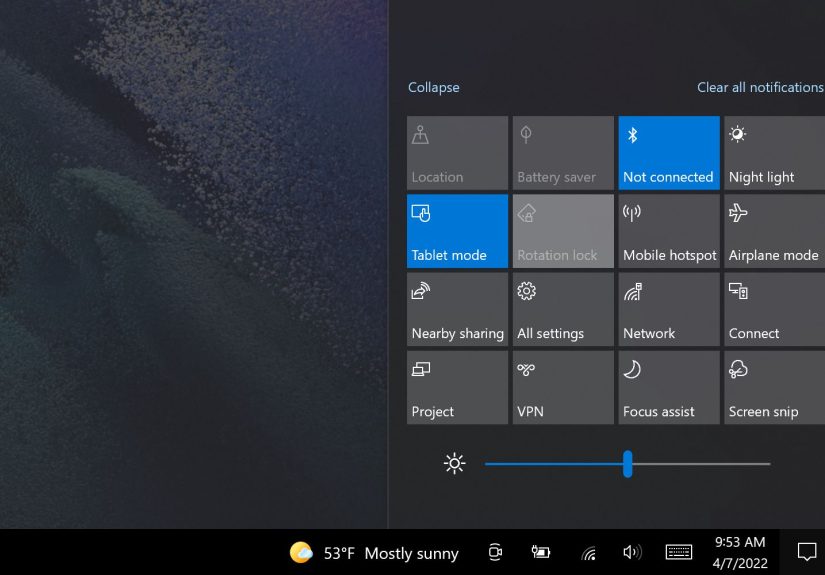
This is the go-to method: click or tap the Action Center icon (the speech-bubble/notification icon) at the far right of the taskbar, then tap the Tablet mode quick action tile to toggle it off. If you don’t see the tile, click Expand to reveal more quick actions. When Tablet Mode is off the tile won’t be highlighted. This is the quickest, least nerdy method and works on almost all Windows 10 machines.
Keyboard shortcut tip
If you prefer the keyboard: press Win + A to open the Action Center, then use the mouse or touch to toggle the Tablet mode tile. (There isn’t a single universal hotkey that toggles Tablet Mode on/off in stock Windows Action Center is it.)
Control it for good: Settings → System → Tablet
If Tablet Mode keeps sneaking back, lock down how Windows decides to switch modes:
- Press Win + I to open Settings.
- Go to System → Tablet (sometimes labeled “Tablet mode” in older builds).
- Under the “When I sign in” dropdown, choose Use desktop mode (or Don’t switch to tablet mode, depending on your Windows build).
- Also check the option for automatic switching and set it to Don’t ask me and don’t switch or the equivalent on your version.
These Settings controls let you prevent accidental switches and choose a default experience when you sign in. How-to guides recommend this Settings route as the more permanent solution compared with the quick Action Center toggle.
If Tablet Mode won’t turn off: troubleshooting checklist
Rarely, Tablet Mode seems sticky. Before calling a technician, try these troubleshooting steps:
- Restart Windows: a reboot clears transient issues.
- Check Settings again: confirm the options under System → Tablet are set to Desktop by default.
- Run Windows Update: ensure your system isn’t on a buggy build (drivers or features sometimes behave oddly on older updates).
- Check for a physical key or manufacturer utility: some laptops include a hardware switch or OEM utility that toggles tablet-like behavior (check Dell/Lenovo/HP support pages for device-specific notes).
- On-screen keyboard & touch keyboard behavior: if an on-screen keyboard keeps popping up, toggle touch keyboard settings (Settings → Devices → Typing) or use Win + Ctrl + O to toggle the on-screen keyboard.
Advanced options: block Tablet Mode via Registry or Group Policy (IT/admins)
If you’re managing multiple machines and need to prevent Tablet Mode entirely (for a kiosk, school lab, or corporate fleet), admins often use Group Policy or Registry edits. For example, IT threads and community-admin guides point to registry keys under HKEY_CURRENT_USERSOFTWAREMicrosoftWindowsCurrentVersionImmersiveShell (and related keys) to disable immersive shell behaviors but be careful: editing the registry can produce unwanted side effects if done incorrectly. Always back up the registry or use Group Policy for enterprise deployments.
Warning: Registry edits and Group Policy changes are powerful. If you’re not comfortable, ask an IT pro or at least create a System Restore point before changing keys.
Examples: real scenarios and what to do
Scenario 1 Two-in-one: detaching keyboard auto-switch
Surface users or convertible laptops often want Tablet Mode when the keyboard is detached and desktop mode otherwise. Use Settings → System → Tablet and enable the option to switch when the device is used as a tablet. That gives you the convenience of automatic switching without accidental toggles.
Scenario 2 Desktop PC accidentally in Tablet Mode
On a desktop, Tablet Mode is usually unnecessary. Open Action Center (Win + A) and switch it off; then in Settings choose Desktop as the default on sign-in so it won’t return. If the tile disappears entirely or the Action Center behaves erratically, run Windows Update and check for driver or shell issues.
Scenario 3 Tablet Mode refuses to go away after an update
Occasionally an update leaves the UI in an odd state. Restart first. If that fails, check Settings → System → Tablet to restore desktop defaults. Finally, test in a new user account if the new account is fine, your user profile might be corrupted and you can migrate to a fresh profile.
Troubleshooting commands and safety nets
If you prefer command-line checks, create a Restore Point before experimenting. For stubborn UI problems:
- Open Settings → Update & Security and check for updates.
- Run sfc /scannow from an elevated Command Prompt to check system file integrity.
- Create a new local user account to test whether the problem is profile-specific.
Best practices keep Tablet Mode helpful, not annoying
Here are simple habits that reduce frustration:
- Pin the Action Center and get familiar with Win + A quick fixes are faster than digging through menus.
- Set a clear default in Settings → System → Tablet so your machine behaves predictably at sign-in.
- If you’re an IT admin, prefer Group Policy to registry changes and test on a small set of machines before a broad rollout.
Conclusion the short version
To turn off Tablet Mode in Windows 10: open the Action Center (Win + A) and toggle the Tablet mode tile off, or use Settings → System → Tablet to choose Desktop as your default and stop automatic switching. If Tablet Mode is stubborn, reboot, update Windows, and, for admin-level control, consider Group Policy or registry options (with caution). Most users solve the problem in under a minute by toggling the Action Center tile and changing the Tablet settings so Windows doesn’t switch automatically.
Publishing metadata (copy-friendly)
sapo: If your PC suddenly looks like a touchscreen tablet, this friendly guide shows how to turn off Tablet Mode in Windows 10 using the Action Center, Settings, and admin tools. You’ll learn quick toggles, how to stop auto-switching, troubleshooting tips for sticky mode, and safe advanced options for IT admins all explained in plain English so you can get back to your desktop in under a minute.
Personal experiences & extra tips ()
Over the years I’ve seen three ways Tablet Mode causes mild panic: (1) a relative who “pressed something” and can’t find their taskbar, (2) a fresh Windows update that nudges settings back to defaults, and (3) 2-in-1 users who want touch mode only when they truly mean it. The first time I helped someone, we fixed it in 10 seconds with Win + A a reminder that most problems are solved by the surprisingly small Action Center. I now teach that quick move like it’s a fire drill: Win + A, tap Tablet mode tile. Boom desktop returns.
Another memory involves a classroom of Chromebooks-turned-Windows demo units. Students would flip the screen and complain the interface was “broken.” It turned out the machines were switching into Tablet Mode automatically because the OEM sensor detected a detached keyboard. The fix was to set the default in Settings → System → Tablet to “Use desktop mode” so the teacher didn’t have to play UI whack-a-mole every class. That experience convinced me to always check the “When I sign in” option on any shared device.
I’ve also encountered the stubborn-Tablet-Mode syndrome after applying certain Windows feature updates. Once, after a cumulative update, a device kept returning to Tablet Mode until I updated a few drivers and installed a small OEM firmware update from the laptop vendor. Lesson learned: if toggles and Settings don’t stick, check for pending updates (Windows Update and vendor drivers). In the worst case, creating a new user profile solved the issue and convinced me the original profile was corrupted.
For the power users and admins: when rolling changes out across many machines, test Group Policy changes first. I once pushed a registry tweak to an entire lab without testing and had a handful of devices with missing Start menu tiles until I rolled back the change. Group Policy gives you safer rollback and targeting options. If you must edit the registry, script it and log everything, and always have a restore plan.
Finally, small UI habits prevent 90% of trouble: teach family members to use the Action Center, pin frequently used Settings to Start, and, if you’re on a convertible, make a habit of checking the Tablet settings after a big OS upgrade. These tiny routines save time and embarrassment when a friend swears their computer has “lost everything.” Spoiler: it hasn’t it’s just in Tablet Mode.