Table of Contents >> Show >> Hide
- Why Launchpad Is Still Useful on a Mac
- 1. Click the Launchpad Icon in the Dock
- 2. Use the Keyboard Shortcut
- 3. Pinch with Your Thumb and Three Fingers on the Trackpad
- 4. Set Up a Hot Corner for Launchpad
- Which Way Is Actually Fastest?
- What to Do If You Cannot Find Launchpad
- Real-World Experiences: What Using These 4 Methods Actually Feels Like
- Conclusion
If you have ever stared at your Mac screen thinking, “I know the app is here somewhere, but apparently it has joined a witness protection program,” Launchpad is your friend. It gives you a fast, visual way to see and open your apps without digging through folders like a digital archaeologist.
For years, Launchpad has been the Mac’s iPhone-style app launcher: a clean grid of app icons, a search box, and an easy way to get from “Where is that app?” to “Ah, there it is.” On some newer versions of macOS, Apple now calls this experience Apps rather than Launchpad. Different label, same basic mission: help you open what you need quickly.
In this guide, you will learn 4 ways to quickly open the Launchpad on a Mac, plus which method is best for different types of users. Whether you prefer a mouse, keyboard, trackpad, or an automation-friendly setup, there is a shortcut here with your name on it.
Why Launchpad Is Still Useful on a Mac
Launchpad is especially handy when your Dock is already packed, your desktop looks like it lost a fight with a file avalanche, and you cannot remember whether the app you want lives in Utilities, Productivity, or the mysterious place your past self thought was “organized enough.”
Instead of forcing you to open Finder and browse the Applications folder, Launchpad puts your installed apps into a simple visual layout. Open it, start typing, click the app, and move on with your life. That is a nice deal.
It is also a great bridge for people switching from Windows. Many users treat Launchpad like a lightweight Start menu for macOS: not identical, but close enough to feel familiar. If you are new to Mac, learning how to open Launchpad fast can shave a few seconds off dozens of tiny actions each day. Those seconds add up. So does annoyance.
1. Click the Launchpad Icon in the Dock
The most obvious method is still one of the best: click the Launchpad icon in the Dock. If you like visual cues and you usually work with a mouse or trackpad, this is the easiest route.
How to do it
Look for the Launchpad icon in your Dock and click it once. On older versions of macOS, it usually looks like a rocket ship. On newer versions, you may instead see an Apps icon in the Dock.
Why this method works well
This option is beginner-friendly, fast to learn, and hard to mess up. It is also ideal if you are already using the pointer and do not feel like performing finger yoga on a trackpad. Click, browse, open app, done.
Best for
- New Mac users
- People who prefer clicking over shortcuts
- Anyone who wants the most visual way to open Launchpad on a Mac
Pro tip: If you rely on Launchpad often, keep its icon in the Dock. It is the digital equivalent of putting your coffee mug where you can actually reach it.
2. Use the Keyboard Shortcut
If speed is the goal, the keyboard shortcut is a strong contender for first place. On many Macs, you can open Launchpad by pressing F4 or the dedicated Launchpad key. On newer Apple guidance, you may also see Fn-Shift-A used to show or hide Apps or Launchpad, depending on your version of macOS.
How to do it
Try one of these:
- Press F4
- Press the dedicated Launchpad key if your keyboard has one
- Try Fn-Shift-A on newer setups
If nothing happens, do not panic and do not accuse your keyboard of betrayal just yet. Some Macs use function keys for hardware controls by default, which means you may need to press Fn + F4 instead. You can also customize keyboard shortcuts in System Settings if you want something more memorable.
Why this method works well
This is usually the fastest way to open Launchpad if your hands are already on the keyboard. It feels instant, especially when you want to open an app, type a few letters, and hit Return. No pointer movement. No extra clicks. No wandering around the screen like your cursor forgot why it got up in the first place.
Best for
- Writers, students, and office users
- People who like keyboard shortcuts
- Anyone trying to move faster through everyday Mac tasks
If you use your Mac for work all day, this method is worth building into muscle memory. It is one of those small habits that makes the whole machine feel more responsive.
3. Pinch with Your Thumb and Three Fingers on the Trackpad
This method feels a little magical the first time you use it. If your Mac has a built-in Multi-Touch trackpad or you use a compatible Apple trackpad, you can open Launchpad with a pinch gesture.
How to do it
Place your thumb and three fingers on the trackpad and pinch them together. That opens Launchpad. If your Mac supports a slightly different finger count depending on the hardware, the gesture still follows the same idea: a quick inward pinch to bring up your apps.
Why this method works well
Because it is fast, smooth, and oddly satisfying. It also keeps you in flow when you are working on a laptop and do not want to move your hand to the Dock or remember a specific key combination.
Trackpad users often end up loving this method because it becomes second nature. After a while, opening Launchpad this way feels less like a command and more like a reflex.
Best for
- MacBook users
- People who already use trackpad gestures
- Users who want the fastest gesture-based way to open Launchpad on Mac
If the gesture does not work, check your trackpad settings. On some Macs, gestures can be adjusted, disabled, or customized. Once enabled properly, this becomes one of the quickest ways to access Launchpad without breaking your workflow.
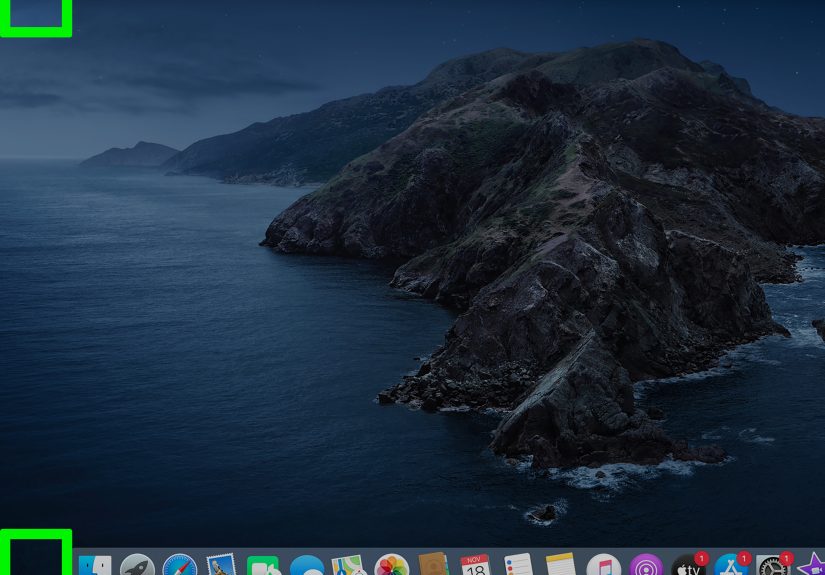
4. Set Up a Hot Corner for Launchpad
If you like automation, this is where things get fun. Hot Corners let you trigger actions by moving the pointer into a corner of the screen. One of those actions can open Launchpad or Apps, depending on your macOS version.
How to set it up
- Open System Settings
- Go to Desktop & Dock
- Scroll to Hot Corners
- Choose a screen corner
- Assign it to Launchpad or Apps
You can even add a modifier key if you want to prevent accidental triggers. That is helpful if you already fling your cursor around the screen like a caffeinated hummingbird.
Why this method works well
Hot Corners are excellent when you use an external monitor, a mouse, or a desktop Mac setup. Just nudge the cursor into the chosen corner and Launchpad appears. No clicking. No pressing. No pinching. It is delightfully lazy in the best possible way.
Best for
- Desktop Mac users
- People with mouse-and-keyboard setups
- Users who like hands-light, movement-based shortcuts
This method is not always the absolute fastest for everyone, but it can be the most effortless once it becomes part of your setup.
Which Way Is Actually Fastest?
The honest answer is: it depends on how you use your Mac.
- Dock icon: Best for simplicity and visual users
- Keyboard shortcut: Best for speed and muscle memory
- Trackpad pinch: Best for MacBook users and gesture fans
- Hot Corner: Best for desktop setups and low-effort access
If you want my practical recommendation, here it is: use the keyboard shortcut if you spend most of your day typing, use the trackpad gesture if you work on a MacBook, and use a Hot Corner if your Mac sits on a desk with an external display.
In other words, the “best” way to open Launchpad on a Mac is the one that fits the position your hands are already in. That is the shortcut principle in a nutshell: the least friction wins.
What to Do If You Cannot Find Launchpad
If you are reading this and thinking, “That is cute, but I do not see Launchpad anywhere,” you are not alone.
Here are the most common reasons:
1. You are on a newer version of macOS
Apple may label the feature as Apps instead of Launchpad. Check the Dock for an Apps icon and open that instead.
2. Your keyboard shortcut behaves differently
Try Fn + F4 if plain F4 does not work. Some keyboards prioritize system controls over standard function keys.
3. Your gesture is disabled or unfamiliar
Open trackpad settings and review the gesture options. If you rarely use gestures, it may simply take a few tries before the motion feels natural.
4. You removed the icon from the Dock
If the Dock icon is gone, do not assume Launchpad has vanished into another dimension. On many systems, you can still access the app browser through the Dock, keyboard, or settings-based alternatives.
The good news is that Launchpad problems are usually about visibility, naming, or settings, not about the feature disappearing completely from older Macs.
Real-World Experiences: What Using These 4 Methods Actually Feels Like
In real life, the best way to open Launchpad on a Mac usually becomes obvious after a week of normal use. On day one, most people click the Dock icon because it is visible and safe. It is the beginner move, and there is absolutely nothing wrong with that. It is like using the handrail on stairs. Reliable. Respectable. Not flashy, but nobody falls down.
Then something interesting happens. Once users get comfortable, they start wanting less friction. That is when the keyboard shortcut suddenly becomes addictive. If you are writing emails, jumping between Slack, Notes, Pages, Chrome, and Calendar, pressing a key is simply faster than reaching for the cursor every time. It saves tiny movements, and tiny movements are where daily time quietly disappears.
Trackpad users tend to have an even stronger reaction. The pinch gesture feels awkward for about ten minutes, then weirdly elegant forever after. MacBook owners often discover that once they learn one good gesture, they start learning more. Launchpad becomes the gateway habit. Today it is a pinch to open apps. Tomorrow you are swiping between spaces and acting like you have lived inside macOS since birth.
Hot Corners have a different personality. They are not for everyone, but the people who love them really love them. This is especially true for desktop users with large screens, external keyboards, and a mouse always in hand. Flicking the cursor into a corner to open Launchpad can feel wonderfully efficient, almost like your Mac is meeting you halfway. The only caution is accidental triggers. If you choose a corner you already visit often, you may open Launchpad when you meant to close a tab, and that gets old fast. A modifier key solves most of that drama.
There is also a comfort factor that does not get discussed enough. Some users do not want the “fastest” method in a technical sense. They want the method that feels easiest when they are tired, distracted, or multitasking. That is why the Dock icon remains popular. At 8:00 a.m. with coffee in one hand and three tabs of mild confusion in the other, a visible icon is beautiful.
For people switching from Windows, Launchpad often feels familiar enough to reduce that early learning curve. It gives them a centralized view of installed apps, which makes the Mac feel less mysterious. For longtime Mac users, the value is different: not discovery, but speed. They are not asking, “Where are my apps?” They are asking, “How do I get there with the fewest possible interruptions?”
That is really the whole story. All four methods work. The winning one depends less on your Mac and more on your habits. If your hands live on the keyboard, use the shortcut. If you love gestures, pinch. If you like visual simplicity, click the Dock. If you enjoy turning your computer into a tiny obedient machine of convenience, set up Hot Corners and never look back.
Conclusion
Learning 4 ways to quickly open the Launchpad on a Mac is one of those small upgrades that makes your computer feel easier to use every single day. The Dock icon is simple, the keyboard shortcut is fast, the trackpad gesture is smooth, and Hot Corners are delightfully efficient once configured.
If you are not sure where to start, begin with the method that matches how you already work. Then give one other option a try for a week. Odds are, you will find a favorite quickly. And once you do, opening apps on your Mac will feel a lot less like searching and a lot more like snapping your fingers and getting on with your day.