Table of Contents >> Show >> Hide
- What Is the Middle Finger Emoji on Facebook?
- How to Do the Middle Finger on Facebook: 7 Steps
- Why the Middle Finger Emoji May Not Show Up
- Middle Finger Emoji vs. Facebook Reactions
- When You Should Not Use the Middle Finger on Facebook
- Better Alternatives for Different Situations
- Experience Notes: What People Learn After Using the Middle Finger on Facebook
- Conclusion
There are many reasons people search for how to do the middle finger on Facebook. Maybe you are joking with a close friend. Maybe you are reacting to a ridiculous sports call, a bad Wi-Fi day, or a group chat argument about whether pineapple belongs on pizza. Or maybe you simply want to know whether Facebook still supports the famous little digital hand that says, “I have thoughts, and they are not polite.”
The answer is yes: you can use the middle finger emoji on Facebook in posts, comments, Messenger chats, and some text fields, depending on your device, keyboard, app version, and region. The emoji is officially known in Unicode as the “reversed hand with middle finger extended,” but most normal humans simply call it the middle finger emoji. Facebook does not currently offer it as a built-in Reaction button like Like, Love, Haha, Wow, Sad, or Angry. Instead, you insert it like any other emoji: through your phone keyboard, computer emoji panel, copy-and-paste method, or Messenger emoji/sticker tools.
Before we get into the steps, a tiny etiquette bell should ring. The middle finger is funny in the right context and messy in the wrong one. Used among friends, it can be playful. Used in a public comment thread, school group, workplace page, customer review, or family post where Aunt Linda is already watching like a hawk, it can look hostile. So yes, this guide shows you how to do it. It also shows you how not to turn one tiny emoji into a full-time reputation management project.
What Is the Middle Finger Emoji on Facebook?
The middle finger emoji is a standard Unicode character, meaning it is not “owned” by Facebook. Facebook, Messenger, iPhone, Android, Windows, macOS, and other systems can display it because modern devices understand emoji characters as part of digital text. In most places, the emoji looks like a hand with the middle finger raised. Its design may look slightly different depending on your device, browser, or operating system, but the meaning is usually not mysterious. Nobody sees that emoji and thinks, “Ah yes, a polite request for tea.”
On Facebook, you can usually place the emoji in:
- Facebook posts
- Comments under posts
- Messenger conversations
- Facebook Stories text, depending on the app version
- Group discussions, if posting permissions allow it
- Profile updates or captions, depending on field restrictions
However, you should remember that Facebook features change over time. App design, emoji rendering, and keyboard behavior may vary between iPhone, Android, desktop browsers, and Messenger. If one method does not work, another usually will. Copy and paste is the universal “I refuse to be defeated by technology” method.
How to Do the Middle Finger on Facebook: 7 Steps
Step 1: Decide Where You Want to Use It
First, choose where you want the middle finger emoji to appear. Are you writing a Facebook post, replying to a comment, sending a Messenger chat, or adding text to a Story? The location matters because Facebook’s interface changes depending on where you are typing.
For example, using the emoji in Messenger is usually easy because Messenger has emoji and sticker options built into the chat experience. In a public Facebook comment, you may rely more on your device keyboard. On desktop, you may use the Windows emoji panel, macOS emoji viewer, or a simple copy-and-paste trick. In other words, the destination decides the road trip.
Also think about your audience. A middle finger in a private joke with a best friend may land as comedy. A middle finger in a comment on your teacher’s announcement, your boss’s fundraiser, or your grandma’s birthday post may land as “Please explain yourself immediately.” Context is the seatbelt of online communication. Use it.
Step 2: Use the Emoji Keyboard on iPhone
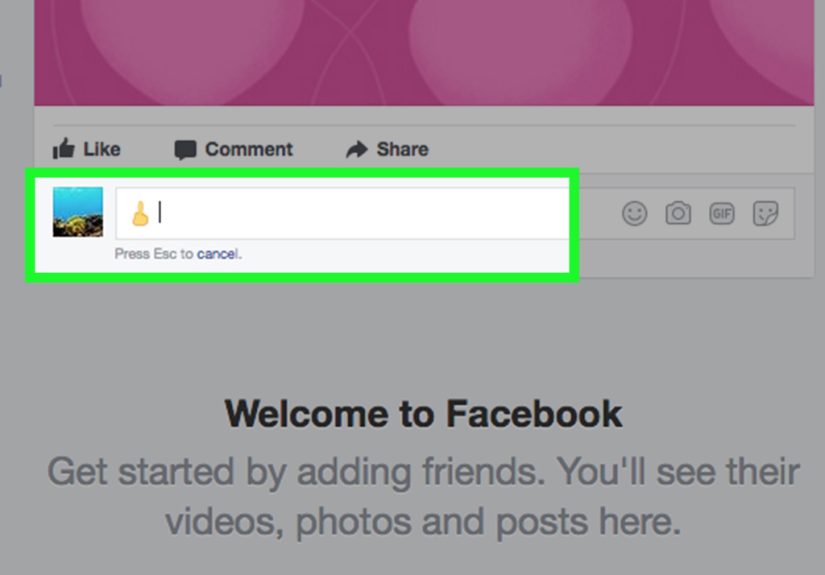
If you are using Facebook on an iPhone, tap the text field where you want to type. This could be a comment box, Messenger message field, or post composer. Then tap the emoji icon or globe icon on your keyboard to open the emoji keyboard.
Once the emoji keyboard is open, you can search for “middle finger” if your iPhone keyboard supports emoji search in your language and region. You can also browse the hand gesture section. When you find the emoji, tap it once to insert it into your Facebook text. You may see skin tone options if you press and hold the emoji. Choose the version you want, then post or send your message.
The simplest iPhone method looks like this:
- Open Facebook or Messenger.
- Tap the text field.
- Tap the emoji or globe key.
- Search or browse for the middle finger emoji.
- Tap the emoji to insert it.
- Review your message.
- Post or send it only if the tone fits.
That last step matters. The delete key exists for a reason. Sometimes the funniest emoji is the one you almost sent.
Step 3: Use the Emoji Keyboard on Android
On Android, the process is similar, especially if you use Gboard, Samsung Keyboard, SwiftKey, or another modern keyboard. Open Facebook or Messenger, tap the text field, then tap the emoji icon on your keyboard. Search for “middle finger” or browse through hand gestures.
If the emoji does not appear, your keyboard, device software, or font may be outdated. Try updating your Facebook app, Messenger app, keyboard app, or Android system. You can also switch to a keyboard that supports emoji search. Gboard is one of the most common choices on Android because it includes emoji, GIF, and sticker support.
Some Android keyboards hide the emoji button behind a long press. For example, you may need to hold the comma key, enter key, or smiley key depending on your settings. Android is flexible, which is a nice way of saying every phone manufacturer enjoys adding one tiny mystery door.
Step 4: Use the Emoji Panel on Windows
If you are using Facebook on a Windows computer, click inside the Facebook text box where you want to insert the emoji. Then press Windows key + period on your keyboard. This opens the Windows emoji panel.
From there, search for “middle finger” or browse the emoji categories until you find it. Click the emoji, and it should appear in your Facebook post, comment, or Messenger message. This method works in many modern browsers, including Chrome, Edge, and Firefox, as long as the text field supports emoji input.
If the emoji panel opens but search does not work, try browsing manually. If the emoji appears as a blank square, your system may need an update, or the browser may not be rendering the character correctly. Usually, updating Windows and your browser solves the issue. If not, the copy-and-paste method is your reliable backup plan.
Step 5: Use Copy and Paste
The fastest method is also the oldest internet survival trick: copy and paste. Copy this emoji: 🖕. Then paste it into your Facebook post, comment, or Messenger chat.
Copy and paste is useful when your keyboard does not show the emoji, your device is older, or you simply do not want to hunt through a digital zoo of tiny faces, animals, flags, food, and mysterious symbols you have never used in your life. It is quick, simple, and works in most Facebook text fields.
You can also copy different skin tone versions if your device supports them:
- 🖕🏻 light skin tone
- 🖕🏼 medium-light skin tone
- 🖕🏽 medium skin tone
- 🖕🏾 medium-dark skin tone
- 🖕🏿 dark skin tone
Just remember that emoji appearance may vary. Your phone may show one style, while your friend’s phone may show another. Emoji are like digital actors: same script, different costumes.
Step 6: Try Messenger Emoji, Stickers, or GIFs
Messenger gives you more expressive tools than plain text. You can tap the emoji icon in a chat to send standard emoji, browse stickers, or use GIF search. If the standard middle finger emoji is available through your keyboard, you can insert it directly into the message field. If not, a reaction GIF or sarcastic sticker may communicate the same playful frustration without being as blunt.
This is especially useful when you want humor, not conflict. A dramatic GIF of someone rolling their eyes may say, “I strongly disagree,” while the middle finger emoji says, “I brought a tiny cannon to a pillow fight.” Choose the tool that matches the relationship and the moment.
For close friends, a silly sticker can be funnier than the actual emoji. For group chats, it can also reduce misunderstandings. Text has no facial expression, no voice tone, and no awkward laugh afterward. Emojis help, but they can also escalate things when the person reading them is already annoyed.
Step 7: Post It Carefullyor Choose a Better Reaction
Before you hit Post, Comment, or Send, take five seconds to read the room. Is this a private joke? Is the person likely to understand your tone? Could someone screenshot it? Would you be comfortable if the same emoji appeared in front of a parent, teacher, employer, client, or future college admissions officer? The internet has a long memory and a very messy filing system.
If you are reacting to something annoying but not serious, the middle finger emoji may be overkill. Facebook already has reaction options like Haha, Wow, Sad, and Angry. A simple Angry reaction may be enough. In a comment, you can write something less explosive, such as “Not a fan of this,” “That was frustrating,” or “Hard disagree.” These alternatives are not as spicy, but they also do not start comment-section weather patterns.
Use the emoji when it is clearly playful, private, and understood. Avoid using it to insult, harass, target, or pile onto someone. Facebook and Meta have rules around bullying and harassment, and even when a single emoji does not seem like a big deal, repeated hostile behavior can become a serious problem. A joke is only funny when everyone involved can breathe normally afterward.
Why the Middle Finger Emoji May Not Show Up
If the middle finger emoji is not working on Facebook, do not panic. Your account has probably not been personally cursed by Mark Zuckerberg’s keyboard goblin. There are several normal reasons it may fail to appear.
Your Device Software Is Outdated
Older operating systems may not fully support newer emoji characters. If your phone, tablet, or computer is running outdated software, the emoji may appear as a blank square, question mark, or missing symbol. Updating your operating system often fixes this.
Your Keyboard Does Not Support It
Some keyboards do not show every emoji, even if your device can display them. Try using another keyboard, enabling the emoji keyboard, or copying and pasting the emoji directly.
Your Browser Is Rendering It Differently
If you use Facebook in a browser, emoji display can depend on the browser and system font. Update your browser or try another one. Chrome, Edge, Firefox, and Safari generally handle modern emoji well on updated systems.
Facebook Is Testing or Changing Features
Facebook frequently tests layouts, buttons, and tools. One account may see slightly different options from another. That is normal. The emoji itself is standard text, but Facebook’s interface around comments, reactions, stickers, and Messenger tools can change.
Middle Finger Emoji vs. Facebook Reactions
One common misunderstanding is the difference between emoji and Reactions. A Facebook Reaction is a built-in response button attached to posts or comments, such as Like, Love, Haha, Wow, Sad, or Angry. The middle finger is not one of those official reaction buttons. You cannot usually hold down the Like button and choose a middle finger from the Reaction row.
Instead, the middle finger is inserted as text. That means it goes inside a post, comment, caption, or chat message. This distinction matters because people searching for “middle finger reaction on Facebook” may expect a built-in button. In most cases, what they actually need is the emoji keyboard or copy-and-paste method.
When You Should Not Use the Middle Finger on Facebook
The middle finger emoji can be funny, but it is not always smart. Avoid using it in professional, school-related, customer service, public argument, or sensitive situations. Do not use it to target someone repeatedly, mock someone in a vulnerable situation, or join a pile-on. Social media can make a small gesture feel bigger because it is public, permanent, and easy to screenshot.
Also avoid using it in serious discussions about grief, health, politics, identity, or personal conflict. Even if you intend humor, the other person may read it as disrespect. The emoji is direct. It does not come with a tiny lawyer explaining your intent.
Better Alternatives for Different Situations
If you want to express frustration without using the middle finger emoji, try one of these options:
- For mild annoyance: “Seriously?” or “Come on.”
- For disagreement: “I see it differently.”
- For playful sarcasm: 🙄, 😑, or 😒
- For strong frustration: “That was not okay.”
- For a private joke: A funny GIF may work better.
These alternatives help you keep the tone under control. Sometimes the goal is not to win the internet. Sometimes the goal is to leave the conversation with your dignity, your friendships, and your notifications intact.
Experience Notes: What People Learn After Using the Middle Finger on Facebook
Here is the practical truth: learning how to do the middle finger on Facebook takes about ten seconds. Learning when to use it takes experience. Many people first use it as a joke. A friend says something ridiculous, someone posts a painfully bad sports opinion, or a group chat gets dramatic over where to eat. The emoji appears, everyone laughs, and life continues. In that setting, it can be harmless digital comedy.
But the same emoji can feel completely different in another place. A public comment thread has more invisible readers than you think. Friends of friends, coworkers, classmates, relatives, group moderators, and random people with too much free time may all see it. What felt like a quick joke can suddenly look aggressive. This is why experienced social media users often save stronger emoji for private chats, not public posts.
Another common experience is tone confusion. You may send the middle finger emoji to mean, “You are hilariously annoying, and I love you.” The other person may read it as, “You are annoying, and I have chosen war.” Without voice tone, facial expression, or shared context, a single emoji can carry more heat than expected. Adding a laughing emoji, a playful phrase, or using it only with people who already understand your humor can prevent awkward follow-up messages.
People also learn that screenshots are forever-ish. Even if you delete a comment, someone may have already captured it. That does not mean you should be terrified of every emoji, but it does mean you should pause before posting it in places connected to school, work, business, or public reputation. A middle finger emoji in a private fantasy football chat is one thing. The same emoji under a community announcement is another.
For creators, page owners, and small businesses, the lesson is even clearer: avoid using the middle finger emoji from brand accounts unless your brand voice is intentionally edgy and your audience expects it. A personal joke from an individual can be forgiven. A rude-looking response from a business page can turn into a customer service problem with extra seasoning.
The best experience-based rule is simple: use the middle finger emoji only when the relationship is strong, the joke is obvious, and the setting is low-risk. If any of those three things are missing, choose a softer reaction. Digital communication is already easy to misunderstand. No need to hand it a tiny gasoline can.
That said, the emoji remains popular because it is expressive, instantly recognizable, and sometimes exactly the comic punctuation a message needs. Used sparingly, it can be funny. Used carelessly, it can make you look rude. Like hot sauce, sarcasm, and group chat voice notes, it is best applied with judgment.
Conclusion
Doing the middle finger on Facebook is simple: use your emoji keyboard, desktop emoji panel, Messenger tools, or copy and paste the emoji directly. The real skill is not technical; it is social. Know where you are posting, who will see it, and how it might be interpreted. Facebook gives you many ways to react, from official Reactions to comments, stickers, GIFs, and emoji. The middle finger is just one option, and it is definitely not the quiet one.
If you use it, use it with humor, context, and caution. If you are angry, pause first. If you are joking with a close friend, you are probably fine. If you are about to post it in a public thread with 400 strangers and three moderators named “Admin,” maybe take a deep breath and choose the Angry reaction instead. Your future self may thank you.