Table of Contents >> Show >> Hide
- First, a quick sanity check: pins, markers, saved places, lists, and labels aren’t the same
- 1) Drop a pin on your phone (Android & iPhone)
- 2) Drop a pin on desktop (Google Maps in your browser)
- 3) Save a place to create a persistent marker (Favorites, Want to go, Starred… or your own list)
- 4) Add a private label (your personal “nickname pin”)
- 5) Create a custom map in Google My Maps (multiple markers, layers, routesand sharing that doesn’t implode)
- Common pin problems (and how to fix them fast)
- Conclusion
- of real-world “pin experiences” (aka: why this stuff matters more than you think)
If you’ve ever tried to meet a friend “by the big tree near the thing” (you know the one), you already understand why pins exist. Google Maps markers are the digital equivalent of yelling, “I’m RIGHT HERE!”but with fewer confused hand gestures and less risk of accidentally pointing at a stranger’s dog.
In this guide, you’ll learn five easy, practical ways to add a marker or pin in Google Mapson your phone, on your laptop, and even in a custom map you can share with a group. Along the way, we’ll cover what actually gets saved (and what disappears the moment you blink), how to label spots like a genius, and how to avoid the classic “I dropped a pin and now it’s gone” heartbreak.
First, a quick sanity check: pins, markers, saved places, lists, and labels aren’t the same
Google Maps uses a few “mark this spot” tools that feel similar but behave differently. Knowing which one you need saves timeand prevents your map from becoming a chaotic sprinkle of mystery dots.
- Dropped pin: A temporary marker you place on the map (great for places without a clear address). You can share it, get directions, or save itbut if you don’t save it, it’s basically a sticky note made of soap.
- Saved place: A place you’ve added to a list (Favorites, Want to go, Starred places, or your own list). These can show on your map.
- List: A collection of saved places (public, shared, or private), ideal for planning trips, food crawls, or “future me will thank me.”
- Label: A private nickname for a place (like “Mom’s house” or “Client: Downtown Office”), so you can search it later instantly.
- My Maps custom map: A separate, shareable map with multiple markers, layers, routes, and stylingperfect for big plans and group chaos.
Now let’s get into the five easiest ways to add a marker or pin in Google Mapswithout turning your phone into a tiny rage rectangle.
1) Drop a pin on your phone (Android & iPhone)
This is the fastest way to mark a precise spotespecially in places that don’t have a tidy street address (parks, trailheads, festival entrances, “that parking lot behind the coffee shop,” etc.).
How to drop a pin in the Google Maps app
- Open the Google Maps app.
- Find the area you want (search for something nearby or zoom in manually).
- Press and hold on the exact spot until a pin appears. (If you’re zoomed out too far, your pin may land in “close enough” territory.)
- Tap the location card that appears at the bottom to open details and actions like Directions, Save, and Share.
When this method shines
- Meeting friends: Drop the pin at the correct entrance, not the building’s “official” address.
- Outdoor spots: Trailheads, viewpoints, beaches, and picnic tables that live off the grid.
- Delivery instructions: Pin the exact gate/driveway when GPS likes to play pranks.
Pro tips to make your pin actually useful
- Zoom in before you press: The closer you are, the more accurate the placementespecially in dense downtown areas.
- Turn it into something permanent: After dropping a pin, tap Save and add it to a list so it doesn’t vanish from your life.
- Share it like a normal person: Use the Share button so others get the exact location, not your poetic description of it.
2) Drop a pin on desktop (Google Maps in your browser)
On a computer, pinning is fantastic for planning: you can see more of the map at once, copy coordinates, and build routes without thumb gymnastics. It’s also the easiest way to do “precision clicking” when your phone keeps trying to select the wrong business.
How to drop a pin on the Google Maps website
- Go to Google Maps in your web browser.
- Search for an area or zoom/pan until you see your target spot.
- Click the exact location on the map to drop a pin.
- A small info card appears with options like directions and sharing. Open it to copy details or save the location.
Desktop-friendly moves that save time
- Copy coordinates: Handy for hikers, photographers, field work, or anyone who enjoys being dramatically precise.
- Share a clean location link: Great for sending meeting points to a group chat without starting a 47-message debate.
- Save it immediately: If the pin matters tomorrow, treat it like leftoverslabel it and store it properly.
3) Save a place to create a persistent marker (Favorites, Want to go, Starred… or your own list)
Dropping a pin is step one. Saving is what makes it stick around. Saved places can show on your map, appear in your “Saved” area, and help you build lists you can reuse.
Save an existing place (restaurant, store, landmark, etc.)
- Search for a place or tap it on the map.
- Open the place card.
- Tap or click Save.
- Choose a list (like Favorites or Want to go) or create a new one.
Create a brand-new list (for your inner organizer)
Lists are where Google Maps becomes less “map” and more “personal brain extension.” Create lists like: Best Tacos, Client Visits, Weekend Road Trip Stops, or Places I Swear I’ll Visit Someday.
- Travel planning: Build a “Seattle Weekender” list with coffee shops, viewpoints, and backup options.
- Work and errands: Save recurring stops like supplier locations, warehouses, or job sites.
- Local exploring: Keep a running “Date Night Ideas” list so you don’t default to the same three places.
Sharing lists (without turning into the group’s unpaid trip manager)
You can share lists with friends or collaborators, anddepending on settingslet others contribute. This is ideal for: group trips, bachelor/ette weekends, family reunions, or any scenario where everyone has “suggestions” but nobody has a plan.
Practical example: Create a shared list called Chicago Eats 2026. Everyone drops their must-try spots into one place. Then you can sort by neighborhood and avoid crossing the entire city three times in one night (unless you really like traffic as a hobby).
4) Add a private label (your personal “nickname pin”)
A label is like giving Google Maps a secret code word. Labels are private by default and easy to search later. Instead of remembering “that weird little building behind the gas station,” you can label it “Pick-up spot” and move on with your life.
What labels are best for
- People’s homes: “Aunt Lisa,” “Babysitter,” “Best Friend (Brings Snacks).”
- Work locations: “Client: Riverside,” “Warehouse Gate,” “Site Entrance B.”
- Parking: “Park here for stadium,” “Trailhead overflow,” “Don’t get towed (seriously).”
How to create or edit a label in Google Maps
- Open Google Maps and find the place (search it, tap it, or drop a pin).
- Open the place card.
- Choose Label (or manage labels under your saved/labeled section, depending on your device).
- Type a label name you’ll actually remember later.
- Save it.
Labeling strategy: Make labels searchable. “Dentist” is better than “Teeth place.” “Gym – Downtown” beats “Pain cave.”
5) Create a custom map in Google My Maps (multiple markers, layers, routesand sharing that doesn’t implode)
If your plan involves more than a couple pins, it’s time to graduate to Google My Maps. This tool lets you build a custom map with multiple markers, themed layers, notes, color-coded icons, and even shapes or routes. Think: trip itinerary, real estate scouting, volunteer route planning, client territory mappingthe works.
Why My Maps is the “many pins” solution
- Multiple markers: Add lots of stops without fighting the standard directions interface.
- Layers: Organize categories like “Food,” “Attractions,” “Parking,” and “Backup Options.”
- Customization: Icons and colors help you understand the map at a glance.
- Shareability: Send one map link instead of 19 separate pins and a prayer.
How to make a custom map and add markers
- Open Google My Maps in a browser and start a new map.
- Name the map something useful (future you deserves clarity).
- Use the pin/marker tool to add locations by clicking the map or searching for places.
- Add details: notes, photos, links (optional), and categorize pins into layers.
- Share the map with others if you want collaboration or viewing access.
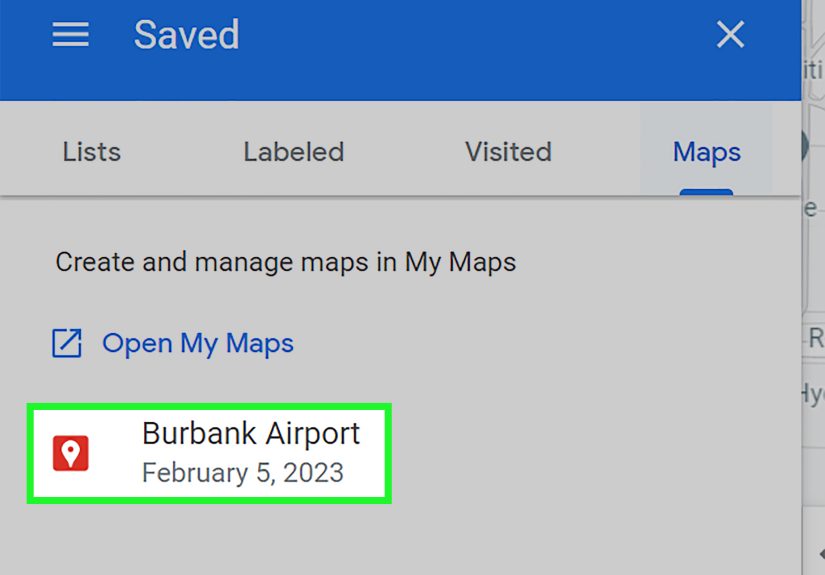
Bring your custom map back into Google Maps on mobile
Once your map exists, you can view it in the Google Maps app (so you can actually use it on the go). In practice, this means your carefully planned “Weekend in Austin” map can ride along with you while you’re out exploring.
Bonus: adding markers programmatically (for developers and website builders)
If by “marker” you literally mean “a marker on an embedded map on my website,” Google provides a developer path through the Maps JavaScript API. You can add markers (including newer advanced markers) to show locations on your own map interfaceuseful for store locators, event maps, and business directories.
Translation: if you run a business site and want a map with your locations marked, there’s a legit, supported way to do itno duct tape required.
Common pin problems (and how to fix them fast)
“I dropped a pin and it disappeared.”
Dropped pins are often temporary. If it matters later, tap Save and add it to a list, or create a label. If you’re not signed in, some save/list features may be limited depending on platform behavior and settingsso sign in when you want your map to remember things.
“The pin is close, but not exact.”
Zoom in further before dropping it. In dense areas, a tiny movement can change the location from “front door” to “neighbor’s living room.” (And the neighbor did not RSVP to your meetup.)
“I shared the location, but my friend opened something different.”
Use the Share button on the pin/place card. That generates a location link designed to open consistently across devices. Also, confirm you pinned the right thing: a business listing vs. a dropped pin vs. an entrance can look similar at a glance.
“I want a bunch of pins, like an itinerary.”
If it’s more than a handful, make a list (fast) or a My Maps custom map (best for structure and sharing). Lists are great for lightweight planning. My Maps is better for “this is a real plan with categories and layers and I refuse to wing it.”
Conclusion
Adding a marker or pin in Google Maps can be as quick as a long-pressor as powerful as building a fully custom, shareable map. The trick is choosing the right tool:
- Need a fast “right here” point? Drop a pin.
- Need it later? Save it to a list.
- Need to search it by a nickname? Add a label.
- Need many stops with structure? Build a My Maps custom map.
Once you start using pins, lists, and labels intentionally, Google Maps stops being “just directions” and becomes your personal navigation memory the kind that doesn’t forget where you parked, where that amazing dumpling shop was, or which entrance won’t lead you into a construction zone.
of real-world “pin experiences” (aka: why this stuff matters more than you think)
The first time most people learn the power of a Google Maps pin is during a minor crisis. Not a dramatic, action-movie crisismore like a “Why is everyone standing on different corners?” crisis.
Picture a crowded venue: a concert, a fair, a street market, or a sports stadium. The official address is correct, sure, but it’s also useless. It points to a giant building with six entrances, two parking structures, and one very confident security guard who will absolutely not let you in through the “wrong” gate. Dropping a pin at the exact entrance you’re usingand sharing itturns a 30-minute scavenger hunt into a two-minute walk. Suddenly the group chat is calm. Nobody’s caps-locking “WHERE ARE YOU.” Peace spreads across the land.
Another classic: the “middle-of-nowhere” location. Trailheads, lakes, viewpoints, rural venues, pop-up eventsthese places often have vague addresses or none at all. People typically try to share a screenshot (“It’s kind of near this curve?”), which is how friendships are tested. A dropped pin is cleaner: it creates a precise point you can navigate to, and it travels well across iPhone/Android. If the spot is one you’ll return tolike a favorite campsite or a remote job sitesaving it to a list makes it reusable instead of a one-time miracle.
Labels are the quiet hero in everyday life. Think of a label as “future-proofing.” You might not remember the exact address for a client’s office, the best loading dock entrance, or the building you always drive past but can never identify. A label turns that place into a searchable keyword: type “Client Riverside” and boom, Google Maps acts like it read your mind. People who run errands across town, manage deliveries, or visit multiple sites swear by labels because they reduce friction. Less searching. Less second-guessing. Fewer accidental U-turns that make you question your life choices.
Then there’s the travel-planning glow-up: lists and My Maps. Lists are quick and flexiblegreat for saving restaurants, museums, and “maybe” spots. But when plans get bigger (multi-day trips, group itineraries, road trips with scenic stops), My Maps becomes the control center. You can color-code food vs. attractions, separate “must-do” vs. “backup,” and add notes like “best time to visit” or “buy tickets ahead.” The result is less chaos and more momentum when you’re actually traveling. You stop debating every decision in real time and start enjoying the trip.
The best part? You don’t need to become a cartography nerd to benefit. Just pick one habit: drop pins for precise meetups, save places you want to revisit, label the locations you use repeatedly, and bring out My Maps when the plan involves multiple people and multiple stops. Your future self will be grateful and your friends will think you’re weirdly organized (which is a compliment in disguise).