Table of Contents >> Show >> Hide
- What Is Disk Management, Exactly?
- Before You Open Disk Management
- 1. Open Disk Management from the Start Button Menu
- 2. Use Windows Search
- 3. Open Disk Management with the Run Dialog
- 4. Open It Through Computer Management
- 5. Launch Disk Management from Task Manager
- 6. Use Command Prompt, PowerShell, or Windows Terminal
- 7. Open Disk Management Through Control Panel and Windows Tools
- Which Method Is Best?
- What Can You Do Once Disk Management Opens?
- What If Disk Management Will Not Open?
- Real-World Experiences: Why Knowing These Shortcuts Actually Helps
- Final Thoughts
- SEO Tags
If Windows had a utility belt, Disk Management would be one of the shinier gadgets clipped to it. It is not flashy. It does not arrive with fireworks. But when you need to initialize a new SSD, create a partition, shrink a volume, assign a drive letter, or figure out why your external drive is acting like it has stage fright, Disk Management is the grown-up tool you want.
The good news is that opening Disk Management in Windows 10 and Windows 11 is wonderfully easy once you know where to look. The even better news is that you do not need third-party software, secret wizard powers, or a degree in computer archaeology. Windows already gives you several built-in paths to the same destination.
In this guide, you will learn 7 easy ways to open Disk Management in Windows 10 and 11, plus when each method makes the most sense. We will also cover a few real-world examples, some quick troubleshooting tips, and a section on user experiences at the end so this topic feels less like a dry system manual and more like advice from someone who has actually had to wrestle a stubborn hard drive at 11:47 p.m.
What Is Disk Management, Exactly?
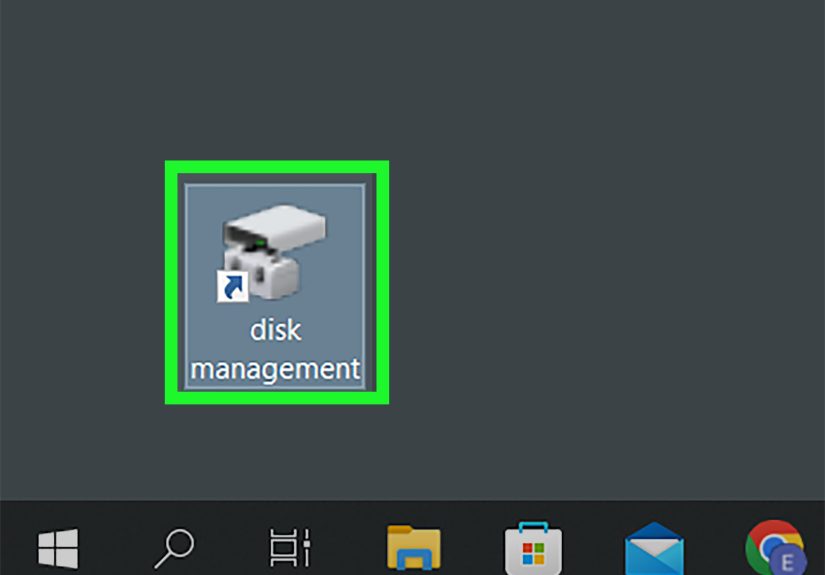
Disk Management is a built-in Windows utility used to manage storage drives and partitions. In plain English, it helps you see what is happening with your internal drive, external drives, SSDs, USB storage, and the partitions sitting on them.
With Disk Management, you can do things like:
- Initialize a new drive
- Create and format partitions
- Shrink or extend a volume
- Change a drive letter
- Mark a partition as active
- See unallocated space and basic disk details
One nice thing to know up front: Disk Management works basically the same in Windows 10 and Windows 11. So if you recently upgraded and suddenly feel like Windows rearranged your furniture, you can relax. This particular tool did not move very far.
Before You Open Disk Management
Before jumping into the methods, here are two quick reminders:
1. Some actions require admin privileges
You can usually open Disk Management without drama, but changing partitions, formatting drives, and performing other major storage tasks may require an administrator account.
2. Looking is safer than clicking
Opening Disk Management is harmless. Randomly right-clicking partitions because curiosity took the wheel is less harmless. If you are managing drives for the first time, move slowly and double-check labels, sizes, and drive letters.
1. Open Disk Management from the Start Button Menu
This is the fastest and easiest method for most people, and honestly, it is the one many Windows users end up adopting for life.
How to do it
- Right-click the Start button.
- Select Disk Management.
You can also press Windows + X to open the same menu, then click Disk Management.
Why this method is great
It is quick, built into both Windows 10 and Windows 11, and requires almost no typing. If you like keyboard shortcuts but do not want to memorize command strings, Win + X is your friend.
Best for
Everyday users, IT folks, and anyone who wants the shortest route between “I need Disk Management” and “there it is.”
2. Use Windows Search
If your life philosophy is “search first, ask questions later,” this method will feel natural.
How to do it
- Click the Search box on the taskbar, or press Windows + S.
- Type Disk Management.
- Click Create and format hard disk partitions.
Yes, that long result name is the correct one. Windows prefers to make some things sound more formal than they really are. “Disk Management” would have been nice and tidy, but here we are.
Why this method is great
It is intuitive. Even if you forget the exact name of the utility, typing words like disk, partition, or format hard disk partitions often gets you there.
Best for
Users who already use Search to open apps, settings, and system tools.
3. Open Disk Management with the Run Dialog
This method is fast, nerdy in a good way, and surprisingly satisfying. It is also one of the most universal ways to launch system tools in Windows.
How to do it
- Press Windows + R.
- Type
diskmgmt.msc. - Click OK or press Enter.
Why this method is great
The Run dialog is fast and direct. If you remember the command, you can open Disk Management in just a couple of seconds. It also feels impressively technical, even though all you did was type nine letters and a dot.
Best for
Power users, tech support conversations, and anyone following online instructions that say, “Open Run and type this.”
4. Open It Through Computer Management
Disk Management lives inside another Windows utility called Computer Management. Think of Computer Management as the office building and Disk Management as one of the important departments inside it.
How to do it
- Open Search and type Computer Management.
- Open the result.
- In the left pane, click Storage.
- Select Disk Management.
Why this method is great
It is useful if you are already working inside Computer Management for something else, such as Device Manager, Event Viewer, or Shared Folders. It is a nice “two birds, one console” kind of move.
Best for
Users who manage multiple system tools and want a more traditional admin route.
5. Launch Disk Management from Task Manager
This one is underrated. Most people think of Task Manager as the place where frozen apps go to meet their destiny, but it can also launch new tasks, including Disk Management.
How to do it
- Press Ctrl + Shift + Esc to open Task Manager.
- In Windows 11, click Run new task. In Windows 10, you may need to click File and then Run new task.
- Type
diskmgmt.msc. - Press Enter or click OK.
Why this method is great
If your desktop is acting weird, the Start menu is uncooperative, or File Explorer is misbehaving, Task Manager can be a lifesaver. It is a clever backup plan when normal navigation is not working.
Best for
Troubleshooting situations and users who already keep Task Manager on speed dial.
6. Use Command Prompt, PowerShell, or Windows Terminal
If you like opening things with commands because clicking around feels too pedestrian, this method is for you.
How to do it
- Open Command Prompt, PowerShell, or Windows Terminal.
- Type
diskmgmt.msc. - Press Enter.
Why this method is great
It is quick, script-friendly, and perfect for people who already live in Terminal windows. It also works well when you are remote troubleshooting with someone and want to give them a simple, memorable command.
Best for
Advanced users, admins, and anyone who enjoys typing commands just enough to feel cool but not enough to install Arch Linux for fun.
7. Open Disk Management Through Control Panel and Windows Tools
Yes, the Control Panel route still exists. No, Windows is not making it especially modern. But if you like the classic administrative pathways, this method still gets the job done.
How to do it in Windows 11
- Open Control Panel.
- Select Windows Tools.
- Open Computer Management.
- Click Storage and then Disk Management.
How to do it in Windows 10
- Open Control Panel.
- Select Administrative Tools.
- Open Computer Management.
- Click Storage and then Disk Management.
Why this method is great
It is not the fastest, but it is reliable and useful if you are already inside the Control Panel ecosystem. It is also a nice reminder that old-school Windows pathways never fully retire. They just age into “legacy interfaces.”
Best for
Users who prefer classic Windows navigation or are following older admin documentation.
Which Method Is Best?
If you want the short answer, here it is:
- Fastest overall: Right-click Start or press Win + X
- Most beginner-friendly: Windows Search
- Best for speed with typing: Run dialog with
diskmgmt.msc - Best backup option: Task Manager
- Best for admins: Computer Management or Terminal
Realistically, most people settle on one or two favorite methods and never look back. That is perfectly fine. You do not need to use all seven. It is more like having seven doors to the same room.
What Can You Do Once Disk Management Opens?
Once inside Disk Management, you can start handling common storage tasks. For example:
Initialize a new drive
If you install a brand-new SSD or hard drive and it does not appear in File Explorer, Disk Management is often where the mystery gets solved. New drives may need to be initialized and partitioned before Windows treats them like proper citizens.
Change a drive letter
If an external drive is not showing up correctly, assigning or changing a drive letter can help. It is one of the simplest fixes for drives that exist but seem to be hiding.
Shrink or extend a partition
Need to carve out some space for a new partition? Want to give your C: drive a little breathing room? Disk Management can help, as long as the layout of the disk allows it.
Format a volume
This is useful for preparing a drive for storage, reorganizing an external drive, or cleaning up a partition you no longer need. Naturally, formatting erases data, so this is your friendly reminder not to format the wrong drive because you were multitasking with coffee in one hand.
What If Disk Management Will Not Open?
Sometimes the problem is not finding Disk Management. Sometimes Windows simply decides to be dramatic. If the utility does not open, try these quick fixes:
- Make sure you typed
diskmgmt.msccorrectly - Try another method from this list
- Open it with administrator privileges
- Restart your PC
- Try launching it from Task Manager if the Start menu or Explorer seems stuck
- Check whether Windows is hanging on another system dialog in the background
If you are troubleshooting a drive that is missing rather than a utility that will not launch, also check Device Manager, cable connections, power, and whether the drive appears as unallocated or offline in Disk Management.
Real-World Experiences: Why Knowing These Shortcuts Actually Helps
Here is where this topic stops being theoretical and starts sounding very familiar.
A lot of people first meet Disk Management during a mini tech panic. Maybe they just installed a new SSD, opened File Explorer, and saw absolutely nothing. The drive is physically there, the computer insists it is there somewhere, and yet Windows acts like the thing is an imaginary friend. That is usually the moment someone searches, “why is my new drive not showing up,” and discovers Disk Management.
In that situation, the Win + X route is often the hero. It is fast, direct, and gets you to the screen where you can see whether the drive is unallocated, offline, or simply missing a drive letter. For many users, that first successful trip to Disk Management feels like pulling back a curtain. Suddenly, the mystery is not mysterious anymore. It is just a drive waiting for setup.
Then there is the external hard drive scenario. You plug in a USB drive with important files, and nothing pops up. No happy little File Explorer window. No welcoming chime that leads anywhere useful. Just silence. In real life, people often bounce between panic and denial for a few minutes before opening Disk Management. Once there, they may find the drive listed, but without a letter. A quick letter assignment later, the drive is back like it merely stepped out for coffee.
Another common experience happens during upgrades. Someone clones a drive, replaces an old hard drive with a new SSD, or reorganizes partitions while trying to free space. In those cases, users who know the Run command or the Computer Management path save time because they can jump straight into the utility instead of hunting through menus. It is one of those small Windows skills that feels unimportant until the exact minute it becomes extremely important.
The Task Manager method also has a surprisingly real-world advantage. When Windows Explorer freezes or the taskbar starts behaving like it needs a nap, the normal ways of opening tools may not cooperate. Task Manager often still works, which makes it a reliable emergency entrance. It is not the first method most people learn, but once they use it successfully during a weird system moment, they remember it forever.
Even casual users benefit from knowing at least two ways to open Disk Management. One method is your daily driver. The other is your backup plan. That simple habit reduces frustration when Windows decides to hide the obvious path or when one interface is acting up. It is the digital version of knowing both the front entrance and the side door.
And perhaps the best part is this: once users learn how to open Disk Management, they usually become more confident around storage issues in general. The utility looks technical, yes, but it is also one of the clearest ways to understand how Windows sees your drives. Instead of guessing, you can check. Instead of assuming a drive is dead, you can verify whether it is just offline, unallocated, or unformatted. That is a huge difference.
So while “how to open Disk Management” might sound like a tiny question, in practice it is often the first step in solving much bigger storage problems. And when your files, backups, or shiny new SSD are involved, that first step matters a lot.
Final Thoughts
Knowing how to open Disk Management in Windows 10 and 11 is one of those small computer skills that pays off again and again. You may not use it every day, but when you need it, you usually really need it.
If you want the easiest route, use Win + X or the Start button menu. If you love quick commands, use Windows + R and type diskmgmt.msc. If Windows is acting strange, keep the Task Manager method in your back pocket. And if you enjoy a more classic admin route, Computer Management and Control Panel still have your back.
In short, there is no single “right” way to open Disk Management. There is only the way that gets you there fastest without making you mutter at your monitor. Choose your favorite, remember one backup option, and you will be ready the next time Windows storage decides to get interesting.