Table of Contents >> Show >> Hide
- First, What Does Mono vs. Stereo Mean in Audacity?
- Before You Start: Make a Safety Copy
- Easy Way 1: Duplicate the Mono Track and Make a Stereo Track
- Easy Way 2: Create a Wider Pseudo-Stereo Effect
- Which Method Should You Use?
- How to Export a Stereo File from Audacity
- Troubleshooting: Why Is My Stereo Track Still Sounding Mono?
- Practical Examples
- Best Practices for Changing Mono to Stereo in Audacity
- Experience Notes: What I’ve Learned From Converting Mono Tracks to Stereo
- Conclusion
- SEO Tags
So, you opened a recording in Audacity, looked at the waveform, and saw one lonely blue track staring back at you like it forgot to bring a friend. Don’t panic. A mono track is not broken, cursed, or “low quality” by default. It simply means your audio has one channel instead of two. The good news is that learning how to change a mono track to stereo in Audacity is easy once you understand what kind of stereo you actually need.
In this guide, we’ll walk through two practical ways to convert mono to stereo in Audacity: creating a clean dual-mono stereo track and making a wider pseudo-stereo version for a more spacious sound. We’ll also cover when you should avoid converting at all, how to export correctly, and the common mistakes that make new editors mutter things at their laptop that should not be repeated in polite company.
First, What Does Mono vs. Stereo Mean in Audacity?
A mono track contains one audio channel. In Audacity, it appears as one waveform. A stereo track contains two channels, left and right, and appears as two stacked waveforms inside one track. Stereo can create direction, width, and space because the left and right channels can contain different information.
Here is the important part: a true mono track normally plays through both speakers or both sides of your headphones. That means if your voice recording sounds centered, clear, and balanced, you may not need to change anything. Many podcasts, voiceovers, audiobooks, tutorials, interviews, and lectures are perfectly fine in mono. In fact, mono can be cleaner and smaller in file size.
However, you may want a stereo file for platform requirements, video editing software compatibility, client delivery specs, or creative sound design. That is where Audacity gives you a few simple options.
Before You Start: Make a Safety Copy
Before converting mono to stereo in Audacity, save a backup of your project. Use File > Save Project > Save Project As and create a separate version. Audio editing is not dangerous, but it can be surprisingly easy to click one tiny menu item and suddenly feel like you accidentally launched a spaceship.
Also, listen to your original track. Ask yourself:
- Is the sound coming from both headphones already?
- Do I need a stereo file, or do I need a stereo effect?
- Is this for speech, music, video, or sound design?
- Will the final file be MP3, WAV, AAC, or another format?
Your answer determines which method is best.
Easy Way 1: Duplicate the Mono Track and Make a Stereo Track
This is the fastest way to change a mono track into a stereo track in Audacity. It creates what editors often call dual mono: the same sound in the left and right channels. It will look like stereo, export as stereo, and play evenly from both sides, but it will not magically create a wide “real stereo” recording. Think of it as giving your mono track a twin, not a personality transplant.
Best for:
- Voiceovers
- Podcasts
- Audiobooks
- Client files that require stereo delivery
- Fixing compatibility issues with video editors
Steps to Convert Mono to Stereo Using Duplicate and Make Stereo Track
- Open your audio file in Audacity. Go to File > Open and choose your mono file, or drag the file directly into the Audacity window.
- Select the mono track. Click in the track control panel on the left side of the waveform, or press Ctrl + A on Windows/Linux or Command + A on Mac if it is the only track in the project.
- Duplicate the track. Press Ctrl + D on Windows/Linux or Command + D on Mac. You can also use Edit > Duplicate. Now you should see two identical mono tracks.
- Open the track dropdown menu. On the upper track, click the track name or the small dropdown arrow in the track control panel.
- Choose Make Stereo Track. Audacity will combine the upper mono track and the track directly below it into one stereo track.
- Play the audio. Use headphones if possible. The sound should be centered and equal in both ears.
- Export your file. Go to File > Export Audio, choose your format, and save the file.
What You Get With This Method
You get a stereo track with matching left and right channels. This is useful when you need a two-channel file but do not need actual stereo movement. For spoken-word audio, this is often enough. Your listener does not need your podcast intro to sound like it is orbiting their head unless you are producing a sci-fi drama about haunted satellites.
Common Mistake: Expecting Dual Mono to Sound Wider
If you duplicate a mono track and make it stereo, it will still sound centered. That is normal. Stereo width happens when the left and right channels differ in timing, tone, reverb, placement, or performance. Identical left and right channels create a stereo file, but not a wide stereo image.
Easy Way 2: Create a Wider Pseudo-Stereo Effect
If your goal is to make a mono track sound more spacious, you need a different approach. This method creates a pseudo-stereo effect by giving the left and right channels subtle differences. It can make music, ambience, sound effects, or creative audio feel wider. Used carefully, it adds depth. Used wildly, it sounds like your audio fell down the stairs while carrying a reverb pedal.
Best for:
- Background music
- Ambient sound
- Sound effects
- Creative YouTube audio
- Intro and outro sections
Steps to Make Mono Sound More Stereo in Audacity
- Import your mono track. Open the file in Audacity.
- Duplicate the track. Press Ctrl + D or Command + D.
- Pan one track left and the other right. Use the pan sliders in the track control panel. Try setting the top track slightly left and the bottom track slightly right.
- Add a tiny delay to one side. Select one duplicated track and use a very small delay, usually around 10 to 20 milliseconds. Keep it subtle.
- Optionally apply light EQ or reverb to one side. A small tonal difference can create more width, but avoid heavy effects unless that is the style you want.
- Combine the two tracks. Open the dropdown menu on the upper track and choose Make Stereo Track, or use Tracks > Mix > Mix and Render if your setup requires it.
- Check the result in headphones and speakers. Make sure it sounds wider without becoming hollow, phasey, or distracting.
Important Warning About Phase Problems
Pseudo-stereo can cause phase issues. That means your audio may sound wide in headphones but weak or strange when played on a phone speaker, smart speaker, or mono playback system. Always test the final file in mono if the audio matters. This is especially important for music, ads, tutorials, and any file that may be heard on small speakers.
Which Method Should You Use?
Use Method 1 if you need a safe, clean stereo file from a mono source. This is the best choice for dialogue, narration, lectures, podcasts, training videos, and professional voiceover delivery. It keeps the audio stable and centered.
Use Method 2 if you want a creative stereo effect. This can work well for background music, atmosphere, intros, and sound design. Just remember that fake stereo is seasoning, not soup. A little makes things tasty; too much makes everyone suspicious.
How to Export a Stereo File from Audacity
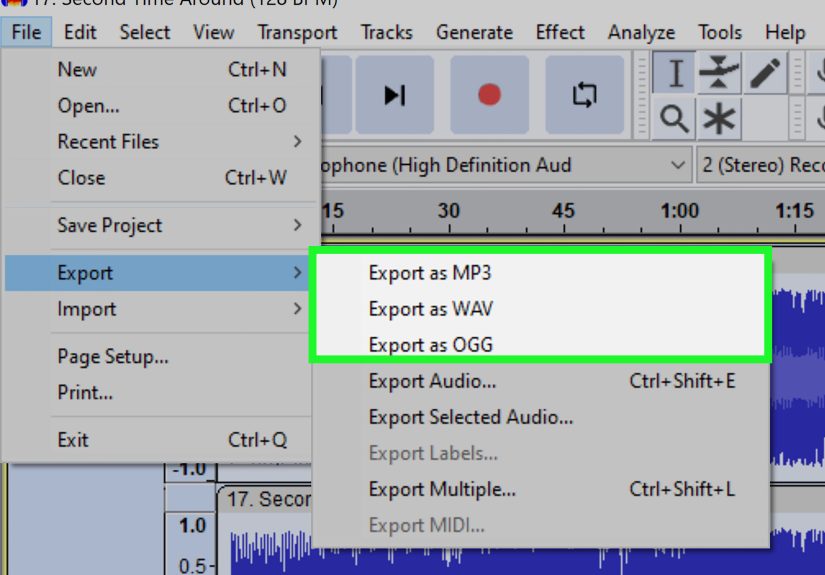
After changing your mono track to stereo, export the project properly. Go to File > Export Audio. Choose a file type such as WAV for high quality or MP3 for smaller file size. If your project contains a stereo track, Audacity can export the result as stereo. If all tracks are mono and centered, the exported result may remain mono depending on the project and export settings.
For professional editing, WAV is usually better for archiving or further processing because it is uncompressed. MP3 is convenient for sharing, uploading, and web use, but it uses compression. If you are exporting spoken-word audio and both stereo channels are identical, mono may actually be more efficient. A mono MP3 can often sound better at the same bitrate because the encoder is not spending bits on two identical channels.
Troubleshooting: Why Is My Stereo Track Still Sounding Mono?
If your new stereo track still sounds centered, nothing is wrong. Identical left and right channels sound mono because both ears receive the same signal. To hear width, the channels must be different. Try light panning, a tiny delay, subtle EQ, or reverb if a stereo effect is your goal.
Problem: “Make Stereo Track” Is Grayed Out
This usually happens when Audacity does not see two compatible tracks stacked correctly. Make sure you have two mono tracks, one directly above the other. Click the dropdown menu on the upper track, not the lower one.
Problem: Only One Side Has Audio
If your imported file is technically stereo but audio appears only on the left or right channel, split the stereo track to mono, delete the empty channel, duplicate the good mono track, and then use Make Stereo Track. This places the usable audio in both channels.
Problem: The Audio Sounds Hollow After Widening
Your delay or effect is probably too strong. Reduce the delay time, lower the reverb amount, or return to the safer dual-mono method. Hollow sound is often a sign that the left and right channels are interfering with each other.
Practical Examples
Example 1: Podcast Voice Recording
You recorded a podcast intro with a USB microphone. The track is mono, but your video editor asks for a stereo WAV. Use Method 1. Duplicate the track, make a stereo track, export as WAV, and move on with your life. No need to add stereo delay to a speaking voice unless you want the host to sound like they are narrating from inside a cave.
Example 2: Music Clip for a YouTube Intro
You have a short mono guitar riff that sounds flat under your video intro. Use Method 2 carefully. Duplicate the track, pan the copies left and right, add a tiny delay to one side, and maybe apply very light reverb. Test it on headphones and phone speakers before publishing.
Example 3: One-Sided Audio Fix
You imported a file and discovered all sound is on the left channel while the right channel is silent. Split the stereo track into mono tracks, delete the silent one, duplicate the working track, and make a stereo track. This creates a balanced file where the audio plays from both sides.
Best Practices for Changing Mono to Stereo in Audacity
Keep your original file untouched. Work on a duplicate project. Use headphones for detail, but also check speakers because headphones can exaggerate stereo effects. Keep stereo widening subtle, especially for speech. Export a short test file before rendering a long project. And remember: stereo is not automatically better than mono. Better audio is better audio.
If your file is voice-only, mono may be the smarter choice. If your file is music or ambience, stereo can make it feel more alive. The key is matching the method to the purpose.
Experience Notes: What I’ve Learned From Converting Mono Tracks to Stereo
The first thing you learn after converting a few mono tracks to stereo in Audacity is that “stereo” is not one magical button. It is a container, a format, and sometimes a creative illusion. The second thing you learn is that most audio problems are not solved by making things wider. Sometimes the best fix is simply better gain, cleaner noise reduction, or a microphone placed closer to the speaker.
When working with voice recordings, the safest method is almost always dual mono. I have seen many beginners duplicate a voice track, add delay, pan it hard left and right, and then wonder why the speaker suddenly sounds like a robot giving a TED Talk from a tiled bathroom. For narration, clarity beats width every time. A centered voice feels natural, professional, and easy to understand. If the client or platform asks for stereo, duplicate the mono track, make a stereo track, export it properly, and do not overdecorate it.
Music and ambience are different. A mono rain recording, guitar strum, or background texture can benefit from a little stereo treatment. The trick is restraint. A 10-millisecond delay can feel spacious; a 60-millisecond delay can feel like an accidental echo. Light reverb can add depth; too much reverb can make your audio sound like it was recorded in an empty gym during a thunderstorm. Always compare before and after. Your ears adjust quickly, so take short breaks and return with fresh judgment.
Another useful habit is checking the waveform after every major step. In Audacity, a mono track is easy to identify because it has one waveform. A stereo track has two. If one side is flat, you have a silent channel. If both sides look identical, you have dual mono. If the channels look slightly different, you may have real or processed stereo. Visual checks do not replace listening, but they save time and prevent embarrassing exports.
Finally, always test your final audio in more than one place. Headphones, laptop speakers, phone speakers, and car speakers can reveal different problems. A pseudo-stereo track that sounds impressive in headphones may collapse badly on a phone. A dual-mono voice track may sound boring during editing but perfect in the final video. The goal is not to impress the waveform. The goal is to help the listener hear the content comfortably.
Conclusion
Changing a mono track to stereo in Audacity is simple once you choose the right goal. If you need a clean stereo file, duplicate the mono track and use Make Stereo Track. If you want a wider creative sound, use panning, subtle delay, and light effects to create pseudo-stereo. For speech, stay conservative. For music and ambience, experiment carefully. And when in doubt, export a short test file before committing to the full project.
Audacity gives you the tools, but your ears make the final decision. A great stereo file should sound intentional, balanced, and usefulnot like two mono tracks wearing a fake mustache and hoping nobody notices.