Table of Contents >> Show >> Hide
- What You Need Before You Create a Pinterest Account
- How to Create a Free Pinterest Account on Desktop
- How to Create a Free Pinterest Account on Mobile
- Desktop vs. Mobile: Which One Is Better?
- What to Do Right After You Create Your Pinterest Account
- Common Problems When Creating a Pinterest Account
- Is a Personal Pinterest Account Different From a Business Account?
- Security Tips for Your New Pinterest Account
- Real-Life Experiences With Creating a Pinterest Account on Mobile and Desktop
- Final Thoughts
If you have ever fallen into an internet rabbit hole looking for kitchen ideas, outfit inspiration, classroom hacks, workout plans, travel mood boards, or a suspicious number of “tiny balcony makeover” photos, congratulations: your brain is already spiritually prepared for Pinterest. The good news is that creating a Pinterest account is simple. The even better news is that you can do it on desktop or mobile without needing a degree in Computer Wizardry.
This guide walks you through exactly how to create a free Pinterest account on both desktop and mobile, what to do right after signing up, how to avoid common mistakes, and how to make your new account actually useful instead of becoming a digital junk drawer full of cookie recipes and living room lamps you may never buy. We’ll keep it practical, clear, and just entertaining enough to keep your eyes from glazing over.
What You Need Before You Create a Pinterest Account
Before you start, gather the basics. Pinterest signup is quick, but it moves faster if you’re not stopping every ten seconds to remember your password strategy or debate whether your username should be “DreamyDecorQueen” or something less likely to make Future You cringe.
Here’s what helps:
- A working email address you can access
- A strong password you have not reused everywhere else on the internet
- Your age or birth year, since Pinterest asks for age-related information during account setup
- A little patience for selecting interests, because Pinterest wants to know what kinds of ideas you like
- The Pinterest app if you’re signing up on iPhone or Android
If you are creating a personal account, think of Pinterest as a visual bookmarking tool mixed with a search engine and a giant idea wall. You can save Pins, organize them into boards, follow creators, and search topics like recipes, study setups, small business ideas, crafts, fashion, or home design. In plain English, it is basically the internet wearing a neatly labeled cardigan.
How to Create a Free Pinterest Account on Desktop
If you’re on a laptop or desktop computer, this is the cleanest route for people who like big screens, easy typing, and not battling autocorrect while entering an email address.
Step 1: Go to Pinterest
Open your browser and go to Pinterest. On the homepage, choose the option to sign up or create an account. If you already have another Pinterest account open, log out first so you can start fresh.
Step 2: Enter Your Email, Password, and Age
Pinterest will ask for your email address, a password, and your age. Use an email address you actually check. That sounds obvious, but many account problems begin with “I signed up using an email I only created during the Obama administration and now I can’t access it.”
For the password, make it strong and memorable. A long passphrase works well because it is easier to remember and harder to guess than a short, predictable password. Avoid using personal details like your birthday, phone number, or your dog’s famous name.
Step 3: Continue the Setup Prompts
After the basic info, Pinterest may guide you through a few onboarding screens. You may be asked to confirm or edit your name, choose how you identify, and select your language and country or region. This helps tailor the account experience and recommendations.
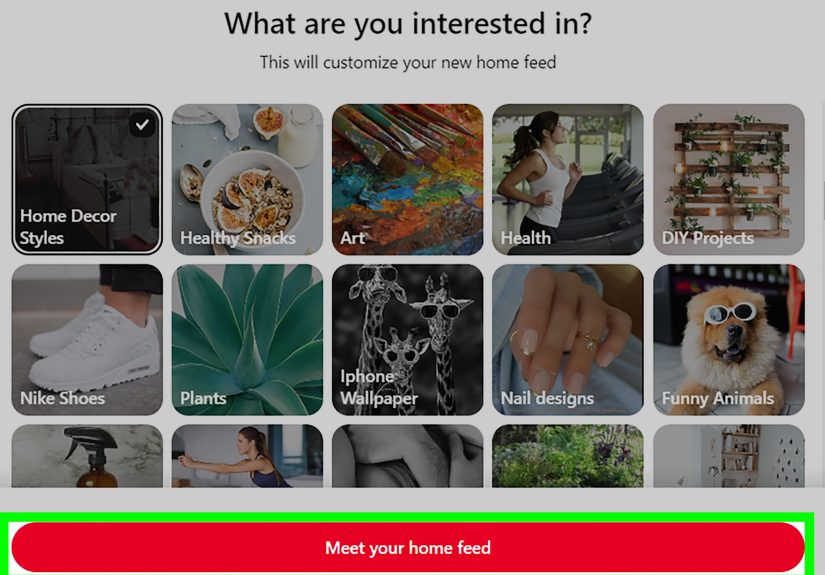
Step 4: Pick Your Interests
Now comes the fun part: Pinterest will ask you to select topics you like. Choose at least a handful that actually match your interests. This matters more than people think. If you randomly tap “wedding cakes,” “duck cottage decor,” and “mountain elopement hair,” Pinterest will happily assume that is your whole personality.
Pick topics you genuinely want more of, such as:
- Home decor
- Easy dinners
- Fitness ideas
- Study inspiration
- DIY projects
- Fashion
- Business marketing
- Gardening
Step 5: Finish and Start Browsing
Once setup is complete, you can start exploring your home feed, saving Pins, creating boards, and following people or brands that match your interests. Your feed improves as you interact, so the more intentional you are in the beginning, the better your recommendations become.
How to Create a Free Pinterest Account on Mobile
If you live on your phone, Pinterest signup on mobile is just as doable. In some ways, it feels even more natural because Pinterest is a highly visual platform and the app is designed for fast scrolling, saving, and organizing.
Step 1: Download the Pinterest App
Install the Pinterest app from your device’s app store. Once it is downloaded, open it and look for the option to create an account.
Step 2: Enter Your Email Address
Type in the email address you want tied to your account, then continue. Again, use an email you can access. If Pinterest ever needs you to verify something, reset your password, or confirm your account, that email matters.
Step 3: Create a Password
Create a password you can remember without making it painfully weak. A short password like “summer123” is basically an engraved invitation to trouble. A longer passphrase is usually smarter.
Step 4: Add Your Name and Age
On mobile, Pinterest typically asks for your full name and age during setup. This helps personalize the experience and apply age-appropriate settings where needed.
Step 5: Choose Your Region and Interests
Next, select your country or region and choose several topics you care about. Pinterest may also invite you to follow creators based on those interests. You can follow a few if they look relevant, or skip and do that later.
Step 6: Start Saving Pins
That’s it. Once your account is live, you can search, save Pins, create boards, and start shaping your feed. On mobile, this process is particularly convenient because inspiration tends to strike at the exact moment you are half-awake, drinking iced coffee, and pretending you only opened your phone to check the weather.
Desktop vs. Mobile: Which One Is Better?
Both work well, but they serve different kinds of users.
Desktop is better if you want:
- A larger screen for browsing lots of Pins at once
- Easier typing for account details and profile setup
- A smoother experience if you plan to organize boards right away
- A simple path if you eventually want to manage Pinterest for business use
Mobile is better if you want:
- Fast signup on the go
- Easy saving while scrolling through ideas
- Quick access to inspiration anytime
- A more casual, app-first experience
The honest answer is this: create the account wherever you are most comfortable, then use both later if you want. Many people browse casually on mobile and organize more seriously on desktop. It is the digital equivalent of window-shopping on your phone and alphabetizing your brain on a laptop.
What to Do Right After You Create Your Pinterest Account
Signing up is only the first step. The next few minutes are what turn Pinterest from “vaguely pretty app” into “dangerously effective inspiration machine.”
1. Create Your First Board
Boards are where your saved Pins live. Think of them as folders with better lighting. Create one board right away based on a real interest, such as:
- Easy Weeknight Meals
- Apartment Decor Ideas
- Classroom Organization
- Workout Motivation
- Small Business Branding
2. Save a Few Relevant Pins
Don’t save random content just because it looks nice. Save things you actually care about. Pinterest learns from what you click and save, so your first actions help train the algorithm. If you save ten minimalist kitchens and one medieval helmet cake, Pinterest may remember both. The internet never forgets, and neither does your home feed.
3. Review Your Profile Basics
Add a profile photo if you want, update your display name, and make sure your basic account info looks right. If you prefer more privacy, use only the details you are comfortable sharing publicly.
4. Explore Search
Pinterest search is one of its best features. Try specific searches rather than vague ones. “Meal prep” is fine. “Cheap high-protein lunch meal prep for college students” is much better. The more precise your search, the better your results tend to be.
5. Check Privacy and Account Settings
After signup, take a minute to look through your settings. Review account management options, personalization preferences, notifications, and any privacy controls that matter to you. This is especially smart if you are younger or sharing a device with family members.
Common Problems When Creating a Pinterest Account
Most signups go smoothly, but sometimes the internet decides to add drama. Here are the most common issues and the simplest fixes.
You Used an Email Already Tied to Another Account
Pinterest allows only one account per email address at a time. If you try to sign up with an email that is already in use, you may need to log in to the existing account instead, use a different email, or update the email on the old account first.
You Accidentally Created a Second Account
This happens more often than people expect, especially after getting a new phone or signing in too quickly. If your boards or Pins seem to have vanished, you may not have lost them at all. You might simply be in a new account by mistake.
You Forgot Which Email You Used
If you can’t remember the email connected to your Pinterest account, account recovery tools can help you search using your name or username. This is another reason to keep your signup details somewhere safe.
Apple, Google, or Other Login Options Act Weird
If a connected sign-in method is not working, check the permissions or connection settings for that linked account. Also, don’t build your entire strategy around old login habits. Platform login options change over time, and Pinterest has already announced that Facebook login support is going away.
You Entered the Wrong Birthday
That can affect account settings and access. If age information is incorrect, Pinterest may require age verification or support steps before everything looks normal again. In other words, this is not the moment to freestyle your birth year like it is a trivia question.
Is a Personal Pinterest Account Different From a Business Account?
Yes, but you can start with a personal account and decide later whether you want business features. For most everyday users, a personal account is the right place to begin. It lets you browse ideas, save Pins, create boards, and follow topics you love.
If you later want analytics, advertising tools, or business-focused profile features, Pinterest offers a business account option as well. Many creators, bloggers, and brands eventually convert once they want more professional tools. So if you are starting a side hustle, portfolio, or shop, you do not need to overcomplicate day one. Start simple. You can level up later without turning signup into a boardroom meeting.
Security Tips for Your New Pinterest Account
Creating an account is easy. Protecting it should also be easy, and that starts with a few smart habits.
Use a Strong Password
Choose a long password or passphrase that is difficult to guess. Do not recycle the same password across multiple accounts. If one site gets compromised, reused passwords can create a domino effect you absolutely do not need.
Use a Password Manager if You Need One
If remembering passwords feels like trying to memorize every ingredient in a fancy candle, use a reputable password manager. That way, you can create stronger passwords without turning your notes app into a digital disaster zone.
Be Careful With Login Links
Only enter your password on the real Pinterest website or the official Pinterest app. If you receive a suspicious email or text asking you to log in, slow down and verify it before clicking anything. Phishing scams love urgency, panic, and messages that sound just believable enough to be annoying.
Enable Extra Security When Available
Extra account protection is always a good idea. If you see options for stronger sign-in protection through your connected account providers or device ecosystem, use them. Convenience is nice, but convenience plus security is nicer.
Real-Life Experiences With Creating a Pinterest Account on Mobile and Desktop
In real life, creating a Pinterest account tends to feel different depending on the device you use. On desktop, the experience usually feels calm and organized. You sit down, type everything more accurately, and move through the signup prompts without your thumbs staging a tiny rebellion. It is ideal for people who already know why they want Pinterest, whether that is planning a room makeover, gathering blog inspiration, saving classroom resources, or building boards for a wedding, a business, or a personal project. Desktop feels like you are setting up a useful system.
Mobile, on the other hand, feels more spontaneous. A lot of people create their Pinterest account because they saw one interesting Pin, one outfit idea, or one recipe video and suddenly thought, “Well, I live here now.” The app is perfect for that. You install it, enter your details, choose your interests, and within minutes you are saving content like an enthusiastic raccoon with a labeling machine. The convenience is fantastic, but it can also make the first few minutes a little chaotic if you rush through your interests without thinking.
One common experience is that new users underestimate how much those first topic selections shape the feed. If you choose broad interests carelessly, your home page can feel random. If you choose them thoughtfully, Pinterest starts looking eerily smart, like it somehow knows you are thinking about meal prep, capsule wardrobes, and tiny home office setups at the exact same time. That early setup really matters.
Another common experience is accidental account confusion. People get a new phone, sign in too quickly, use the wrong email, and suddenly think all their saved ideas disappeared into the digital void. Usually, the content is still there. They just made a second account by accident. This is why it helps to keep track of the email you used and not treat account setup like speed chess.
Users also tend to have very different emotional reactions to desktop versus mobile browsing. On desktop, Pinterest often feels more productive. You create boards with names like “Living Room Refresh” or “Content Marketing Ideas” and feel suspiciously organized. On mobile, the same person may spend forty-five minutes saving dessert bars, bookshelf styling photos, and vacation outfits while insisting this is still “research.” Both are valid. One is just wearing glasses.
There is also a privacy and comfort factor. Some people prefer mobile because it feels personal and quick. Others prefer desktop because it gives them more control during setup. Younger users in particular may notice that account visibility and safety settings can shape the experience differently. That is not Pinterest being difficult; it is part of how the platform handles age-based protections.
Overall, the real experience of creating a Pinterest account is less about technical difficulty and more about intention. If you sign up with a good email, a strong password, and a clear sense of what you want to use Pinterest for, the platform becomes far more helpful right away. If you rush through setup and click everything like you are escaping a pop quiz, you may end up with a feed that thinks you are simultaneously remodeling a farmhouse, opening a candle brand, and baking seventeen kinds of scones. Pinterest will support your chaos, but it does not have to.
Final Thoughts
If you want a simple way to collect ideas, organize inspiration, and discover content tailored to your interests, creating a Pinterest account is a smart move. The setup process on desktop is straightforward, the mobile app is easy to use, and the learning curve is refreshingly gentle. You do not need to be a creator, designer, influencer, or DIY wizard to enjoy it. You just need curiosity and an email address you can still access next week.
Start with a personal account, choose your interests carefully, create a few useful boards, and keep your login details secure. From there, Pinterest becomes whatever you need it to be: a planning tool, a visual search engine, a mood board machine, or your favorite corner of the internet for finding ideas that make real life a little better.
And yes, there is an extremely high chance you will join to save one recipe and somehow leave with twenty-seven dream pantry designs. That is not a bug. That is the Pinterest experience.