Table of Contents >> Show >> Hide
- Table of Contents
- What “Embed an Image” Actually Means
- Gmail: Embed an Image (Web + Mobile)
- Outlook: Desktop, Web, and Quick Notes
- Apple Mail: iPhone/iPad + Mac
- Yahoo Mail: Why Your Image Might Ghost You
- For Marketers/Devs: 3 Ways to Embed Images in HTML Email
- Best Practices: Size, Accessibility, Deliverability
- Troubleshooting: Broken Images, Duplicates, Weird Attachments
- Wrap-Up
- Field Notes: Real-World “Embedding” Experiences (Extra)
If you’ve ever tried to “embed” an image in an email and watched it shapeshift into a suspicious paperclip attachment… congratulations.
You’ve met the wonderfully inconsistent world of email clients.
This guide will show you how to insert images so they appear inside your message (a.k.a. inline),
how to do it in Gmail (and friends like Outlook, Apple Mail, and Yahoo),
and what “embedding” really means when you’re sending professional HTML emails or newsletters.
What “Embed an Image” Actually Means
People say “embed an image in an email,” but email tools interpret that phrase like a group project:
everyone nods, nobody agrees on the definition, and Outlook shows up late with a different format.
Inline image vs. attachment vs. linked image
-
Inline image: The picture appears in the email body, surrounded by your text.
Great for screenshots, simple flyers, or “look at this dog” moments. -
Attachment: The image is a file recipients download. Some clients also display a preview,
but it’s treated like a separate item. -
Linked (hosted) image: Common in newsletters. The email contains an
<img>tag that loads
the image from a web server.
Why email clients fight you
Email clients are cautious for two reasons: privacy and security.
Loading remote images can reveal that a recipient opened the email (tracking pixels), and weird HTML can be abused.
So clients add rules: some block images by default, some strip certain code, and some “helpfully” convert your inline image into an attachment.
That means your goal isn’t just “insert image.” It’s: insert image in a way that still looks correct on the other person’s side.
Gmail: Embed an Image (Web + Mobile)
Gmail on desktop (web): the cleanest way to embed images
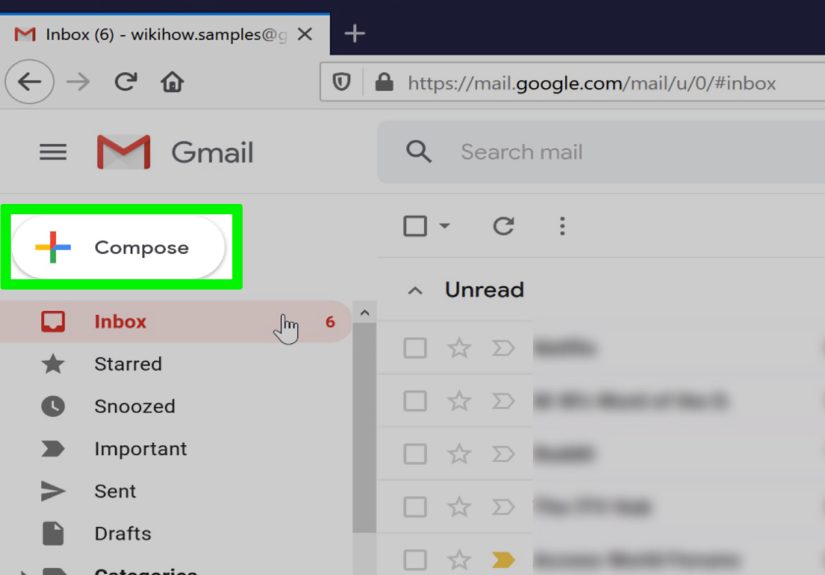
- Click Compose to start a new message.
- Place your cursor exactly where you want the image to appear.
-
Click the Insert photo icon (it looks like a tiny landscape).
Choose your image (upload from computer, Photos, or Drive, depending on your setup). -
If Gmail gives you a choice like Inline vs. Attachment, pick Inline
when you want the image to appear inside the email body. - Resize if needed by dragging corners (keep it reasonable unless you enjoy scrolling).
Pro tip: Drag-and-drop also works on desktop Gmail. If you drop the file into the message area,
it often lands inline; if you drop it near the bottom bar, it may attach instead.
Think of it like tossing a Frisbee: where it lands matters.
Gmail on mobile (app): “inline” is… complicated
In the Gmail mobile app, adding a photo is usually handled as an attachment-first workflow.
Some recipients will still see the image previewed inside the message thread, but you don’t always get a clean “insert here” inline control
like you do on desktop.
- Tap Compose.
- Tap the paperclip (Attach) icon.
- Select Photos, Camera, Files, or Drive.
- Choose the image and send.
If your mission is “image must appear between paragraph 2 and paragraph 3,” your best bet is often:
use Gmail on desktop (or a mobile browser in desktop mode) and insert the image inline there.
Gmail signatures: yes, you can add a logo
Want a small logo or headshot that appears automatically under your name?
Gmail signatures can include images (with the usual caveat: keep it small and don’t turn your signature into a billboard).
- In Gmail (desktop), open Settings → See all settings.
- Scroll to the Signature section.
- In the signature editor, click the Insert image icon.
- Add the image, then Save Changes.
Signature sanity: A massive signature image can cause display issues, slow loading,
and make you look like you’re trying to win an email by intimidation. Keep it crisp, compact, and polite.
Outlook: Desktop, Web, and Quick Notes
Outlook for Windows (classic/new): insert image in the message body
In Outlook, you can attach an image or insert it inline. For inline placement, the idea is simple:
put your cursor where the picture should appear, then insert the picture from the ribbon menu.
- Start a new email.
- Click inside the message body where you want the image.
- Go to Insert → Pictures.
- Select your file, click Insert, then resize if needed.
Outlook on the web (Outlook.com): inline image button
Outlook on the web typically offers an explicit “insert pictures inline” option near the message controls.
Use that when you want the image to display in the body instead of as a separate attachment.
Outlook warning: the “inline image that becomes an attachment” phenomenon
Outlook is famous for “helping” by changing how images are packaged, especially when messages are forwarded or replied to,
or when recipients use different clients. If your image is mission-critical (like a receipt screenshot),
consider adding a brief line of text describing what it is, too.
Apple Mail: iPhone/iPad + Mac
Mail on iPhone/iPad: add a photo where your cursor is
Apple’s Mail app lets you insert photos and files from the compose window.
The exact UI varies by iOS/iPadOS version, but the workflow is consistent: tap in the email body, then use the attachment tools.
- Open Mail and start a new message.
- Tap in the message body where you want the image.
- Use the attachment controls (often above the keyboard) to select a photo or file.
- Choose the photo and insert it into the message.
Mail on Mac: attach photos (and they often appear inline)
On macOS Mail, you can add photos using the toolbar attachment button or drag-and-drop into the message.
Many recipients will see these images inline, but depending on the client, they may still appear as downloadable attachments too.
Yahoo Mail: Why Your Image Might Ghost You
Yahoo Mail is one of the clients where embedded images can be finicky. If an embedded image won’t display (or shows a broken placeholder),
the practical fix is often: attach the image instead, or host it and link it.
Translation: if your audience includes Yahoo Mail users, test before you send something image-dependentunless you enjoy surprise.
For Marketers/Devs: 3 Ways to Embed Images in HTML Email
If you’re sending a newsletter, promotional email, or transactional message, “embedding” usually means one of these approaches.
Each has tradeoffs in reliability, deliverability, and how “heavy” the email becomes.
Method 1: Linked (hosted) images
This is the most common approach in marketing emails: upload your image to a server (CDN preferred),
then reference it in your email HTML.
Why people love it: smaller email size, easier updates, and generally better deliverability.
Why it can fail: recipients may block remote images by default, and the image won’t load offline.
Method 2: CID (Content-ID) embedded images
CID embedding attaches the image as a MIME part and references it via a cid: URL in your HTML.
This is commonly used for logos in transactional emails.
Pros: image travels with the email (works offline), and it isn’t dependent on remote loading.
Cons: some clients show CID images as attachments anyway, and replies/forwards can get weird.
If you’re building raw MIME emails (for example via an email API), you need to construct multipart messages correctly.
Method 3: Base64 / data URI images (use with caution)
A data URI embeds image data directly in the HTML. The “data” URL scheme exists, but email-client support is inconsistent,
and some platforms don’t allow it at all. Also: it can bloat your email fast.
Reality check: Some tools/services explicitly discourage or block base64 images, while others support them only in specific ways.
If you’re tempted, test across clients (Gmail, Outlook, Apple Mail, Yahoo) and measure deliverability impact before making it your default.
Which embedding method should you choose?
- Everyday emails: insert inline using your email client’s UI (Gmail/Outlook/Mail).
- Marketing/newsletters: hosted images + strong alt text + mobile-friendly sizing.
- Transactional logos/icons: hosted images or CID, depending on your audience and rendering needs.
- Base64/data URIs: “only if you tested and you like living dangerously.”
Best Practices: Size, Accessibility, Deliverability
1) Keep images lightweight (your readers aren’t on magical Wi-Fi)
Huge images can slow load times, trigger clipping, and annoy people on mobile. Optimize before inserting:
crop to the display size, compress intelligently, and pick the right format (JPEG for photos, PNG for crisp UI elements, GIF only when it truly earns its keep).
2) Always include alt text (it’s not optional if you like humans)
Images get blocked. Screen readers exist. Dark mode exists. Alt text is your backup plan and your accessibility baseline.
Write alt text like a calm, helpful narratornot like a keyword vending machine.
- Bad: “image123”
- Better: “Screenshot of Gmail’s Insert photo button highlighted”
- Best: “Screenshot showing the Gmail toolbar with the Insert photo icon selected”
3) Don’t put essential information only inside an image
If your email says “SALE ENDS TONIGHT” and the only place that text exists is inside a banner image,
you’re betting your conversion rate on everyone’s image-loading settings. That’s… bold.
Put the key message in text, then use the image to support it. Your future self (and your recipients) will thank you.
4) Respect common email widths and mobile rendering
Many email designs aim around a ~600px content width, then use responsive scaling so images shrink nicely on phones.
For sharper visuals on high-resolution screens, some designers create images at 2× and scale them down with HTML/CSS.
The important part is that the file size stays reasonable.
5) Test the “big four” before sending widely
If this email matters (client proposal, onboarding instructions, a launch announcement),
do a quick test send to:
Gmail, Outlook, Apple Mail, and Yahoo.
That covers a large chunk of real-world inbox behavior, especially around images.
Troubleshooting: Broken Images, Duplicates, Weird Attachments
Problem: My image shows as an attachment AND inline
This can happen when the client attaches the image as a file but also previews it in the body,
or when pasted images get treated differently than inserted images.
If you need a clean inline look, use the client’s Insert image/photo feature instead of copy-paste,
and keep the image count modest.
Problem: Recipient sees a broken image icon / red X
- If it’s a hosted image, confirm the URL is public and not blocked by permissions.
- If it’s CID-based, confirm the
Content-IDmatches thecid:reference exactly. - If it’s Yahoo (or another picky client), try attaching the image instead.
Problem: Images are huge on mobile
Resize the source image before attaching, or set width attributes and responsive styles (for HTML emails).
For everyday emails, keep images to “screen-friendly” dimensions and avoid full-resolution camera originals unless you truly need them.
Problem: Gmail signature image doesn’t appear
Common culprits: image is too large, permissions on a hosted image are restricted, or the image was inserted in a way that doesn’t render consistently.
Keep signature images small, and verify by sending a test to a non-Gmail address too.
Problem: My “embedded” image isn’t embedded (it’s just a link)
If your email client or platform replaced your insert with a Drive/Photos link, that usually means the file was too large,
the client decided to share a link instead, or the platform enforced attachment limits.
When it matters, compress the image and try again.
Quick checklist before you hit Send
- Image is optimized (cropped + compressed).
- Alt text is included (especially for marketing emails).
- Key message exists in text, not only in the image.
- Tested in at least two different email clients (ideally Gmail + Outlook).
Wrap-Up
Embedding an image in an email is easy… until it isn’t. The trick is knowing which “embed” you need:
inline insertion for everyday messages, hosted images for most HTML emails,
and CID when you need images to travel with the message.
If you remember only one thing, make it this:
design emails so they still make sense even when images don’t load.
That’s not pessimismit’s deliverability wisdom with a seatbelt on.
Field Notes: Real-World “Embedding” Experiences (Extra)
The most common “experience” people have with embedded images is discovering that the sender’s view is a lie.
In the draft window, everything looks perfect: logo aligned, screenshot placed between two paragraphs, and the email feels like a tiny magazine.
Then the recipient replies, “I don’t see the image,” or worse: “Why did you send me five attachments named image001.png?”
The lesson: email clients don’t render your message the way you see itthey render it the way they tolerate it.
Another classic scenario: someone copy-pastes an image into an email and assumes it’s now “embedded.”
Sometimes it is. Sometimes it becomes a mysterious inline-attachment hybrid that shows up twice.
Sometimes it disappears when forwarded, like it decided it wasn’t emotionally ready for a group thread.
If consistency matters, “Insert photo” beats copy-paste. It’s boring, yes. It’s also reliable, which is a deeply underrated personality trait in email.
For teams sending customer-facing messages, logos are where the drama begins.
A small logo that looks crisp in Apple Mail can look blurry in another client if it’s oversized and scaled down.
A hosted logo can get blocked when recipients disable remote images.
A CID logo can show up as an attachment, which is awkward when your “signature” suddenly looks like it brought luggage.
The best real-world compromise is often a lightweight hosted logo plus strong alt text (and a layout that still looks fine if the logo doesn’t load).
Marketers run into a different flavor of pain: the “all-image email.”
It looks gorgeousuntil images are blocked, and the email becomes a blank rectangle of sadness.
The experienced approach is “text-first, image-supported”: put the headline, offer, and call-to-action in HTML text,
then use images to enhance the vibe. Bonus: text renders better in dark mode, improves accessibility, and gives inboxes something to index.
Your conversion rate usually prefers readable content over artistic ambiguity.
And yes, file size matters in the real world. People open emails in elevators. On spotty coffee-shop Wi-Fi.
On mobile plans that treat megabytes like rare gemstones.
When an image-heavy email takes too long to load, recipients don’t waitthey swipe it away.
The “experienced” move is optimizing images before you insert them, aiming for fast loading, and using dimensions that match the actual display size.
That’s how you get the design benefits of images without accidentally sending a digital brick.
Finally, the most overlooked experience: testing.
The difference between “this is fine” and “why is my hero image upside down” is often one quick test send.
Create a tiny inbox lineup (Gmail, Outlook, Apple Mail, maybe Yahoo), send yourself the draft, and view it on both desktop and phone.
It’s five minutes of effort that saves you from explaining to your boss why the campaign’s main image loaded as a paperclip-shaped regret.