Table of Contents >> Show >> Hide
- What You’ll Do in This Guide
- First: A Safety Reality Check (Important, Not Dramatic)
- What Counts as a “Hidden Spy App” on Android?
- Step 1: Watch for High-Signal Warning Signs
- Step 2: Update Before You Hunt (Yes, Really)
- Step 3: Run Android’s Built-In Scan (Google Play Protect)
- Step 4: Find Suspicious Apps the Smart Way (Not by Vibes)
- Step 5: Check “Special Access” Permissions Spy Apps Love
- Step 6: Use Battery & Data Screens Like a Detective (A Calm One)
- Step 7: Boot into Safe Mode to Uninstall Stubborn Apps
- Step 8: Scan with a Reputable Anti-Malware Tool
- Step 9: When You Should Consider a Factory Reset
- Step 10: Lock It Down So It Doesn’t Happen Again
- Quick “Spy App” Checklist (Save This)
- Common Questions (Because Android Menus Are a Maze)
- Conclusion: You’re Not ParanoidYou’re Just Doing Good Phone Hygiene
- Real-World Experiences: What People Commonly Notice (and What Actually Helped)
- Experience #1: “My battery suddenly got terrible, but nothing changed.”
- Experience #2: “I found a weird ‘service’ app, but I was afraid to touch it.”
- Experience #3: “It only felt suspicious after someone else used my phone.”
- Experience #4: “A scanner didn’t find anything, so I assumed I was wrong.”
- Experience #5: “After removal, I still didn’t feel safe.”
If your Android phone has been acting “off” latelymysterious battery drain, random pop-ups, or it suddenly heats up like it’s training for a sauna triathlonyou might wonder: Is someone spying on me?
The good news: most “spy app” problems are solvable with a careful, step-by-step check. The even better news: you don’t need a computer science degree, a trench coat, or a magnifying glass. You just need the right settings screens, a little patience, and the willingness to break up with shady apps.
This guide walks you through practical ways to find hidden spy apps (often called spyware or stalkerware), run scans, and remove themwithout panic, without guesswork, and without turning your phone into a paperweight.
First: A Safety Reality Check (Important, Not Dramatic)
Some spy apps are installed by scammers. Others are installed by someone with physical access to your phonelike a controlling partner, a roommate, or anyone who got your unlocked device for even a few minutes. If you think someone you know installed monitoring software and your safety could be affected, consider using a trusted device (a friend’s phone or a public computer) to research next steps before you start deleting things. In some situations, removing spyware can alert the person who installed it.
Also: if this is a work phone or a school-managed device, it may have legitimate monitoring or device management tools. In that case, you should talk to your IT/admin team before removing anything.
What Counts as a “Hidden Spy App” on Android?
Spy apps on Android rarely show up with a big label that says “Hello, I am the spying.” They often:
- Hide their icon (or use a boring name like “System Service” or “Wi-Fi Update”)
- Ask for powerful permissions (Accessibility, Notification Access, Device Admin)
- Run in the background to read messages, track location, or copy notifications
- Try to resist uninstalling
Not every suspicious app is spyware, though. Battery-heavy apps can also be… normal apps being annoying (social media, navigation, games). So the goal is to look for patterns, not one weird blip.
Step 1: Watch for High-Signal Warning Signs
Spyware/stalkerware symptoms can be subtle, but these are the most useful clues:
Behavior changes that don’t match your usage
- Battery drain even when you’re not using the phone
- Overheating while idle (especially in a pocket or on a desk)
- Unexpected notifications, permission prompts, or “new device admin” messages
- Slow startup/shutdown or random crashes that suddenly started
Data usage that doesn’t make sense
Many spy apps upload data (location, logs, recordings, notifications). If your mobile data usage jumps and you haven’t changed habits, that’s a meaningful clue.
Settings you don’t remember changing
- Accessibility features turned on (that you didn’t enable)
- Unknown “Device Administrator” apps enabled
- New VPN profile or “always-on VPN” you didn’t set
- Battery optimization exceptions for an unfamiliar app
If you’re seeing two or more of the above, it’s time to scan and investigate.
Step 2: Update Before You Hunt (Yes, Really)
Updates can fix security holes and improve malware detection. Before you start uninstalling, do this:
- Update Android: Settings → System → System update
- Update Google Play system (if available): Settings → Security & privacy → Updates
- Update apps: Play Store → Manage apps & device → Update all
Think of updates like turning the lights on before you search under the bed.
Step 3: Run Android’s Built-In Scan (Google Play Protect)
Google Play Protect is Android’s built-in safety system. It scans appsincluding apps you didn’t install from the Play Store on many devicesand warns you about harmful behavior.
How to scan with Play Protect
- Open Google Play Store
- Tap your profile icon
- Tap Play Protect
- Tap Scan
Make sure the right settings are enabled
In Play Protect settings, ensure scanning is turned on. If your phone offers improved detection for apps from “riskier sources” (like browsers or messaging apps), enable itbecause sideloaded spyware loves those paths.
Step 4: Find Suspicious Apps the Smart Way (Not by Vibes)
Hidden spy apps often disguise themselves, but they still leave footprints. Here’s how to locate them efficiently.
Check your full app list (including “system” views)
- Settings → Apps (or Apps & notifications)
- Tap See all apps / App list
- Use the menu to show system apps if available (don’t delete system appsjust identify oddities)
Sort or filter by recently installed
If your device allows sorting by “recently added,” use it. If not, scroll and look for apps installed around the time your phone started acting weird.
What makes an app suspicious?
- No icon, or an icon that looks generic
- A name that mimics the system (“Update Service,” “Device Health,” “System UI Helper”) but isn’t from a trusted publisher
- No clear purpose when you open it
- High background activity or unusually broad permissions
Pro tip: don’t uninstall anything yet. First, check the “special access” permissions. That’s where spyware hides its power.
Step 5: Check “Special Access” Permissions Spy Apps Love
On Android, the scariest apps aren’t always the ones that look scarythey’re the ones with the keys to the kingdom. Your mission: find apps with access that’s too powerful for their supposed job.
1) Accessibility access
Accessibility is meant for helpful features (screen readers, switch controls). But it can also be abused to read what’s on your screen or interact with apps.
- Settings → Accessibility
- Look for installed services or “Downloaded apps” sections
- If something is enabled and you don’t recognize it, disable it
2) Device Administrator apps
Device Admin can prevent uninstalling, enforce policies, and control locks. Many stalkerware apps use it to become stubborn.
- Settings → Security & privacy (or Security)
- Find Device admin apps / Device administrators
- Disable admin rights for any suspicious app
After you remove admin rights, uninstall becomes much easier.
3) Notification access
If an app can read your notifications, it can capture message previews and codes. Great for convenience appsalso great for spying.
- Settings → Notifications
- Find Notification access
- Turn off access for apps that don’t absolutely need it
4) Usage access
Usage access can reveal which apps you open, how long you use them, and patterns of behavior.
- Settings → Security & privacy (or Apps)
- Find Special app access → Usage access
- Revoke anything suspicious
5) Install unknown apps (sideload permission)
Spyware often arrives through an APK installed outside the Play Store. Only a few apps should be allowed to install unknown apps (and “none” is a perfectly valid number).
- Settings → Apps → Special app access
- Tap Install unknown apps
- Disable for browsers, file managers, and messaging apps unless you truly need it
6) VPN profiles / Always-on VPN
A rogue VPN can route traffic through someone else’s server. Check:
- Settings → Network & internet → VPN
- Remove unknown VPNs and disable “always-on” if it’s not yours
Step 6: Use Battery & Data Screens Like a Detective (A Calm One)
Spy apps tend to be chatty in the background. Android gives you receipts.
Check battery usage
- Settings → Battery
- Tap Battery usage
- Look for apps consuming power in the background that shouldn’t
Check data usage
- Settings → Network & internet
- Tap Internet / SIMs / Data usage (varies by device)
- Look for unknown apps with significant background data
If a suspicious app has high background battery/data and also has special access permissions, it moves from “maybe” to “dealbreaker.”
Step 7: Boot into Safe Mode to Uninstall Stubborn Apps
Safe Mode temporarily disables third-party apps, making it easier to remove malware/spyware that tries to interfere. It’s like telling all nonessential apps: “Go to your room. Adults are talking.”
How to enter Safe Mode (general method)
- Press and hold the Power button
- Press and hold Power off (or Restart) until Safe Mode appears
- Confirm to reboot into Safe Mode
(Exact steps vary by manufacturer. Android’s help documentation for Safe Mode is a good reference if your phone uses a different button combo.)
Uninstall in Safe Mode
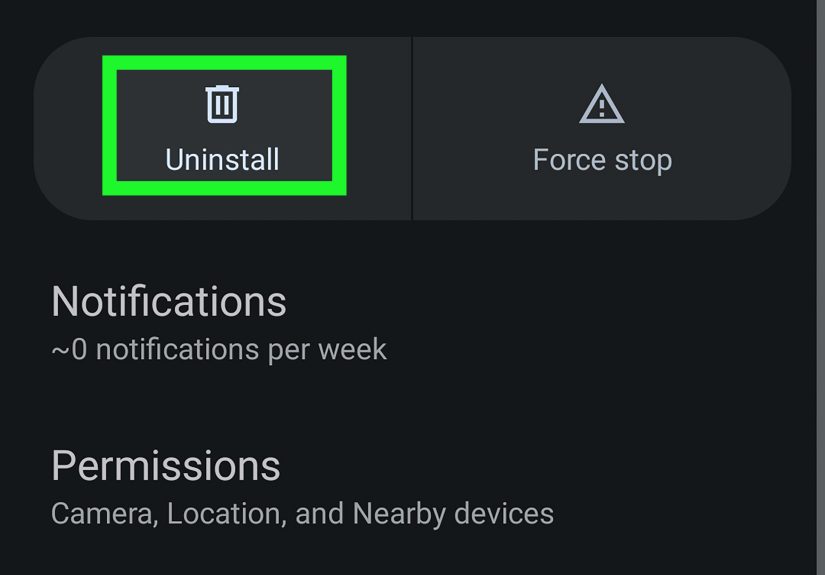
- Settings → Apps
- Select the suspicious app
- Tap Uninstall
If uninstall is blocked
Go back and remove its Device Admin rights first (Step 5). Then try again.
Exit Safe Mode
Restart your phone normally to return to standard mode.
Step 8: Scan with a Reputable Anti-Malware Tool
Play Protect is a strong baseline, but it’s not the only line of defense. Reputable security apps can detect spyware and stalkerware families that behave differently than typical “virus” apps.
What to look for in a scanner
- Clear privacy policy and reputable publisher
- Independent testing and a track record (not a random “Phone Cleaner 2026 PRO MAX”)
- Specific detection for spyware/stalkerware
How to scan safely
- Install one reputable scanner from the Play Store
- Run a full scan
- Review results carefully (some tools flag “potentially unwanted” monitoring apps)
- Remove or quarantine suspicious items
Note: detection of stalkerware varies across products and settings. If you strongly suspect spyware but one scan finds nothing, a second reputable scanner can be a reasonable checkjust don’t install five at once (they can conflict and turn your phone into a bickering committee).
Step 9: When You Should Consider a Factory Reset
If removal fails, the phone keeps re-infecting, or you can’t identify the culprit, a factory reset can wipe most spywareespecially if the threat isn’t deeply rooted. It’s the “nuclear option,” but it’s often effective.
Before you reset
- Back up photos, contacts, and important files
- Write down critical logins (use a password manager if possible)
- If safety is a concern, consider whether resetting could escalate a situation
Reset and rebuild safely
- Factory reset your device
- Install updates immediately after setup
- Turn on Play Protect and keep it enabled
- Reinstall apps only from the Play Store
- Change passwords for your email, banking, and social accounts
- Enable two-factor authentication (prefer app-based or passkeys when available)
In certain high-risk situations, getting a new phone with a new account the other person can’t access may be the safest route.
Step 10: Lock It Down So It Doesn’t Happen Again
Spy apps typically need physical access, risky installs, or overpowered permissions. Prevention is mostly about closing those doors.
Permission hygiene (simple, powerful)
- Review app permissions monthly: Location, Mic, Camera, SMS, Notifications
- Revoke anything that doesn’t match the app’s purpose
- Remove “special access” from apps you don’t fully trust
Make your lock screen non-negotiable
- Use a strong PIN/password (not 1234, not your birthday, not “0000”)
- Enable biometrics for convenience
- Disable showing sensitive notifications on the lock screen if privacy matters
Reduce risky install pathways
- Keep “Install unknown apps” disabled for most apps
- Avoid sketchy APK downloads
- Be cautious with links sent via SMS, DMs, and email
Keep security basics turned on
- Play Protect scanning
- Regular system updates
- Reboot occasionally (it can disrupt some unstable malicious behavior and clears memory)
Quick “Spy App” Checklist (Save This)
- Scan with Google Play Protect
- Update Android + apps
- Review apps: unknown installs, weird names, no icon
- Check Special Access: Accessibility, Device Admin, Notification Access, Usage Access, Unknown sources, VPN
- Check battery/data for suspicious background usage
- Safe Mode: uninstall stubborn apps
- Run a reputable scanner
- Factory reset if needed, then rebuild safely
Common Questions (Because Android Menus Are a Maze)
“I don’t see the app icondoes that mean it’s spyware?”
Not automatically. Some legitimate apps hide icons (launchers, accessibility tools). What matters is whether it has suspicious permissions, odd background usage, or doesn’t match anything you installed intentionally.
“Can spyware hide completely from the app list?”
Most consumer-grade spying tools still show up somewhere in Settings (apps list, special access, device admin, accessibility services). Truly advanced threats exist, but they’re far less common than ordinary stalkerware or shady apps.
“What if the app won’t uninstall?”
Remove its Device Admin rights first, then try uninstalling in Safe Mode. If it still returns, consider a factory reset and change your account passwords.
“Will a factory reset remove everything?”
It removes installed apps and resets settings. It’s often effective against spyware. The key is what you do afterward: update immediately, install only trusted apps, and secure your accounts.
Conclusion: You’re Not ParanoidYou’re Just Doing Good Phone Hygiene
Finding hidden spy apps on Android isn’t about living in fear. It’s about knowing where spyware hides (permissions and special access), using built-in scans like Play Protect, and taking decisive action when something doesn’t add up.
Start with the basics: scan, update, review apps, check special access. If an app has no business being in Accessibility or Device Admin, it’s time for it to go. And if all else fails, a clean reset and a secure rebuild can restore your peace of mind.
Your phone should work for younot for someone else’s curiosity.
: Experiences section
Real-World Experiences: What People Commonly Notice (and What Actually Helped)
The hardest part about spyware on Android is that it rarely announces itself with a neon sign. In real life, people usually start with a “tiny weird thing” and slowly collect a stack of “tiny weird things” until it feels impossible to ignore. Here are a few common patterns that show up again and againbased on typical reports from everyday users and security guidanceplus what tends to work best.
Experience #1: “My battery suddenly got terrible, but nothing changed.”
A lot of people assume battery issues mean the phone is old or a recent update was “bad.” Sometimes that’s true. But when battery drain is paired with a warm phone during idle time, it can point to background activity that doesn’t match normal use. The most helpful move in these situations is checking Battery usage for a surprise app that’s running when you aren’t. People are often shocked by what appears near the topespecially if the app name looks generic or unfamiliar.
What helped most: revoking special access first (Accessibility/Notification Access), then uninstalling. If uninstalling failed, Safe Mode usually made the difference because it prevented the suspicious app from actively interfering.
Experience #2: “I found a weird ‘service’ app, but I was afraid to touch it.”
This is incredibly common because Android has plenty of legitimate background services. The trick is not to delete anything based on name alone. People who got the best results did a quick “permission reality check”: Does this app’s access match what it claims to do?
For example, a calculator app doesn’t need Accessibility access, Notification access, a VPN profile, and permission to install unknown apps. That’s not “extra helpful,” that’s “extra suspicious.” When multiple high-power permissions are enabled for an app with no clear purpose, removal is usually justified.
Experience #3: “It only felt suspicious after someone else used my phone.”
Many spyware installs are opportunistic: someone borrows a phone, asks to “make a quick call,” or offers to “help set something up.” If the phone is unlocked and unattended for a few minutes, that can be enough time. People often connect the dots only later, when they notice settings changed (like Accessibility turned on) that they never touched.
What helped most: focusing on how spying tools operate rather than hunting for a specific brand name. Checking Device Admin, Accessibility services, and Notification access is often faster than scrolling through every installed app hoping one looks guilty.
Experience #4: “A scanner didn’t find anything, so I assumed I was wrong.”
This is where people get discouraged. Not every scanner flags every monitoring tool the same way, and some apps are categorized as “potentially unwanted” rather than outright malware. In practice, users got better answers when they combined scanning with manual checks:
- Scan with Play Protect
- Run one reputable anti-malware tool
- Manually review Special Access permissions
- Check battery/data for background activity
If the manual checks clearly point to an app (unfamiliar, overpowered permissions, high background usage), people who acted on that evidencerevoking access then uninstallingusually resolved the issue even if a scanner stayed quiet.
Experience #5: “After removal, I still didn’t feel safe.”
That feeling makes sense. Spyware isn’t just a technical issue; it’s a trust issue. In real life, peace of mind improved most when people took “aftercare” steps seriously: changing passwords (starting with email), enabling stronger sign-in methods, updating the phone, and tightening permissions. Many also found it helpful to set a monthly reminder to review permissionsbecause prevention beats detective work every time.
Bottom line: the best outcomes usually come from a calm, methodical approach. You don’t need to catch every spy app in a dramatic sting operation. You just need to remove the permissions that give it power, uninstall what doesn’t belong, and rebuild stronger security habits going forward.