Table of Contents >> Show >> Hide
- Why Logging Out of Instagram Actually Matters
- How to Log Out of Instagram on iPhone
- How to Log Out of Instagram on Android
- How to Log Out of Instagram on a Computer
- How to Remove Saved Login Info on Instagram
- How to Log Out of Instagram Remotely on Other Devices
- Common Instagram Logout Problems
- Best Practices Before You Log Out
- Real-World Experiences: What Logging Out of Instagram Is Really Like
- Final Thoughts
- SEO Tags
Instagram is fantastic for sharing photos, watching Reels, checking messages, and accidentally spending 47 minutes looking at videos of dogs wearing sunglasses. But every once in a while, you need to do the most responsible thing possible: log out.
Maybe you signed in on a friend’s phone. Maybe you use multiple accounts and want a clean reset. Maybe your laptop is shared, and you do not want your roommate liking a smoothie post from your account at 2 a.m. Whatever the reason, learning how to log out of Instagram on iPhone, Android, and computer is one of those tiny digital habits that can save you a lot of trouble.
This guide walks through the exact steps, explains what happens when Instagram saves your login info, covers how to sign out of one account or all accounts, and shows what to do if you think someone else still has access. In other words, this is not just a “tap here, tap there” article. It is the full logout survival kit.
Why Logging Out of Instagram Actually Matters
Logging out sounds simple, but it matters more than many people think. Instagram often remembers your profile, stores login shortcuts, and makes switching between accounts easy. That convenience is great until you are on a shared device, a school computer, a work laptop, or a phone you plan to sell, trade in, or hand to someone else.
When you log out the right way, you reduce the chance that someone can open the app and jump right back into your account. If you also remove saved login information, you add another useful layer of privacy. That is especially important for creators, business owners, social media managers, and anyone juggling personal and professional profiles.
Think of logging out like locking your front door. Sure, it is not glamorous. Nobody makes a dramatic movie montage about it. But it is still smart.
How to Log Out of Instagram on iPhone
If you are using Instagram on an iPhone, the process is usually quick. The exact wording in the menu can vary a little depending on the app version, but the overall path stays pretty similar.
Step-by-Step for iPhone
- Open the Instagram app.
- Tap your profile picture in the bottom-right corner.
- Tap the menu icon in the top-right corner.
- Go into Settings, Settings and privacy, or a similarly labeled settings area.
- Scroll to the bottom.
- Tap Log Out or Log Out [your username].
- Confirm when Instagram asks whether you want to log out.
That is the basic method. If you have only one account signed in, Instagram will usually take you back to the login screen. If you have more than one account added, you may get choices about which account to sign out of.
What If Instagram Asks to Save Login Info?
Before fully signing you out, Instagram may ask whether you want to save your login information. This is where many people accidentally undo the whole point of logging out.
If the device is yours and you want faster access later, saving login info can be convenient. If the device is shared, borrowed, public, or headed for a new owner, choose the option that does not save your login details.
In plain English: if it is not your device forever, do not let Instagram remember you like an old camp crush.
How to Log Out of Instagram on Android
On Android, the logout steps are very similar to iPhone. Instagram tries to keep the mobile experience consistent, so you are not learning two completely different maps just because your phone prefers robots over apples.
Step-by-Step for Android
- Launch the Instagram app.
- Tap your profile icon in the bottom-right corner.
- Tap the three-line menu in the top-right corner.
- Open Settings, Settings and privacy, or the settings section available in your version.
- Scroll all the way down.
- Tap Log Out or Log Out [your username].
- Confirm your choice.
Some Android users also see options to log out of all accounts at once, especially when multiple profiles are linked in the app. That can be helpful if you use a main account, a backup account, a business profile, and the mysterious fourth account you created during a “new year, new me” phase.
How to Log Out of One Instagram Account vs. All Accounts
If you manage multiple Instagram accounts on Android, Instagram may ask whether you want to sign out of a single account or all accounts currently active in the app. Read this screen carefully.
If your goal is to remove just one profile, select only that account. If your goal is to completely clear the app, log out of all accounts and then remove any saved profiles from the device.
How to Log Out of Instagram on a Computer
If you are using Instagram on a desktop or laptop, the steps are different from mobile, but they are still easy. This matters a lot if you signed in on a shared family computer, a classroom machine, or an office device where “privacy” is more wishful thinking than reality.
Step-by-Step for Computer
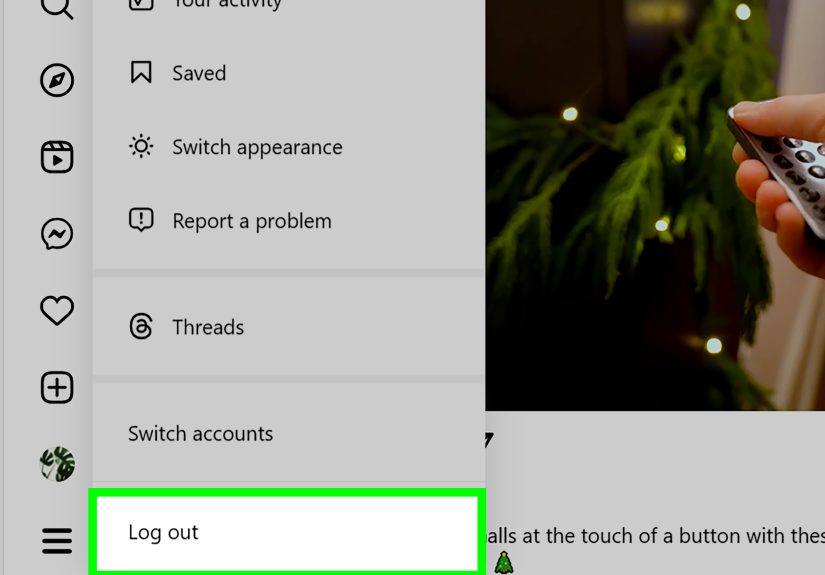
- Go to Instagram in your web browser and make sure you are signed in.
- Open your account menu by clicking your profile picture or the More menu, depending on the current layout.
- Click Log Out.
- If prompted later, remove the remembered account from the login screen.
On desktop, browsers may also save your username and password independently from Instagram itself. So even after logging out, your browser might still try to auto-fill your credentials. If that makes you uncomfortable, remove the saved password from your browser’s password manager and autofill settings.
Why Logging Out on a Computer Can Be Tricky
A lot of people assume clicking “Log Out” is the end of the story. Sometimes it is. Sometimes your browser says, “That was adorable,” and continues storing your login anyway.
If you want a clean exit on a public or shared computer, do three things:
- Log out of Instagram.
- Remove the remembered account from the Instagram login page if it appears.
- Clear the saved password from your browser, especially in Chrome, Edge, Safari, or Firefox.
That extra step is boring, yes. It is also the difference between being secure and starring in a future story called “Why is my ex posting memes from my account?”
How to Remove Saved Login Info on Instagram
Logging out and removing a remembered account are related, but they are not the same thing. You can log out and still leave a handy shortcut behind. That shortcut may display your profile on the login screen and make it easier for someone to access the account later.
Remove Saved Login Info on Mobile
After reaching the Instagram login screen, look for options such as Options, Remove profiles from this device, or a remove button next to the remembered account. Choose the profile you want to delete from the device and confirm.
Remove Saved Login Info on Computer
After logging out on the website, Instagram may show your remembered profile on the next screen. Look for a Remove Account option and confirm. If your browser still remembers the login, delete the stored password from the browser as well.
This step is ideal before selling a phone, lending your tablet to a family member, or using Instagram on a school or work machine.
How to Log Out of Instagram Remotely on Other Devices
Here is an important detail many users miss: logging out on your iPhone does not automatically log you out on every other device where your Instagram account is active. If you think someone else may still be signed in, you need to check your login activity.
How to Check Active Sessions
- Open Instagram and go to your profile.
- Open the settings area or Accounts Center.
- Find Where you’re logged in or Login activity.
- Review the list of devices and locations.
- Log out of any session you do not recognize or no longer use.
If you see a suspicious device, log it out immediately and then change your password. For even better protection, turn on two-factor authentication. That gives your account a second lock, not just a slightly hopeful doorknob.
Common Instagram Logout Problems
Instagram Keeps Signing You Back In
This usually happens because login info was saved either by Instagram or by your browser. Remove the remembered account from the login screen and clear the saved password in your browser or phone settings.
You Cannot Find the Log Out Button
Instagram likes to move furniture around from time to time. If the interface looks different, go to your profile, open the menu, enter the settings area, and scroll toward the bottom. The logout option is usually near the end.
You Use Multiple Accounts and Do Not Want to Lose Them
You do not always need to log out just to switch. Instagram supports multiple accounts, so you can often move between them directly in the app. Logging out is best when you want privacy, a clean break, or better account control on a specific device.
You Think Your Account Has Been Accessed by Someone Else
Check login activity, sign out unknown sessions, change your password, and review whether connected accounts or linked login options need adjustment. Fast action beats panic almost every time.
Best Practices Before You Log Out
- Make sure you know your password before signing out.
- Confirm your email address and phone number are up to date.
- Use two-factor authentication for stronger security.
- Do not save login info on shared devices.
- Review login activity if you use Instagram on many devices.
These habits make signing out stress-free. Otherwise, logging out can turn into a surprise quiz where the question is, “What was my password in 2023?” and the answer is usually disappointment.
Real-World Experiences: What Logging Out of Instagram Is Really Like
In real life, people do not usually search for “how to log out of Instagram” because they are bored and suddenly passionate about menu navigation. They search because something specific happened. Maybe they signed in on a friend’s phone to post a Story and forgot to sign out. Maybe they handed their iPad to a sibling, and five minutes later that sibling somehow managed to open DMs, watch Reels, and accidentally follow three sneaker pages. Maybe they use one Instagram for personal life and another for work, and they simply want to stop mixing dog photos with product launches.
One common experience is the “I logged out, so I should be safe” assumption. Then the user opens the app again and sees their profile still sitting there on the login screen, smiling back like it never left. That is when people realize logging out and removing saved login info are two different things. It is a tiny distinction, but on a shared device it matters a lot.
Another common scenario happens on desktop. Someone uses Instagram on a school computer, library computer, or office laptop, clicks log out, and walks away feeling responsible. Later, they remember the browser might still have saved the password. That moment of delayed panic is incredibly relatable. It is also why smart users remove remembered accounts and clear browser autofill when the device is not truly theirs.
People with multiple Instagram accounts have their own version of the adventure. They log out of one profile thinking they are cleaning things up, only to discover the app is still linked to other accounts. Sometimes that is helpful. Sometimes it feels like Instagram is saying, “Nice try, but I know all your personalities.” The good news is that the app usually gives you choices if you read the prompts carefully.
There is also the security side. Plenty of users check login activity only after something weird happens: a suspicious message, an unfamiliar login alert, a changed profile detail, or a friend asking, “Why did you send me a crypto link at 3 a.m.?” In those moments, learning how to log out of Instagram from other devices becomes much more than a convenience tip. It becomes damage control.
And then there is the healthiest use case of all: taking a break. Some people log out simply because they want distance from the app for a while. They are not deleting their account. They are not making a dramatic digital exit. They just want fewer distractions, less doom scrolling, and maybe a chance to remember what their ceiling looks like without Reels playing under it. Logging out can be a surprisingly effective reset.
So yes, the process is simple. But the reason behind it is often personal, practical, and very real. Logging out of Instagram is one of those small digital moves that makes everyday tech life cleaner, safer, and a whole lot less awkward.
Final Thoughts
If you know how to log out of Instagram on iPhone, Android, and computer, you are already ahead of many users who assume closing the app is somehow the same thing. It is not. A proper sign-out helps protect your privacy, keeps shared devices safer, and gives you better control over multiple accounts.
The smartest approach is simple: log out, avoid saving login info on shared devices, remove remembered accounts when needed, and check login activity if anything feels off. It takes only a minute, and that minute can save you from a much longer headache later.
In the world of social media, that is what counts as a power move.