Table of Contents >> Show >> Hide
- Before You Touch a File: Know Where You Are (Literally)
- The Core Tool: open() (Meet Your New Favorite Verb)
- Reading a Text File: Three Levels of “I’m Just Looking”
- Writing a Text File: From “Hello” to “Please Don’t Nuke My Data”
- Use pathlib So Your Paths Don’t Turn Into Spaghetti
- MacBook-Specific Gotchas (And How to Win)
- Encoding and Newlines: The Invisible Stuff That Ruins Your Day
- Error Handling: When the File Ghosts You
- Quick Recipes You Can Steal (Politely)
- Performance Tips for Bigger Text Files
- Conclusion: You’re Officially Dangerous (In a Good Way)
- 500-Word Field Notes: Real-Life MacBook File I/O Experiences
Text files are the duct tape of computing: not glamorous, wildly useful, and somehow always involved when something breaks at 2:00 a.m. If you’re using a MacBook and Python, you’re in a great placemacOS is friendly to developer workflows, and Python’s file tools are simple enough to learn in an afternoon but deep enough to power real production systems.
This guide teaches you how to read and write text files with Python on a MacBook, with practical examples and the kind of “please don’t delete my data” cautionary advice you only appreciate after you’ve accidentally saved over something important. We’ll cover paths, working directories, file modes, encodings, newline behavior, common errors, and Mac-specific gotchasplus a “field notes” section of real-world file I/O experiences at the end.
Before You Touch a File: Know Where You Are (Literally)
The #1 reason beginners think Python “can’t find the file” is not that the file is missing. It’s that Python is looking in a different folder than you are. On macOS, you might create a file on your Desktop, but run your script from a project folderor run it from an IDE that quietly chooses its own working directory. The file is real. Python is just… elsewhere.
Check your working directory (the folder Python starts in)
In Terminal, you can see where you are with:
In Python, you can check (and print) the current working directory like this:
Pro tip: If you want to reliably open a file that lives next to your script, don’t rely on the working directory. Build a path from the script location instead:
That’s the “no surprises” approachespecially helpful when you run code from VS Code, PyCharm, or different Terminal tabs.
The Core Tool: open() (Meet Your New Favorite Verb)
In Python, reading and writing text files usually starts with the built-in open() function, which returns a file object. The two big ideas:
- Mode: Are you reading, writing, appending, or creating a file?
- Text vs. bytes: For text files, you want text mode (the default) and a clear encoding (usually UTF-8).
Use with so files close properly
Always prefer a context manager (with) because it closes the file automaticallyeven if your code errors out. This is cleaner, safer, and prevents “why is my file empty?” moments.
File modes you’ll actually use
Here’s a quick cheat sheet of common modes (text mode is the default unless you add b for binary):
"r"Read (file must exist)"w"Write (creates file if missing; overwrites if it exists)"a"Append (creates file if missing; writes at the end)"x"Exclusive create (fails if file already exists)"r+","w+","a+"Read/write combos (useful, but easy to misuse)
If you only remember one thing, remember this: "w" is the mode that cheerfully deletes your file’s existing contents. It’s not evil; it’s just extremely confident.
Reading a Text File: Three Levels of “I’m Just Looking”
1) Read the whole file (read())
Great for small filesnotes, configs, short logs. Not great for a 2GB server log unless you enjoy watching your memory usage skyrocket.
2) Read one line (readline())
Useful when you only need the header line of a file or you’re manually stepping through content.
3) Stream line-by-line (best for bigger files)
Iterating over a file object reads lazily. This is the “I respect RAM” approach.
Notice the rstrip("n"). Most lines you read will end with a newline character, which is correct and normal. The newline is part of the line. If you print lines without stripping, you can end up with extra blank lines (depending on how you print).
Writing a Text File: From “Hello” to “Please Don’t Nuke My Data”
Write a new file (or overwrite an old one)
The n is important. Python does not automatically add a newline at the end of what you write. If you want lines, you need to write line endings yourself.
Append to an existing file (the “add more, don’t destroy” option)
Create a file only if it doesn’t exist ("x")
If you’re generating reports and you absolutely do not want to overwrite yesterday’s results, use "x". It’s like installing a tiny safety guardrail.
Write many lines cleanly
Prefer joining lines yourself so you control newlines.
Use pathlib So Your Paths Don’t Turn Into Spaghetti
On a MacBook, file paths look like /Users/yourname/Desktop and frequently include spacesbecause humans name folders like humans. Python’s pathlib makes paths readable and cross-platform.
Build Mac-friendly paths
Read/write with Path.read_text() and Path.write_text()
For quick scripts, these methods are wonderfully direct.
When you need more control (streaming, appending, etc.), you can still use p.open(...) with the same modes as open().
MacBook-Specific Gotchas (And How to Win)
1) “It works in Terminal, but not in my IDE”
VS Code and PyCharm can run your script with a working directory that’s not the same as the file’s folder. If your code uses a relative path like "notes.txt", it might look in the wrong place.
Fix it by (a) using absolute paths via Path.home(), or (b) anchoring file paths to __file__. Your future self will thank you, and your present self will stop yelling at the screen.
2) macOS permissions: Read, Write, and “Why is everything locked?”
If you get a PermissionError, macOS may be protecting a folder or file. Common examples include: system directories, some external drives, or locations restricted by privacy settings. You can also run into permission issues if a file is owned by another user or has read-only permissions.
First, try writing somewhere obviously safe like your project folder or Desktop. If that works, the problem is location/permissions, not your Python code.
3) Filenames with spaces
Python handles spaces in filenames just fine if you pass the string/path correctly. The trouble usually happens in Terminal commands. In Python, this is fine:
If you’re working in Terminal and referencing the file, you’ll want quotes: "My Notes.txt". (Terminal is picky. Python is chill.)
Encoding and Newlines: The Invisible Stuff That Ruins Your Day
Always choose an encoding (UTF-8 is the default adult choice)
Text files are bytes underneath, and Python needs to decode those bytes into text. If you don’t specify an encoding, Python uses a platform-dependent default. That can lead to “works on my machine” chaos when you move files between systems.
Use encoding="utf-8" unless you have a specific reason not to.
Handle weird characters gracefully
If you must read a file with unknown or inconsistent encoding, you can use the errors parameter. This is not magicit’s damage controlbut it can keep a pipeline running.
Newlines: n, rn, and why you sometimes see double spacing
macOS primarily uses n for line endings, but you may read files created on Windows that use rn. Python’s text mode can translate newlines for you (“universal newlines”), which usually makes your life easier.
If you are doing something newline-sensitive (like writing CSV files), you may need to control newline behavior explicitly. For general text files, you’ll typically be fine with the defaultsbut it’s good to know this exists when output looks weird.
Error Handling: When the File Ghosts You
FileNotFoundError: “But it’s right there on my Desktop!”
Again: working directory. Use absolute paths or build paths from __file__. Here’s a robust pattern that prints a helpful message:
PermissionError: “macOS said no.”
When macOS blocks access, fix the location or permissions rather than trying to “out-Python” the problem. Try writing to your project directory first. If you must write into a protected area, change permissions appropriately (and be carefulsecurity exists for a reason).
Create parent folders automatically
If your file path includes folders that don’t exist yet, create them:
Quick Recipes You Can Steal (Politely)
Recipe 1: Append timestamped log entries
Recipe 2: Read a simple key=value config file
For small projects, a text config file can be enoughno need to summon a full YAML/JSON ecosystem if you don’t want to.
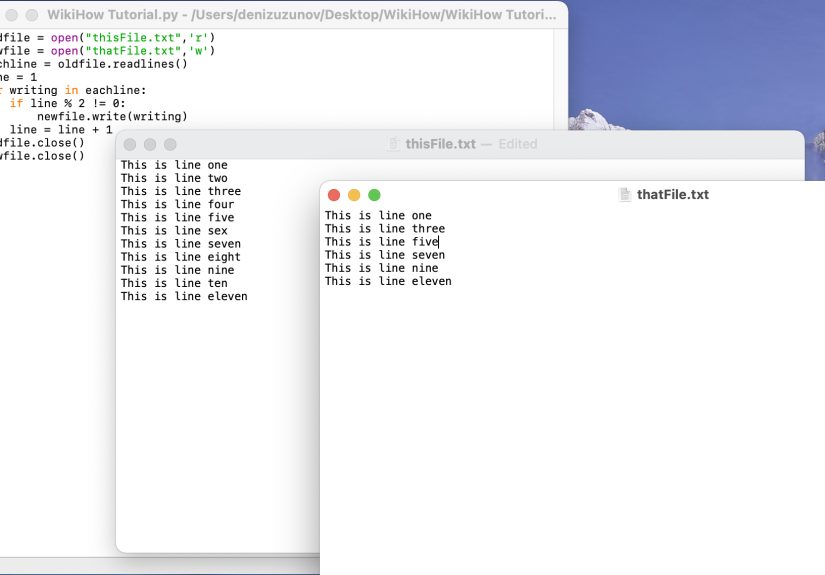
Recipe 3: Filter lines and write the results to a new file
Performance Tips for Bigger Text Files
If you’re working with larger files (logs, exports, data dumps), a few habits will keep your MacBook fans from taking flight:
- Stream lines instead of calling
read()on huge files. - Avoid building giant lists unless you truly need random access to every line.
- Write incrementally rather than assembling a massive string in memory.
- Be deliberate with encodings so you don’t re-run jobs due to decoding errors.
If you need to transform a large file, think of your script like a conveyor belt: read one piece, process it, write it out, repeat. That’s how you stay fast, stable, and less emotionally attached to Activity Monitor.
Conclusion: You’re Officially Dangerous (In a Good Way)
Reading and writing text files in Python is one of those skills that feels simpleuntil you meet paths, permissions, encodings, and newline quirks. On a MacBook, the workflow is especially smooth once you get comfortable with: where your script is running, how you build paths, and which file mode you’re using.
If you take only two best practices from this guide, make them these: (1) Use with open(...) and (2) specify encoding="utf-8". Those two choices prevent a shocking number of “why is this broken?” moments.
500-Word Field Notes: Real-Life MacBook File I/O Experiences
The first time someone tries file I/O on a MacBook, the code usually looks perfect… and still fails. Not because Python is complicated, but because files live in the real world, and the real world contains folders you didn’t expect, permissions you didn’t ask for, and filenames that include emojis (which, honestly, is on us as a society).
A classic scenario goes like this: you create notes.txt on the Desktop. You run your Python script from a Terminal tab that’s currently inside your project folder. Your code says open("notes.txt"). Python looks in the project folder, doesn’t find it, and throws FileNotFoundError. You swear the file existsbecause it does. The fix is not a ritual sacrifice to the programming gods; the fix is to use the right path. If the file is on the Desktop, point to the Desktop. If it’s part of your project, put it inside the project (often under a data/ folder) and build the path relative to the script location.
Another frequent “MacBook moment” is permission-related. macOS is protective by design, and some locations are restricted. You might be able to read a file but not write it, especially on external drives, shared folders, or system-managed directories. When Python raises PermissionError, it’s not being dramaticit’s reporting that the operating system refused the request. The practical approach is to test writing in a safe location (your project directory, Desktop, or Documents), then move outward. If you truly must write into a protected folder, fix permissions intentionally and carefully. “Just make everything writable” is the computing equivalent of removing the smoke alarm because it’s loud.
Encoding issues are sneakier. Everything feels fine until your text file includes curly quotes, accented characters, or emojis. If you don’t specify encoding="utf-8", the same script can behave differently across machines or environments. The symptom might be a decoding error, or worse: silently mangled characters. The fix is boring and beautifulalways specify UTF-8 for modern text unless you’re required to use something else.
Finally, newline weirdness shows up in subtle ways: a file created on Windows might have rn line endings, and if you mix that with naive printing or manual newline handling, output can appear double-spaced or oddly formatted. Python’s default text handling is usually helpful, but when precision matters (like generating CSV or exact-format reports), controlling newline behavior becomes important. The “experience” lesson here is: when output looks haunted, check encoding and newlines before blaming your logic.
The good news: once you’ve hit these speed bumps once, you’ll recognize them instantly. File I/O stops feeling like a gamble and starts feeling like a tool one you can use to automate reports, parse logs, build mini data pipelines, and generally make your MacBook do the boring parts of life for you.