Table of Contents >> Show >> Hide
- What Is the Continue Watching Row on Peacock?
- Can You Remove Continue Watching from Peacock Completely?
- The Fastest Method: Remove a Title from Continue Watching on the Peacock Mobile App
- Fallback Method: Finish the Title to Clear It from Continue Watching
- How to Remove Continue Watching from Peacock on Specific Devices
- What to Do If Peacock Won’t Remove the Title
- Why a Show Keeps Coming Back to Continue Watching
- Best Ways to Keep Your Peacock Homepage Cleaner
- Quick FAQ
- Final Thoughts
- Real-Life Experiences: What Removing Continue Watching on Peacock Actually Feels Like
If your Peacock Continue Watching row looks like a graveyard of half-finished episodes, random movies you never meant to start, and one reality show you swear was “just an accident,” you are not alone. Peacock is great at remembering what you watched. A little too great, honestly. It clings to your unfinished shows like a needy ex with a remote control.
The good news is that you can clean up your Peacock home screen. The less-fun news is that Peacock does not make it equally easy on every device. On some versions of the mobile app, removing a title is pretty straightforward. On TVs, streaming sticks, and browsers, you may need to use a workaround that feels a little like tricking the app into thinking you finally finished the show.
This guide walks you through how to remove Continue Watching from Peacock step by step, what to do if the option is missing, why some titles keep coming back, and how to keep your homepage from turning into a digital junk drawer in the future.
What Is the Continue Watching Row on Peacock?
The Continue Watching row is Peacock’s shortcut for unfinished content. It saves your place so you can jump back into a movie or episode without hunting for it again. In theory, that is convenient. In reality, it also means Peacock proudly displays every title you sampled for four minutes before deciding, “Absolutely not.”
This row is especially annoying when:
- You started a show by mistake.
- You sampled an episode and hated it instantly.
- Autoplay launched something you never asked for.
- Someone else used your profile.
- You just want a cleaner home screen that does not judge your late-night viewing choices.
Can You Remove Continue Watching from Peacock Completely?
Let’s clear this up first: Peacock does not appear to offer a universal “turn off Continue Watching” switch. There is no big shiny settings button that says, “Please stop remembering my questionable streaming decisions.” So, if you are wondering how to disable the feature entirely, the practical answer right now is: you manage titles one by one.
That means your best strategy is to remove specific shows or movies, use the right profile, and keep autoplay chaos under control whenever possible.
The Fastest Method: Remove a Title from Continue Watching on the Peacock Mobile App
If you are using Peacock on an iPhone, iPad, or Android phone/tablet, start here first. This is often the easiest method on newer app versions.
Step-by-Step on Mobile
- Open the Peacock app.
- Make sure you are in the correct profile. This part matters more than people think.
- Go to the Home screen and scroll until you find Continue Watching.
- Look for a three-dot menu on the title tile you want to remove.
- Tap the menu and select Remove from Continue Watching.
- Refresh the app or back out and reopen Peacock if the row does not update right away.
If you see that three-dot menu, congratulations: Peacock is behaving itself today. Remove the title, breathe deeply, and enjoy the rare thrill of digital housekeeping actually working on the first try.
Important: if you do not see the three-dot option, that does not necessarily mean you are doing anything wrong. Peacock’s interface can differ by device type, app version, and platform. That is where the fallback method comes in.
Fallback Method: Finish the Title to Clear It from Continue Watching
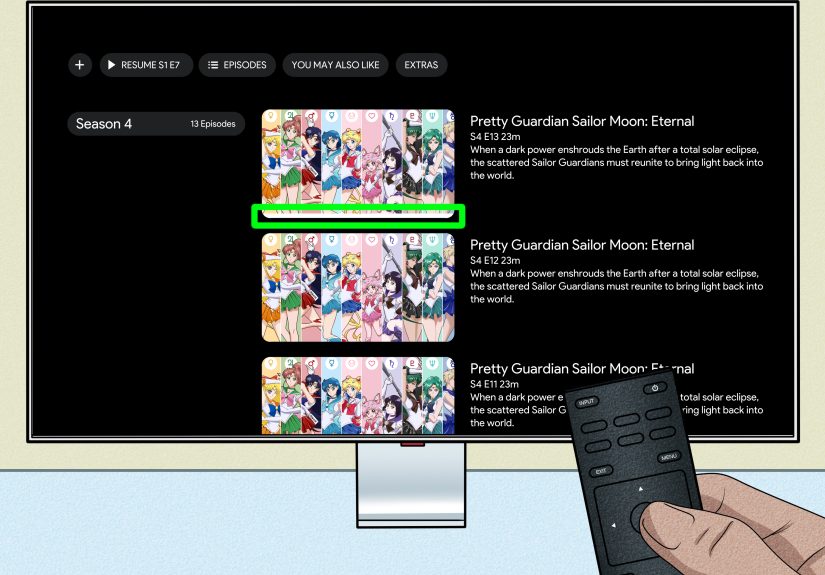
If the remove option is missing on your TV, browser, Roku, Fire TV, or another device, the most reliable workaround is still the old-school method: fast-forward to the end and let the title finish.
Yes, it is a little ridiculous. Yes, it feels like you are gaming the system. But it often works.
How to Do It on Smart TVs, Roku, Fire TV, Apple TV, and Web Browsers
- Open Peacock on your device.
- Select the title you want to remove from Continue Watching.
- If it is a movie, fast-forward to the last minute or so.
- If it is a TV series, open the most recent or final available episode, then fast-forward to the end.
- Let the last part of the title play through completely.
- As soon as it finishes, stop autoplay before Peacock launches the next suggested title.
- Go back to the home screen and check whether the title has disappeared from Continue Watching.
This method works because Peacock often removes content from the row once it believes you have completed it. In other words, you are not deleting history so much as convincing Peacock that the job is done.
For TV Shows, Use the Right Episode
This is where many people get tripped up. If you fast-forward through episode 2 of season 4, but the show has newer episodes available, Peacock may still keep it in Continue Watching. For the best shot at removing it, open the latest available episode and let that one finish.
And here is the catch: if the show is still actively releasing new episodes, it may return later. Peacock apparently takes “continue watching” very literally, as if it is gently nudging you back into a series you already ghosted.
How to Remove Continue Watching from Peacock on Specific Devices
On iPhone and iPad
Try the three-dot menu first. If it is missing, play the title, scrub to the end, and let it finish. Then close out before autoplay tosses another random program into your row like a streaming gremlin.
On Android Phones and Tablets
The mobile app may offer a direct remove option. If not, the finish-to-clear method is your backup. If the app feels glitchy, update it first before assuming Peacock has personally chosen to make your day harder.
On Roku, Fire TV, and Smart TVs
TV apps are usually where users hit the most friction. In many cases, you will need the fast-forward to the end workaround. If you have Peacock on both your TV and phone, the easiest move is often to clean the row from the mobile app instead.
On a Web Browser
Browser playback can behave similarly to TV apps. If you do not see a remove control, resume the movie or episode, jump to the end, and let it finish naturally. Then return to the homepage and refresh the page.
What to Do If Peacock Won’t Remove the Title
If the title refuses to leave your home screen like it pays rent, try these fixes.
1. Make Sure You’re Using the Correct Profile
Peacock allows multiple profiles, so it is possible you are cleaning one profile while the mess lives in another. Double-check before you begin the removal process. Nothing says “modern family life” like blaming the app before realizing your sibling, spouse, or roommate used your profile to watch a detective show at 2 a.m.
2. Update the Peacock App
If your app is outdated, the interface may not match newer instructions. An app update can be the difference between “tap the menu” and “why is this tile mocking me?”
3. Restart the App or Device
Classic tech support advice exists for a reason. Close Peacock, reopen it, and check again. If that does not work, restart your device.
4. Clear Cache or Reinstall Peacock
If Peacock is not syncing properly, cached data may be part of the problem. Clearing cache or reinstalling the app can help refresh the interface and pull in the latest account changes.
5. Wait a Few Minutes and Refresh
Sometimes removal is not instant across all devices. Give the app a moment, then refresh or reopen Peacock. Streaming apps occasionally move at the speed of a sleepy sloth wearing buffering boots.
Why a Show Keeps Coming Back to Continue Watching
There are a few common reasons a title reappears after you thought you got rid of it:
- You removed the wrong episode. For series, Peacock may track the latest available episode instead.
- Autoplay started another episode. One accidental extra minute can put the title right back in the row.
- The show is ongoing. New episodes may cause it to return.
- Another person used your profile. Mystery solved, detective.
- The app did not sync correctly. Restart, refresh, or reinstall.
Best Ways to Keep Your Peacock Homepage Cleaner
Use Separate Profiles
If more than one person uses your Peacock account, separate profiles are your best friend. They help keep recommendations, watch history, and the Continue Watching row from becoming a shared soup of mismatched tastes.
Back Out Before Autoplay Wanders Off
Autoplay is one of the main reasons random titles show up in your row. Once your episode ends, exit before Peacock starts serving you something “you might like.” That phrase has caused more homepage clutter than anyone wants to admit.
Sample With Caution
Starting a title for “just a second” is often how clutter begins. If you are curious about a show, read the synopsis first, watch a trailer if available, or add it to your list instead of launching the full episode right away.
Clean Up From Mobile When Possible
If Peacock gives you the direct remove option on your phone or tablet, use it. It is usually faster than wrestling with a TV remote and scrubbing through the final sixty seconds of a show you actively dislike.
Quick FAQ
Can I remove Continue Watching from Peacock on Roku?
Usually, yes, but often through the workaround method. If Roku does not show a remove option, fast-forward the movie or latest episode to the end and let it finish.
Can I delete Peacock watch history?
Peacock does not currently present a simple, universal watch-history management page the way some other streaming services do. In practice, most users manage the row title by title.
Can I turn off Continue Watching on Peacock entirely?
Not with a visible global setting at the moment. You generally need to remove titles individually.
Why does Peacock still show something I finished?
The app may not have synced yet, autoplay may have started another episode, or you may need to finish the latest available episode instead of an older one.
Final Thoughts
If you came here wondering how to remove Continue Watching from Peacock, the practical answer is simple: use the three-dot remove option on mobile if you have it, and use the finish-the-title workaround if you do not. That is the cleanest strategy right now.
Is it elegant? Not exactly. Is it more complicated than it should be in the year 2026? Absolutely. But once you know the trick, you can tidy up your homepage, kick out the shows you abandoned, and stop Peacock from publicly archiving your streaming indecision like it belongs in a museum.
In other words, your homepage can finally look less like chaos and more like a person with a plan. Or at least a person who did not accidentally start three cooking competitions and one crime drama while falling asleep on the couch.
Real-Life Experiences: What Removing Continue Watching on Peacock Actually Feels Like
Here is the funny part about Peacock’s Continue Watching row: the problem is rarely just technical. It is emotional. Not in a dramatic Oscar-speech kind of way, but in the deeply petty human way where a streaming service keeps reminding you of a show you quit after one awkward episode. It is basically digital side-eye.
One common experience goes like this: you start a new series because everyone online says it is “amazing.” Ten minutes later, you realize it is not for you. Maybe the pacing is slow. Maybe the jokes do not land. Maybe you simply chose it while hungry and grumpy, which is never a fair audition. You back out, thinking that is the end of it. Then Peacock plants that show in Continue Watching like a tiny flag that says, “You sure about that?” Suddenly your home screen feels less like entertainment and more like a receipt.
Another classic scenario is the accidental autoplay disaster. You finish a movie, put the remote down, and get distracted by real life. Maybe the dog barks. Maybe someone texts. Maybe you walk to the kitchen in search of popcorn that should not exist at that hour. By the time you look back, Peacock has already started another title. Congratulations: you are now apparently “watching” a random reality show you never picked. It slides into Continue Watching with the confidence of a party guest who was never invited but somehow found the snacks.
Families know this pain especially well. Shared accounts can turn one profile into a bizarre cultural mashup. You log in expecting your half-finished thriller, and instead you get a preschool cartoon, a sports replay, two baking competitions, and an episode of something with five reunions and twelve people yelling at brunch. Separate profiles help, but only if everyone actually uses them. That is a very big “if.”
Then there is the remote-control sprint. If you use Peacock on a TV, you learn a special kind of reflex: the split-second panic move to stop autoplay before the next title begins. It is not unlike swatting a mosquito, except the mosquito is a streaming recommendation engine and it keeps suggesting shows you do not want. Miss your timing, and now you have one more title to remove later.
What makes the situation even more relatable is how satisfying cleanup feels once you know the trick. The first time you successfully remove a title, whether through the three-dot menu or the fast-forward workaround, it feels absurdly rewarding. You did not just clear a row. You restored order. You reclaimed your homepage. You told Peacock, in the nicest possible way, “No thank you, I will decide what represents me.”
So yes, this is a small problem in the grand scheme of life. But it is also the kind of small problem that nags at you every time you open the app. And that is why learning how to remove Continue Watching from Peacock feels so useful. It is not just about tidiness. It is about control, convenience, and the simple joy of not being haunted by episode one of a series you never wanted to finish in the first place.