Table of Contents >> Show >> Hide
- Why Are There Dotted Lines in Excel?
- Fix 1: Hide Dotted Page Break Lines in Excel
- Fix 2: Remove or Reset Manual Page Breaks
- Fix 3: Remove Dotted Borders or Hide Gridlines
- How to Tell Which Dotted Line You Have
- Common Mistakes When Removing Dotted Lines in Excel
- Extra Tips for a Cleaner Excel Worksheet
- Which Fix Should You Try First?
- Real-World Experience: What Usually Happens When Dotted Lines Show Up
- Conclusion
Dotted lines in Excel have a special talent for appearing right when your spreadsheet finally looks clean. One minute, your worksheet is organized, polished, and ready to impress. The next minute, mysterious dotted lines are marching across your data like tiny spreadsheet ants. The good news? They are usually harmless. The better news? They are usually easy to remove.
In most cases, dotted lines in Excel come from one of three things: page breaks, gridlines, or cell borders. They may appear after printing, after switching views, after copying data from another workbook, or after someone on your team got a little too creative with formatting. Excel is powerful, but it does not always explain itself politely.
This guide will show you how to remove dotted lines in Excel using three simple fixes. You will learn how to hide page break lines, reset manual page breaks, and remove dotted borders or gridlines. By the end, your worksheet should look less like a road map and more like the clean, professional spreadsheet you intended.
Why Are There Dotted Lines in Excel?
Before you start clicking buttons, it helps to know what kind of dotted line you are dealing with. Excel uses lines for different purposes, and each type has a different fix.
1. Dotted Lines from Page Breaks
The most common dotted lines in Excel are page break indicators. These lines show where Excel will split your worksheet when you print it. They often appear after you use Print Preview, adjust print settings, or switch to Page Break Preview.
Automatic page breaks usually appear as dashed or dotted lines. Manual page breaks may appear as stronger, more solid lines. These are not errors. Excel is simply showing you where one printed page ends and another begins. Helpful? Sometimes. Annoying? Absolutely.
2. Dotted Lines from Gridlines
Gridlines are the faint lines that separate rows and columns in a worksheet. They are part of Excel’s default view and help you read data more easily. However, if you are designing a report, invoice, dashboard, checklist, or printable form, gridlines can make the sheet look busy.
Gridlines are not the same as borders. Gridlines are visual guides controlled by Excel. Borders are formatting that you or someone else applies to selected cells.
3. Dotted Lines from Cell Borders
If the dotted lines stay in place even after hiding page breaks and gridlines, they are probably cell borders. Excel lets users apply border styles, including dotted, dashed, thick, double, and colored lines. These borders may come from templates, copied tables, downloaded files, or enthusiastic formatting experiments.
The trick is to identify the source first. Once you know whether the lines are page breaks, gridlines, or borders, the fix is quick.
Fix 1: Hide Dotted Page Break Lines in Excel
If dotted lines appeared after printing or previewing your worksheet, page breaks are probably the culprit. This is one of the most common reasons people search for how to remove dotted lines in Excel.
Page break lines are useful when preparing a worksheet for printing, but they can be distracting when you are editing data. Fortunately, you can hide them without changing your spreadsheet content.
How to Hide Page Break Lines in Excel for Windows
- Open the Excel workbook that has the dotted lines.
- Click the File tab in the top-left corner.
- Select Options.
- In the Excel Options window, click Advanced.
- Scroll down to Display options for this worksheet.
- Find the checkbox labeled Show page breaks.
- Clear the checkbox.
- Click OK.
Once you do this, the dotted page break lines should disappear from the worksheet. Your data remains exactly the same. You are only changing whether Excel displays the page break indicators in Normal view.
Important Note About This Setting
The Show page breaks option applies to the selected worksheet. If your workbook has several tabs and dotted lines appear on more than one sheet, you may need to repeat the process for each worksheet.
Also, hiding page breaks does not remove print settings. If your worksheet is still divided across multiple printed pages, it will continue to print that way. You are simply telling Excel, “Thanks, but I do not need to see those lines while I work.”
When This Fix Works Best
Use this fix when the dotted lines appeared after you:
- Clicked Print Preview
- Changed page orientation or margins
- Adjusted scaling settings
- Used Page Break Preview
- Opened a workbook that was already prepared for printing
This is the fastest fix for most users. If you only want your worksheet to look normal again, start here.
Fix 2: Remove or Reset Manual Page Breaks
Sometimes hiding page breaks is not enough because the workbook contains manual page breaks. Manual page breaks are page divisions that someone inserted intentionally. They tell Excel exactly where to start a new printed page.
Manual page breaks are useful for reports, invoices, inventory sheets, financial statements, and any worksheet that needs a controlled print layout. But if you did not add them yourself, they can look like random dotted or solid lines that refuse to leave.
How to Remove a Single Manual Page Break
- Click the worksheet that contains the page break.
- Go to the View tab.
- Select Page Break Preview.
- To remove a vertical page break, select the column to the right of the break.
- To remove a horizontal page break, select the row below the break.
- Go to the Page Layout tab.
- Click Breaks.
- Select Remove Page Break.
This removes the selected manual page break. Excel may still show automatic page breaks depending on your print area, paper size, margins, and scaling settings.
How to Reset All Manual Page Breaks
If the worksheet has several manual page breaks and you do not want to remove them one at a time, reset them all.
- Open the worksheet.
- Click the Page Layout tab.
- In the Page Setup group, click Breaks.
- Select Reset All Page Breaks.
This removes manually inserted page breaks and lets Excel calculate automatic page breaks again. Think of it as telling Excel, “Let us pretend nobody touched the print layout.”
How to Return to Normal View
After working in Page Break Preview, you may still see a different worksheet layout. To return to the standard worksheet view:
- Click the View tab.
- Select Normal in the Workbook Views group.
Normal view is usually the best view for everyday editing. Page Break Preview is helpful when preparing a sheet for printing, but it can feel crowded if you are simply entering data, writing formulas, or cleaning up formatting.
When This Fix Works Best
Use this fix when:
- The dotted or solid lines affect how the worksheet prints.
- You inherited a workbook with strange page divisions.
- You are preparing a report and want to control printed pages.
- The lines remain even after hiding page breaks in Excel Options.
If printing matters, do not remove page breaks blindly. First, check Print Preview to make sure your worksheet still prints the way you want.
Fix 3: Remove Dotted Borders or Hide Gridlines
If the dotted lines are not page breaks, they are probably either gridlines or cell borders. These two features look similar at first glance, but they behave differently.
Gridlines cover the entire worksheet and help separate cells. Borders are formatting applied to specific cells or ranges. If the lines only appear around certain cells, tables, or sections, you are likely dealing with borders.
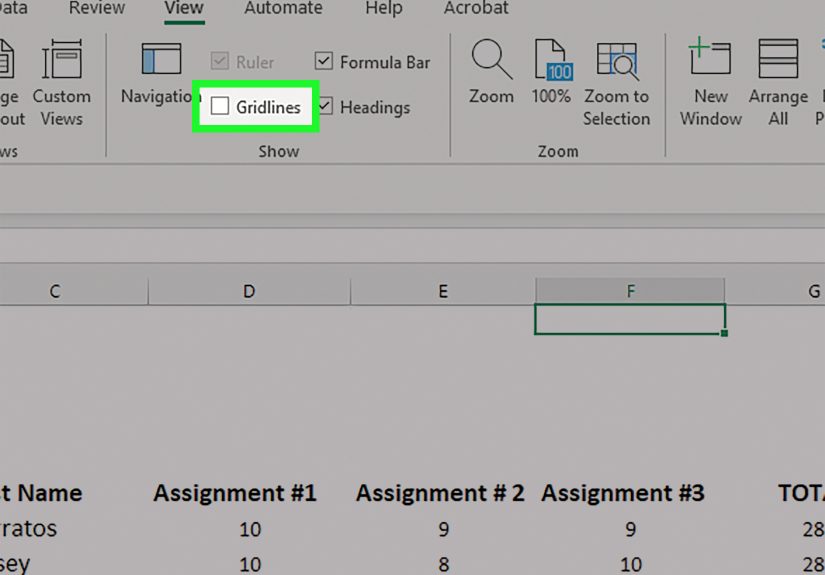
How to Hide Gridlines in Excel
To hide worksheet gridlines:
- Click the worksheet.
- Go to the View tab.
- Look for the Show group.
- Clear the Gridlines checkbox.
You can also hide gridlines from the Page Layout tab:
- Click the Page Layout tab.
- Find Sheet Options.
- Under Gridlines, clear the View checkbox.
This gives your worksheet a cleaner appearance. It is especially useful when creating forms, dashboards, presentations, quotes, calendars, trackers, or printable documents.
How to Stop Gridlines from Printing
If the dotted lines do not bother you on screen but appear when printing, check the print gridlines setting.
- Click the Page Layout tab.
- Go to Sheet Options.
- Under Gridlines, clear the Print checkbox.
By default, Excel gridlines usually do not print unless you turn that option on. However, workbooks created by other people may already have print gridlines enabled.
How to Remove Dotted Cell Borders
If dotted lines appear only around certain cells, remove the borders:
- Select the cells that contain the dotted borders.
- Go to the Home tab.
- In the Font group, click the arrow next to Borders.
- Select No Border.
If you want to remove every border from the sheet, click the triangle in the top-left corner of the worksheet to select all cells. Then go to Home > Borders > No Border.
Using Erase Border
Excel also has an Erase Border tool. This is helpful when you want to remove only certain border lines without clearing all borders from a range.
- Go to the Home tab.
- Click the arrow next to Borders.
- Select Erase Border.
- Click or drag across the border lines you want to remove.
This tool is handy, but use it carefully. It can feel like using a tiny formatting eraser, which is great until you accidentally erase borders you wanted to keep.
How to Tell Which Dotted Line You Have
If you are not sure which fix to use, try this quick diagnosis.
If the Lines Run Across the Whole Sheet
They are probably page breaks or gridlines. If they appeared after printing, start with page breaks. If they cover every cell evenly, check gridlines.
If the Lines Appear Around Specific Cells
They are probably borders. Select the cells and check the Borders menu under the Home tab.
If the Lines Affect Printing
They are likely page breaks or printable gridlines. Open Print Preview and see whether the lines control page layout or show on the printed page.
If the Lines Stay After Hiding Gridlines
They are probably borders or page breaks. Gridlines disappear when you clear the Gridlines checkbox. Borders stay because they are cell formatting.
Common Mistakes When Removing Dotted Lines in Excel
Removing dotted lines is usually simple, but there are a few traps that can waste time.
Mistake 1: Confusing Gridlines with Borders
Gridlines are controlled by worksheet view settings. Borders are formatting. If you hide gridlines and dotted lines remain, do not keep clicking the Gridlines checkbox like it has personally betrayed you. Check the Borders menu instead.
Mistake 2: Removing Page Breaks Without Checking Print Preview
If the worksheet is designed for printing, page breaks may be there for a reason. Removing them can cause tables to split awkwardly across pages. Always check Print Preview before finalizing a printable worksheet.
Mistake 3: Selecting Only One Cell
If dotted borders cover a large range, selecting one cell and choosing No Border will only fix that cell. Select the entire affected range, or select the full worksheet if you want a complete reset.
Mistake 4: Forgetting About Multiple Worksheets
Excel settings can vary by worksheet. You may remove dotted lines from one tab and still see them on another. Check each sheet that matters, especially in workbooks with monthly reports, department tabs, or imported data.
Extra Tips for a Cleaner Excel Worksheet
Once the dotted lines are gone, you can take a few extra steps to make your worksheet look more polished.
Use Borders Only Where They Add Meaning
Borders are helpful for headers, totals, input areas, and printed forms. But too many borders can make a worksheet look crowded. Use them to guide the reader’s eye, not to decorate every cell like a tiny picture frame.
Use Fill Color Carefully
Applying a white fill color can hide gridlines in selected cells. This can be useful for design, but it may also create uneven-looking worksheets if used randomly. If some areas show gridlines and others do not, check the Fill Color setting.
Check Page Layout Before Sharing
If you are sending an Excel file to a client, manager, or coworker, review the workbook in Normal view and Print Preview. This helps catch page breaks, print gridlines, odd margins, and formatting surprises before someone else opens the file and asks, “What are these lines?”
Save a Clean Template
If you often create the same type of worksheet, save a clean version as a template. Remove unnecessary borders, hide gridlines if needed, set print options, and format headings consistently. Future you will be grateful, and future you deserves nice things.
Which Fix Should You Try First?
If you want the shortest path, follow this order:
- First, hide page breaks from File > Options > Advanced > Show page breaks.
- Second, reset manual page breaks from Page Layout > Breaks > Reset All Page Breaks.
- Third, hide gridlines or remove dotted borders from the View, Page Layout, or Home tabs.
This sequence solves most dotted-line problems in Excel. Start with page breaks because they are the most common cause, especially after printing or using Print Preview.
Real-World Experience: What Usually Happens When Dotted Lines Show Up
In everyday Excel work, dotted lines usually appear at the least convenient moment. You may be finishing a budget report, cleaning a sales tracker, preparing an invoice, or formatting a sheet for a meeting. Then, after one innocent trip to Print Preview, the worksheet suddenly has dotted lines running through it. Nothing is broken, but it looks like Excel has added construction zones to your data.
From practical experience, the first thing to check is whether someone recently printed the sheet or adjusted the page setup. If yes, the dotted lines are almost always page breaks. This is especially common in large worksheets with many columns. Excel tries to show where the printed pages will split, which is useful for printing but distracting for editing.
Another common situation happens with downloaded spreadsheets. Files from accounting software, inventory systems, customer relationship management tools, and online templates often contain preset borders or print settings. You open the file expecting a clean table, and instead you get dotted lines around sections, headers, totals, or blank spaces. In that case, the lines are often formatting, not page breaks.
Team workbooks can also collect formatting over time. One person adds dotted borders to highlight a review area. Another person copies in data from a different workbook. Someone else changes the print area. After a few months, the file becomes a formatting soup. The worksheet may still function perfectly, but visually it looks tired. Removing dotted borders, resetting page breaks, and turning off unnecessary gridlines can make an old workbook feel fresh again.
A good habit is to create a quick cleanup routine. First, switch to Normal view. Second, hide page breaks if they are visible. Third, select the used range and remove unnecessary borders. Fourth, check Page Layout settings before printing. This routine takes less than a minute once you know where everything is, and it prevents a lot of frustration.
For professional reports, dashboards, and client-facing spreadsheets, it is often better to hide gridlines and use intentional borders instead. Gridlines are useful while building the sheet, but they can make a finished report look unfinished. A clean worksheet with bold headers, subtle section dividers, and carefully placed borders usually looks more polished than a sheet where every cell line is visible.
However, do not remove every line just because you can. In data-heavy worksheets, some lines help users follow rows and columns. The goal is not to make the spreadsheet empty and mysterious. The goal is to remove distracting dotted lines while keeping the worksheet easy to read.
One final experience-based tip: before making major formatting changes, save a copy of the workbook. This is especially important if the file belongs to a company process, financial report, or shared template. Removing dotted lines is easy, but restoring a carefully designed print layout can be annoying if you later realize those page breaks were there for a reason.
Conclusion
Dotted lines in Excel are usually not a problem with your data. They are visual indicators or formatting elements. Most of the time, they come from page breaks, gridlines, or dotted cell borders. Once you identify the type of line, removing it is simple.
To remove dotted page break lines, go to File > Options > Advanced and clear Show page breaks. To remove manual page breaks, use Page Layout > Breaks > Reset All Page Breaks. To clean up gridlines or dotted borders, use the View, Page Layout, and Home > Borders options.
The next time dotted lines appear in Excel, do not panic. Excel is not haunted. It is probably just trying to help with printing or showing formatting. With these three simple fixes, you can clean up your worksheet and get back to the important work: formulas, data, reports, and pretending you did not spend ten minutes arguing with a dotted line.
Note: Menu names may vary slightly depending on your Excel version, operating system, and whether you use Excel desktop, Excel for Mac, or Excel for the web. The core idea remains the same: identify whether the dotted lines are page breaks, gridlines, or borders, then remove the correct setting or formatting.