Table of Contents >> Show >> Hide
- Before You Repair Anything, Do These 4 Fast Checks
- 1. Check Whether the Drive Is Detected but Not Mounted
- 2. Run CHKDSK to Repair File System Errors
- 3. Use First Aid on Mac to Repair a USB Drive
- 4. Reinstall or Refresh the USB Driver
- 5. Recover Files Before You Format the Drive
- 6. Format the USB Flash Drive as a Last Resort
- What If the USB Flash Drive Is Write-Protected?
- Signs the Drive Is Failing Physically
- How to Avoid USB Flash Drive Problems in the Future
- Real-World Experiences With Broken USB Drives
- Final Thoughts
Note: This is the body-only HTML section, ready to paste into your website template.
A USB flash drive usually fails in the most annoying way possible: right when you need that presentation, vacation folder, tax document, or mystery file named final-FINAL-real-final.pdf. The good news is that a dead-looking flash drive is not always truly dead. In many cases, the problem is a corrupted file system, a missing drive letter, a driver hiccup, an incompatible format, or a drive that simply wants a little troubleshooting drama before it cooperates.
If you need to repair a USB flash drive and restore files, the smartest move is to slow down before you start clicking random buttons like you are trying to defuse a movie bomb. Some fixes are safe. Others, like formatting, can wipe the drive. That means the best repair strategy is to start with non-destructive steps, recover your files if possible, and only then move to heavier fixes.
In this guide, you will learn six easy ways to fix a USB flash drive, recover deleted or inaccessible files, and choose the right format so the problem does not come back for an encore.
Before You Repair Anything, Do These 4 Fast Checks
Before using repair tools, stop writing new data to the flash drive. Do not copy fresh files onto it, do not install recovery software on it, and do not keep retrying failed transfers like stubborn optimism is a repair method. If the drive is failing, new writes can overwrite recoverable data.
- Try a different USB port on the same computer.
- Try a second computer to rule out a port or driver issue.
- Remove any USB hub and plug the drive directly into the computer.
- If the drive opens, copy important files off it immediately.
This step sounds almost insultingly simple, but it solves more problems than people like to admit. A loose port, low-power hub, or flaky front-panel USB connection can make a healthy drive look broken.
1. Check Whether the Drive Is Detected but Not Mounted
Sometimes the flash drive is not actually missing. It is just being dramatic in the background.
On Windows
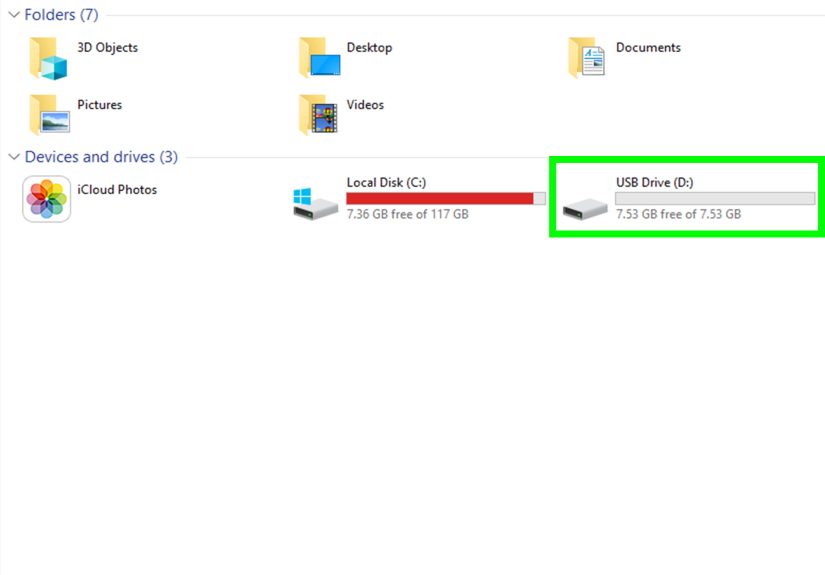
Open Disk Management. If your USB appears there but not in File Explorer, the issue may be one of these:
- The drive has no letter assigned.
- The partition is damaged or unallocated.
- The disk is offline.
- The file system is corrupted.
If the partition looks healthy but there is no drive letter, right-click the volume and assign one. This tiny fix can make a “missing” drive suddenly show up like it was innocent the whole time.
On Mac
Open Disk Utility and choose View > Show All Devices. If the USB drive appears in Disk Utility but not in Finder, that usually means the hardware is at least being detected. That is encouraging. It means you may still be able to repair the file structure or recover files before considering a format.
Best use case: The drive is physically detected, but you cannot browse files normally.
2. Run CHKDSK to Repair File System Errors
If the USB drive shows up in Windows but throws errors like “The file or directory is corrupted and unreadable” or “You need to scan and fix the drive,” start with CHKDSK. This built-in Windows tool checks the file system and repairs logical errors. It can also scan for bad sectors and try to recover readable information.
How to run CHKDSK
- Connect the USB flash drive.
- Open Command Prompt as Administrator.
- Type the command below, replacing E: with your USB drive letter:
This fixes file system errors. If the drive seems more seriously damaged, you can try:
The /r option takes longer because it checks for bad sectors and attempts to recover readable data. That is helpful when a flash drive was unplugged unsafely, lost power during transfer, or now refuses to open certain folders.
Example: If your 64GB flash drive appears as drive F and Windows says it needs repair, run chkdsk F: /f first. If the problem returns, use chkdsk F: /r.
What this can fix:
- Corrupted directories
- Read errors after improper ejection
- Minor file system damage
- Drive access problems caused by logical errors
What this cannot fix: A physically failed flash drive, a broken connector, or a controller that has given up on civilization.
3. Use First Aid on Mac to Repair a USB Drive
Mac users do not need to feel left out. Apple’s First Aid tool in Disk Utility can check and repair formatting and directory structure issues on external storage devices.
How to use First Aid
- Open Disk Utility.
- Choose View > Show All Devices.
- Select the USB volume, then click First Aid.
- Run it on each volume, then the container, then the device itself.
If First Aid reports that the disk is okay or has been repaired, test the drive again and copy your files off immediately. If it says the disk is about to fail or cannot be repaired, stop treating it like a long-term storage solution. Back up whatever you can and replace it.
This is one of the most useful ways to repair a USB flash drive on macOS because it does not immediately erase the device. It gives you one last civilized attempt before things get destructive.
4. Reinstall or Refresh the USB Driver
If the flash drive is not recognized properly, the issue may be with Windows, not the drive. Driver glitches are common after updates, port issues, or random system chaos that Windows swears is “working as intended.”
How to refresh the driver in Windows
- Right-click Start and open Device Manager.
- Look under Disk drives, Universal Serial Bus controllers, or Other devices.
- If you see a yellow warning icon, right-click the device and choose Uninstall device.
- Restart your computer or choose Action > Scan for hardware changes.
You can also try Update driver, especially if the device appears as unknown hardware. If the USB stick works on another computer but not yours, this step becomes much more likely to help.
Try this too:
- Disconnect the USB drive, reboot the computer, then reconnect it.
- Plug it directly into the computer instead of a hub.
- Try a rear motherboard port on a desktop PC for more stable power.
Best use case: The drive is not detected consistently, appears with a warning icon, or works on one computer but not another.
5. Recover Files Before You Format the Drive
If your files disappeared, the drive asks you to format it, or folders suddenly turned into digital confetti, pause before formatting. Formatting might make the drive usable again, but it can reduce your chances of recovering files if you do it too early.
Use Windows File Recovery
Microsoft offers a command-line app called Windows File Recovery. It is designed to recover deleted or lost files from local drives, including USB devices. The important rule is simple: recover files to a different drive, not the damaged flash drive itself.
Basic syntax looks like this:
Example:
This tells Windows File Recovery to scan the USB drive and restore matching files to another drive. If you are trying to recover files from a formatted or corrupted flash drive, Extensive mode is usually the better choice. For non-NTFS file systems like FAT or exFAT, that mode is especially relevant.
Smart recovery habits
- Install recovery software on your computer, not on the USB drive.
- Save recovered files to a different disk.
- Do recovery before formatting whenever possible.
- If the drive disconnects constantly, stop and consider professional recovery.
Best use case: The flash drive is detected, but files are missing, deleted, inaccessible, or the file system appears damaged.
6. Format the USB Flash Drive as a Last Resort
If the drive is detected but unusable, and you have already recovered what you can, formatting may bring it back to life. This is often the cleanest fix for a corrupted USB flash drive. It wipes the file system and creates a fresh one.
Important: Formatting erases all data on the drive. Do not do this first unless you have nothing to lose or already recovered your files.
How to format on Windows
- Open Disk Management or This PC.
- Right-click the USB drive.
- Select Format.
- Choose the file system and run a quick format.
How to format on Mac
- Open Disk Utility.
- Select the USB device.
- Click Erase.
- Choose a format and confirm.
Which file system should you choose?
- exFAT: Best for cross-platform use between Windows and Mac, especially on drives over 32GB.
- FAT32: Very compatible, but cannot store a single file larger than 4GB.
- NTFS: Good for Windows-only use, but Mac typically has limited write support.
- APFS or Mac OS Extended: Best for Mac-focused use, not ideal if you also use Windows.
Example: If you use the same flash drive for Windows laptops and a MacBook, exFAT is usually the easiest choice. If you only use Windows and transfer large files often, NTFS can work well. If you still rely on older TVs, printers, or car stereo systems, FAT32 may be more compatible, but watch the 4GB file size limit.
What If the USB Flash Drive Is Write-Protected?
If the drive says it is write-protected, start by checking for a physical lock switch if the device has one. If there is no switch, the write block could come from security settings, third-party encryption software, the operating system, or a failing drive controller.
In some cases, reformatting solves the issue. In others, write protection is the drive’s last-ditch safety mode because the hardware is failing. Translation: the drive is not being stubborn, it is trying not to die in public.
Signs the Drive Is Failing Physically
Software fixes only go so far. If you notice these symptoms, the flash drive may have hardware damage:
- The connector is bent or loose.
- The drive gets unusually hot.
- It disconnects and reconnects repeatedly.
- Different computers fail to detect it.
- Formatting and repair tools cannot complete.
- The drive shows zero capacity or nonsense capacity.
At that point, your best move is to stop experimenting. If the files matter, consult a professional data recovery service. If the files do not matter, retire the drive with dignity and maybe a very small ceremony.
How to Avoid USB Flash Drive Problems in the Future
- Always eject the drive safely before unplugging it.
- Do not use old, mystery-brand flash drives for important files.
- Keep a second copy of important data in cloud or local backup storage.
- Use exFAT when you need Mac and Windows compatibility.
- Replace drives that fail once instead of trusting them forever.
- Avoid storing your only copy of anything important on a USB stick.
Real-World Experiences With Broken USB Drives
One of the most common experiences people have with a flash drive failure starts with pure confidence. The drive worked yesterday. It worked last week. It survived the bottom of a backpack, a hot car, and at least one coffee-shop panic session. Then suddenly, today is the day it shows up as unreadable. That is what makes USB flash drive issues feel so personal. Tiny device, huge inconvenience.
A classic example is the student who stores essays and project files on a single USB stick, plugs it into a library computer, and gets the message, “You need to format the disk before you can use it.” The immediate temptation is to click Format just to make the scary message go away. But the better move is to stop, try the drive on another computer, open Disk Management, and see whether the volume is still there. In many cases, the file system is corrupted, but the data is not completely gone. That one calm decision can save hours of rewriting.
Another common experience happens in offices. Someone unplugs a drive before a file finishes copying, then the USB starts throwing access errors the next morning. CHKDSK often helps in that situation, especially when the issue is logical corruption rather than physical damage. It is not magic, but it can feel like magic when a folder full of spreadsheets suddenly becomes readable again.
Mac users tend to run into a different kind of headache: a drive formatted one way on Windows behaves strangely on macOS, or the reverse. The files are there, but the system keeps acting like the drive is partly compatible and partly cursed. Running First Aid can help, but sometimes the real lesson is that the wrong file system caused the long-term mess. That is why exFAT is such a practical choice for people who move between platforms.
There is also the all-too-familiar “works on my computer, not on yours” scenario. A flash drive may open perfectly on one laptop and fail on another because of a driver glitch, a weak USB port, or a missing drive letter. That is why testing the device on multiple systems is not just basic advice. It is one of the fastest ways to separate a broken drive from a broken setup.
The most painful experiences usually involve drives that were treated like permanent storage instead of temporary transport. People keep years of photos, invoices, videos, or business records on one tiny stick and assume it will quietly live forever. It will not. Flash drives are convenient, portable, and cheap. They are not immortal. The good news is that most failures teach the same lesson: recover what you can, back up what matters, and never trust a single USB drive with your entire digital life.
Final Thoughts
If you are trying to repair a USB flash drive and restore files, the safest strategy is also the smartest one: start small, recover data first, and save formatting for last. Check whether the drive is merely hidden in Disk Management, repair logical errors with CHKDSK or First Aid, refresh drivers if Windows is acting weird, and use file recovery tools before wiping the device.
Most importantly, once a flash drive starts misbehaving, treat it like a warning, not a one-time mood swing. You might fix it today, but that does not make it trustworthy tomorrow. Recover the files, reformat if needed, and keep a backup somewhere that is not the size of a stick of gum.