Table of Contents >> Show >> Hide
- What Is Isolation Mode in Adobe Illustrator?
- How to Turn Off Isolation Mode in Illustrator Quickly
- Why Illustrator Gets “Stuck” in Isolation Mode
- How to Tell Whether Isolation Mode Is Actually Off
- How to Avoid Entering Isolation Mode by Accident
- Troubleshooting: What to Do If You Still Cannot Exit Isolation Mode
- Practical Example: Exiting Isolation Mode in a Logo File
- Best Practices for Working With Isolation Mode
- Experience Notes: Real-World Lessons From Turning Off Isolation Mode in Illustrator
- Conclusion
- SEO Tags
Adobe Illustrator is brilliant, powerful, and occasionally dramatic. One innocent double-click on a group, clipping mask, or layer can suddenly make the rest of your artwork fade into the background like it has been sent to design jail. Congratulations: you are probably in Isolation Mode.
The good news? Isolation Mode is not an error, a crash, or a mysterious curse placed on your artboard by the vector spirits. It is a normal Illustrator feature designed to help you edit one object, group, path, layer, or sublayer without accidentally selecting everything else. The even better news is that learning how to turn off Isolation Mode in Illustrator takes only a few seconds once you know where to click.
This guide explains what Isolation Mode is, how to exit it quickly, why you may get stuck inside nested groups, and how to prevent it from interrupting your workflow again. Whether you use Illustrator on Windows or macOS, the methods below will help you get back to the full artwork view without panic-clicking your way into a new problem.
What Is Isolation Mode in Adobe Illustrator?
Isolation Mode in Illustrator lets you focus on a selected part of your artwork while temporarily dimming and protecting everything else. It is especially useful when you are editing grouped objects, complex logos, clipping masks, icons, illustrations, and layered artwork with many overlapping pieces.
For example, imagine you are designing a badge logo with text, stars, borders, ribbons, and a tiny coffee cup icon. If everything is grouped together, selecting one little star can feel like trying to grab a single noodle from a bowl of spaghetti. Isolation Mode solves that by letting you enter the group and edit only the objects inside it.
When Isolation Mode is active, Illustrator usually shows a gray isolation bar or breadcrumb path near the top of the document window. The rest of the artwork may appear faded, locked, or unselectable. Your Layers panel may also change to show only the isolated object, group, layer, or sublayer.
Common signs that you are in Isolation Mode
- Most of your artwork looks dimmed or grayed out.
- You can select only one group, path, layer, or clipping mask area.
- A gray bar or breadcrumb trail appears near the top of the document window.
- The Layers panel shows a limited view instead of your full layer structure.
- Double-clicking may take you deeper into a group instead of selecting the whole design.
If any of these sound familiar, do not worry. Your file is probably fine. Illustrator is simply saying, “We are focusing now.” Helpful? Yes. Confusing the first time? Also yes.
How to Turn Off Isolation Mode in Illustrator Quickly
The fastest way to turn off Isolation Mode in Illustrator is to press the Esc key on your keyboard. In many cases, one press will exit Isolation Mode and return you to your normal artboard view. If you are inside a nested group or sublayer, you may need to press Esc more than once.
Method 1: Press the Esc Key
This is the easiest method and the one most designers use first.
- Make sure Illustrator is the active application.
- Press Esc once.
- If you are still inside Isolation Mode, press Esc again.
- Repeat until the full artwork becomes selectable again.
This works well when you accidentally entered Isolation Mode by double-clicking a group, symbol, clipping mask, or object. Think of Esc as Illustrator’s “please take me back to civilization” button.
Method 2: Double-Click Outside the Isolated Object
You can also exit Isolation Mode by double-clicking outside the isolated group or object. This method feels natural if you entered Isolation Mode by double-clicking in the first place.
- Select the Selection Tool by pressing V.
- Move your cursor to an empty area of the artboard or outside the active isolated object.
- Double-click in the blank area.
- Illustrator should return to the normal editing view.
This is useful when your hand is already on the mouse and you do not want to reach for the keyboard. Just be careful not to double-click another grouped object immediately afterward, or you may walk right back into Isolation Mode like a designer in a revolving door.
Method 3: Click the Exit Isolation Mode Button
When Isolation Mode is active, Illustrator may show an exit option in the Control panel or isolation bar. Depending on your workspace and version, you may see a small arrow, breadcrumb trail, or button that lets you move up one level or exit the isolated area.
- Look near the top of the document window for the gray isolation bar or breadcrumb trail.
- Click the arrow or exit control to move up one level.
- If you are inside several nested groups, click again until you reach the normal artboard view.
This method is especially helpful because the breadcrumb trail shows where you are inside the artwork. If you see something like Layer 1 > Group > Clip Group, you are not lost. You are simply several levels deep.
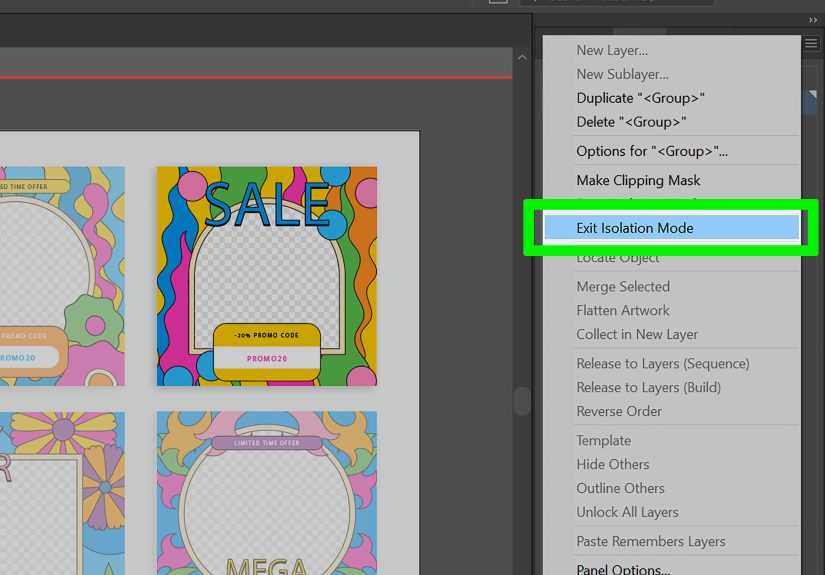
Method 4: Use the Layers Panel Menu
If the keyboard and artboard methods do not work, the Layers panel gives you another reliable way to turn off Isolation Mode in Illustrator.
- Go to Window > Layers to open the Layers panel.
- Click the panel menu in the upper-right corner of the Layers panel.
- Choose Exit Isolation Mode.
- If the file is isolated inside a sublayer, repeat the command until you are fully out.
This method is great for complex files because it helps you understand whether you are isolated inside a layer, sublayer, group, or object. It is also a good fallback when the screen layout hides the top control options.
Method 5: Right-Click and Choose Exit Isolation Mode
In some situations, right-clicking or Control-clicking on macOS can reveal an option to exit Isolation Mode.
- Right-click inside the document window.
- Look for Exit Isolation Mode in the context menu.
- Click it to return to the regular editing view.
This option may not appear in every context, but it is worth trying when you are working inside grouped artwork and prefer menu-based commands.
Why Illustrator Gets “Stuck” in Isolation Mode
Most of the time, Illustrator is not truly stuck. The confusion happens because Isolation Mode can work in levels. If you double-click a group inside another group inside another group, you are now deep in a nested structure. Pressing Esc once may move you up one level, but it may not exit the entire isolated hierarchy.
Nested groups can require multiple exits
Nested groups are common in logos, illustrations, icons, imported SVGs, marketplace graphics, and files received from other designers. A simple-looking icon may contain multiple groups, compound paths, clipping masks, and sublayers. When you enter Isolation Mode inside one of those structures, Illustrator lets you edit that level without disturbing the rest.
To fully turn off Isolation Mode in nested artwork, press Esc several times or click the breadcrumb arrow repeatedly. Each action moves you one level closer to the full document view.
Clipping masks can look confusing
Clipping masks are another common reason designers think they are trapped. When you double-click a clip group, Illustrator may isolate the mask and the artwork inside it. This is helpful when editing cropped images, texture overlays, or masked vector shapes, but it can look strange if you did not mean to go there.
If you entered Isolation Mode while working with a clipping mask, use Esc, double-click outside the isolated group, or click the isolation bar to exit. If you need to edit the mask itself, use the Layers panel to select the clipping path or choose the appropriate clipping mask editing command from the Object menu.
You may be confusing Isolation Mode with Draw Inside mode
Illustrator has another feature called Draw Inside, and it can sometimes feel similar because it restricts where new artwork appears. Draw Inside mode lets you draw inside a selected object, while Isolation Mode lets you focus on selected artwork. If pressing Esc does not solve the issue, check the drawing mode icons near the bottom of the Tools panel and switch back to Draw Normal.
Your workspace may hide the obvious exit controls
Custom workspaces, small screens, collapsed panels, and hidden control bars can make Isolation Mode harder to identify. If you do not see the gray bar or exit button, open the Layers panel and use its menu. You can also reset your workspace by going to Window > Workspace and choosing a standard workspace such as Essentials Classic, then selecting Reset.
How to Tell Whether Isolation Mode Is Actually Off
After you exit Isolation Mode, the full artwork should return to normal visibility and selection behavior. You should be able to click other objects, select layers, and edit artwork outside the previously isolated group.
Check the artboard
If the faded objects return to full color and you can select them again, you are out of Isolation Mode. If only one part of the design remains editable, you may still be inside a deeper nested group.
Check the breadcrumb bar
If the gray isolation bar or breadcrumb trail disappears, you have returned to normal editing. If the bar still appears, click the arrow or press Esc again.
Check the Layers panel
When Isolation Mode is active, the Layers panel may show a simplified view of the isolated item. When you exit, the full layer structure should return. If it does not, use the Layers panel menu and choose Exit Isolation Mode.
How to Avoid Entering Isolation Mode by Accident
Isolation Mode is usually triggered by double-clicking a group, path, object, clip group, layer, or sublayer. If you enter it accidentally often, you may simply be double-clicking when a single click would do.
Use single-click selection first
When selecting objects, start with one click using the Selection Tool. If you need to edit something inside a group, then double-click intentionally. This small habit prevents many accidental trips into Isolation Mode.
Use the Direct Selection Tool for precise edits
The Direct Selection Tool, also known as the white arrow, lets you select anchor points and paths inside shapes without always entering Isolation Mode. Press A to activate it. This is helpful when you need to adjust a curve, corner, or path segment without drilling into a group structure.
Name your layers and groups
Well-named layers make Isolation Mode less confusing. Instead of seeing mysterious groups like <Group>, you can see names such as Logo Text, Icon Border, or Background Pattern. When the breadcrumb trail shows meaningful names, you know exactly where you are.
Use locking and hiding when appropriate
Isolation Mode is not the only way to control selection. You can also lock objects, hide layers, or use the Layers panel to target artwork more precisely. For large projects, combining these habits keeps your file cleaner and your blood pressure lower.
Troubleshooting: What to Do If You Still Cannot Exit Isolation Mode
If you have tried Esc, double-clicking outside the object, and the Layers panel menu but still cannot exit Isolation Mode, work through the following checks.
1. Press V, then try again
Press V to activate the Selection Tool. Some tools behave differently inside isolated artwork, so switching back to the Selection Tool can make double-clicking outside the group work properly.
2. Look for multiple isolation levels
Press Esc several times slowly. Do not mash the keyboard like you are trying to win an arcade game. Press, pause, look at the screen, then press again if needed. Nested groups and sublayers may require several exits.
3. Open the Layers panel
Go to Window > Layers. If the Layers panel shows an isolated view, use the panel menu and choose Exit Isolation Mode. Repeat if necessary.
4. Save, close, and reopen the file
If Illustrator’s interface is behaving oddly, save your work, close the file, and reopen it. This should not be your first fix, but it can help if the display or workspace is temporarily glitching.
5. Reset the workspace
If your panels are missing or the top controls are hidden, go to Window > Workspace and reset your current workspace. A clean workspace makes it easier to see Illustrator’s isolation controls.
6. Confirm the issue is not locked artwork
Sometimes the problem is not Isolation Mode at all. Objects may be locked, hidden, or placed on a locked layer. Check the Layers panel for lock icons and visibility icons. Unlock objects by choosing Object > Unlock All if appropriate.
Practical Example: Exiting Isolation Mode in a Logo File
Let’s say you are editing a restaurant logo. The logo includes a circular badge, curved text, a fork icon, a small leaf, and a background texture. You double-click the fork because you want to change its color. Suddenly, the rest of the logo fades. That means you entered Isolation Mode for the fork group.
To exit, press Esc. If the whole logo returns, you are done. If only the fork group changes but the badge is still dimmed, you were inside a nested group. Press Esc again or click the breadcrumb arrow at the top. Once the full logo is bright and selectable, Isolation Mode is off.
This is the key idea: Isolation Mode is not a prison. It is more like stepping into a room inside your artwork. If the artwork has rooms inside rooms, you may need to step out more than once.
Best Practices for Working With Isolation Mode
Once you understand it, Isolation Mode becomes one of Illustrator’s most useful workflow tools. Instead of fearing it, use it intentionally.
Use Isolation Mode for complex grouped artwork
When working on icons, characters, charts, infographics, packaging, and interface graphics, Isolation Mode helps you edit one area without selecting nearby objects by mistake.
Use breadcrumbs to navigate nested groups
The breadcrumb trail is not just decoration. It tells you how deep you are inside the artwork. Use it to move back up one level at a time instead of exiting completely and drilling back down again.
Do not ungroup everything just to edit one object
Beginners often ungroup artwork repeatedly because they do not know how to select one object inside a group. That can destroy organization and make files messy. Isolation Mode lets you edit inside groups while keeping the structure intact.
Keep your Layers panel open for big projects
The Layers panel is your map. Without it, complex Illustrator files can feel like a shopping mall with no directory. Keep it visible when editing large artwork, especially if you work with imported SVGs, stock graphics, or files from other designers.
Experience Notes: Real-World Lessons From Turning Off Isolation Mode in Illustrator
After working with Illustrator files for a while, you start to notice a pattern: Isolation Mode usually appears at the exact moment you are moving quickly. You are polishing a logo, adjusting a tiny corner, fixing a clipping mask, or cleaning up an imported vector. You double-click without thinking, the artwork fades, and for one dramatic second it feels like Illustrator has hidden half your file. It has not. It is just doing what you accidentally asked it to do.
One of the most common real-world situations happens with downloaded vector graphics. Many stock icons and templates are built with several nested groups. A simple illustration of a laptop might contain a group for the screen, another for the keyboard, another for highlights, and another for shadows. If you double-click the laptop, then double-click the screen, then double-click a highlight, you may be three or four levels deep before you realize it. In that case, pressing Esc once may not fully exit. You need to press it again, or use the breadcrumb trail to climb back out.
Another frequent scenario involves clipping masks. Designers often use clipping masks for photos, textures, shadows, badges, and social media graphics. When you double-click a masked image, Illustrator may isolate the clip group. This is useful because you can move the image inside the mask or edit the mask shape itself. But if you do not expect it, the faded artwork can look alarming. The best habit is to pause, look for the isolation bar, and decide whether you want to keep editing inside the mask or exit with Esc.
From a workflow perspective, the smartest approach is not to avoid Isolation Mode entirely. It is to use it with intention. For example, when editing a detailed character illustration, Isolation Mode can protect the rest of the design from accidental selection. You can work on one eye, one hand, or one piece of clothing without dragging the background along for the ride. That is a lifesaver when your artboard has dozens or hundreds of objects.
The trick is to combine Isolation Mode with good layer organization. Rename important groups before a project gets complicated. Names like Header Icons, Product Label, Hero Illustration, and Background Texture make breadcrumbs much easier to understand. When you enter Isolation Mode later, you will know exactly where you are instead of staring at a trail of anonymous groups.
It also helps to slow down your clicking. Many accidental Isolation Mode moments come from double-clicking when a single click would have selected the object. If you want the whole group, single-click it. If you want to edit inside the group, double-click it. That tiny difference can save a surprising amount of time.
Finally, remember that Illustrator gives you several exits for a reason. Use Esc when you want speed. Use the gray bar or breadcrumb when you want control. Use the Layers panel when you need clarity. And when everything feels weird, check whether the artwork is locked, hidden, in Draw Inside mode, or inside a clipping mask. Most “stuck” moments are just Illustrator asking you to read the room. Once you know the signs, turning off Isolation Mode becomes quick, calm, and almost boringwhich is exactly how troubleshooting should be.
Conclusion
Learning how to turn off Isolation Mode in Illustrator is simple once you understand what the mode is doing. Press Esc, double-click outside the isolated artwork, use the exit button in the control area, or choose Exit Isolation Mode from the Layers panel menu. If you are inside nested groups or sublayers, repeat the exit action until the full artwork returns.
Isolation Mode may feel confusing at first, but it is actually one of Illustrator’s best tools for editing complex artwork safely. Instead of ungrouping everything or fighting with accidental selections, you can isolate only the part you need, make your edits, and exit cleanly. Once you get comfortable with it, Isolation Mode changes from “Why is my artwork gray?” to “Nice, I can finally edit this tiny shape without selecting the entire universe.”
Note: Menu labels and panel placement may vary slightly depending on your Illustrator version, workspace, and screen size, but the core exit methods remain the same: use Esc, the isolation bar, the Control panel, or the Layers panel.