Table of Contents >> Show >> Hide
- Before You Start: What “Hotmail” Means Today
- Method 1: Create a Hotmail Account in a Web Browser (Fastest + Works Anywhere)
- Method 2: Create a Hotmail Account Using the Outlook Mobile App (Great for Phone-First Setup)
- Common Problems (and Fixes) When Creating a Hotmail Account
- Lock It Down: Security Settings You’ll Thank Yourself For Later
- After You Create Your Hotmail Account: Smart First-Week Setup
- FAQ: Quick Answers About Hotmail Account Creation
- Real-World Experiences: What People Run Into (and How to Avoid the Drama)
- Experience #1: “Every username I try is taken. Every. Single. One.”
- Experience #2: “I wanted @hotmail.com, but it only shows @outlook.com.”
- Experience #3: “Verification codes never arrive, and now I’m stuck.”
- Experience #4: “I made the account, then immediately forgot my password.”
- Experience #5: “I signed in on a shared computer and forgot to log out.”
- Conclusion
Hotmail isn’t “gone”it just got a glow-up. Microsoft rebranded Hotmail as Outlook.com, but millions of people still
say “Hotmail” the way we still say “Google it” (even when we’re searching with something else). The good news:
you can still create a brand-new email account through Microsoft’s sign-up flow, and in many cases you can even
pick @hotmail.com during setup.
This guide walks you through two simple methods (web browser and mobile app), plus practical tips
to avoid common sign-up headaches like “username already taken,” verification loops, and security settings that
get ignored until the day you really need them (aka: the day you forget your password).
Before You Start: What “Hotmail” Means Today
A “Hotmail account” is essentially a Microsoft account that uses an email address ending in
@hotmail.com (or a related Microsoft domain like @outlook.com). You use that same
login to access Outlook Mail, OneDrive, Microsoft 365 web apps, Xbox services, and moreall under one umbrella.
Quick reality check (so you don’t get surprised mid-signup)
-
You may or may not see @hotmail.com as an option. Microsoft sometimes limits which domains appear
depending on availability and region. If you don’t see it, you can still create an @outlook.com
address (same mail system, same features, same inbox magic). -
You can’t add a new @hotmail.com alias later to an existing account. If you specifically want a
brand-new @hotmail.com address, you typically need to create a new Microsoft account and choose it
during sign-up. -
Old email addresses can be “gone for good.” If a Microsoft account was closed a long time ago, you
might not be able to reuse that same email address again.
Method 1: Create a Hotmail Account in a Web Browser (Fastest + Works Anywhere)
This is the most reliable method because it works on Windows, Mac, Chromebook, iPhone, Androidbasically anything
with a browser. If you want the cleanest path to “create Hotmail account,” start here.
Step-by-step: Hotmail sign up on the web
-
Go to the Microsoft account sign-up page. Look for an option like “Create free account” or “Get a
new email address.” -
Choose your email name (username). This is the part before the @ symbol, like
jordan.smith or hello-jordan. If your first choice is taken, don’t panicyour name is probably
popular (congrats?). Try adding:- a middle initial
- a short number (not your full birthdayprivacy matters)
- a dot or hyphen (if available)
-
Select the domain. Use the drop-down to choose @hotmail.com if it appears.
If you only see @outlook.com, pick thatyour account will still work exactly like “Hotmail,”
just with a newer name tag. -
Create a strong password. Aim for a long, unique password you don’t use anywhere else. A simple
strategy is: three random words + symbols + numbers. Example format:
River!Mango7Telescope (not that oneeveryone’s reading this!). -
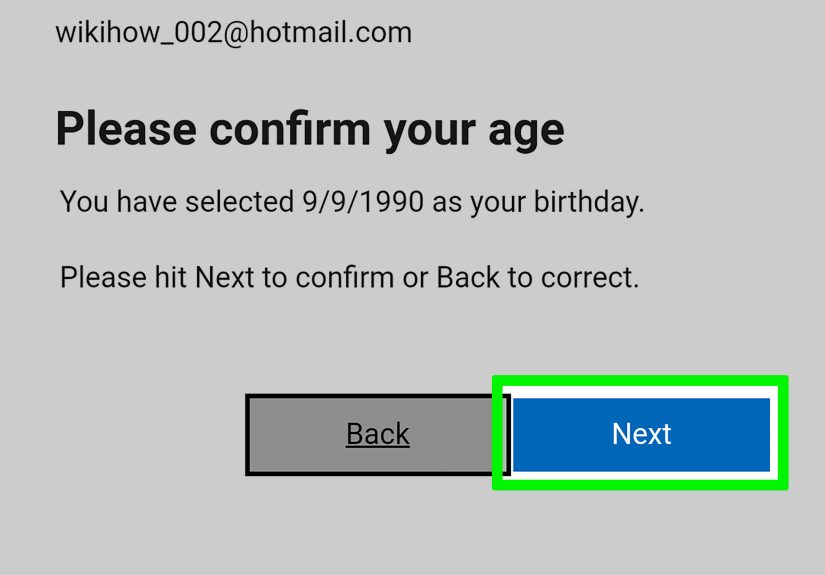
Enter your name and basic details. Microsoft may ask for your name, country/region, and birthdate.
Use accurate infoespecially the birthdatebecause it can affect account settings and recovery options. -
Complete verification. You may need to solve a CAPTCHA and/or verify via phone number or alternate
email. This step helps reduce bots and fraud, even if it occasionally feels like you’re proving you’re not a toaster. -
Sign in to your new inbox. Once created, you’ll land in Outlook on the web, where you can start
sending emails immediately.
Bonus setup: Make your new account easier to recover
Most people skip recovery details because everything is fine… until it’s not. Right after signup, consider adding:
- a backup email address you can access
- a phone number (if you’re comfortable using one)
- two-step verification for extra protection
Method 2: Create a Hotmail Account Using the Outlook Mobile App (Great for Phone-First Setup)
If you’re setting up email on your phone anyway, creating the account inside the Outlook app can be convenient.
This method is especially straightforward on Android, and on iPhone/iPad it may route you through a similar
Microsoft sign-up screen.
Step-by-step: Create a Hotmail account in the Outlook app
- Install the Microsoft Outlook app from your device’s app store.
- Open Outlook and tap Add Account (or a plus icon).
- Choose Create New Account (wording can vary). This launches the Microsoft account creation flow.
-
Pick your new email address and select @hotmail.com if it’s offered. If not, choose
@outlook.com. - Create a password and finish the prompts (name, region, birthdate, verification).
- Confirm and start using your inbox (Outlook will automatically configure everything).
Why the app method is worth it
- Instant setup: your inbox is ready inside the same app you’ll use daily.
- Smoother verification: phone-based verification can be easier on a mobile device.
- Fewer “where do I click?” moments: the app keeps you in a guided flow.
Common Problems (and Fixes) When Creating a Hotmail Account
“That username is taken.”
This is the most common issue, and it doesn’t mean you’re doing anything wrongit means someone else had the same
brilliant idea in 2004. Try these tweaks:
- Add a middle initial: alex.j.morgan
- Add a short descriptor: alex.morgan.mail or alex.morgan.work
- Try a light number: alexmorgan27 (avoid full birthdays)
“I don’t see @hotmail.com.”
Don’t take it personallyHotmail isn’t playing hard to get; availability can vary. If @hotmail.com isn’t shown:
- Create an @outlook.com address (same system, same benefits).
-
If you absolutely must have @hotmail.com, try again later or from a different device/browserbut be prepared that
it still may not appear. -
Important: You generally can’t create a brand-new @hotmail.com alias later on an existing account,
so choose carefully during sign-up.
Verification code not arriving
- Double-check the number/email you entered (one typo = eternal waiting).
- Look for delayed texts (carrier delays happen).
- Try a different verification method if offered (alternate email vs. phone).
Using a shared/public computer
If you’re signing up or signing in on a public or shared device, use a private/incognito window and always sign out.
Some sign-in experiences keep you logged in automatically unless you explicitly sign out, which can be a serious
privacy risk on shared machines.
Lock It Down: Security Settings You’ll Thank Yourself For Later
Turn on two-step verification (2FA)
Two-step verification adds a second layer (like a code or approval prompt) when you sign in on new devices. It’s one
of the best ways to protect your Microsoft/Hotmail email from account takeovers.
Consider passkeys for easier, safer sign-ins
Passkeys can let you sign in with your device’s biometric method (Face ID, fingerprint), a PIN, or a security key
reducing reliance on passwords and making phishing much harder to pull off.
Build a recovery “safety net”
Add multiple recovery options (backup email + phone + authenticator option) so you don’t get locked out if one method
fails. The tiny bit of setup time now can save you a huge headache later.
After You Create Your Hotmail Account: Smart First-Week Setup
- Set your display name so emails don’t arrive as “Outlook User 4927.”
- Create a signature (even a simple one) for a more polished look.
- Organize with folders or rules so your inbox doesn’t become a digital junk drawer.
- Check spam/junk settings and mark important senders as safe.
FAQ: Quick Answers About Hotmail Account Creation
Is Hotmail the same as Outlook?
Hotmail is now Outlook.com for webmail. You still use the same Microsoft account credentials to sign in, and your
email works the same wayit’s mostly a branding and platform evolution.
Can I create multiple Hotmail accounts?
Yes, you can create multiple Microsoft email accounts, but you’ll need to manage them carefully (recovery info,
passwords, and sign-in security) so you don’t mix them up.
What if I haven’t signed in to an old Hotmail account in years?
If an account hasn’t been accessed for a long time, it may be deleted under inactivity policies. If you’re trying to
recover an older account, use Microsoft’s sign-in help tools as soon as you notice the problem.
Real-World Experiences: What People Run Into (and How to Avoid the Drama)
Let’s talk about the part no one writes on the “official steps” page: the human experience. Creating a Hotmail
account is easyuntil it’s suddenly not, and you’re staring at a screen like it personally betrayed you.
Here are common real-life situations people run into, plus the small moves that make the process smoother.
Experience #1: “Every username I try is taken. Every. Single. One.”
This happens constantlyespecially if your name is common or you’re trying short, clean usernames like
michael.smith or jessica. The trick is to stop thinking “perfect” and start thinking
“recognizable.” Many people have success using a pattern like:
first name + last initial + short number (example: jordanp47) or
first.last + descriptor (example: jordan.parker.notes).
You get something memorable without oversharing personal info.
Experience #2: “I wanted @hotmail.com, but it only shows @outlook.com.”
The emotional journey here is realsome folks want Hotmail for nostalgia, branding, or consistency with an older
address. What usually helps is reframing: an @outlook.com email is still part of the same ecosystem
and works with the same Outlook inbox. If your goal is simply “a Microsoft email I can use everywhere,” Outlook.com
is functionally equivalent. If your goal is “I need Hotmail specifically,” the best strategy people report is trying
the sign-up flow again later or from a different device/browserwhile accepting that Microsoft may still not offer it
at that moment.
Experience #3: “Verification codes never arrive, and now I’m stuck.”
This is one of the most frustrating hiccups because it feels like you’re locked out of an account you don’t even have
yet. In practice, the best fixes are simple: confirm you entered the correct number/email, wait a few minutes (carrier
delays happen), and use an alternate verification option if the screen offers one. People also avoid trouble by using
a phone they have strong reception on (sounds obviousuntil you’re in a basement or a dead zone).
Experience #4: “I made the account, then immediately forgot my password.”
It happens more often than anyone admits. The fastest way to prevent this is to set up recovery options right away:
a backup email and/or phone number, plus two-step verification if you can. In real-world use, people who add recovery
info during the first setup are dramatically less likely to lose access later. It’s the digital version of keeping a
spare keyexcept the spare key can also stop strangers from walking into your house.
Experience #5: “I signed in on a shared computer and forgot to log out.”
This is the one that makes people say, “Wait… did I just leave my whole life open?” If you ever sign in on a shared
device, use private browsing and sign out when finished. Many users don’t realize that some sign-in experiences can
keep you signed in unless you explicitly sign out, which is convenient at home and a nightmare everywhere else.
Bottom line: the steps are simple, but the smoothest outcomes come from small, smart decisionschoosing a usable
username, setting recovery options early, and treating sign-in security like it matters (because it does).
Conclusion
Creating a Hotmail account today is really about creating a Microsoft email address through Outlook’s sign-up flow.
Use Method 1 (web) if you want the most reliable experience, or Method 2 (Outlook app)
if you’re setting up on mobile and want everything configured instantly. If @hotmail.com is available, grab it during
sign-up. If not, @outlook.com gives you the same core email experiencejust with a more modern label.
And once your account is live, do your future self a favor: set recovery options, enable two-step verification, and
consider passkeys. Your inbox will be happier. Your stress levels will be lower. And you’ll never have to negotiate
with a CAPTCHA again… well, not as often.