Table of Contents >> Show >> Hide
- The 10-Second Answer
- First: What Are You Actually Renaming?
- Before You Rename: Two Quick Safety Checks
- Method 1: Rename a Disk in Finder (Easiest)
- Method 2: Rename a Disk in Disk Utility (Most Reliable)
- Method 3: Rename a Disk with Terminal (Fast, Precise, Nerd-Approved)
- Troubleshooting: When macOS Won’t Let You Rename the Disk
- Problem: “Rename” is greyed out in Finder or Disk Utility
- Problem: You’re selecting the wrong thing in Disk Utility
- Problem: The drive is formatted as NTFS (or otherwise read-only)
- Problem: The old name still appears in Terminal or something mounts “weird”
- Problem: Startup disk rename is messy (System + Data volumes)
- Best Practices: Names That Won’t Make “Future You” Sigh
- FAQ: Quick Answers to Common Questions
- Extra: of Real-World “Renaming Experiences” (a.k.a. Lessons From the Land of Untitled)
If your Mac is currently home to drives named Untitled, Untitled 2, and UNTITLED_FINAL_FINAL_REALLY, congratulationsyou’re living the universal storage experience. The good news: renaming a disk (more accurately, a volume) on macOS is usually quick, safe, and oddly satisfying. The better news: when it’s not quick, we can still fix it without sacrificing your weekend (or your data).
This guide walks you through every reliable methodFinder, Disk Utility, and Terminalplus the most common “Why is Rename greyed out?” moments, what they mean, and how to get unstuck. We’ll keep it practical, a little funny, and very “copy/paste this command if needed.”
The 10-Second Answer
- Open Finder.
- In the sidebar under Locations, click the drive.
- Press Return, type the new name, press Return again.
If that doesn’t work (or Rename is disabled), jump to the Disk Utility method or Troubleshooting.
First: What Are You Actually Renaming?
macOS storage terms can feel like they were invented during a caffeine shortage, so here’s the simple breakdown:
Disk vs. Volume vs. Container (Why Your “Disk Name” Might Not Change)
- Disk (physical device): The actual SSD/HDD/USB drive (like a Samsung T7). Disk Utility may show this with a manufacturer-ish label.
- Volume: The thing you see in Finder (like “Time Machine” or “Work Drive”). This is what you normally rename.
- APFS container: A storage “bucket” that can hold multiple APFS volumes. You typically rename volumes, not the container.
When people say “rename a disk on Mac,” they almost always mean “rename the volume so it shows the name I want in Finder, on the Desktop, and in save/open dialogs.”
Before You Rename: Two Quick Safety Checks
1) Make sure the drive is writable
If the drive is formatted as something macOS treats as read-only (common example: some NTFS drives without a write driver), macOS may let you view files but won’t let you rename the volume. You’ll see Rename fail, be greyed out, or “stick” and then revert.
2) Avoid renaming while the drive is actively doing something important
Renaming is generally safe, but it’s smart to pause big transfers, backups, or disk repairs first. If Time Machine is mid-backup, let it finish. If Spotlight is indexing a brand-new drive, give it a minute.
Method 1: Rename a Disk in Finder (Easiest)
Finder is the simplest and most “Mac-like” way to rename a disk. If your external drive isn’t visible on your Desktop, don’t panicFinder can still rename it from the sidebar.
Option A: Rename from Finder’s Sidebar (Locations)
- Open Finder.
- In the left sidebar, find the drive under Locations.
- Click the drive once to select it.
- Press Return (or Enter on some keyboards).
- Type the new name and press Return again.
Option B: Right-click > Rename
- In Finder’s sidebar (Locations) or on the Desktop, Control-click the drive.
- Select Rename.
- Type the new name, then press Return.
Option C: Rename via Get Info (Handy when clicking doesn’t “edit”)
- Select the drive in Finder.
- Press Command + I (Get Info).
- In the Info window, click the name field and type the new name.
- Close the windowyour change should apply immediately.
Pro tip: If you like seeing external drives on your Desktop, enable it in Finder settings so you can rename them like any other icon. It’s not required, but it makes the whole thing feel delightfully obvious.
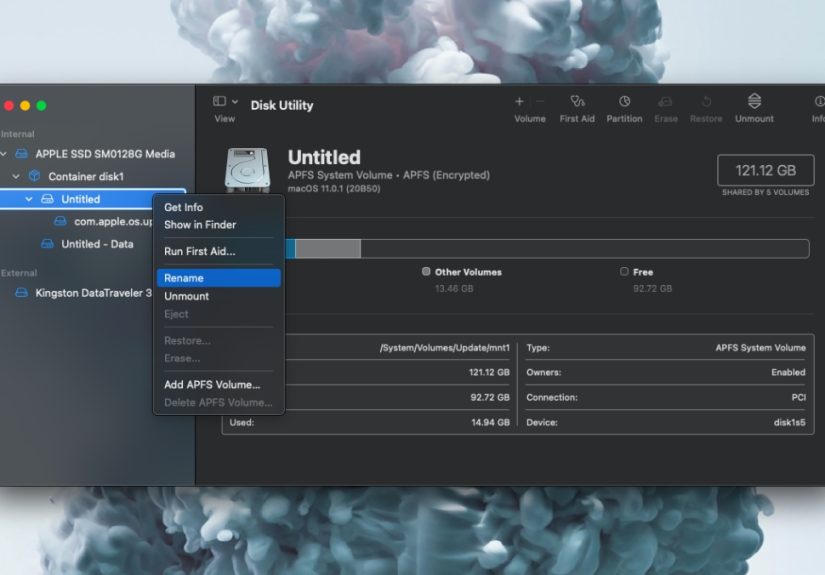
Method 2: Rename a Disk in Disk Utility (Most Reliable)
Disk Utility is your “okay, Finder is being dramatic today” tool. It’s also the better option when you’re dealing with APFS volumes, volume groups (common on modern macOS), or a Rename option that’s mysteriously greyed out.
Step-by-step: Rename a Volume in Disk Utility
- Open Disk Utility (Spotlight: Command + Space, type “Disk Utility”).
- In Disk Utility, choose View > Show All Devices (this helps you select the correct item).
- In the sidebar, click the volume you want to rename (the item that matches what you see in Finder).
- Choose File > Rename (or Control-click the volume name in the sidebar and choose Rename).
- Type the new name and confirm.
Renaming a macOS Startup Disk (Read this before you do it)
On macOS Catalina and later, the startup disk often appears as a “volume group” (a read-only System volume plus a Data volume). Renaming can be a little weird because you may need to rename both parts (or rename the volume group so macOS updates the pair).
If you’re renaming your active startup disk and the rename option is blocked, the safest approach is to boot into macOS Recovery, open Disk Utility there, and rename the correct volume or volume group. Don’t change security settings or disable protections just to rename a label. If Recovery feels like overkill, skip the startup disk rename and instead rename external drivesthose are usually painless.
Method 3: Rename a Disk with Terminal (Fast, Precise, Nerd-Approved)
Terminal is great when you want repeatable steps (like scripts), when the GUI is being stubborn, or when you manage multiple Macs. The key command is diskutil renameVolume.
Step 1: Identify the volume
Open Terminal and run:
Look for the volume you want to rename. You’ll see an identifier like disk2s1. (Think: disk number + slice number.)
Step 2: Rename it
Use the identifier:
If you prefer using the mounted path (works when the volume is mounted in Finder):
What to expect
- The rename is usually instant.
- Some filesystems have character/length limits, so keep names reasonably simple.
- If the volume is busy, locked, or read-only, the command may failthen jump to troubleshooting.
Troubleshooting: When macOS Won’t Let You Rename the Disk
If Rename is greyed out, the name changes and snaps back, or you get a permissions-style error, it’s almost always one of these scenarios.
Problem: “Rename” is greyed out in Finder or Disk Utility
Try this: Unmount and remount the volume, then rename again.
- Open Disk Utility.
- Select the volume.
- Click Unmount (or choose File > Unmount).
- Click Mount.
- Now try Rename again.
This sounds too simple to be true, but it fixes a surprising number of “Rename is disabled” casesespecially with external drives and some macOS versions.
Problem: You’re selecting the wrong thing in Disk Utility
In Disk Utility, renaming the device or the container isn’t always an option, but renaming the volume is. Use View > Show All Devices, then click the volume that matches what Finder shows.
Problem: The drive is formatted as NTFS (or otherwise read-only)
Many external drives come formatted for Windows. If macOS can’t write to the filesystem, it may not be able to rename the volume. Options include:
- Copy data off the drive and reformat it to a Mac-friendly format (like APFS) if you only use it on Macs.
- Use exFAT if you need the drive to work on both Windows and macOS (great for shuttling files).
- Use a trusted NTFS write solution if you must keep NTFS and need write support.
Important: Reformatting erases the drive. Back up first.
Problem: The old name still appears in Terminal or something mounts “weird”
macOS mounts volumes under /Volumes. If a stale folder remains there with the old name, your newly renamed drive may mount with a suffix (like “Drive 1”) or behave oddly.
Fix:
- Eject/unmount external drives.
- In Finder, choose Go > Go to Folder… and enter
/Volumes. - If you see leftover folders matching old drive names, remove them (carefullydon’t delete mounted volumes).
- Reconnect/mount the drive again.
Problem: Startup disk rename is messy (System + Data volumes)
Modern macOS installs commonly create a System volume and a Data volume. You might see names like: Macintosh HD and Macintosh HD – Data. Renaming may require updating both, or renaming the volume group. If macOS blocks it while running normally, do it from Recovery using Disk Utility.
Best Practices: Names That Won’t Make “Future You” Sigh
Use a naming system that scales
- Purpose-based: Time Machine, Photo Archive, Client Deliverables
- Date-based for rotating backups: Backup 2026-03 or TM 2026-03-05
- Device + purpose: T7 Projects, SanDisk Media
Avoid characters that cause cross-platform drama
Most modern filesystems handle spaces fine, but if you regularly plug the drive into routers, NAS boxes, Linux machines, or Windows PCs, stick to letters, numbers, spaces, dashes, and underscores. Your drive name doesn’t need emoji. (Your drive can’t even see the emoji. It’s a drive.)
FAQ: Quick Answers to Common Questions
Does renaming a disk erase data?
Norenaming a volume is not the same as erasing or reformatting. It changes the label, not the contents. (Reformatting is what erases data.)
Why does my drive name show differently in Disk Utility vs Finder?
Finder emphasizes volume names (what you mount and use), while Disk Utility also shows the physical device, containers, and volumes. You may be looking at different layers of the same storage device.
Can I rename a Time Machine disk?
Often yes, but it’s smarter to do it when Time Machine isn’t actively backing up. If renaming breaks your backup selection, you can simply reselect the disk in Time Machine settings.
Why does my renamed drive keep reverting?
Common causes include read-only formats, permissions/ownership issues, or mount point conflicts in /Volumes. Work through the troubleshooting section and you’ll usually spot the culprit quickly.
Extra: of Real-World “Renaming Experiences” (a.k.a. Lessons From the Land of Untitled)
The first time I tried to rename a disk on macOS, it felt like a task so basic it should come with a complimentary sticker. I clicked the drive name on the Desktop, typed something sensible, pressed Return… and it worked. I thought, “Wow, I’m basically an IT wizard.” Five minutes later, macOS humbled me. A second drive refused to renameno error, no drama, just a quiet, passive-aggressive refusal. Rename was greyed out like it had a prior commitment.
That’s when I learned my first big lesson: macOS cares what you’re renaming. I wasn’t actually targeting the volume the way I thought. In Disk Utility, the sidebar can show the device, the container, and the volumethree things that look like “the drive” to a normal human. Once I switched to “Show All Devices” and clicked the volume that matched Finder, Rename suddenly became available. Mystery solved. Ego restored.
The second lesson came from an external drive that was clearly “working” but wouldn’t accept a new name. I could open files, copy things off, and generally treat it like storage… but renaming? Nope. Turned out it was formatted as NTFS from a Windows setup. macOS was basically saying, “I can read this book, but I’m not allowed to write in the margins.” I ended up copying the data elsewhere, reformatting to exFAT for cross-platform use, and then renaming it without resistance. The rename wasn’t the problemthe filesystem was.
Then there’s the “rename worked, but why is the old name still haunting Terminal?” moment. I once renamed a drive and later noticed weird duplicates under /Volumes. The fix was oddly simple: unmount, check /Volumes for stale folders with the old name, remove the leftovers, and remount. After that, the drive stopped showing up with “(1)” like it was auditioning for a sequel.
Finally, the startup disk lesson: modern macOS installs can behave like a pairSystem and Data volumes. Renaming one without understanding the relationship can create confusing labels (especially if you’re juggling multiple macOS installs). If you absolutely must rename a startup disk, doing it from Recovery with Disk Utility is the calm, grown-up approach. The overall theme? Renaming is easyuntil it isn’tand when it isn’t, macOS is usually giving you a clue. You just have to know where to look.