Table of Contents >> Show >> Hide
- What Does “Vizio TV Flickering” Actually Mean?
- Quick Diagnosis: Find the Source Before Fixing It
- Fix 1: Power Cycle the Vizio TV
- Fix 2: Check HDMI Cables and Ports
- Fix 3: Test Another Input or App
- Fix 4: Turn Off Problem Picture Settings
- Fix 5: Adjust Brightness, Backlight, and Picture Mode
- Fix 6: Update Vizio TV Firmware
- Fix 7: Lower Gaming and PC Output Settings
- Fix 8: Disable CEC and Test External Device Control
- Fix 9: Check Power, Outlet, and Surge Protector
- Fix 10: Factory Reset the Vizio TV
- When Flickering Points to Hardware Failure
- Should You Repair or Replace a Flickering Vizio TV?
- Preventing Vizio TV Flickering in the Future
- Real-World Experience: What Vizio TV Flickering Teaches You
- Conclusion
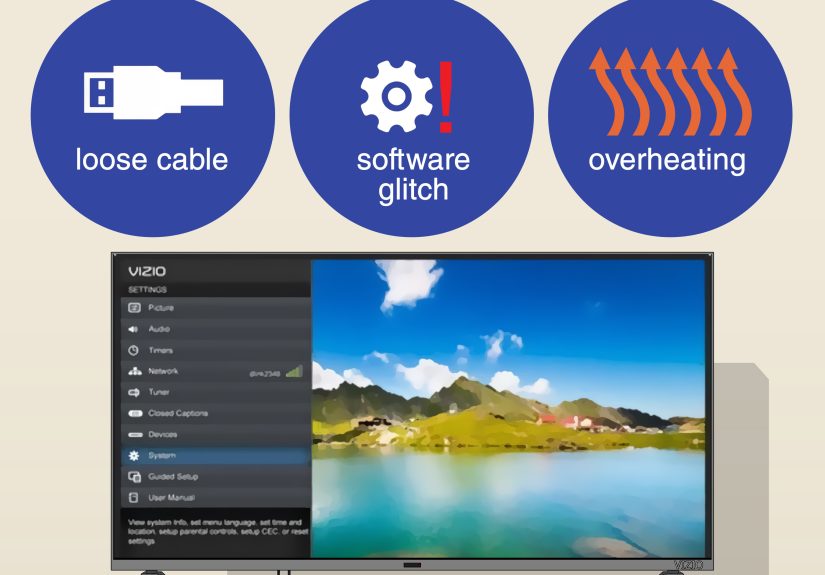
A Vizio TV flickering in the middle of a movie is one of those tiny modern disasters that feels much bigger than it is. One minute you are watching a perfectly dramatic scene, and the next your screen is blinking like it is trying to communicate with passing aircraft. The good news? A flickering Vizio TV is often caused by something simple: a loose HDMI cable, a confused picture setting, a software hiccup, a power issue, or an external device that is behaving like it drank three espressos.
The less-fun news is that screen flickering can also point to hardware trouble, such as failing LED backlights, a weak power board, or panel issues. The trick is to diagnose the problem in the right order. Do not start by shopping for a new TV. Start with the fast, low-cost fixes, then move toward the more serious possibilities only if the simple steps fail.
This guide walks you through practical Vizio TV flickering diagnosis and quick fixes in plain English. You will learn how to tell whether the flicker comes from the TV, your HDMI device, picture settings, firmware, power supply, or internal hardware. Grab the remote, maybe a spare HDMI cable, and let us make your TV behave like a television again instead of a haunted window.
What Does “Vizio TV Flickering” Actually Mean?
“Flickering” can mean several different symptoms, and each one gives a clue. Before changing settings, watch the screen carefully and identify the pattern.
Common flickering symptoms
- Brightness pulsing: The picture gets brighter and darker repeatedly.
- Black flashing: The screen briefly goes black, then returns.
- Horizontal or vertical flashes: Lines, bands, or sections blink across the panel.
- Flicker only on HDMI: Streaming apps look fine, but a cable box, console, or PC causes flashing.
- Flicker only in HDR or gaming: The issue appears when Dolby Vision, HDR10, VRR, or a high refresh rate is active.
- Flicker on every input: Menus, apps, HDMI sources, and live TV all flicker.
If the flicker happens only with one device, the TV may be innocent. If it happens on every screen, including the Vizio menu, the problem is more likely inside the TV or its settings.
Quick Diagnosis: Find the Source Before Fixing It
Start with a simple test: press the Menu button on your Vizio remote while the screen is flickering. If the menu looks stable while the video behind it flickers, the issue may be the input device, cable, streaming signal, or content. If the menu itself flickers, the issue is more likely the TV, picture processing, power delivery, or hardware.
Use this quick decision guide
| Symptom | Likely Cause | First Fix to Try |
|---|---|---|
| Only one HDMI device flickers | Bad cable, HDMI handshake, device output setting | Replace HDMI cable and try another port |
| Screen flashes black during gaming | HDR, VRR, refresh rate, or HDMI bandwidth conflict | Disable VRR/HDR temporarily and test 60Hz |
| Brightness pulses during dark scenes | Local dimming or dynamic contrast behavior | Adjust Active Full Array, backlight, and contrast settings |
| All apps and inputs flicker | Firmware, power issue, or hardware fault | Power cycle, update firmware, then factory reset |
| Flicker gets worse after the TV warms up | Backlight, power board, or internal component failure | Stop DIY testing and consider professional service |
Fix 1: Power Cycle the Vizio TV
The classic unplug-and-wait method sounds too simple, but it solves more TV problems than it has any right to. A Vizio TV is basically a computer with a giant screen and strong opinions about entertainment. Like any computer, it can freeze, misread a signal, or get stuck in a weird temporary state.
How to power cycle properly
- Turn off the TV.
- Unplug the power cord from the wall outlet.
- Wait at least 60 seconds.
- Press and hold the physical power button on the TV for about 10 to 30 seconds if your model has one.
- Plug the TV directly into the wall outlet and turn it back on.
Do not plug it back into a crowded power strip yet. Testing from a direct wall outlet helps rule out a weak surge protector or loose power connection. If the flickering disappears, your TV may simply have needed a clean restart. Celebrate quietly. The TV may hear you.
Fix 2: Check HDMI Cables and Ports
HDMI cables are often blamed unfairly, but they are also often guilty. A cable can look perfectly fine while struggling with 4K, HDR, Dolby Vision, gaming consoles, or higher refresh rates. If your Vizio TV flickers only when using a cable box, PlayStation, Xbox, Blu-ray player, Roku, Apple TV, or PC, the HDMI chain should be your first suspect.
What to do
- Unplug and firmly reconnect both ends of the HDMI cable.
- Try a different HDMI port on the Vizio TV.
- Swap in a known-good, high-speed HDMI cable.
- Remove HDMI splitters, capture cards, adapters, and receivers temporarily.
- Restart the external device after reconnecting the cable.
For 4K HDR sources, use a cable rated for the bandwidth your device requires. A bargain-bin HDMI cable might handle the home screen but panic when HDR gaming begins. That panic can look like flickering, black flashes, sparkles, or random signal dropouts.
Fix 3: Test Another Input or App
A smart way to diagnose Vizio TV screen flickering is to compare sources. Open a built-in app such as YouTube, Netflix, Hulu, Disney+, or WatchFree+. Then test an HDMI device. If built-in apps look stable but HDMI flickers, the TV panel is probably not the main problem.
Try this simple source test
- Play a built-in streaming app for five minutes.
- Switch to the HDMI device that usually flickers.
- Try a second HDMI device if available.
- Try the same HDMI device on another TV or monitor.
If the same device flickers on another display, the device or cable is the likely culprit. If every device flickers on the Vizio, keep moving through the TV-side fixes below.
Fix 4: Turn Off Problem Picture Settings
Modern TVs use a lot of picture processing to make images look smoother, brighter, sharper, darker, punchier, and occasionally more dramatic than a soap opera villain. These features can improve picture quality, but they can also create flicker-like symptoms, especially in dim scenes, sports, fast motion, or HDR content.
Settings to test on a Vizio TV
- Active Full Array or Local Dimming: Try Off, Low, Medium, and High to see whether brightness pulsing changes.
- Clear Action: Turn it off if the image looks like it is flashing or strobing.
- Black Detail: Disable it while testing.
- Dynamic Contrast: Turn it off to reduce sudden brightness shifts.
- Motion smoothing settings: Reduce or disable motion enhancement if it creates artifacts.
- Ambient light sensor or energy-saving mode: Turn it off if brightness changes randomly with room lighting.
On many Vizio models, you can access picture options by pressing Menu, choosing Picture, and reviewing advanced picture settings. The exact labels vary by model and year, so do not worry if your menu looks slightly different. The goal is simple: temporarily turn off extra processing and see whether the flicker stops.
Fix 5: Adjust Brightness, Backlight, and Picture Mode
If your Vizio TV flickering looks more like brightness pulsing than full signal loss, experiment with picture mode and backlight settings. Some users notice flicker in very bright modes, while others see pulsing in dark rooms when local dimming is active.
Recommended test settings
- Switch from Vivid to Calibrated or Calibrated Dark.
- Set Backlight to a moderate level instead of maximum.
- Turn off Eco Mode or automatic brightness controls while testing.
- Disable Clear Action if the picture appears to flicker during motion.
- Reset picture settings for the current input if changes have piled up over time.
Vivid mode can be useful in a sunny room, but it also pushes brightness and processing harder. Think of it as the TV equivalent of shouting in neon. For everyday viewing, a calibrated mode often gives a more stable and natural image.
Fix 6: Update Vizio TV Firmware
Firmware updates can fix bugs related to HDMI compatibility, app performance, picture processing, and system stability. If your Vizio TV started flickering after connecting a new device or using a newer video format, a software update is worth checking.
How to check for updates
- Connect the TV to the internet.
- Press Menu on the Vizio remote.
- Go to Admin & Privacy or System, depending on your model.
- Select Check for Updates.
- Allow the TV to download, install, and restart without unplugging it.
Do not interrupt an update. A flickering screen is annoying, but a half-updated TV is a different kind of headache. After the update finishes, test the same content or HDMI device again.
Fix 7: Lower Gaming and PC Output Settings
Vizio TV flickering during gaming often comes from a mismatch between the console, PC, cable, and TV input settings. The TV may be trying to handle HDR, VRR, 4K resolution, 120Hz, and low-latency mode all at once. That is a lot of negotiation for one HDMI cable. Sometimes the handshake turns into a slap fight.
For Xbox, PlayStation, and PC
- Set output to 4K at 60Hz temporarily.
- Turn off VRR or FreeSync while testing.
- Disable HDR and test standard dynamic range.
- Try a different HDMI port labeled for enhanced 4K or gaming if your model has one.
- Use the original console HDMI cable or a certified high-speed replacement.
- Update the console, PC graphics driver, and TV firmware.
If flickering stops at 60Hz but returns at 120Hz, the issue may involve cable bandwidth, HDMI port capability, or a specific gaming feature. You can then turn features back on one by one to find the troublemaker.
Fix 8: Disable CEC and Test External Device Control
HDMI-CEC lets devices control each other. It is convenient when everything works and confusing when it does not. A streaming stick, game console, soundbar, or cable box may wake the TV, switch inputs, or trigger signal changes that look like flashing or brief blackouts.
How to test CEC
- Press Menu on the remote.
- Go to System or All Settings.
- Find CEC.
- Turn it off temporarily.
- Restart the TV and test the flickering source again.
If the screen becomes stable, one of your HDMI devices may have been causing control or signal conflicts. You can leave CEC off or enable it again after isolating the device.
Fix 9: Check Power, Outlet, and Surge Protector
A flickering Vizio TV can be caused by unstable power. The screen backlight needs consistent voltage. If the power strip is worn out, the outlet is loose, or too many devices are sharing one overloaded strip, the picture may pulse or blink.
Power checks that matter
- Plug the TV directly into a wall outlet.
- Avoid using an extension cord during testing.
- Try another outlet in the room.
- Inspect the power cord for damage or looseness.
- Disconnect nearby high-draw devices from the same strip.
If the TV flickers when an air conditioner, heater, vacuum, or large appliance turns on, the issue may be electrical. In that case, do not ignore it. A stable outlet and quality surge protection are cheaper than replacing a TV.
Fix 10: Factory Reset the Vizio TV
A factory reset should not be your first move, because it erases settings and app logins. But if power cycling, cable swaps, firmware updates, and picture adjustments do not help, a reset can clear stubborn software problems.
How to factory reset most Vizio Smart TVs
- Press Menu.
- Go to Admin & Privacy or System.
- Select Reset to Factory Settings or Reset TV to Factory Defaults.
- Enter the PIN if asked. The default is often 0000 unless you changed it.
- Confirm the reset and complete the setup again.
After resetting, test the TV before changing many settings. If the picture is stable at first but flickers again after you enable a feature, you have found a likely cause.
When Flickering Points to Hardware Failure
If the screen flickers on the Vizio logo, built-in menus, every app, and every HDMI input, the problem may be hardware. The most common suspects include LED backlight strips, the power supply board, the T-Con board, ribbon cables, or the display panel itself.
Signs of possible hardware trouble
- The flicker appears even with no HDMI devices connected.
- The screen flickers more as the TV warms up.
- One side or section of the screen flashes differently from the rest.
- The picture becomes dim, then flickers, then disappears.
- You see persistent lines, bands, or dark patches.
- The TV makes clicking sounds or repeatedly restarts.
At this point, avoid opening the TV unless you are trained to repair electronics. Televisions can hold dangerous electrical charge, and large panels are fragile. A professional technician can test boards, backlights, and connections safely. If the TV is under warranty, contact Vizio support before paying for repair.
Should You Repair or Replace a Flickering Vizio TV?
The answer depends on the age, size, model, repair quote, and how bad the flicker is. A loose cable costs almost nothing. A new HDMI cable is cheap. A firmware update is free. A backlight or board repair may be worth it on a larger, newer TV. A panel replacement, however, can cost so much that replacement makes more sense.
A practical repair rule
If the repair estimate is more than half the cost of a comparable new TV, think carefully before approving the repair. Also consider whether the TV has other issues, such as slow apps, weak Wi-Fi, old HDMI ports, or poor HDR performance. Sometimes fixing an older TV is smart. Sometimes it is just giving a retirement party to a screen that already packed its bags.
Preventing Vizio TV Flickering in the Future
Once the flicker is gone, a few habits can help keep it away. Use quality HDMI cables, avoid bending them sharply, keep firmware updated, and do not run the TV at maximum brightness all day unless the room truly requires it. Make sure the TV has ventilation, because heat can shorten the life of internal components.
Good long-term habits
- Keep the TV connected to the internet for firmware updates.
- Use certified HDMI cables for 4K HDR and gaming.
- Plug the TV into a reliable surge protector after testing.
- Clean dust from vents with a soft cloth or gentle air.
- Avoid extreme brightness settings for long daily use.
- Write down picture settings before experimenting.
Most flickering problems start small. Treating them early can prevent bigger frustration later.
Real-World Experience: What Vizio TV Flickering Teaches You
After dealing with flickering TVs in real homes, one lesson becomes obvious: the scariest-looking symptom is not always the most expensive problem. A screen that flashes black every few minutes feels like a dying panel, but it can be as simple as an HDMI cable that cannot keep up with 4K HDR. A picture that pulses during dark scenes can look like electrical failure, yet the culprit may be local dimming or a dynamic contrast setting trying too hard to be helpful.
One common experience is the “new device surprise.” Someone connects a new game console or streaming box, and suddenly the Vizio TV starts blinking. The TV worked yesterday, so the natural reaction is to blame the TV. But the new device may be sending a higher-resolution signal, enabling HDR, switching frame rates, or using a feature like VRR. The fix is not dramatic. Lower the output to 4K 60Hz, turn off HDR temporarily, use a better HDMI cable, and test again. When the flicker disappears, you can restore features one at a time. This method is slower than randomly changing settings, but it actually tells you what happened.
Another real-world pattern is the “picture setting rabbit hole.” People often change one setting, then another, then ten more, until nobody remembers what the original picture looked like. Vivid mode, motion smoothing, Clear Action, local dimming, ambient sensors, and contrast boosters can all affect perceived flicker. The best experience-based advice is to simplify first. Choose a normal picture mode, disable extra processing, and test a familiar scene. A stable but slightly less flashy image is better than a dazzling picture that blinks like a faulty porch light.
Power issues are also sneakier than they appear. A TV plugged into an old power strip behind a cabinet may flicker because the connection is loose or the strip is overloaded. Many people forget to test the wall outlet because the TV turns on, but “turns on” does not always mean “gets clean, stable power.” Plugging the TV directly into the wall for a test can save hours of unnecessary menu diving.
The most important experience, though, is knowing when to stop. If the Vizio menu flickers, every input flickers, the screen has lines, or the image gets worse as the TV warms up, do not keep resetting it forever. That is the TV equivalent of asking a tired person to jog. It may be a backlight, power board, T-Con board, or panel issue. At that stage, warranty support or professional diagnosis is the smarter move. The goal is not to become a TV surgeon overnight. The goal is to separate simple fixes from serious failures without making the problem worse.
Conclusion
Vizio TV flickering can come from many places, but the diagnosis does not have to be chaotic. Start with the basics: power cycle the TV, check HDMI cables, test different inputs, and simplify picture settings. Then update firmware, adjust gaming or PC output settings, disable CEC, and test the power source. If none of those steps work and the flickering appears across menus and all inputs, the issue may be internal hardware that needs professional service.
The key is to troubleshoot in order. Cheap fixes first. Settings second. Software third. Hardware last. That approach saves money, protects your TV, and keeps you from replacing a perfectly good screen because one dramatic HDMI cable decided to audition for a lightning storm.