Table of Contents >> Show >> Hide
- What Mouse Sensitivity Really Means on Windows
- The Best Method to Change Mouse Sensitivity on Windows
- Why This Is the Best Method
- Use Additional Mouse Settings for Better Fine-Tuning
- Mouse Sensitivity vs DPI: Which One Should You Change?
- How to Change Touchpad Sensitivity on a Windows Laptop
- Best Mouse Sensitivity Settings for Different Types of Users
- Common Problems After Changing Mouse Sensitivity
- Quick Troubleshooting Tips
- The Smartest Way to Find Your Ideal Setting
- Final Thoughts
- Real-World Experiences With Changing Mouse Sensitivity on Windows
Let’s be honest: a weird mouse can make a perfectly good computer feel like it’s being operated from a moving skateboard. If your cursor shoots across the screen like it drank three espressos, or crawls around like it is reconsidering every life choice, your Windows mouse sensitivity probably needs attention.
The good news is that changing mouse sensitivity on Windows is easy. The better news is that you do not need to wander through ten mysterious menus, summon the Control Panel gods, or aggressively click random sliders hoping something magical happens. There is a best method, and once you know it, dialing in your mouse becomes much less annoying.
In this guide, you will learn exactly how to change mouse sensitivity on Windows, what settings actually matter, what to ignore, and how to get a smoother feel whether you use a budget office mouse, a gaming mouse with DPI buttons, or a laptop touchpad that occasionally acts like it has its own opinions.
What Mouse Sensitivity Really Means on Windows
Before changing anything, it helps to know what you are actually adjusting. Many people use the terms mouse sensitivity, pointer speed, and DPI like they are interchangeable twins. They are related, but they are not the same thing.
Pointer speed
This is the Windows setting that controls how far the cursor moves on-screen when you move your mouse. If your pointer speed is too high, the cursor feels jumpy. If it is too low, you will end up dragging your mouse halfway across the desk just to close one browser tab.
DPI
DPI stands for dots per inch. On a mouse, it refers to how sensitive the hardware sensor is. Higher DPI usually means the cursor moves farther with less physical hand movement. Many gaming and premium mice let you change DPI using buttons on the mouse or brand software.
Enhance pointer precision
This Windows option is essentially mouse acceleration. When it is enabled, the cursor can move differently depending on how fast you move the mouse. Some people like that for everyday use. Others, especially gamers and precision-focused users, prefer it off for more predictable movement.
Once you understand those three pieces, changing mouse sensitivity becomes much less confusing and much more useful.
The Best Method to Change Mouse Sensitivity on Windows
The best method is to start with the built-in Windows mouse settings, then fine-tune with additional mouse options only if needed. This gives you the cleanest balance of speed, control, and consistency without immediately diving into third-party software.
How to change mouse sensitivity in Windows 11
- Click the Start button.
- Open Settings.
- Select Bluetooth & devices.
- Click Mouse.
- Find the Mouse pointer speed slider.
- Move the slider left to slow the cursor down or right to make it faster.
This is the fastest and most user-friendly way to change mouse sensitivity on Windows 11. It is the method most users should try first because it is simple, built in, and easy to test in real time.
How to change mouse sensitivity in Windows 10
- Click Start.
- Open Settings.
- Select Devices.
- Click Mouse.
- Adjust the Cursor speed slider.
Windows 10 and Windows 11 use slightly different menu labels, but the process is basically the same: open mouse settings, move the speed slider, and test how the pointer feels.
Why This Is the Best Method
Plenty of guides overcomplicate this topic. They jump straight to registry tweaks, brand software, or dramatic declarations about the “one true sensitivity setting.” That is a little like recommending race tires to someone who just wants their grocery cart to stop squeaking.
The Windows settings slider is the best starting point because it is:
- Safe for everyday users
- Quick to access
- Easy to test immediately
- Good enough for most work, browsing, school, and general computing
- Compatible with both wired and wireless mice
For most people, one small adjustment here solves the problem without any extra fuss.
Use Additional Mouse Settings for Better Fine-Tuning
If the main slider gets you close but not quite where you want to be, the next step is Additional mouse settings. This is where Windows stores some of the classic options that have been hanging around for years, like that one reliable friend who still owns a printer cable from 2009.
How to open Additional mouse settings
- Open Settings.
- Go to Bluetooth & devices > Mouse in Windows 11, or Devices > Mouse in Windows 10.
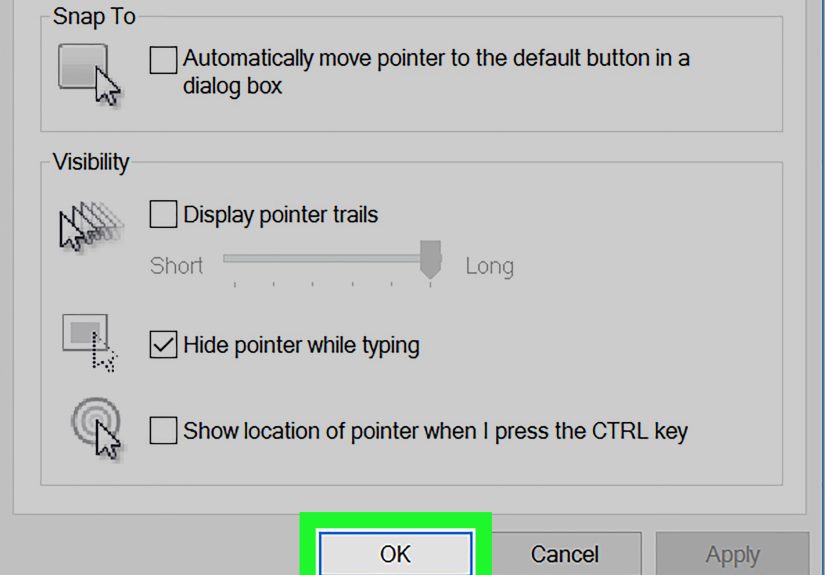
- Click Additional mouse settings.
- Open the Pointer Options tab.
Here, you can adjust the classic pointer speed slider and choose whether to enable or disable Enhance pointer precision.
Should you turn off Enhance pointer precision?
Usually, yes, if you want more predictable movement. This is especially true for gaming, design work, or any task where muscle memory matters. With it turned off, the cursor movement tends to feel more consistent because your physical mouse movement maps more directly to cursor travel.
However, for casual use, some people prefer leaving it on. If you mainly browse, answer emails, and click around spreadsheets all day, it may not bother you at all. The best approach is simple: test both settings for a few minutes and see which feels more natural.
Mouse Sensitivity vs DPI: Which One Should You Change?
If your mouse has dedicated software, DPI buttons, or multiple performance profiles, you may be wondering whether to change Windows sensitivity or mouse DPI instead. The answer depends on your hardware and how picky you are about cursor behavior.
Change Windows sensitivity when:
- You use a standard mouse without custom software
- You want a quick fix
- You mainly use the computer for work, school, browsing, or streaming
- You do not care about super-precise gaming or creative workflows
Change DPI when:
- Your mouse has built-in DPI controls
- You use Logitech, Razer, Dell, Microsoft, or another brand with settings software
- You want more precise control over sensitivity
- You switch between gaming, editing, and everyday work
As a practical rule, start by setting Windows to a comfortable middle-ground speed, then use mouse software to fine-tune DPI if your device supports it. That often gives the cleanest and most consistent result.
How to Change Touchpad Sensitivity on a Windows Laptop
If you are on a laptop, you may not be dealing with a mouse at all. Sometimes the real culprit is the touchpad, which can feel too sensitive, not sensitive enough, or hilariously overconfident when your palms brush it while typing.
How to adjust touchpad sensitivity
- Open Settings.
- Go to Bluetooth & devices > Touchpad on Windows 11 or Devices > Touchpad on Windows 10.
- Adjust Cursor speed.
- Change Touchpad sensitivity if your laptop offers that option.
This is especially useful on laptops from brands such as Dell, HP, and Lenovo, where touchpad sensitivity settings can affect accidental clicks, cursor drift, or overly eager palm detection.
Best Mouse Sensitivity Settings for Different Types of Users
There is no universal perfect setting, because the best mouse sensitivity depends on screen size, mouse DPI, desk space, and how you use your computer. Still, some general guidelines can help.
For office work and everyday use
A medium pointer speed usually works best. You want the cursor to move comfortably across the screen without forcing your wrist into a daily endurance event.
For gaming
Lower sensitivity often gives better control, especially in competitive games. Many players also disable Enhance pointer precision and rely on in-game sensitivity or raw input settings for consistency.
For graphic design or photo editing
A slightly lower, steadier sensitivity helps with fine cursor placement. Big sweeping cursor moves are not very helpful when you are trying to click a tiny anchor point instead of launching the pointer into another zip code.
For large or high-resolution monitors
You may need slightly faster settings or higher DPI so the cursor can travel comfortably across the display without requiring oversized hand movements.
Common Problems After Changing Mouse Sensitivity
The mouse still feels too fast
Check whether your mouse has DPI buttons. You might be lowering Windows pointer speed while the mouse hardware itself is still set to a high DPI profile. Many mice switch DPI accidentally, especially if the button sits near the scroll wheel like a tiny chaos switch.
The cursor feels inconsistent
Try disabling Enhance pointer precision. Also check for mouse-brand software that may be overriding Windows settings.
Games feel different from desktop use
That is normal. Many games use their own sensitivity system, and some support raw input, which can bypass part of the Windows pointer behavior. If your game has its own mouse settings, fine-tune them separately.
The touchpad keeps reacting while typing
Reduce touchpad sensitivity in the laptop settings menu. If your system offers palm rejection or typing delay options, those can also help.
Wireless mouse movement feels laggy
This may not be a sensitivity issue at all. Check the battery, USB receiver placement, Bluetooth connection, and surface quality. A weak battery can make a perfectly innocent mouse feel like it is working through emotional exhaustion.
Quick Troubleshooting Tips
- Restart the PC after major changes
- Test on a different surface or mouse pad
- Update mouse or touchpad drivers if movement feels strange
- Check brand software such as Logitech, Razer, or manufacturer utilities
- Disable acceleration if you want more consistent control
- Try a moderate Windows setting before making extreme adjustments
The Smartest Way to Find Your Ideal Setting
If you want the shortest path to a comfortable cursor, use this simple routine:
- Set Windows pointer speed to a middle or near-middle level.
- Test normal desktop tasks for two or three minutes.
- Open Additional mouse settings and disable Enhance pointer precision.
- Test again.
- If your mouse has DPI software, fine-tune there instead of making giant Windows adjustments.
This method keeps the process organized and helps you identify which setting is actually improving the experience. Otherwise, it is easy to change three things at once and then blame Windows, the mouse, the desk, and maybe the moon cycle.
Final Thoughts
If you have been wondering how to change mouse sensitivity on Windows, the best method is refreshingly simple: start with the built-in mouse settings, adjust the pointer speed slider, and then use Additional mouse settings to fine-tune Enhance pointer precision if needed.
For most users, that solves the problem quickly. For advanced users, gaming mice, and laptop touchpads, the next layer is checking DPI controls, touchpad sensitivity, and device-specific software. The key is understanding that Windows sensitivity, hardware DPI, and acceleration all affect how the cursor feels.
Once those pieces make sense, you can stop fighting your pointer and get back to doing literally anything more exciting than chasing a runaway cursor across the screen.
Real-World Experiences With Changing Mouse Sensitivity on Windows
One of the funniest things about mouse sensitivity is how dramatically it changes the mood of using a computer. People often assume a sluggish laptop or “bad mouse” is the problem, when in reality the settings are just wildly mismatched with the way they work.
For example, office users often crank the pointer speed up because they want to move faster across a large monitor. At first, that feels efficient. Then they try selecting small cells in Excel, dragging text in a document, or clicking tiny browser tabs, and suddenly every action becomes a mini-game of accidental misses. In that situation, dropping the speed slightly and turning off acceleration can make the entire system feel calmer and more precise.
Gamers usually have the opposite experience. They may come from a mouse with built-in DPI buttons and wonder why their aim feels weird even though the desktop feels fine. The culprit is often a mix of high hardware DPI, high Windows pointer speed, and in-game sensitivity stacked on top of each other. That combination can turn a simple camera movement into a full-body workout for your eyeballs. A better setup is usually lower or moderate Windows speed, disabled pointer acceleration, and then fine-tuning inside the game.
Laptop users deal with a different kind of chaos. Touchpads can feel too sensitive when typing, especially on thin laptops with large touch surfaces. You go to type one sentence and the cursor teleports halfway up the page because your palm barely grazed the pad. Lowering touchpad sensitivity or increasing palm rejection can completely change the experience. It does not sound dramatic, but it can make a laptop feel twice as polished.
Creative users, like photo editors and designers, often notice sensitivity problems sooner than everyone else. They are the first to complain because they are trying to make precise, tiny movements with accuracy. If the pointer is too fast, masking, retouching, and selecting small design elements become irritating almost immediately. Many of them prefer a slightly slower cursor and more direct control, which is why consistent settings matter so much.
Then there are the people who switch between work and gaming on the same machine. They might love a faster cursor for spreadsheets, email, and browsing, but want lower sensitivity in games. This is where mouse software and saved profiles become useful. Instead of constantly changing Windows settings, they can keep Windows reasonably balanced and switch profiles depending on what they are doing.
The biggest lesson from real-world use is simple: the “best” mouse sensitivity is not a magical number. It is the setting that matches your screen, your device, your desk space, and your habits. The right sensitivity should disappear into the background. You should not have to think about it at all. The cursor should go where you expect, stop where you want, and avoid behaving like a caffeinated squirrel.
Once you find that sweet spot, using Windows feels smoother, faster, and way less irritating. And honestly, that is one of the most underrated upgrades you can make to your computer setup.