Table of Contents >> Show >> Hide
- Why Google Sheets Works for Crossword Puzzles
- Step 1: Plan the Crossword Before You Touch the Grid
- Step 2: Create the Google Sheets Grid
- Step 3: Add Black Squares
- Step 4: Place the Answers in the Grid
- Step 5: Build the Clue Section
- Step 6: Use Google Sheets Features to Make It Better
- Step 7: Format for Sharing or Printing
- Common Mistakes to Avoid
- A Simple Workflow Example
- What It’s Actually Like to Build a Crossword in Google Sheets
- Final Thoughts
Google Sheets is not a dedicated crossword app. It is, however, a surprisingly capable spreadsheet wearing a puzzle mustache. If you know how to resize cells, color blocks, organize clues, and keep your formatting from staging a rebellion, you can build a clean, playable crossword puzzle without leaving your browser. That is the magic here: no fancy software, no steep learning curve, and no need to explain to your laptop why you installed “Mystery Puzzle Builder Pro 9000.”
If you want to learn how to make a crossword puzzle on Google Sheets, the process is simpler than it looks. You create a square-style grid, mark black squares, place answers one letter per cell, number your clues, and then use Google Sheets features like borders, dropdowns, conditional formatting, and print settings to turn a plain spreadsheet into something that actually feels like a puzzle. It is part design project, part word game, and part battle against uneven column widths.
This guide walks through the full process step by step, from planning your grid to sharing or printing the finished puzzle. Along the way, you will also see how to make the crossword easier to solve, easier to edit, and much less likely to look like a tax document that accidentally swallowed a game night.
Why Google Sheets Works for Crossword Puzzles
At first glance, Google Sheets sounds like an odd place to build a crossword. It is made for budgets, schedules, and the occasional mysterious spreadsheet no one wants to claim. But the core features line up nicely with what a crossword needs. Cells become puzzle squares. Borders define the grid. Fill colors create black blocks. Text alignment centers letters. Separate sheets hold clues or answer keys. Print options help the final puzzle look neat on paper or in PDF form.
Google Sheets also makes collaboration easy. If you are creating a classroom puzzle, a team-building brain teaser, or a hobby crossword for friends, you can share the file and update it in real time. That means one person can polish clues while another tests the grid. Very few things say “modern productivity” like two people arguing over a four-letter word for “bird” inside a cloud spreadsheet.
Step 1: Plan the Crossword Before You Touch the Grid
Before you start formatting cells, decide what kind of crossword you want to make. A small puzzle for students might be 9 by 9 or 11 by 11. A more traditional daily-style puzzle might be 15 by 15. If this is your first attempt, start small. A compact grid is easier to manage, easier to test, and much less likely to make you question your life choices halfway through clue number 17.
Pick a theme or word list
Your puzzle will come together faster if you choose a topic before building the layout. Good examples include:
- Vocabulary for a school subject
- Holiday words
- Movie titles or characters
- Company terms for a team event
- General trivia answers
Write your answers in a side list first. Start with the longest words because those usually shape the entire puzzle. Then look for letter overlaps. Crossword construction is basically a polite form of controlled chaos: the more intersections you can create naturally, the better the puzzle feels.
Decide on your structure
Most crossword puzzles use black squares to separate answers. You do not need perfect newspaper-level symmetry for a simple Sheets puzzle, but a balanced layout helps. Try not to scatter black squares randomly like confetti from a deeply confused parade. Keep enough white space for answers to cross, and avoid long isolated areas that leave solvers staring into the void.
Step 2: Create the Google Sheets Grid
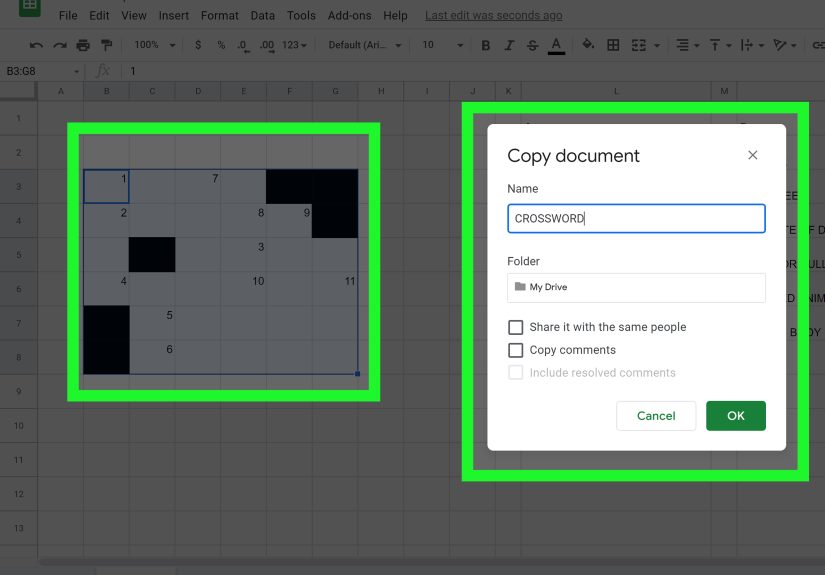
Open a blank Google Sheet and reserve a square area for the crossword. For example, if you want an 11 by 11 puzzle, use cells A1 through K11. This will be your board.
Make the cells look like squares
This is the step that transforms “spreadsheet” into “crossword.” Select the rows and columns in your puzzle area and resize them so the height and width match closely. Exact pixel perfection is not required, but the cells should look square enough that no one mistakes your crossword for a barcode.
Then apply borders to the entire range. All borders usually works best. Once every cell has a visible box, the puzzle instantly becomes easier to design and easier to read.
Clean up the visual style
Set horizontal and vertical alignment to center. Use a readable font. Keep the font size modest so one letter fits clearly in each cell. Bold is optional, but centered text is not. A crossword with off-center letters looks like it got dressed in the dark.
If you plan to place clue numbers in the same cell as letters, Sheets can feel limiting because it is not a dedicated publishing tool. The cleaner method is to keep letters in the grid and place clue numbers in a separate clue list. If you really want numbers inside cells, you can fake it with notes or comments during editing, but for publishing and usability, a separate numbered clue section is much smoother.
Step 3: Add Black Squares
Now map out the blocked cells. Click the cells that should be black squares and fill them with a dark background color. Black is standard, but dark gray also works if you want something softer for print. Remove any letters from these cells and leave them visually solid.
At this point, your puzzle starts to look real. It also starts revealing whether your structure makes sense. If the layout feels cramped, unbalanced, or full of awkward dead ends, this is the time to adjust it. Do not wait until all clues are written. That is how innocent afternoons become regret marathons.
Use a second sheet for planning
A smart move is to create a second tab called something like Word Bank or Answer Key. Keep all your possible answers there, grouped by length or theme. This makes editing easier and helps if you need to swap out a word that refuses to cooperate with the rest of the grid.
Step 4: Place the Answers in the Grid
Start entering your answers one letter per cell. Put the longest answer in first, then build crossing words around it. This is the heart of the project. If you enjoy logic, this is the fun part. If you do not enjoy logic, this is the part where coffee becomes a team member.
Follow basic crossword numbering logic
A word gets a clue number if its first letter begins an Across answer, a Down answer, or both. In practical terms, number a cell if:
- It contains a letter
- It is on the top row or its cell above is black for a Down entry
- It is in the leftmost column or its cell to the left is black for an Across entry
Write those numbers in a clue list area to the right of the grid or on another sheet. For example:
- 1 Across: Cloud spreadsheet from Google
- 1 Down: A single character in a crossword square
- 3 Across: Opposite of black square
You can keep your grid purely letter-based and let the clue list handle the numbering. That approach is cleaner for both editing and printing.
Test every crossing
Every letter should make sense in both directions. If one answer forces a weird abbreviation, a plural that feels unnatural, or a clue that sounds like it was written by a robot pretending to be a dictionary, replace the word. A fun crossword feels fair. A frustrating crossword feels like revenge.
Step 5: Build the Clue Section
Once the grid is stable, create a clue area. You can place it beside the puzzle on the same sheet if space allows, or use a separate tab for a cleaner layout.
Organize clues into Across and Down
Make two sections with headings: Across and Down. List clue numbers in order. Keep clue wording consistent. If one clue is straightforward, do not suddenly make the next one sound like a Shakespearean riddle unless that is your deliberate style.
For classrooms or training use, clarity usually beats cleverness. For casual or themed puzzles, a little humor goes a long way. Just keep the clues solvable by a real human and not only by the wizard who wrote them.
Create a hidden answer key if needed
If other people will solve the puzzle, keep a separate answer key tab. You can duplicate the puzzle sheet and leave the filled version there. That way, one tab is the player version and another is the solution version. Hiding the answer key sheet can reduce clutter, but it should not be treated as serious security. It is more “please do not peek” than “vault door with lasers.”
Step 6: Use Google Sheets Features to Make It Better
This is where Google Sheets becomes more than a static grid. A few built-in tools can make your crossword more polished and easier to manage.
Use dropdowns for clue status
Add a column next to your clue list with a dropdown such as Not Started, In Progress, and Solved. This works especially well for classroom activities, collaborative games, or self-checking puzzle sessions. It gives the puzzle a little dashboard energy without turning it into a software project.
Use conditional formatting
Conditional formatting can highlight solved clues, color completed rows, or visually separate clue categories. For example, if a clue status cell says Solved, you can automatically shade the clue row. This is a small detail, but it makes the sheet feel organized instead of improvised.
Name ranges for cleaner editing
If your clue bank or answer list lives on another sheet, named ranges can make your formulas and references easier to manage. This is especially useful if you build multiple versions of a puzzle or keep reusable topic lists. It is not mandatory, but it does make your spreadsheet feel like it has its life together.
Filter and sort your word bank
If you are experimenting with many possible answers, use filters in your word bank. Sorting by word length can be extremely helpful when you are trying to fill a stubborn section of the grid. It is a simple trick, but it can save a ridiculous amount of time.
Step 7: Format for Sharing or Printing
A crossword that looks good on screen can still print like a gremlin attacked it. Before sharing the final version, switch to print preview and clean things up.
Print only the puzzle area you need
Select the puzzle and clue range you want to print. Then adjust margins, scale, and page layout so the grid and clues fit neatly. If the puzzle spans two pages for no good reason, reduce the range or tweak the scaling. Crosswords are more fun when solvers do not have to assemble them like flat-pack furniture.
Leave breathing room
Do not cram the clue list too close to the grid. White space improves readability. Also make sure black squares print dark enough and letters remain legible. A quick PDF export is worth doing before publishing or distributing the puzzle.
Common Mistakes to Avoid
- Uneven cells: If rows and columns are not sized consistently, the puzzle looks sloppy.
- Too many isolated words: A crossword should feel interconnected, not like separate islands pretending to be friends.
- Weak clue numbering: If numbering is inconsistent, solvers get lost fast.
- Overcomplicated clues: Challenging is good. Confusing is not.
- No test solve: Always solve your own puzzle from the clue list before sharing it.
- Ignoring print preview: The screen is forgiving. The printer is not.
A Simple Workflow Example
Let’s say you want to make a beginner-friendly 9 by 9 crossword about technology. You list words like SHEETS, CELL, GRID, FORMULA, DATA, and FILTER. You place FORMULA first because it is long. Then you cross DATA through the A, GRID through the R, and CELL through the L. Once the crossings work, you add black squares to shape the remaining space, fill the clue list, and create a second tab with the completed answer key. Finally, you format the puzzle area for print and export a PDF.
That is the whole method in miniature. The actual construction may take a few rounds of rearranging, but the workflow stays the same: plan, format, fill, clue, test, and publish.
What It’s Actually Like to Build a Crossword in Google Sheets
The real experience of making a crossword puzzle on Google Sheets is half satisfying design exercise and half tiny logic comedy. At the beginning, the sheet looks too plain to become anything interesting. You are staring at a blank grid of cells thinking, “Surely this cannot turn into a legitimate puzzle.” Then you add borders, resize the rows and columns, drop in a few black squares, and suddenly the spreadsheet starts looking suspiciously like a crossword. That moment is oddly delightful. It feels like you taught office software to host game night.
What surprises most people is how visual the process becomes. You are not just typing words into boxes. You are balancing shape, spacing, clue order, and readability all at once. A word may be perfect by itself but awkward in the grid. Another may fit beautifully but create a terrible crossing that leads to a clue no one on Earth would enjoy solving. So the work becomes a series of tradeoffs: keep the clean pattern, or keep the better word? Make the clue harder, or make the fill smoother? It is a puzzle for the creator before it is ever a puzzle for the solver.
Google Sheets also gives the process a practical, low-drama feel. Because everything is right there in cells, edits are fast. You can duplicate a tab before experimenting, keep a clue bank on one sheet, maintain a solution key on another, and test alternate versions without wrecking the main puzzle. That flexibility is a huge advantage. Dedicated crossword tools may offer more publishing precision, but Sheets wins on speed and familiarity. Most people already know how to click, drag, fill color, and copy a tab. That lowers the barrier immediately.
There is also something genuinely enjoyable about the problem-solving rhythm. You place one good answer and suddenly three others become possible. Then a single bad crossing jams the whole section like a shopping cart with one broken wheel. You remove a word, try another, reshuffle a black square, and everything opens back up. Those little breakthroughs are what make the process fun. It is not flashy fun. It is more “I fixed the grid and now I feel strangely powerful” fun.
Another common experience is realizing that clue writing is its own separate craft. A good clue is not just accurate. It needs the right tone. It should guide without giving everything away. In classroom or business settings, clues often need to be direct and instructional. In casual puzzles, they can be witty, themed, or playful. The tricky part is consistency. If one clue sounds breezy and human while the next sounds like it escaped from a textbook, the puzzle feels uneven. Many creators spend almost as much time refining clues as they do arranging the answers.
Finally, the best part of using Google Sheets is that the finished crossword is easy to share. You can print it, export it, duplicate it for a fresh class, or let a group collaborate on solving it. That makes the effort feel useful, not just clever. You are not building a puzzle that gets trapped inside a niche tool. You are building something flexible enough to live in a classroom, a team activity, a party handout, or a simple PDF online. For a humble spreadsheet app, that is pretty impressive. Not bad for software most famous for budgets, attendance logs, and quietly judging your typing speed.
Final Thoughts
If you want a practical, affordable, and surprisingly effective way to build a crossword, Google Sheets gets the job done. The key is to think like both a puzzle maker and a spreadsheet editor. Plan your words first, build a square grid, use black squares intentionally, keep the clue list organized, and take advantage of Sheets features like dropdowns, conditional formatting, hidden tabs, filters, and print settings.
The result may not replace professional crossword publishing software for advanced constructors, but for teachers, bloggers, students, hobbyists, and teams, it is more than enough. In fact, part of the charm is that it turns a familiar productivity tool into something playful. And honestly, any day you can make a spreadsheet do something fun is a day worth celebrating.