Table of Contents >> Show >> Hide
- What Is IObit Uninstaller v14?
- Key Features of IObit Uninstaller v14
- IObit Uninstaller v14 Interface and Ease of Use
- Performance: Does It Actually Help?
- IObit Uninstaller v14 Free vs Pro
- IObit Uninstaller v14 vs Windows Default Uninstaller
- IObit Uninstaller v14 vs Revo, Geek Uninstaller, and Bulk Crap Uninstaller
- Pros and Cons of IObit Uninstaller v14
- Who Should Use IObit Uninstaller v14?
- Safety Tips Before Using IObit Uninstaller v14
- Hands-On Style Experience Notes: What It Feels Like to Use IObit Uninstaller v14
- Final Verdict: Is IObit Uninstaller v14 Worth It?
IObit Uninstaller v14 is the kind of Windows utility you do not think about until your PC starts collecting random programs like a junk drawer with a power button. One day you install a PDF tool, the next day you notice three browser extensions, a “helper service,” two update agents, and something named like it was assembled from leftover Scrabble tiles. That is where a dedicated uninstaller becomes useful.
Windows already lets you remove apps through Settings, the Start menu, or Control Panel. For basic software, that is usually fine. But standard uninstallers often leave behind folders, registry entries, scheduled tasks, cached installers, browser add-ons, and configuration files. IObit Uninstaller v14 aims to solve that problem by combining normal uninstalling with deeper leftover scanning, stubborn-program removal, bundleware detection, install monitoring, browser extension cleanup, and software health tools.
This review looks at what IObit Uninstaller v14 does well, where it deserves a raised eyebrow, who should use it, and whether it is still worth installing when competitors like Revo Uninstaller, Geek Uninstaller, and Bulk Crap Uninstaller exist. Spoiler: it is useful, friendly, and surprisingly capable, but it is not magic. No uninstaller is. If any app says it can remove every trace of everything forever, please ask it to also find your missing socks.
What Is IObit Uninstaller v14?
IObit Uninstaller v14 is a Windows software removal tool designed to uninstall desktop programs, Microsoft Store apps, bundled programs, browser plugins, unwanted extensions, and stubborn applications that refuse to leave politely. Version 14 was released in October 2024 and introduced several practical upgrades, including a stronger Powerful Scan, improved Install Monitor, enhanced Software Health, a larger stubborn-program database, expanded Software Updater support, a refreshed interface, dark and light skins, and support for 39 languages.
The program supports modern Windows systems, including Windows 11 and Windows 10, while also listing compatibility with older Windows versions. That wide compatibility is helpful for users managing an aging laptop, a home office desktop, or a family PC that has been “temporarily slow” since 2019.
Key Features of IObit Uninstaller v14
1. Thorough Program Removal
The core feature is simple: select a program, uninstall it, then let IObit Uninstaller scan for leftovers. These leftovers may include registry entries, leftover folders, temporary files, configuration traces, installers, and other small pieces that the original uninstaller forgot to clean. This is useful because many software uninstallers remove the main application but leave behind enough debris to make your drive look like a software yard sale.
IObit Uninstaller v14 improves its Powerful Scan engine to detect more residual files and privacy traces. In real-world terms, this means the tool is more aggressive about looking for leftovers after the main removal process finishes. It does not mean you should delete everything blindly. The best practice is to review the results before clicking remove, especially when uninstalling developer tools, antivirus programs, hardware utilities, or anything that shares components with other applications.
2. Stubborn Program Remover
Some programs do not uninstall cleanly because their uninstall entries are broken, their files are missing, their services are stuck, or their built-in uninstaller crashes. IObit Uninstaller v14 includes a Stubborn Program Remover and expands the database used to identify difficult software. This is one of the tool’s strongest selling points.
For example, imagine uninstalling a video converter that no longer appears properly in Windows Settings, yet still launches an update service at startup. Windows may shrug. IObit Uninstaller v14 gives you a dedicated forced removal workflow that can search for related traces and remove them more systematically. It is not guaranteed to solve every broken uninstall, but it gives regular users a much clearer path than digging through Program Files, AppData, Services, Task Scheduler, and the Registry by hand. That manual route is where confidence goes to take a nap.
3. Bundleware Detection
Bundleware is software that arrives attached to another installer. Sometimes it is disclosed clearly; sometimes it appears through tiny checkboxes written in a font size normally reserved for ant footprints. IObit Uninstaller has long emphasized bundleware removal, and v14 continues that focus.
The idea is practical: if a newly installed app brought friends, IObit can help identify related bundled items so you can remove unwanted extras. This feature is especially useful for casual users who install free tools from the web and later wonder why their browser homepage changed or why a mysterious “optimizer” now wants to optimize their wallet.
4. Install Monitor
Install Monitor is one of the smartest parts of IObit Uninstaller v14. Instead of only cleaning after the fact, it can monitor what a program changes during installation. Version 14 improves this system-change detection, including tracking items such as startup entries, services, scheduled tasks, DLL registrations, and other installation traces.
This matters because uninstalling is easier when the tool already knows what was added. Think of it as taking a photo of your room before a party. When the party ends, you know which pizza boxes, mystery cables, and suspiciously sticky cups were not there before.
The feature is especially valuable for users who test lots of software: reviewers, students, developers, gamers trying mods and launchers, or office workers who install one-purpose utilities. If you frequently try new apps, Install Monitor can reduce the chance of leftovers hanging around after uninstalling.
5. Browser Extension and Plugin Removal
Browser clutter is one of the easiest ways for a computer to feel messy even when the desktop looks clean. Toolbars, ad extensions, notification spammers, coupon helpers, and “search assistants” can slow browsing, change settings, and make the internet feel like a carnival booth with pop-ups.
IObit Uninstaller v14 helps manage browser extensions and plugins from one place. It can identify unwanted or suspicious browser add-ons and remove them more conveniently than opening each browser manually. This is not a replacement for a dedicated security tool, but it is a useful cleanup feature for Chrome, Edge, Firefox, and other commonly supported browsers.
6. Software Health
Software Health is IObit’s broader maintenance section. In v14, it is enhanced to detect and fix more software issues. It can help identify leftover files, outdated programs, intrusive notifications, hidden software permissions, unnecessary setup files, and other items that may affect system cleanliness or user experience.
This section is helpful, but it is also where users should slow down and read before clicking “fix all.” Some recommendations are obvious, such as cleaning leftover installer files. Others may require judgment, especially if the tool flags permissions or software behavior that you intentionally allowed. Automation is great until it confidently removes something you actually needed. Computers are excellent at following instructions and terrible at understanding your Tuesday deadline.
IObit Uninstaller v14 Interface and Ease of Use
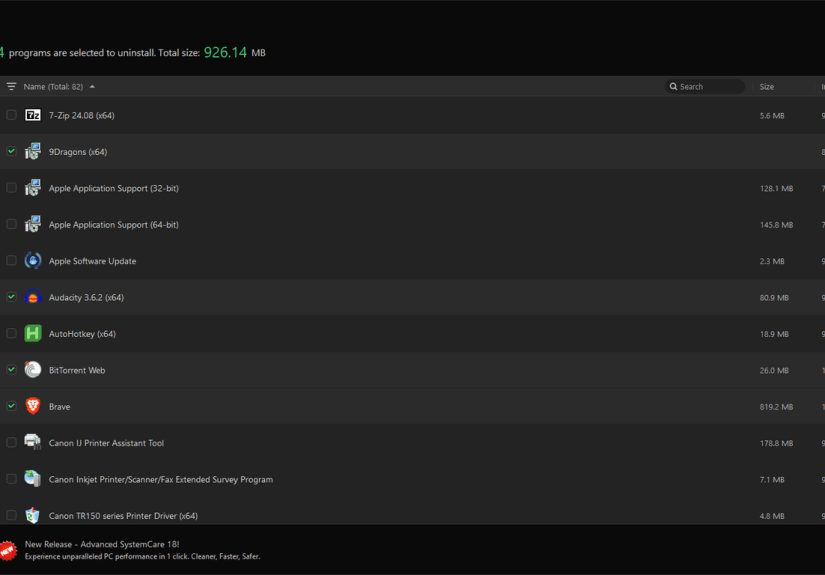
IObit Uninstaller v14 is built for regular Windows users, not only technicians. The interface organizes programs into readable categories, offers search, shows recently installed or large programs, and makes batch uninstalling easy. The refreshed UI in version 14 also includes dark and light skins, which is a small but welcome upgrade. Dark mode will not clean your PC faster, but at least your eyes will not feel like they are uninstalling themselves at midnight.
The workflow is straightforward. You open the app, choose one or more programs, start the uninstall process, allow IObit to run the official uninstaller, and then scan for leftovers. For stubborn apps, you can use forced removal. For open apps or shortcuts, Easy Uninstall and context-style removal tools can make the process quicker.
The learning curve is low. Most users can understand the tool within a few minutes. However, because it deals with registry entries and application leftovers, users should avoid treating every scan result like a game of digital whack-a-mole. When in doubt, create a restore point and read the file paths before removing leftovers.
Performance: Does It Actually Help?
IObit Uninstaller v14 can help free disk space and reduce software clutter, especially on PCs where many programs have been installed and removed over time. The biggest gains usually come from uninstalling large applications, games, bundled programs, old tool suites, and browser add-ons. If your computer is slow because you have twenty startup programs, five updater services, and a small nation of tray icons, cleaning software can make the system feel calmer.
That said, an uninstaller is not a miracle performance booster. If your PC is slow because of low RAM, a failing drive, malware, overheating, too many browser tabs, or Windows updates running in the background, IObit Uninstaller will not single-handedly transform it into a gaming spaceship. Its strength is removal and cleanup, not full system repair.
IObit Uninstaller v14 Free vs Pro
The free version provides the main uninstalling tools most users want: program removal, leftover scanning, browser extension cleanup, batch uninstall, and access to key cleanup functions. For casual home users, that may be enough.
The Pro version typically adds deeper automation, larger databases, stronger cleanup capabilities, automatic updates, and more convenience features. Whether Pro is worth it depends on how often you install and remove software. If you manage several PCs, test apps often, or regularly fight stubborn programs, Pro may save time. If you uninstall a program once every two months, the free version may be perfectly adequate.
One complaint seen across discussions of IObit products is upselling. Free utility software often promotes paid upgrades, and IObit Uninstaller is no exception. The ads and upgrade prompts are not necessarily deal-breakers, but they can be annoying. A good uninstaller should remove clutter, not audition for the role of clutter. Fortunately, the core tool remains useful when used carefully.
IObit Uninstaller v14 vs Windows Default Uninstaller
Windows Settings and Control Panel are fine for normal app removal. They are built in, safe, familiar, and do not require installing another utility. For many users, that is enough.
IObit Uninstaller v14 becomes more useful when Windows cannot fully remove something, when leftovers matter, when browser extensions need cleaning, when multiple programs need removal at once, or when you want a monitored install log for future cleanup. Windows removes the app. IObit tries to remove the app and its crumbs.
The practical recommendation is simple: use Windows for basic apps, and use IObit Uninstaller v14 when you want deeper cleanup, batch removal, or help with stubborn software.
IObit Uninstaller v14 vs Revo, Geek Uninstaller, and Bulk Crap Uninstaller
Revo Uninstaller is one of IObit’s strongest competitors. It offers leftover scanning, forced uninstall, Windows app removal, browser extension tools, backup options, and install monitoring in paid editions. Revo has a strong reputation among advanced users and is a great alternative if you want a more conservative, technician-style tool.
Geek Uninstaller is lightweight, fast, and simple. It is excellent for users who want quick clean removal without a large feature suite. Its interface is refreshingly minimal, and its Force Removal option is handy for broken apps. If IObit feels too busy, Geek may feel like a clean desk after tax season.
Bulk Crap Uninstaller, also known as BCUninstaller, is free and open source. It is especially powerful for removing many applications with automation. Advanced users, IT helpers, and people cleaning a heavily loaded PC may appreciate it. However, it can look more technical than IObit, and beginners may prefer IObit’s friendlier design.
Overall, IObit Uninstaller v14 sits in the middle: easier than BCUninstaller, more feature-rich than Geek Uninstaller, and more consumer-friendly than some technical tools. Revo remains a serious rival, but IObit’s bundleware focus, Software Health section, and polished interface make it appealing for everyday users.
Pros and Cons of IObit Uninstaller v14
Pros
- Easy-to-use interface with dark and light skins.
- Improved leftover scanning in version 14.
- Helpful Stubborn Program Remover for broken uninstallers.
- Install Monitor tracks software changes for cleaner future removal.
- Batch uninstall saves time when cleaning multiple apps.
- Browser extension cleanup is convenient.
- Software Health adds broader maintenance options.
Cons
- Free version may include upgrade prompts or promotional messages.
- Users should review leftover scan results before deleting.
- Not a replacement for antivirus or full system repair software.
- Some advanced users may prefer Revo or BCUninstaller for more control.
- Deep cleanup tools can be risky if used carelessly.
Who Should Use IObit Uninstaller v14?
IObit Uninstaller v14 is a good fit for Windows users who regularly install software, test free tools, remove games, clean browser extensions, or deal with stubborn programs. It is also useful for families, students, small office users, and anyone who wants a simpler way to clean a PC without manually hunting leftover files.
It is less necessary for minimalists who rarely install programs, advanced users who prefer open-source tools, or people who already use another trusted uninstaller. It is also not the right tool for removing serious malware. For that, use reputable security software.
Safety Tips Before Using IObit Uninstaller v14
Before removing stubborn software, create a system restore point. Close the program you want to uninstall. Back up important files if the app stores projects, documents, saves, presets, or plugins. Review leftover scan results carefully. Avoid deleting shared folders or registry entries if you do not recognize them. Download IObit Uninstaller only from the official publisher or trusted software repositories, and avoid cracked versions. A cracked uninstaller is like hiring a burglar to organize your house.
Hands-On Style Experience Notes: What It Feels Like to Use IObit Uninstaller v14
The most realistic experience with IObit Uninstaller v14 is not dramatic. No lightning. No cinematic progress bar. Just a cleaner, calmer uninstall process than Windows normally gives you. The first thing most users notice is that the software list is easier to scan than the Windows Installed Apps page. Large programs, recently installed items, bundleware, Windows apps, and browser extensions are organized in a way that makes cleanup feel less like detective work.
A typical cleanup session starts with sorting by recently installed programs. This is useful when a PC suddenly feels slower after installing a free utility. Instead of guessing, you can look at what arrived recently and remove the obvious troublemakers. If the app brought extra bundled programs, IObit may help identify those too. That is the moment the tool earns its keep, because bundled software rarely introduces itself with a polite handshake.
Batch uninstalling is another practical time-saver. On a neglected laptop, you may find old game launchers, trial tools, duplicate PDF readers, expired VPN clients, printer utilities from printers that retired before your last phone, and update helpers for software you forgot existed. Selecting several items and removing them in one session is much easier than clicking through Windows one app at a time.
The leftover scan is where IObit feels most different from the built-in Windows uninstaller. After the official uninstall finishes, IObit searches for remaining files and registry entries. Most of the time, these are harmless leftovers, but removing them can reduce clutter. The important habit is to scan, review, then remove. Do not use the tool like a vacuum cleaner in a jewelry store. Slow down when the results involve shared folders, drivers, security tools, or development environments.
Install Monitor feels most valuable after you enable it before testing new software. When an installer adds services, scheduled tasks, startup entries, and folders across the system, the monitor gives IObit a better map for removal later. Users who test apps for school, work, tutorials, gaming mods, or productivity experiments will appreciate this feature more than someone who only installs one app a year.
The browser extension manager is also surprisingly satisfying. Browser clutter can be sneaky. One extension adds coupons, another adds search suggestions, a third asks for permissions that sound like it wants to read your diary and borrow your car. Seeing extensions in one cleanup dashboard makes it easier to remove what you do not trust or no longer use.
The only part that may bother some users is the promotional behavior common in free utility software. Upgrade prompts are not unusual, but they can make the experience feel busier than necessary. Still, if you focus on the uninstall tools and avoid clicking every suggested “fix” without review, IObit Uninstaller v14 is comfortable, fast, and beginner-friendly.
Final Verdict: Is IObit Uninstaller v14 Worth It?
IObit Uninstaller v14 is worth considering if you want a friendly Windows uninstaller with stronger cleanup tools than the default Windows options. Its best features are the improved Powerful Scan, Stubborn Program Remover, Install Monitor, batch uninstall, bundleware detection, browser extension cleanup, and Software Health dashboard.
It is not perfect. The free version can feel promotional, and deeper cleanup should be used carefully. Advanced users may prefer Revo Uninstaller for its reputation, Geek Uninstaller for speed and simplicity, or Bulk Crap Uninstaller for open-source batch power. But for everyday Windows users who want a clear, polished, and capable software removal tool, IObit Uninstaller v14 is a strong choice.
The final rating: 4.3 out of 5. It is practical, accessible, and genuinely helpful for removing unwanted programs and leftovers. Just remember: the best uninstaller is not the one that deletes the most things; it is the one that helps you delete the right things.
Note: This article is written as an editorial review based on real IObit Uninstaller v14 product information, public software documentation, Windows uninstall guidance, and comparative analysis of major uninstaller tools. For safety, users should download software only from official or trusted sources and review cleanup results before deleting system-related items.